
1. Introduction
This manual provides detailed instructions for the installation, operation, and maintenance of your Rraycom S-C363-P4 2K Dual-Band WiFi Wireless Outdoor Security Camera System. Please read this manual thoroughly before using the product to ensure proper functionality and safety. Keep this manual for future reference.
2. Package Contents
Verify that all items listed below are present in your package. If any items are missing or damaged, please contact Rraycom customer support.
- 4 x Rraycom Wireless Security Cameras Outdoor
- Mounting Kits (screws, wall anchors)
- USB Charging Cables
- User Manual (this document)

Image 2.1: Rraycom S-C363-P4 Camera System Components. This image shows four white Rraycom security cameras and a smartphone displaying live camera feed, illustrating the complete system.
3. Product Overview
The Rraycom S-C363-P4 camera is a versatile, battery-powered security solution designed for both indoor and outdoor use. It features 2K resolution, dual-band Wi-Fi connectivity, and advanced motion detection capabilities.
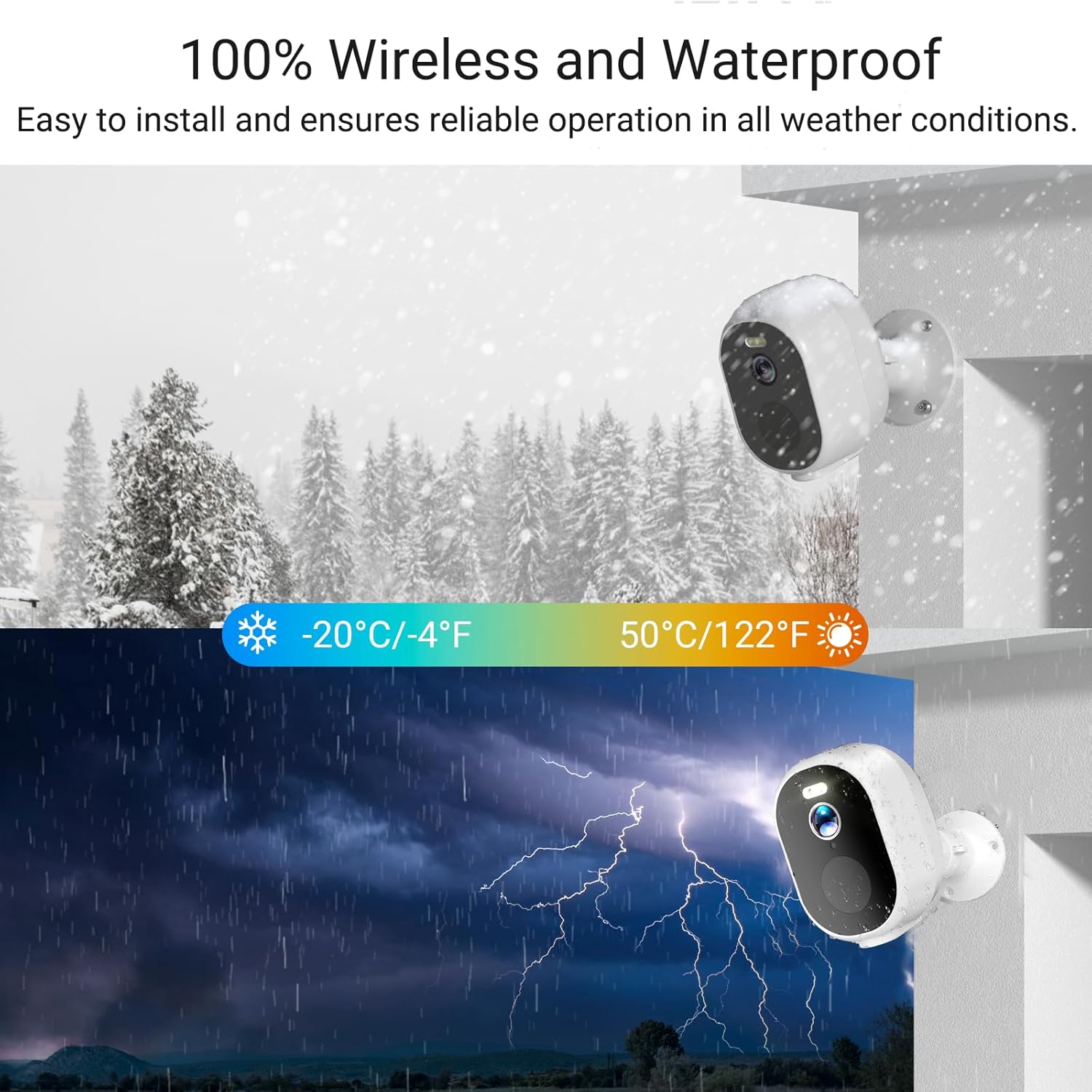
Image 3.1: Weatherproof Design. This image illustrates the camera's IP65 waterproof rating, showing it operating reliably in both snowy and rainy environments.
Key Features:
- 2K QHD Video Resolution: Captures clear and detailed footage.
- Dual-Band WiFi (2.4GHz & 5GHz): Provides flexible and stable wireless connectivity.
- 100% Wire-Free & Rechargeable Battery: Offers easy installation and long-lasting power.
- Color Night Vision: Enhanced visibility in low-light conditions with integrated spotlight.
- AI Motion Detection: Differentiates between people, vehicles, and other objects to reduce false alarms.
- Two-Way Audio: Allows for real-time communication through the camera.
- IP65 Weatherproof: Designed to withstand various outdoor weather conditions.
- Smart Home Integration: Compatible with Amazon Alexa and Google Assistant.
- Flexible Storage: Supports local Micro SD card (up to 128GB) and optional cloud storage.
4. Setup
4.1 Charging the Camera
Before initial use, fully charge each camera using the provided USB cable and a standard 5V/2A USB power adapter (not included). The charging indicator light will typically turn solid green when fully charged. A full charge can last 1-3 months depending on usage and settings.
4.2 Downloading the App
Download the free "Tuya" app from the App Store (iOS) or Google Play Store (Android). Register for an account or log in if you already have one.
4.3 Connecting to Wi-Fi
- Power On: Turn on the camera by pressing the power button.
- Enable Bluetooth: Ensure your smartphone's Bluetooth is enabled.
- Add Device: Open the Tuya app, tap "Add Device" or the "+" icon. The app should automatically detect the camera via Bluetooth. If not, select "Security & Video Surveillance" > "Smart Camera (Wi-Fi)".
- Select Wi-Fi Network: Choose your 2.4GHz or 5GHz Wi-Fi network and enter the password. The camera supports both bands for optimal performance.
- Pairing: Follow the in-app instructions to complete the pairing process. This usually involves scanning a QR code displayed on your phone with the camera lens.
- Confirmation: Once connected, the camera's indicator light will change, and the app will confirm successful pairing.

Image 4.1: Quick Installation Guide. This image visually outlines the three main steps for setting up the camera: powering it on, connecting it through the app via Bluetooth and Wi-Fi, and initiating live viewing.
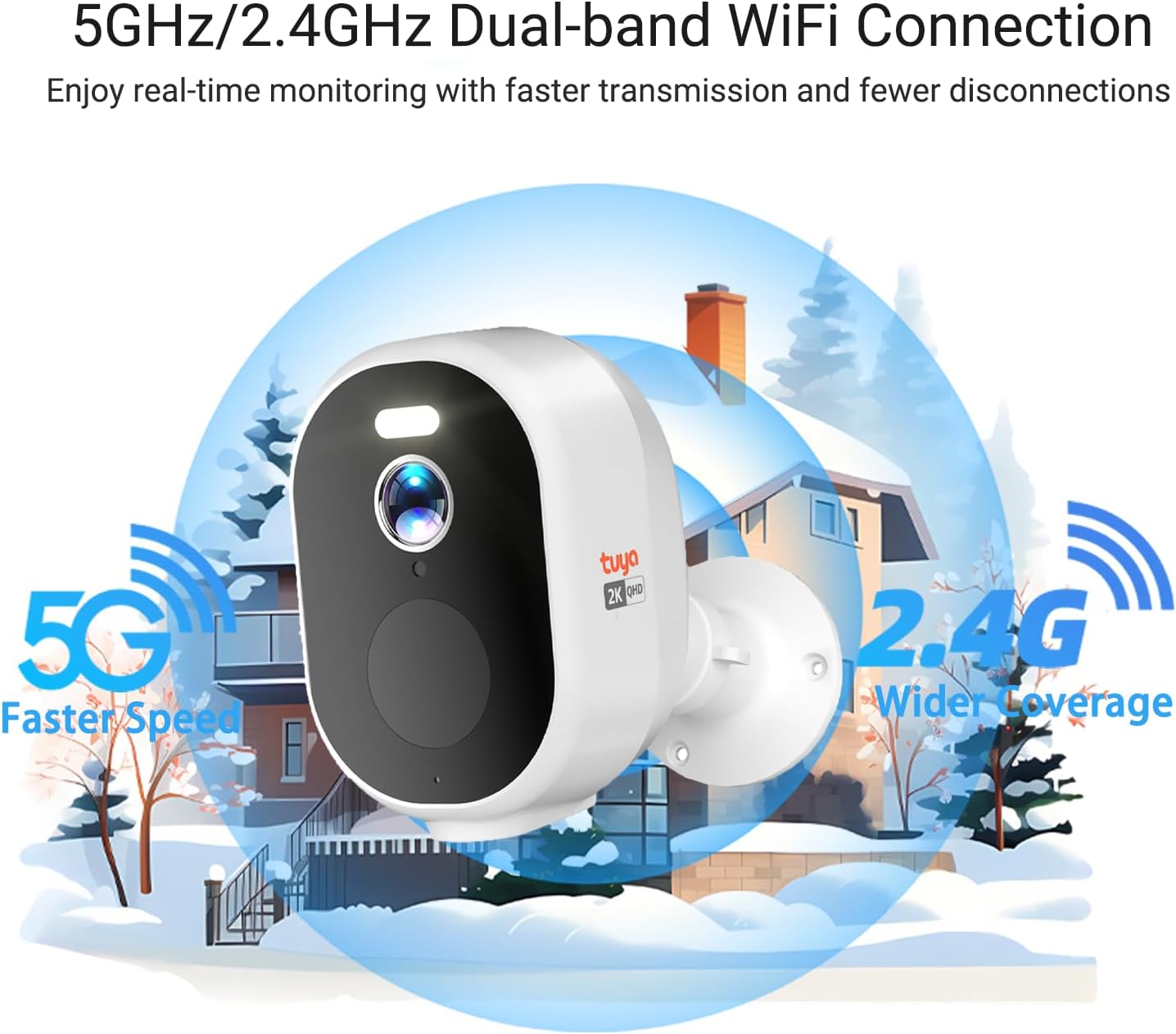
Image 4.2: Dual-Band WiFi Connection. This image highlights the camera's ability to connect to both 5GHz and 2.4GHz Wi-Fi networks, indicating faster speeds for 5GHz and wider coverage for 2.4GHz.
4.4 Mounting the Camera
The camera can be mounted on a wall, ceiling, or placed on a desktop. Choose a location that provides the desired viewing angle (130 degrees) and strong Wi-Fi signal. Avoid direct sunlight or areas with excessive interference.
- Mark Position: Use the mounting bracket to mark the screw holes on the desired surface.
- Drill Holes: Drill pilot holes if necessary and insert wall anchors.
- Secure Bracket: Attach the mounting bracket to the surface using the provided screws.
- Attach Camera: Securely attach the camera to the mounting bracket and adjust the angle as needed.
5. Operating Instructions
5.1 Live View
Open the Tuya app and select the desired camera to view its live feed. You can pinch to zoom (digital zoom up to 5x) and pan within the live view.

Image 5.1: 2K QHD Ultra-Wide Angle. This image demonstrates the superior clarity of 2K QHD resolution and the 130-degree ultra-wide viewing angle compared to 1080P, capturing more details day and night.
5.2 Motion Detection Settings
The camera features advanced PIR (Passive Infrared) motion detection and AI recognition to minimize false alarms.
- Enable/Disable: Navigate to camera settings in the app to enable or disable motion detection.
- Sensitivity: Adjust the PIR sensitivity level to suit your environment.
- AI Recognition: Configure AI detection for specific objects like people, vehicles, or packages to receive more relevant alerts.
- Alerts: Set up instant push notifications to your smartphone when motion is detected.
- Siren & Spotlight: Activate the built-in siren and spotlight to deter intruders. These can be triggered automatically upon detection or manually via the app.

Image 5.2: AI Precision Detection. This image illustrates the camera's AI capabilities to accurately identify and categorize various threats such as people, animals, packages, vehicles, and even flames, reducing false alarms.

Image 5.3: Smart PIR Motion Detection & Instant Alert. This image depicts the camera detecting a person, activating a spotlight, sending an app notification, and sounding a siren to deter potential intruders.
5.3 Two-Way Audio
Use the two-way audio feature to communicate with individuals near the camera. Tap the microphone icon in the live view to speak, and listen through the camera's speaker.

Image 5.4: Two-Way Audio. This image illustrates the camera's two-way audio functionality, allowing users to speak and listen to people within the monitoring range.
5.4 Night Vision Modes
The camera offers both infrared (traditional) and full-color night vision, with a range of up to 100 feet. The integrated spotlight enables color night vision in dark conditions.

Image 5.5: 2K QHD Color Night Vision. This image compares the clarity and detail of 2K QHD color night vision, enabled by PIR LEDs and white lights, against traditional black and white night vision in a dim outdoor setting.
5.5 Storage Options
- Micro SD Card: Insert a Micro SD card (up to 128GB, not included) into the camera's designated slot for local storage. Recordings can be accessed and managed via the Tuya app without monthly fees.
- Cloud Storage: An optional cloud storage subscription is available for secure backup of your recordings. Refer to the Tuya app for subscription details and pricing.

Image 5.6: No Monthly Fees. This image clarifies that local SD card storage (up to 128GB, not included) does not incur monthly fees, while cloud storage is an optional subscription service.
5.6 Smart Home Integration
Integrate your Rraycom cameras with Amazon Alexa or Google Assistant for convenient voice control and live viewing on compatible smart displays.
- Alexa: Enable the "Tuya Smart" skill in the Alexa app and link your Tuya account. Use commands like "Alexa, show me the [camera name]".
- Google Assistant: Link your Tuya account in the Google Home app. Use commands like "Hey Google, show me the [camera name] on [device name]".

Image 5.7: Compatible with Alexa and Google Assistant. This image demonstrates the camera's compatibility with smart home platforms, showing a live feed on a smart display and indicating voice control capabilities.
5.7 Sharing Access
You can share camera access with family members or trusted individuals through the Tuya app. Go to the camera settings, select "Share Device," and follow the prompts to invite others.

Image 5.8: Share the Camera with Your Family. This image shows several individuals viewing the camera's live feed on their smartphones, highlighting the feature that allows sharing access to the security camera.
6. Maintenance
- Battery Charging: Recharge the camera battery when the app indicates a low battery level. Regular charging ensures continuous operation.
- Cleaning: Periodically clean the camera lens and housing with a soft, damp cloth to remove dust and debris. Do not use harsh chemicals.
- Firmware Updates: Check the Tuya app regularly for firmware updates. Keeping the firmware updated ensures optimal performance and security.
- SD Card Management: If using an SD card, periodically review and delete old footage to free up space, or enable loop recording if supported.
7. Troubleshooting
| Problem | Possible Solution |
|---|---|
| Camera fails to connect to Wi-Fi. |
|
| Frequent disconnections. |
|
| Motion detection not working or too many false alarms. |
|
| Poor night vision quality. |
|
| Battery drains quickly. |
|
8. Specifications
| Feature | Detail |
|---|---|
| Model Number | S-C363-P4 |
| Video Resolution | 2K (1440p) |
| Connectivity | 2.4GHz / 5GHz Dual-Band Wi-Fi, Bluetooth |
| Power Source | Rechargeable Battery Powered (5V DC) |
| Battery Life | 1-3 months (depending on usage) |
| Night Vision | Color Night Vision, 100 Feet Range |
| Motion Detection | PIR Sensor, AI Human/Vehicle/Package Detection |
| Audio | Two-Way Audio (Built-in Mic & Speaker) |
| Viewing Angle | 130 Degrees |
| Digital Zoom | 5x |
| Storage Options | Micro SD Card (up to 128GB, not included), Cloud Storage (optional subscription) |
| Weather Resistance | IP65 Waterproof |
| Operating Temperature | -13°F to 122°F (-20°C to 50°C) |
| Dimensions (L x W x H) | 2.8 x 2.8 x 4.8 inches |
| Material | Acrylonitrile Butadiene Styrene (ABS) |
| Compatibility | Amazon Alexa, Google Assistant, Tuya App (iOS/Android) |
9. Warranty and Support
Rraycom products come with a standard manufacturer's warranty. For specific warranty terms and conditions, please refer to the product packaging or contact Rraycom customer support.
If you encounter any issues or have questions regarding your Rraycom S-C363-P4 camera system, please contact our support team:
- Email: aftersale@rraycom.com
- Online Support: Visit the official Rraycom website for FAQs and additional resources.

Image 9.1: Rraycom Logo.


