
Introduction
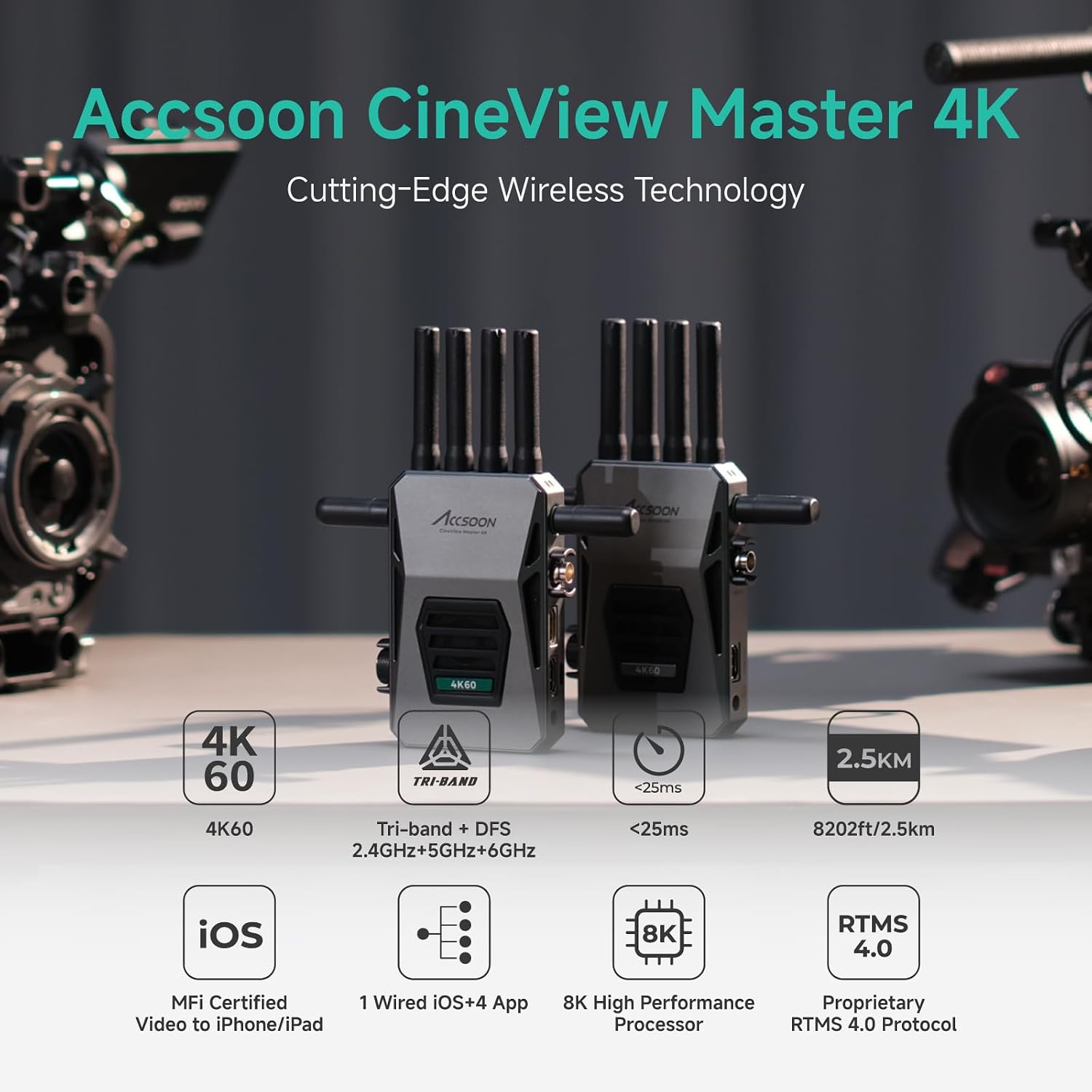
The Accsoon CineView Master 4K is a cutting-edge wireless video transmission system designed for professional filmmaking and video production. It supports 4K UHD video transmission, features tri-band (2.4GHz, 5GHz, 6GHz) technology for robust connectivity, and offers ultra-low latency for real-time monitoring. This manual provides detailed instructions for setting up, operating, and maintaining your CineView Master 4K system.
What's in the Box
Please verify that all items are present in your package:
- CineView Master 4K Transmitter x1
- CineView Master 4K Receiver x1
- 2.4GHz/5GHz Antenna x8
- 6GHz Antenna x4
- Cold Shoe Adapters x2
- USB-C to USB-C Cable x1
- USB-C to Lightning Cable x1
- L-shape Wrench x1
- User Manual x1

Product Overview and External Ports
The CineView Master 4K system consists of a Transmitter (TX) and a Receiver (RX) unit, both featuring a robust all-aluminum housing and a full-color LCD display for status and settings. Each unit is equipped with multiple ports for versatile connectivity.

Transmitter (TX) Ports:
- SDI Input: 3G SDI for professional camera setups.
- HDMI Input: Full 4K60 transmission capability.
- HDMI Loopout: Passes through lossless 4K60 video signals to other devices.
- USB Video Out: Wired USB video output port for iOS devices.
- DC Power Input: 5.5mm*2.1mm (7.4-16.8V) for DC adapter power inputs.
Receiver (RX) Ports:
- SDI Output: 3G SDI for professional monitoring setups.
- HDMI Output: Passes through lossless 4K60 video signals.
- DC Power Input: 5.5mm*2.1mm (7.4-16.8V) for DC adapter power inputs.

Video Tutorial: Accsoon CineView Master 4K Overview
Video: This video provides a comprehensive overview of the Accsoon CineView Master 4K, highlighting its features and connectivity options.
Setup Instructions
1. Antenna Installation
Screw the provided 2.4GHz/5GHz antennas onto the top ports and the 6GHz antennas onto the side ports of both the Transmitter and Receiver units. Ensure they are securely fastened.
2. Power Options
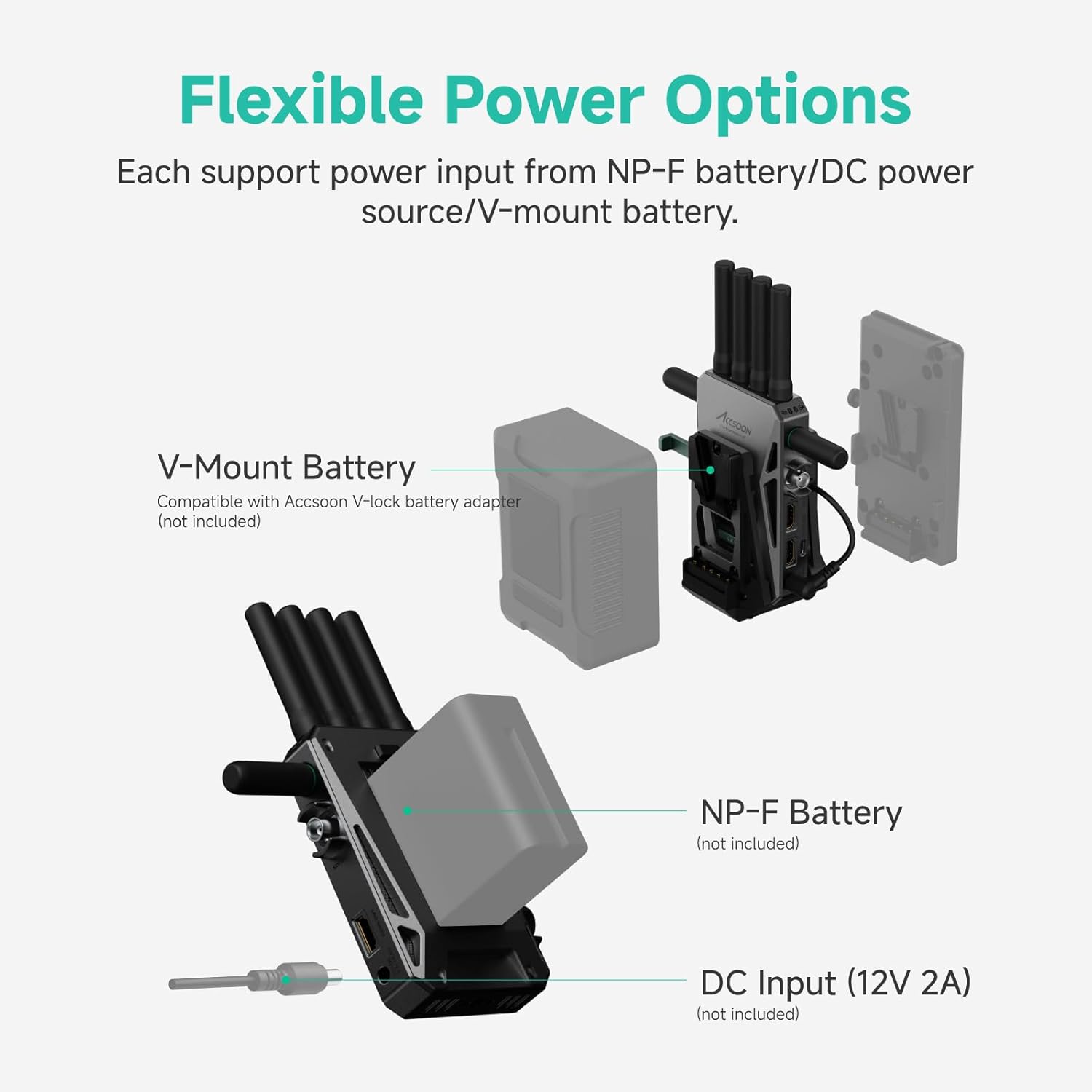
The CineView Master 4K offers flexible power solutions:
- NP-F Battery: Attach a compatible NP-F970/750/550 battery (not included) to the battery plate on the rear of the unit.
- DC Input: Connect a 12V/2A DC power source (not included) to the DC input port.
- V-Mount Battery: Use with an Accsoon V-mount battery plate (not included) for V-mount battery power.

3. Power On/Off
- Power On: Short press the power button once.
- Power Off: Long press the power button for 3 seconds.
4. Menu Navigation
Use the menu/OK knob to rotate and press to browse and modify settings on the full-color LCD display. The return button allows you to go back to the previous page or cancel a selection.
Operating Instructions
1. 4K UHD Video Transmission
The CineView Master 4K supports video input/output formats up to (3840x2160) 24/25/30/50/60 fps via HDMI and 1080P via 3G SDI/HDMI. It uses advanced H.265 encoding for clear and sharp video quality.

2. Tri-Band Transmission (2.4GHz, 5GHz, 6GHz)
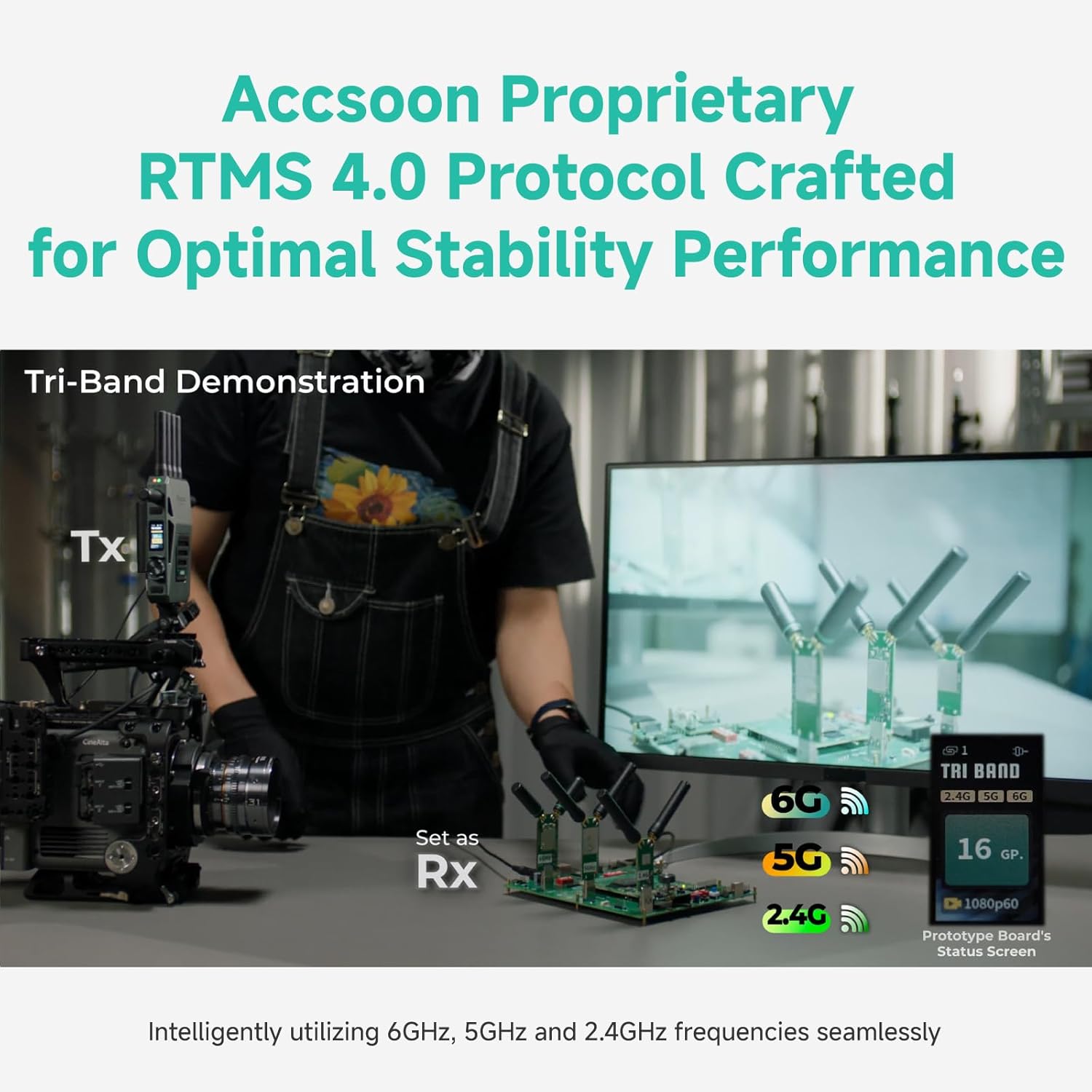
Equipped with Accsoon's proprietary RTMS 4.0 protocol and an 8K High-Performance A/V Processor, the system integrates 2.4GHz, 5GHz, and 6GHz frequencies for stable and robust transmission. This tri-band technology dynamically allocates and aggregates data links to ensure optimal reliability and minimal interference.
Video: 6GHz, 5GHz and 2.4GHz Tri-band Demonstration
Video: A demonstration showcasing the seamless operation and stability of the CineView Master 4K's tri-band transmission across 2.4GHz, 5GHz, and 6GHz frequencies.
3. Ultra-Low Latency and Extended Range
Experience ultra-low latency of less than 25ms for 1080p 60fps and less than 35ms for 4K 60fps (camera latency not included). The system boasts an extended transmission range of up to 2.5 km (8202 ft) in unobstructed, interference-free environments, measured per FCC standards.
4. Monitoring Options
The CineView Master 4K offers flexible monitoring solutions:
- 1 Wired iOS Monitoring: Connect your iOS device (iPhone 12 or later, compatible iPad models) via USB-C to the transmitter for smooth, MFi-certified monitoring. The transmitter also charges your device.
- 4 Wireless Monitoring: Transmit video wirelessly to up to four devices, including CineView Master Receivers, CineView M7 Pro camera monitors, and compatible Android/iOS mobile devices.
5. Accsoon SEE App
The Accsoon SEE App is a professional monitoring solution for both wired and wireless connections. It offers a comprehensive suite of features:
- Live streaming and recording
- Focus peaking, false color, zebra, waveforms, audio level meters
- Pinch-to-zoom, image flip, grids, screenshot, desqueeze
- Frame.io Camera to Cloud integration for automatic footage uploads.
6. Flexible Fan Control
The CineView Master 4K allows you to adjust the fan speed to suit various shooting scenarios, reducing device temperature while maintaining quiet operation when needed.
- Standard Mode: Fan speed adjusts automatically based on temperature.
- Quiet Mode: Reduces fan speed for silent environments.
- Off: Turns off the fan completely.

7. Setting 4K HDMI Output
To receive 4K video, ensure the HDMI output signal of your camera is set to 3840x2160 before use. Note: 4K video cannot be recognized via SDI cables. When outputting from the camera to the Master 4K using SDI, video will only display if the camera's SDI output format is set to 1920x1080P.

Specifications
| Feature | Detail |
|---|---|
| Brand | Accsoon |
| Model Number | Master 4K Transmitter and Receiver |
| Connectivity Technology | HDMI, SDI, Wi-Fi |
| Wireless Technology | 2.4GHz, 5GHz, 6GHz |
| Video Encoding | H.264, H.265/HEVC |
| Supported Formats | 4K, Surround Sound |
| Total HDMI Ports | 1 |
| Control Method | App |
| Item Dimensions (D x W x H) | 1.25"D x 5.1"W x 3.7"H |
| Item Weight | 1.26 Kilograms |
| Power Options | NP-F Battery, DC Input (12V/2A), V-Mount Battery (with adapter) |
Firmware Update
Accsoon regularly releases firmware updates to enhance performance and add new features. It is recommended to keep your CineView Master 4K updated to the latest firmware version.
Update Process via Accsoon SEE App:
- Ensure your smartphone or iPad is connected to the internet.
- Open the Accsoon SEE App and select 'CineView Master 4K'.
- Navigate to the 'Firmware Update' section within the app.
- Download the latest firmware package through the app.
- Once downloaded, connect your iOS device to the CineView Master 4K Transmitter using the provided USB-C or Lightning cable.
- Follow the on-screen instructions in the app to transfer the firmware package to the transmitter.
- The transmitter will perform an internal update and reboot.
- If you have a paired receiver, it will prompt you to update as well. Confirm to proceed with the receiver update.
Important: Ensure both the transmitter and receiver have at least 50% battery charge before starting a firmware update.
Video: Recent Firmware Update Tutorial
Video: A tutorial demonstrating the process of updating the firmware on your Accsoon CineView Master 4K system.
Troubleshooting
- No Video Signal: Check all HDMI/SDI cable connections. Ensure the camera's output format matches the system's capabilities (e.g., 4K output set to 3840x2160). Verify that the correct input source is selected on your monitoring device.
- Unstable Connection: Ensure antennas are securely attached. Check for excessive wireless interference in the environment. Try changing the channel in the system settings. Ensure the units are within the specified transmission range.
- App Connection Issues: Verify your mobile device is connected to the CineView Master 4K's Wi-Fi network. Ensure the Accsoon SEE App is updated to the latest version.
- Device Overheating: Adjust the fan control settings to 'Standard' or 'Off' if operating in a quiet environment. Ensure air vents are not obstructed.
Warranty
The Accsoon CineView Master 4K comes with a 1-year manufacturer's warranty. Please retain your proof of purchase for warranty claims.
Support
For further assistance, please visit the Accsoon Official Store or contact customer support through the official Accsoon website.