
1. Product Overview
The EWEADN G61 is a 60% compact wireless mechanical keyboard designed for versatility and ergonomic comfort. It features a retro typewriter style with round keycaps and offers three connection modes: Bluetooth 5.0, 2.4GHz wireless, and USB-C wired. The keyboard is equipped with red mechanical switches for a responsive typing experience and includes white backlighting with multiple effects.
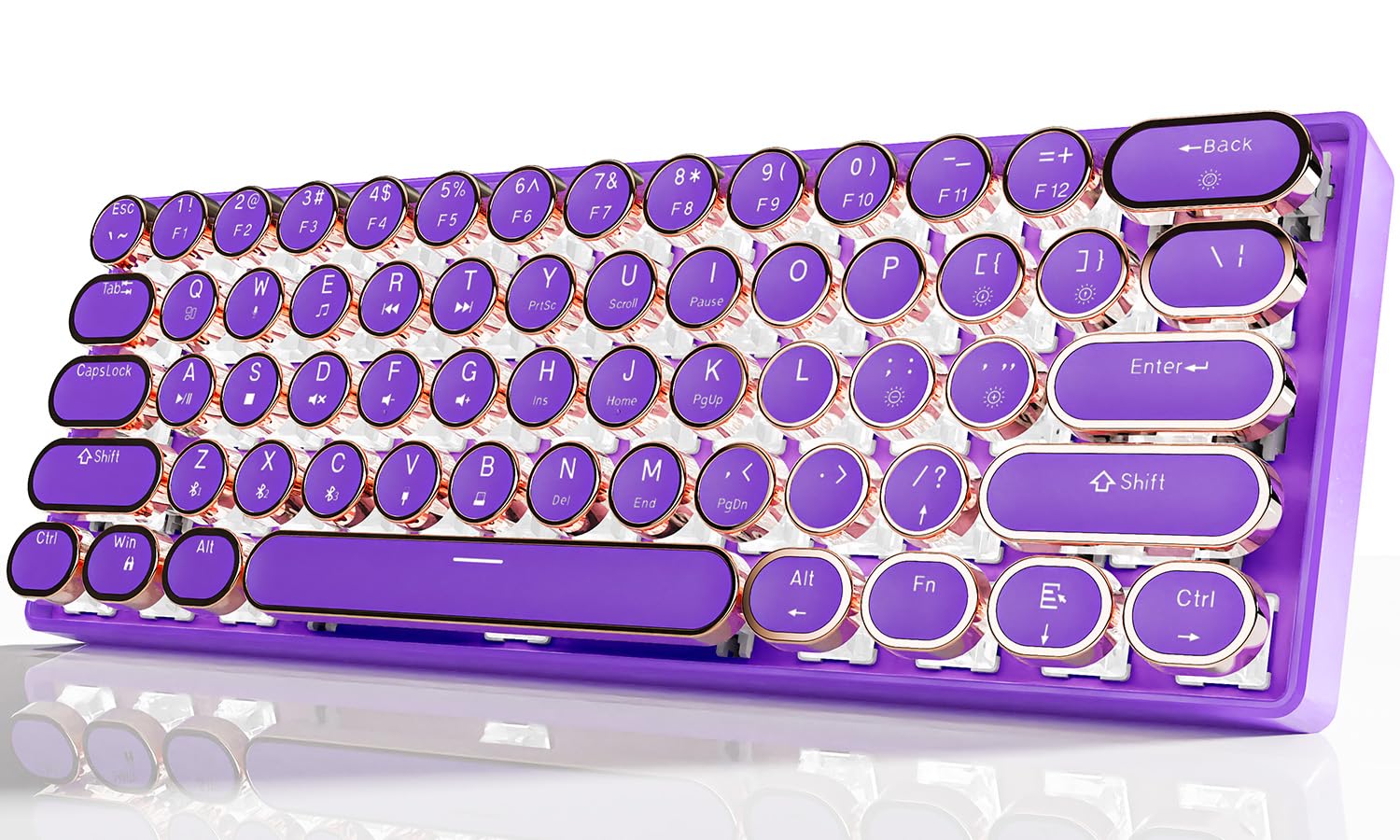
Image 1.1: EWEADN G61 Wireless Mechanical Typewriter Keyboard in purple, showcasing its compact design and round keycaps.
This keyboard supports connection to up to 5 devices simultaneously, allowing seamless switching between various platforms like tablets, laptops, and smartphones. Its metal panel construction ensures durability, while the anti-ghosting technology provides accurate input for both typing and gaming.
2. What's in the Box
- EWEADN G61 Wireless Mechanical Typewriter Keyboard
- USB Cable (for wired connection and charging)
- 2.4GHz USB Receiver (typically stored in the keyboard)
- User Manual (this document)
3. Specifications
| Model | G61 |
| Connectivity Technology | Bluetooth 5.0, 2.4GHz Wireless, USB-C Wired |
| Key Switch Type | Red Mechanical Switches (Linear, 3-PIN, 45±10gf Operating Force, 2.0±0.6mm Pre-Travel) |
| Keycap Style | Retro Typewriter Style Round Keycaps |
| Backlighting | White Backlight with 19 effects, 5 brightness levels, 5 breathing speeds |
| Anti-Ghosting | Full-key Anti-ghosting |
| Battery | 1 Lithium Ion battery (included), 2000 mAh |
| Compatible Devices | PC, Mac laptops, Tablets, Desktop computers, Gaming Consoles, Smart TVs, Smartphones |
| Operating Systems | Windows 7/8/10/XP/Vista, Linux, Mac OS |
| Material | Aluminum Alloy (panel), Acrylonitrile Butadiene Styrene (ABS) |
| Item Weight | 1.6 pounds |
| Dimensions | 13 x 5.8 x 2.3 inches |

Image 3.1: Close-up view of the G61 keyboard's red mechanical switch mechanism.
4. Setup Instructions
4.1 Charging the Keyboard
Before first use, fully charge the keyboard using the provided USB-C cable. Connect one end to the keyboard's USB-C port and the other end to a USB power source (e.g., computer, wall adapter).

Image 4.1: The USB-C charging port located on the keyboard.
4.2 Connection Modes
The G61 keyboard supports three connection modes: Bluetooth, 2.4GHz wireless, and USB-C wired. You can connect up to 5 devices simultaneously and switch between them.

Image 4.2: Visual representation of the three connection modes: Bluetooth, 2.4G Wireless, and Type-C Wired.
4.2.1 2.4GHz Wireless Mode
- Locate the 2.4GHz USB receiver, usually stored in a compartment on the keyboard.
- Plug the USB receiver into an available USB port on your computer or device.
- Press Fn + B on the keyboard to switch to 2.4GHz wireless mode. The keyboard should connect automatically.

Image 4.3: Illustration of plugging in the 2.4GHz USB receiver.
4.2.2 Bluetooth Mode (BT1, BT2, BT3)
- Ensure the keyboard is powered on.
- Press Fn + Z, Fn + X, or Fn + C to select one of the three Bluetooth channels (BT1, BT2, BT3). The corresponding key's backlight will flash, indicating pairing mode.
- On your device (computer, tablet, phone), go to Bluetooth settings and search for "G61 Keyboard" or a similar name.
- Select the keyboard to pair. Once connected, the key's backlight will stop flashing.
- To switch between paired Bluetooth devices, press Fn + Z/X/C for the desired channel.
4.2.3 USB-C Wired Mode
- Connect the provided USB-C cable to the keyboard's USB-C port.
- Connect the other end of the cable to a USB port on your computer.
- The keyboard will automatically switch to wired mode. Press Fn + V to ensure wired mode is active.
- No drivers or software installation is required for wired mode.
5. Operating Instructions
5.1 Backlight Control
The G61 keyboard features white backlighting with various effects and adjustable brightness.
- Fn + Delete: Cycle through 19 different lighting effects.
- Fn + {[/: Decrease backlight brightness (5 levels).
- Fn + }/]: Increase backlight brightness (5 levels).
- Fn + ;/:: Decrease breathing speed (5 levels).
- Fn + '/": Increase breathing speed (5 levels).
- Fn + Spacebar (hold for 3 seconds): Reset lighting effects to default.

Image 5.1: Diagram showing key combinations for backlight control.
5.2 Function Keys (Fn Combinations)
The keyboard utilizes Fn key combinations for various functions due to its compact 60% layout.
| Function | Key Combination |
| Switch Window | Fn + Q |
| Play/Pause | Fn + A |
| Switch Window | Fn + W |
| Play/Pause | Fn + S |
| Multimedia | Fn + E |
| Mute | Fn + D |
| Previous Song | Fn + R |
| Volume - | Fn + F |
| Next Song | Fn + T |
| Volume + | Fn + G |
| Arrow Keys | Fn + Right Alt, Fn + /, Fn + Menu, Fn + Ctrl (Specific combinations may vary, refer to keyboard legends) |

Image 5.2: A visual guide to common Fn key combinations for multimedia and system control.
6. Maintenance
- Cleaning: Use a soft, dry cloth to wipe the keyboard surface. For deeper cleaning, use compressed air to remove dust and debris from between the keycaps. Avoid using harsh chemicals or abrasive materials.
- Keycap Removal: Keycaps can be carefully removed for cleaning or replacement using a keycap puller (not included). Gently pull straight up to avoid damaging the switch.
- Storage: Store the keyboard in a cool, dry place away from direct sunlight and extreme temperatures.
- Battery Care: To prolong battery life, avoid fully discharging the keyboard frequently. Charge it when the battery indicator is low.
7. Troubleshooting
7.1 Connectivity Issues
- Keyboard not connecting (Wireless/Bluetooth):
- Ensure the keyboard is charged.
- Verify the correct mode is selected (Fn + B for 2.4GHz, Fn + Z/X/C for Bluetooth).
- For 2.4GHz, ensure the USB receiver is securely plugged in. Try a different USB port.
- For Bluetooth, ensure your device's Bluetooth is enabled and the keyboard is in pairing mode. Remove previous pairings and re-pair if necessary.
- Try restarting both the keyboard and the connected device.
- Frequent disconnections:
- Ensure the keyboard is within the effective range of your device (typically up to 10 meters for Bluetooth/2.4GHz).
- Minimize interference from other wireless devices (Wi-Fi routers, other Bluetooth devices).
- Ensure the keyboard has sufficient battery charge.
- If using 2.4GHz, try moving the USB receiver closer to the keyboard or using a USB extension cable.
7.2 Keys Not Responding / Input Lag
- Check if the keyboard is properly connected in your chosen mode.
- Ensure the battery is charged.
- Try switching to wired mode to rule out wireless interference.
- Clean any debris or dust from under the affected keycaps.
7.3 Backlight Not Working
- Ensure the keyboard is powered on and charged.
- Adjust brightness using Fn + }/].
- Try resetting the lighting effects by holding Fn + Spacebar for 3 seconds.
Video 7.1: A demonstration of the G61 keyboard's RGB lighting and mechanical switches. This video shows the keyboard's aesthetic features and responsiveness.
8. Warranty and Support
The EWEADN G61 keyboard comes with a manufacturer's warranty. For specific warranty details, please refer to the product packaging or contact the seller directly.
8.1 Contacting Support
If you encounter any issues or have questions not covered in this manual, please contact the seller or manufacturer for assistance. You can typically find contact information on the product's purchase page or through the seller's store on the platform where you purchased the item.

Image 8.1: Guide on how to contact customer support through the online marketplace.

