
1. Introduction
The CHUWI LarkBox X is a compact and powerful mini PC designed for a wide range of applications, from light office work and 4K video playback to online education and design tasks. Featuring the 12th Gen Intel Alder Lake-N100 Processor, 12GB LPDDR5 RAM, and a 512GB SSD, it offers robust performance in a small form factor. This manual provides detailed instructions for setting up, operating, maintaining, and troubleshooting your LarkBox X Mini PC.
2. Package Contents
Please verify that all items are present in the package:
- CHUWI LarkBox X Mini PC
- Power Adapter
- HDMI Cable
- VESA Mount Kit (Screws included)
- User Manual (this document)
- USB-C Hub (optional, may vary by package)

Image: The CHUWI LarkBox X Mini PC shown alongside an included USB-C hub, highlighting its compact design and accessory.
3. Product Overview & Ports
Familiarize yourself with the various ports and components of your LarkBox X Mini PC.
Front and Rear Panel Interfaces
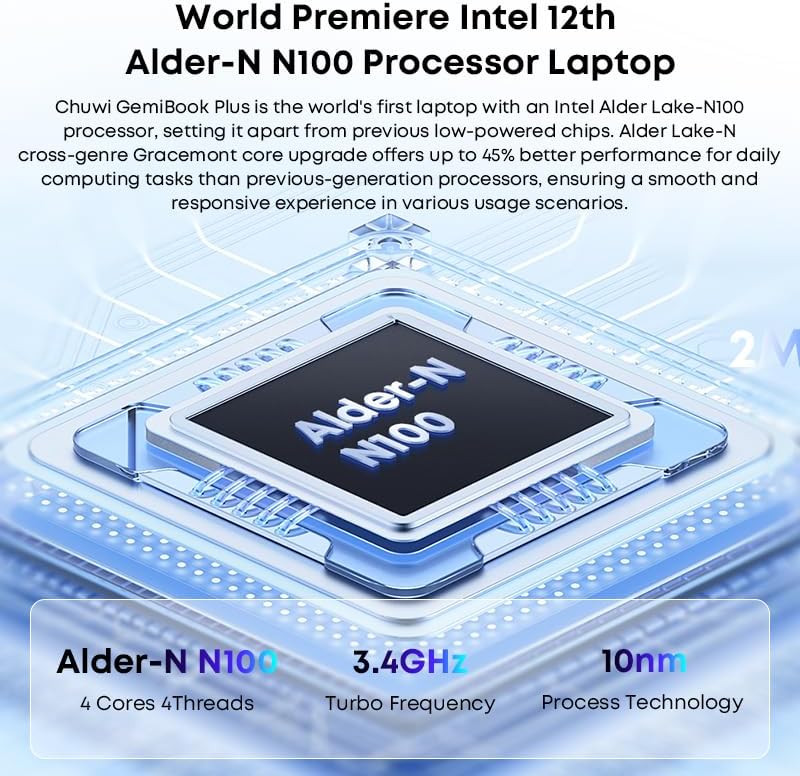
Image: A diagram illustrating the various ports on the front and rear panels of the LarkBox X Mini PC, including USB, audio, power, and display outputs.
- Front Panel:
- 2 x USB 3.0 Gen1 Ports
- 1 x USB-C Port (Full-featured)
- 1 x 3.5mm Audio Jack (Headphone/Microphone Combo)
- Power Button
- Rear Panel:
- 2 x USB 3.2 Gen2 Ports
- 2 x RJ45 Gigabit LAN Ports
- 1 x HDMI 2.0 Port
- 1 x DisplayPort (DP)
- 1 x DC Power Input Jack
Included USB-C Hub (if applicable)

Image: The included USB-C hub, detailing its ports including USB-A, TF/SD card reader, and its compatibility with various devices for extended connectivity.
The optional USB-C hub expands connectivity, typically including additional USB-A ports, an SD/TF card reader, and potentially an HDMI output, allowing for more peripherals and external storage.
4. Initial Setup
Follow these steps to set up your LarkBox X Mini PC for the first time:
- Connect Display: Connect your monitor(s) to the Mini PC using the HDMI, DisplayPort, or full-featured USB-C port.
- Connect Peripherals: Plug in your keyboard, mouse, and any other USB devices into the available USB ports.
- Connect Network (Optional): For a wired connection, connect an Ethernet cable to one of the RJ45 LAN ports. For Wi-Fi, you will configure it during the Windows setup.
- Connect Power: Insert the power adapter cable into the DC Power Input Jack on the rear panel, then plug the adapter into a power outlet.
- Power On: Press the Power Button on the front panel. The system will boot up.
- Windows Setup: Follow the on-screen instructions to complete the Windows 11 initial setup, including language, region, network connection, and user account creation.
5. Operating Instructions
Your LarkBox X Mini PC comes pre-installed with Windows 11. Basic operation is similar to any standard Windows desktop computer.
Basic Operation
- Power On/Off: Press the power button to turn on. To shut down, click the Start button in Windows, then select Power > Shut down.
- Restart: From the Start menu, select Power > Restart.
- Sleep Mode: From the Start menu, select Power > Sleep.
Connectivity
- Wi-Fi: To connect to a wireless network, click the Wi-Fi icon in the taskbar, select your network, enter the password, and click Connect. The device supports Wi-Fi 6 for fast and stable connections.
- Bluetooth: To pair Bluetooth devices (e.g., keyboard, mouse, speakers), go to Settings > Bluetooth & devices, turn on Bluetooth, and select 'Add device'. The device supports Bluetooth 5.2.
- USB Devices: Simply plug in your USB devices (e.g., external hard drives, flash drives) into the available USB 3.0 or USB 3.2 Gen2 ports.
6. Performance & Storage
The LarkBox X is equipped with advanced components for efficient performance and ample storage.

Image: An illustration highlighting the 12GB LPDDR5 RAM and 512GB PCIe SSD, indicating the system's memory and storage capabilities.
- Processor: Powered by the 12th Gen Intel Alder Lake-N100 Processor (4C/4T, up to 3.4GHz), providing efficient performance for daily computing tasks.
- Memory: Features 12GB LPDDR5 RAM, ensuring smooth multitasking and application performance.
- Storage: Comes with a 512GB PCIe SSD for fast boot times and quick application loading. The M.2 2280 SATA3 SSD slot supports storage upgrades up to 1TB.
- Graphics: Integrated Intel UHD Graphics supports 4K@60Hz resolution, suitable for media consumption and light graphics tasks.
7. Multi-Screen Display Configuration
The LarkBox X supports simultaneous output to up to three screens, enhancing productivity and entertainment.

Image: The LarkBox X Mini PC connected to three external monitors, demonstrating its triple-screen 4K@60Hz output capability for an expanded workspace.
You can connect up to three displays using a combination of the following ports:
- 1 x HDMI 2.0 Port (supports 4K@60Hz)
- 1 x DisplayPort (DP) (supports 4K@60Hz)
- 1 x Full-featured USB-C Port (supports 4K@60Hz video output)
To configure multiple displays in Windows 11:
- Connect all desired monitors to the Mini PC.
- Right-click on an empty area of the desktop and select 'Display settings'.
- Under 'Multiple displays', you can detect, identify, and arrange your displays.
- Choose how you want your desktop to appear on the displays (e.g., Extend these displays, Duplicate these displays).
8. Maintenance & Care
Proper maintenance ensures the longevity and optimal performance of your LarkBox X Mini PC.
- Cleaning: Regularly clean the exterior with a soft, dry cloth. Do not use liquid cleaners or aerosols. Ensure ventilation openings are free from dust and debris. The built-in fan cooling system helps manage heat, but keeping vents clear is crucial.
- Software Updates: Keep your Windows operating system and drivers updated to ensure security, stability, and performance. Go to Settings > Windows Update to check for updates.
- Environmental Conditions: Operate the Mini PC in a well-ventilated area, away from direct sunlight, heat sources, and excessive moisture.
- Power Management: Use only the provided power adapter. Avoid frequent power cycles.
9. Troubleshooting
This section addresses common issues you might encounter with your LarkBox X Mini PC.
| Problem | Possible Solution |
|---|---|
| No power/System does not turn on |
|
| No display on monitor |
|
| Wi-Fi connection issues |
|
| System is slow or unresponsive |
|
10. Technical Specifications
Detailed specifications for the CHUWI LarkBox X Mini PC.
| Feature | Specification |
|---|---|
| Model Name | LarkBox X |
| Processor | Intel Alder Lake-N100 (4C/4T, up to 3.4GHz) |
| Graphics | Intel UHD Graphics (Integrated) |
| RAM | 12GB LPDDR5 |
| Storage | 512GB PCIe SSD (M.2 2280 SATA3 slot, upgradeable to 1TB) |
| Operating System | Windows 11 |
| Wireless Connectivity | Wi-Fi 6 (802.11ax), Bluetooth 5.2 |
| Ethernet | 2 x Gigabit RJ45 LAN Ports |
| USB Ports | 2 x USB 3.2 Gen2, 2 x USB 3.0 Gen1 |
| Video Output | 1 x HDMI 2.0 (4K@60Hz), 1 x DisplayPort (4K@60Hz), 1 x Full-featured USB-C (4K@60Hz) |
| Audio Port | 1 x 3.5mm Audio Jack |
| Dimensions | Approx. 5.0 x 5.0 x 1.9 inches (12.7 x 12.7 x 4.8 cm) |
| Weight | Approx. 400g |
11. Warranty & Support
CHUWI products are designed for reliability and performance. For warranty information and technical support, please refer to the warranty card included with your product or visit the official CHUWI website. You can also contact CHUWI customer service directly for assistance with product issues, troubleshooting, or general inquiries.
Official CHUWI Website: www.chuwi.com

