
1. Introduction
Thank you for choosing the ProtoArc XK01 Foldable Bluetooth Keyboard and EM11 NL Ergonomic Mouse combo. This manual provides detailed instructions for setting up, operating, and maintaining your new wireless peripherals. Please read this manual thoroughly before use to ensure optimal performance and longevity of your devices.

Figure 1: ProtoArc XK01 Foldable Bluetooth Keyboard and EM11 NL Ergonomic Mouse.
2. Important Safety Information
- Keep the devices away from water, fire, and high temperatures.
- Do not attempt to disassemble or modify the devices.
- Use only the provided charging cable or a certified equivalent.
- Avoid dropping or subjecting the devices to strong impacts.
- Dispose of batteries according to local regulations.
3. Package Contents
Please check the package for the following items:
- ProtoArc XK01 Foldable Bluetooth Keyboard
- ProtoArc EM11 NL Ergonomic Mouse
- USB-C Charging Cable
- User Manual
- Carrying Pouch (for keyboard)
- Phone Stand
4. Product Overview
4.1. ProtoArc XK01 Foldable Bluetooth Keyboard
The XK01 keyboard features a full-size 105-key layout, including a numeric keypad, designed for efficient typing. Its foldable design makes it highly portable for business and travel. The scissor-switch keys provide a quiet and responsive typing experience.

Figure 2: The XK01 keyboard's durable folding mechanism, designed for longevity.

Figure 3: Scissor-switch key structure for quiet and comfortable typing.

Figure 4: Stable hinge design keeps the keyboard flat and stable, with the Type-C charging port visible.
4.2. ProtoArc EM11 NL Ergonomic Mouse
The EM11 NL is an ergonomic vertical mouse designed to promote a natural "handshake" wrist and arm position, reducing fatigue. It offers versatile connectivity with dual Bluetooth 4.0 and 2.4G USB modes.
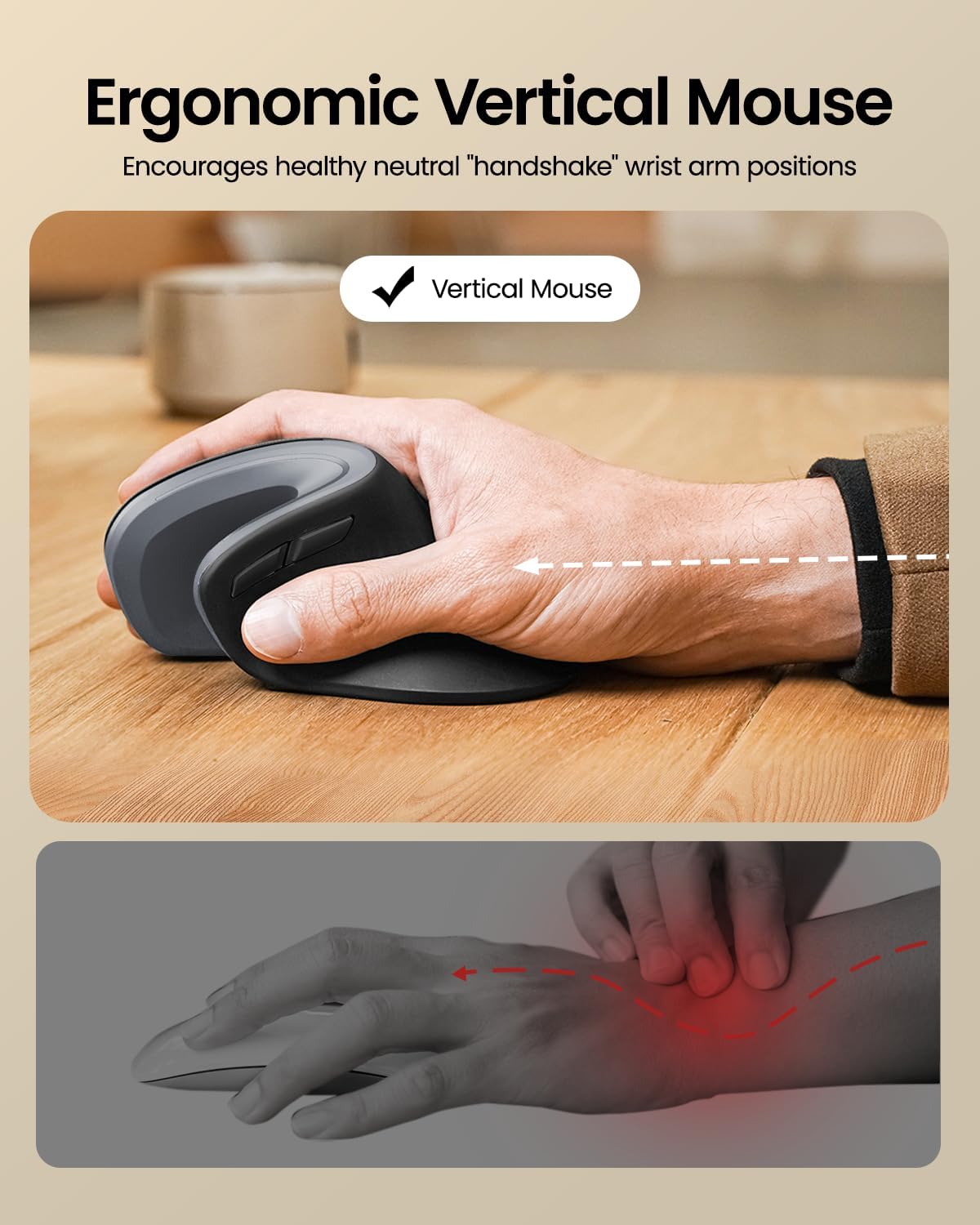
Figure 5: The ergonomic design of the EM11 NL mouse encourages a healthy neutral wrist position.

Figure 6: The EM11 NL mouse features a 58-degree angle for a natural handshake grip.
5. Setup and Connection
5.1. Charging the Devices
Both the keyboard and mouse are rechargeable via the included USB-C cable.
- Connect the USB-C end of the cable to the charging port on the device.
- Connect the USB-A end to a power source (e.g., computer USB port, USB wall adapter).
- The charging indicator light will show the charging status.
- Keyboard: A full charge provides approximately 5 months of standby time.
- Mouse: A full charge takes 4-5 hours and provides approximately 90 days of standby time.

Figure 7: The EM11 NL mouse charging via its Type-C port.
5.2. Connecting the XK01 Keyboard (Bluetooth)
The XK01 keyboard can connect to up to three Bluetooth devices simultaneously.
- Power On: Unfold the keyboard to power it on.
- Select Channel: Press Fn + BT1, Fn + BT2, or Fn + BT3 to select a Bluetooth channel. The corresponding indicator light will flash slowly.
- Enter Pairing Mode: Press and hold Fn + C for 3-5 seconds until the indicator light flashes rapidly, indicating it's in pairing mode.
- Enable Bluetooth on Device: On your computer, tablet, or smartphone, enable Bluetooth and search for new devices.
- Pair: Select "ProtoArc XK01" from the list of available devices. Follow any on-screen prompts to complete the pairing.
- Switch Devices: To switch between paired devices, simply press Fn + BT1/BT2/BT3.

Figure 8: The XK01 keyboard supports connecting to multiple devices via Bluetooth.
5.3. Connecting the EM11 NL Mouse (Bluetooth & 2.4G USB)
The EM11 NL mouse supports both Bluetooth 4.0 and 2.4G USB connectivity, allowing connection to up to three devices.
2.4G USB Connection:
- Power On: Turn on the mouse using the switch on the bottom.
- Select 2.4G Mode: Press the mode switch button on the bottom of the mouse until the 2.4G indicator light is active.
- Connect Dongle: Plug the 2.4G USB receiver into an available USB port on your computer. The mouse should connect automatically.
Bluetooth Connection (BT1/BT2):
- Power On: Turn on the mouse using the switch on the bottom.
- Select Bluetooth Channel: Press the mode switch button on the bottom of the mouse to select BT1 or BT2. The corresponding indicator light will flash slowly.
- Enter Pairing Mode: Press and hold the mode switch button for 3-5 seconds until the indicator light flashes rapidly, indicating it's in pairing mode.
- Enable Bluetooth on Device: On your computer, tablet, or smartphone, enable Bluetooth and search for new devices.
- Pair: Select "ProtoArc EM11 NL" from the list of available devices. Follow any on-screen prompts to complete the pairing.
- Switch Devices: To switch between paired devices, simply press the mode switch button to cycle through 2.4G, BT1, and BT2.
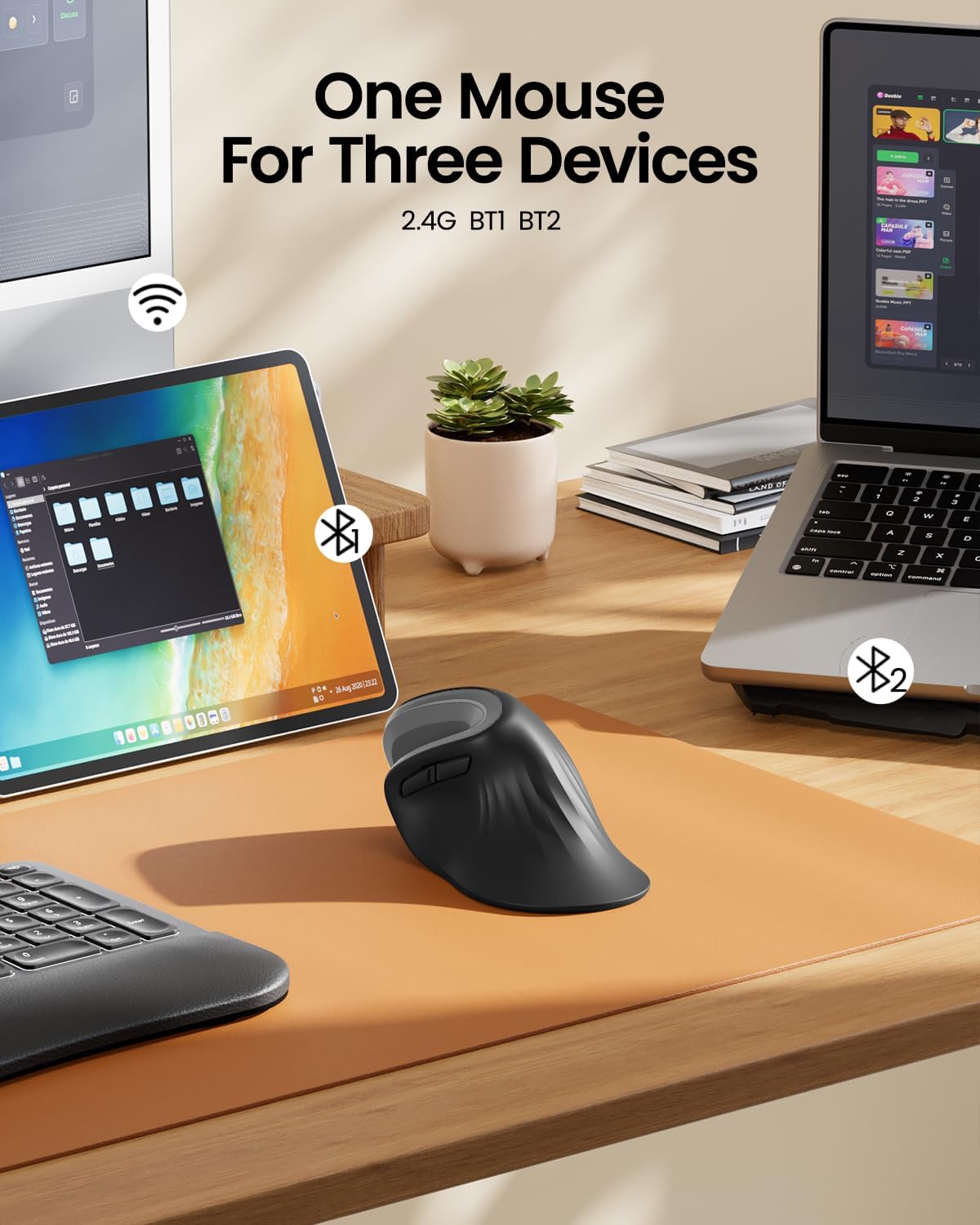
Figure 9: The EM11 NL mouse can connect to three devices, switching between 2.4G and two Bluetooth channels.
6. Operating Instructions
6.1. Keyboard Usage
- Power On/Off: Unfold the keyboard to power it on. Fold it to power off.
- Function Keys: Use the Fn key in combination with the F1-F12 keys for multimedia controls and other functions. Refer to the key legends for specific actions.
- Operating System Mode: The keyboard automatically adapts to Windows, iOS, and Android systems. For specific functions, you may need to press Fn + Q (Android), Fn + W (Windows), or Fn + E (iOS/Mac) to optimize key mapping.
6.2. Mouse Usage
- DPI Adjustment: The mouse typically has a DPI button (often located near the scroll wheel) to adjust cursor sensitivity. Press it to cycle through different DPI settings.
- Forward/Backward Buttons: Side buttons on the mouse can be used for navigation (forward/backward) in web browsers or file explorers.
- Scroll Wheel: Use the scroll wheel for vertical scrolling.
7. Maintenance
- Cleaning: Use a soft, dry cloth to clean the surfaces of the keyboard and mouse. For stubborn dirt, a slightly damp cloth with mild soap can be used, ensuring no liquid enters the device.
- Storage: When not in use, fold the keyboard and store both devices in a cool, dry place, preferably in their carrying pouch, to protect them from dust and damage.
- Battery Care: To prolong battery life, avoid fully discharging the devices frequently. Charge them regularly, even if not in constant use.
8. Troubleshooting
| Problem | Solution |
|---|---|
| Device not connecting via Bluetooth. |
|
| Mouse 2.4G USB connection not working. |
|
| Keys/Mouse buttons are unresponsive. |
|
| Keyboard is unstable when unfolded. |
|
9. Specifications
9.1. ProtoArc XK01 Foldable Bluetooth Keyboard
- Model: XK01
- Layout: Full-size, 105-key with numeric keypad
- Connectivity: Bluetooth (connects up to 3 devices)
- Key Type: Scissor-switches
- Battery: 210 mAh rechargeable
- Standby Time: Up to 5 months
- Folded Dimensions: Approximately 8.46" x 4.68" x 0.78"
- Compatible OS: Windows, iOS, Android
9.2. ProtoArc EM11 NL Ergonomic Mouse
- Model: EM11 NL
- Type: Ergonomic Vertical Mouse (58° angle)
- Connectivity: Dual Bluetooth 4.0 (BT1, BT2) and 2.4G USB (connects up to 3 devices)
- Battery: Rechargeable
- Charging Time: 4-5 hours
- Standby Time: Up to 90 days
- Compatible OS: Windows 8+, Mac OS X 10.12+, Android 4.3+
10. Support and Warranty
For technical support or warranty inquiries, please contact ProtoArc customer service. You can typically find contact information on the product packaging, the official ProtoArc website, or through your retailer.
Website: www.protoarc.com
Please retain your proof of purchase for warranty claims.


