
1. Product Overview
The Ulefone Armor 27T is a rugged smartphone designed for durability and advanced functionality, featuring thermal imaging, a high-resolution camera system, and a robust battery. This manual provides essential information for setting up, operating, maintaining, and troubleshooting your device.
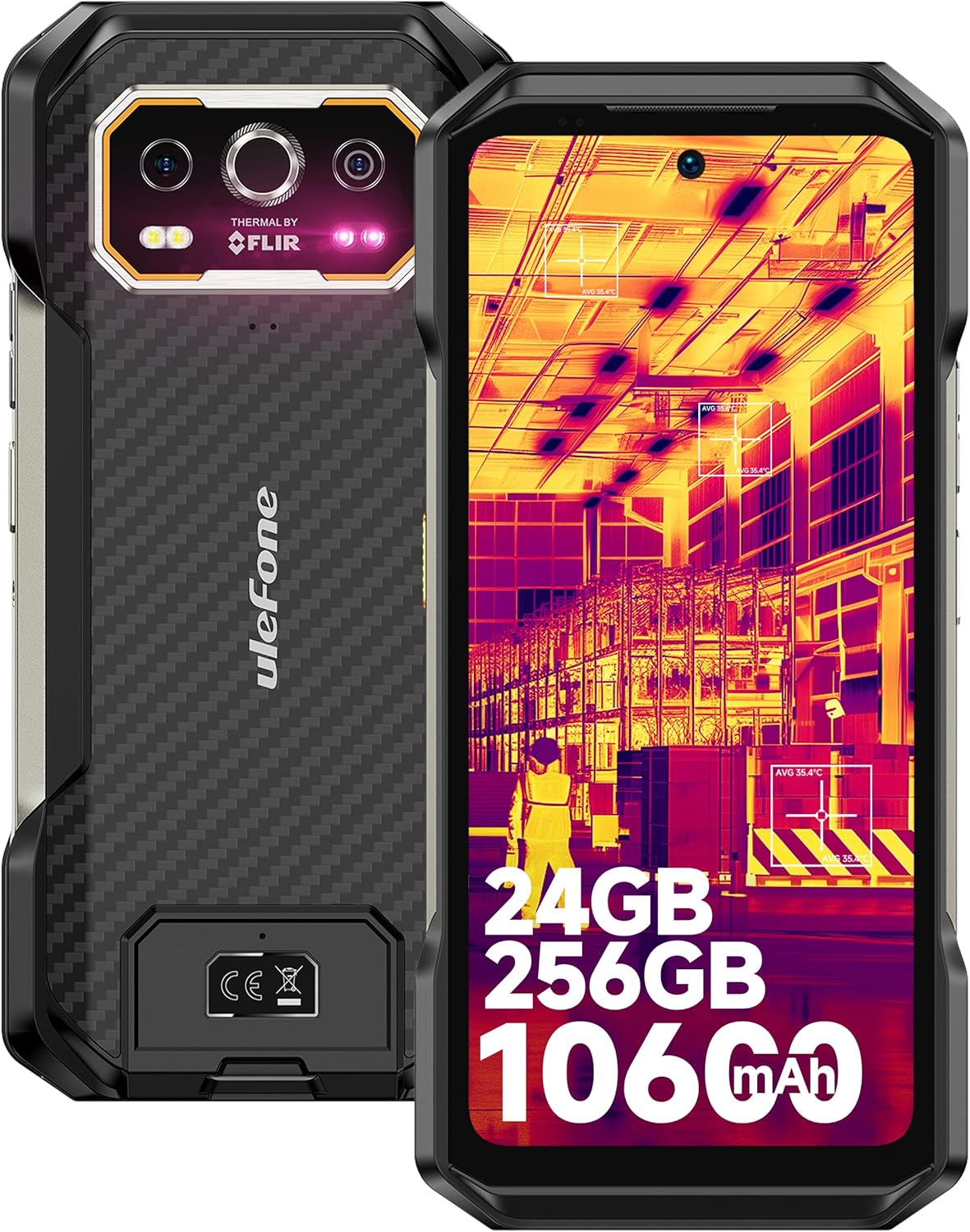
Image 1.1: Front and rear view of the Ulefone Armor 27T, showcasing its rugged design and thermal camera module.
2. Package Contents
Verify that all items are present in your product package:
- Ulefone Armor 27T Smartphone
- AC power charger (33W)
- Type-C to Type-C Data cable (100cm)
- Screen Protector (pre-applied or in box)
- SIM Tray Ejector
- Lanyard
- User Manual (this document)

Image 2.1: The Ulefone Armor 27T and its included accessories.
3. Setup Guide
3.1. SIM Card and TF Card Installation
- Locate the SIM card tray on the side of the device.
- Insert the SIM tray ejector tool into the small hole next to the tray and press firmly until the tray pops out.
- Place your Nano-SIM card(s) and/or TF card into the designated slots on the tray. Ensure the gold contacts face downwards. The device supports a 3-card slot configuration.
- Carefully reinsert the tray into the phone until it is flush with the device body.
3.2. Initial Charging
Before first use, fully charge your Ulefone Armor 27T.
- Connect the Type-C cable to the charging port at the bottom of the phone.
- Connect the other end of the cable to the 33W AC power charger.
- Plug the charger into a power outlet. The charging indicator will appear on the screen.
- For wireless charging, place the phone on a compatible 30W Qi wireless charging pad (sold separately).

Image 3.1: The Ulefone Armor 27T undergoing 33W fast charging.
3.3. Powering On/Off
- To Power On: Press and hold the Power button (located on the right side) until the Ulefone logo appears.
- To Power Off: Press and hold the Power button, then select 'Power off' from the options on the screen.
- To Restart: Press and hold the Power button, then select 'Restart' from the options.
4. Operating Instructions
4.1. Basic Navigation
The Ulefone Armor 27T runs on Android 14. Navigate the interface using touch gestures:
- Tap: Select an item.
- Swipe: Scroll through screens or lists.
- Pinch: Zoom in or out on images and web pages.
- Long Press: Access contextual menus or move icons.

Image 4.1: Android 14 OS interface examples.
4.2. Thermal Imaging Camera (FLIR Lepton)
The integrated FLIR Lepton thermal micro-camera allows you to detect infrared light and visualize heat signatures. This is useful for various applications such as:
- Detecting heat loss in buildings.
- Identifying electrical issues.
- Locating objects in low visibility conditions (darkness, smoke).
- Monitoring temperature changes in mechanical systems.
The camera features MSX and VividlR image processing for enhanced clarity. Temperature measurement range is -10°C to 450°C.

Image 4.2: Key technologies in the thermal camera, including FLIR Lepton.

Image 4.3: Examples of thermal camera applications.
4.3. Camera System
The Armor 27T features a versatile camera setup:
- 50MP Main Rear Camera: Equipped with a Samsung ISOCELL GN1 sensor (1/1.31" ultra-large, 1.2um pixel size, F/1.65 aperture) for high-quality photos.
- 64MP Night Vision Camera: OMNIVISION'S OV64B sensor with two infrared LEDs and upgraded Ulefone NightElf Ultra 3.0 algorithm for clear images in complete darkness.
- 32MP Front Camera: Samsung GD1 Sensor with a 5P lens and 80.4° field of view for selfies and video calls.

Image 4.4: Using the 64MP Night Vision Camera.
4.4. uSmart Expansion Connector
The custom uSmart Expansion Connector allows for integration with professional accessories (sold separately), such as endoscopes, microscopes, or external night vision cameras, extending the phone's utility.

Image 4.5: uSmart Expansion Connector and compatible accessories.
4.5. Other Features
- NFC: For contactless payments and data transfer.
- Custom Key: A programmable button for quick access to specific functions or apps.
- IR Blaster: Control compatible infrared devices.
- Headset-Free FM Radio: Listen to FM radio without needing headphones as an antenna.
- Outdoor Toolbox: A suite of utility apps for outdoor activities.
- GPS + GLONASS + Beidou + Galileo: Multiple navigation systems for accurate positioning.
- Fingerprint Unlock & Face Unlock: Biometric security options.

Image 4.6: Overview of additional features.
5. Maintenance
5.1. Cleaning Your Device
To maintain optimal performance and appearance:
- Wipe the screen and body with a soft, lint-free cloth.
- For stubborn dirt, slightly dampen the cloth with water or a screen cleaner.
- Avoid using harsh chemicals, abrasive cleaners, or compressed air.
- Ensure all port covers are securely closed before cleaning with liquids.
5.2. Battery Care
The 10600mAh battery is designed for extended use. To prolong its lifespan:
- Avoid exposing the device to extreme temperatures (below -30°C or above 55°C) for prolonged periods.
- Use only the provided charger or certified compatible chargers.
- Do not fully discharge the battery regularly; partial discharges are generally better for lithium-ion batteries.
5.3. Water and Dust Resistance
The Armor 27T is certified IP68/IP69K and MIL-STD-810H, making it resistant to water, dust, and drops. However, proper care is still necessary:
- Ensure all port covers are tightly sealed before exposing the phone to water or dust.
- Do not intentionally submerge the phone in water beyond the specified depth (1.5m) or duration (30 minutes).
- Rinse the phone with clean water if exposed to saltwater or other corrosive liquids, then dry thoroughly.
- Avoid dropping the phone from excessive heights, as extreme impacts can compromise its seals.

Image 5.1: Ruggedness and environmental resistance features.
6. Troubleshooting
If you encounter issues with your Ulefone Armor 27T, try the following steps:
6.1. Common Issues
- Device not turning on: Ensure the battery is charged. Connect to the charger for at least 10 minutes before attempting to power on.
- Charging issues: Check the charging cable and adapter for damage. Ensure the charging port is clean and free of debris. Try a different outlet.
- Poor network signal: Check if your SIM card is correctly inserted. Move to an area with better network coverage. Contact your service provider if the issue persists.
- Apps crashing or freezing: Close and reopen the app. Clear the app's cache and data in Settings > Apps. Restart the phone.
- Touchscreen unresponsive: Restart the device by holding the power button. If unresponsive, force restart by holding the power button for an extended period (usually 10-15 seconds).
6.2. Factory Reset (Last Resort)
A factory reset will erase all data from your phone and restore it to its original factory settings. Back up all important data before proceeding.
- Go to Settings.
- Navigate to System > Reset options.
- Select Erase all data (factory reset).
- Confirm your decision and enter your PIN/password if prompted.
7. Specifications
| Feature | Specification |
|---|---|
| Model Name | Ulefone Armor 27T |
| Operating System | Android 14 |
| Processor | MediaTek Helio G99 (8-Core, up to 2.2 GHz) |
| RAM | 24 GB (12GB physical + 12GB virtual) |
| Internal Storage | 256 GB |
| Expandable Storage | Up to 2TB via TF card |
| Display Size | 6.78 Inches |
| Display Resolution | 2460x1080 (FHD+) |
| Refresh Rate | 120 Hz |
| Display Protection | Corning Gorilla Glass Victus |
| Main Rear Camera | 50 MP |
| Night Vision Camera | 64 MP |
| Front Camera | 32 MP |
| Thermal Camera | FLIR Lepton (80x60 pixels, -10°C to 450°C) |
| Battery Capacity | 10600 mAh |
| Wired Charging | 33W Flash Charge |
| Wireless Charging | 30W Qi Wireless Charging, Wireless Reverse Charging |
| Durability Ratings | IP68, IP69K, MIL-STD-810H |
| Connectivity | 4G LTE, Wi-Fi 6, Bluetooth, NFC, GPS (GLONASS, Beidou, Galileo) |
| Dimensions | 7.19 x 3.4 x 0.73 inches |
| Weight | 15.6 ounces (441 Grams) |
| Audio Jack | 3.5 mm |
8. Warranty and Support
8.1. Warranty Information
The Ulefone Armor 27T comes with a 12-month manufacturer warranty service in the US. This warranty covers defects in materials and workmanship under normal use. It does not cover damage caused by misuse, accidents, unauthorized modifications, or normal wear and tear.
8.2. Customer Support
For any questions, technical assistance, or warranty claims regarding your Ulefone Armor 27T, please contact Ulefone customer support. You can typically find contact information on the official Ulefone website or through the seller's support channels.

Image 8.1: Ulefone Exclusive Service Center representation.


