
1. Introduction
Thank you for choosing the Ulefone Note 18 Pro. This manual provides essential information on how to set up, operate, and maintain your device. Please read it carefully to ensure optimal performance and longevity of your smartphone.

Image: The Ulefone Note 18 Pro smartphone, showcasing its sleek design from both front and rear perspectives.
2. What's in the Box
Please check the contents of your package to ensure all items are present:
- Ulefone Note 18 Pro Smartphone
- 1x TPU Protective Case
- 1x Type-C to Type-C Charger Cable (1m)
- 1x AC Power Charger (18W/US Plug)
- 1x Tempered Glass Screen Protector
- 1x SIM Needle
3. Setup Guide
3.1. Inserting SIM Card(s) and MicroSD Card
The Ulefone Note 18 Pro supports dual SIM cards and expandable storage via a MicroSD card (up to 2TB). Use the provided SIM needle to open the SIM tray.
- Locate the SIM tray on the side of the phone.
- Insert the SIM needle into the small hole next to the tray to eject it.
- Place your Nano-SIM card(s) and/or MicroSD card into the designated slots on the tray. Ensure they are correctly oriented.
- Carefully push the tray back into the phone until it is flush with the device body.
3.2. Initial Charging and Power On
Before first use, it is recommended to fully charge your device.
- Connect the Type-C cable to the charging port at the bottom of the phone.
- Connect the other end of the cable to the 18W AC power charger and plug it into a wall outlet.
- Allow the phone to charge until the battery indicator shows 100%.
- To power on, press and hold the Power button (located on the right side) until the Ulefone logo appears.

Image: The Ulefone Note 18 Pro connected to its charger, illustrating its 5450mAh battery capacity and estimated usage times for talk, standby, and video playback.
4. Operating Your Device
4.1. Android 14 Operating System
Your Ulefone Note 18 Pro runs on Android 14, offering a personalized, private, and secure user experience. Navigate through the interface using touch gestures.
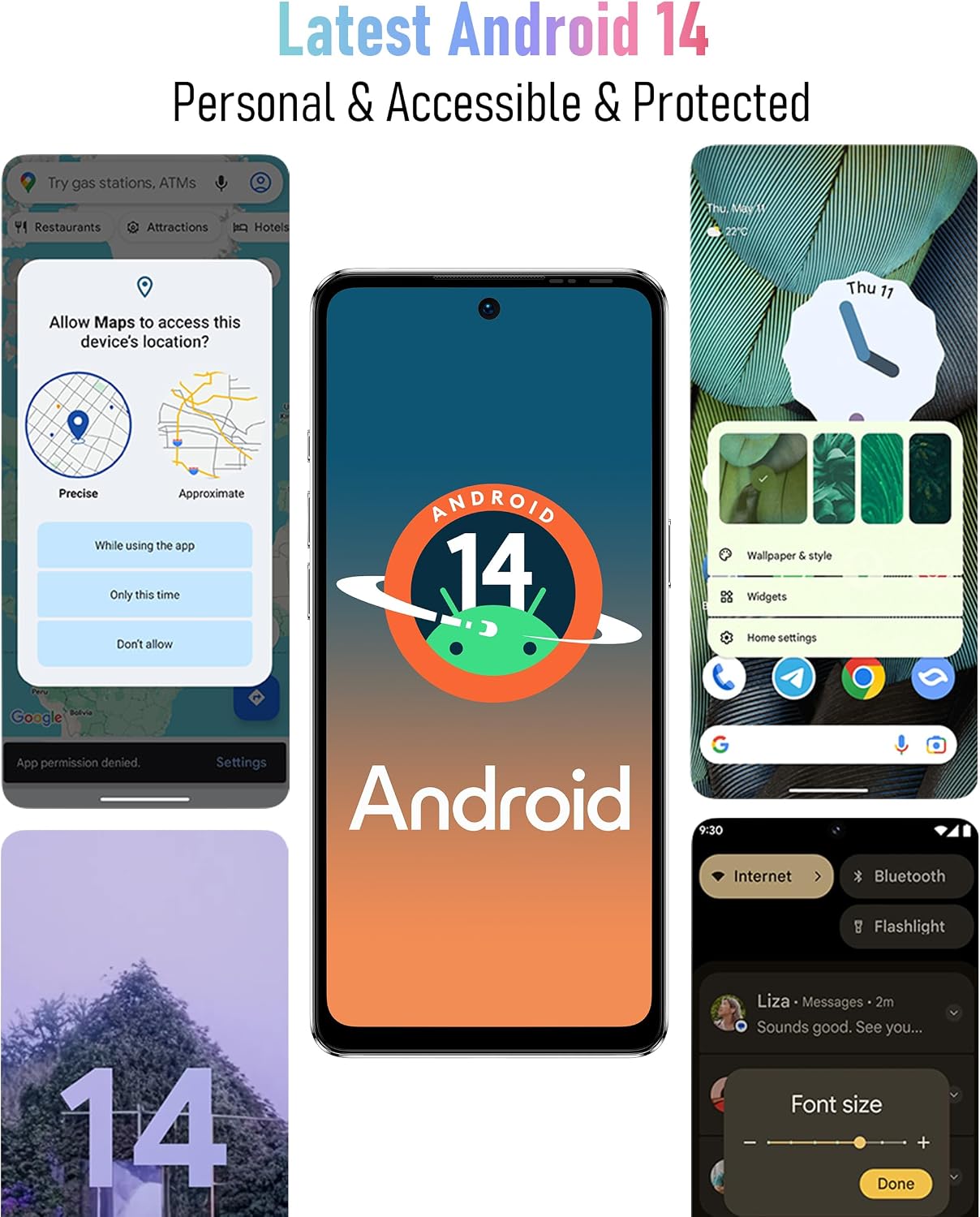
Image: Screenshots of the Android 14 interface, highlighting its features for personalization, privacy, and accessibility.
4.2. Display and Interaction
The device features a 6.78-inch HD+ punch-hole display with a 90Hz refresh rate, protected by Corning Gorilla Glass.
- Touch Gestures: Tap to select, swipe to scroll, pinch to zoom.
- Lock Screen: Press the Power button to lock/unlock the screen. Use Fingerprint ID or Face Unlock for quick access.
- Navigation: Use on-screen navigation gestures or buttons (Home, Back, Recent Apps).

Image: The 6.78-inch HD+ display of the Ulefone Note 18 Pro, emphasizing its 90Hz refresh rate, punch-hole design, and Corning Gorilla Glass protection.
4.3. Camera Functions
The Ulefone Note 18 Pro is equipped with a 64MP main camera, a 50MP ultra-wide-angle camera, and a 32MP selfie camera.
- Taking Photos: Open the Camera app, select your desired mode (Photo, Portrait, Video, etc.), and tap the shutter button.
- Switching Cameras: Tap the camera switch icon to toggle between front and rear cameras.
- Modes: Explore various modes like AI Scene Recognition and Portrait Mode for enhanced photography.

Image: A visual representation of the Ulefone Note 18 Pro's camera system, detailing the 64MP main camera, 50MP ultra-wide-angle camera, and 32MP selfie camera capabilities.
4.4. Special Features
- NFC & Google Pay: Enable NFC in settings to make contactless payments and use other NFC-enabled services.
- IR Remote Control: Utilize the built-in IR blaster to control compatible home appliances like TVs, projectors, and air conditioners.
- Custom Key: Assign frequently used functions (e.g., SOS, flashlight, screenshots, sound recording, opening specific apps) to the customizable physical button for quick access.

Image: The Ulefone Note 18 Pro demonstrating its NFC functionality for mobile payments and its IR Blaster feature for controlling various home electronics.

Image: An illustration of the Ulefone Note 18 Pro's innovative Custom Key, showing various functions that can be assigned to single click, double click, and long press actions.
5. Maintenance
5.1. Cleaning Your Device
To keep your Ulefone Note 18 Pro in optimal condition, clean it regularly:
- Use a soft, lint-free cloth to wipe the screen and body.
- Avoid using harsh chemicals, abrasive cleaners, or aerosol sprays.
- The device is splash-proof, but avoid submerging it in water.
5.2. Software Updates
Regularly check for and install software updates to ensure your device has the latest features, security patches, and performance improvements. Go to Settings > System > System update.
5.3. Battery Care
To maximize battery life and performance:
- Avoid extreme temperatures.
- Use only the provided charger and cable.
- Do not let the battery drain completely before recharging frequently.
6. Troubleshooting
If you encounter issues with your Ulefone Note 18 Pro, try the following solutions:
| Problem | Possible Solution |
|---|---|
| Device won't turn on | Ensure the battery is charged. Press and hold the Power button for at least 10 seconds to force restart. |
| Apps are crashing or freezing | Clear the app's cache (Settings > Apps > [App Name] > Storage > Clear cache). Restart the device. Update the app or the system software. |
| Poor network signal | Check SIM card insertion. Restart the device. Ensure you are within network coverage. Note: Not compatible with AT&T, Cricket networks. |
| Battery drains quickly | Close background apps. Reduce screen brightness. Disable unnecessary features like Wi-Fi, Bluetooth, GPS when not in use. Check battery usage in Settings to identify power-hungry apps. |
| Fingerprint/Face Unlock not working | Ensure your finger/face is clean and properly positioned. Re-register your fingerprint/face in Settings > Security. |
7. Specifications
Detailed technical specifications for the Ulefone Note 18 Pro:
| Feature | Detail |
|---|---|
| Model Name | Note 18 Pro |
| Operating System | Android 14 |
| Processor | MTK Helio G91 (Octa-core, up to 2.0GHz) |
| RAM | 12 GB (6GB physical + 6GB virtual) |
| Internal Storage | 256 GB |
| Expandable Storage | Up to 2TB via TF card |
| Display Size | 6.78 Inches |
| Display Resolution | 720x1640 HD+ |
| Refresh Rate | 90 Hz |
| Display Protection | Corning Gorilla Glass |
| Rear Camera | 64MP Main (Sony IMX682) + 50MP Ultra Wide-angle |
| Front Camera | 32MP Selfie Camera |
| Battery Capacity | 5450 mAh |
| Charging | 18W Fast Charging |
| Connectivity | 4G Global Bands, Wi-Fi (2.4G/5G), Bluetooth 5.1, NFC, Infrared |
| Navigation | GPS, GLONASS, BeiDou, Galileo |
| Sensors | Fingerprint ID, Face Unlock |
| Audio Jack | 3.5 mm |
| Dimensions | 6.64 x 3.02 x 0.35 inches |
| Weight | 7.8 ounces |
| Color | Grey |
8. Warranty and Support
The Ulefone Note 18 Pro comes with a US Warranty. For specific warranty terms and conditions, please refer to the warranty card included in your package or visit the official Ulefone website.
For technical support, troubleshooting assistance beyond this manual, or service inquiries, please contact Ulefone customer support through their official channels. Contact information can typically be found on the Ulefone website or in the product packaging.
Manufacturer: SHENZHEN GOTRON ELECTRONIC CO.,LTD
A/S Center: +86 75583892089

