1. Introduction
Thank you for choosing the LOSHALL Smart Tag Item Finder. This device is designed to help you easily locate your valuable items using Apple's Find My network. Please read this manual carefully before using the product to ensure proper operation and to maximize its features.
2. Product Overview
The LOSHALL Smart Tag is a compact and efficient item tracker that integrates seamlessly with the Apple Find My ecosystem. Its minimalist design allows it to be attached to various items without adding bulk.
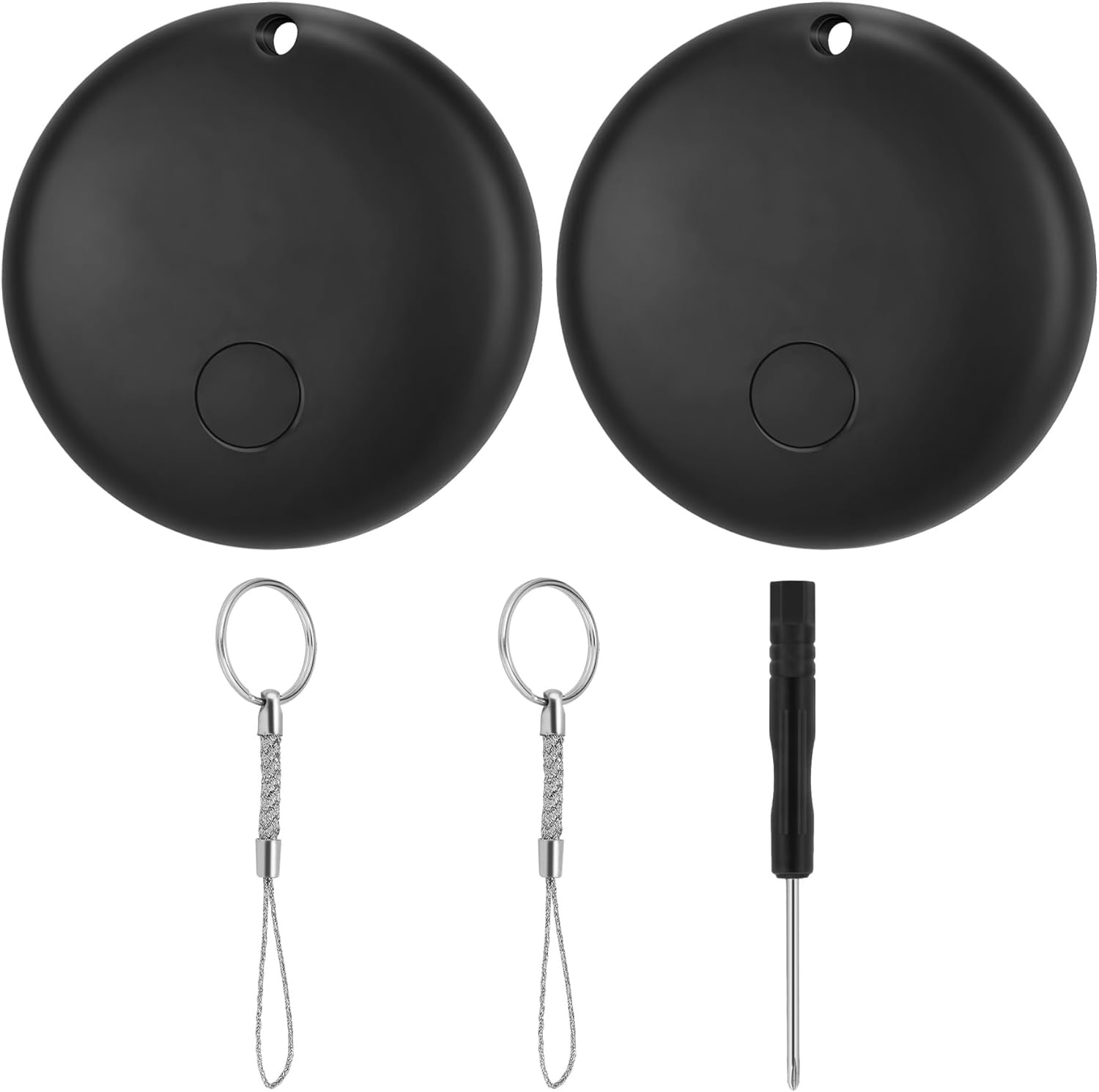
Figure 2.1: LOSHALL Smart Tags, keyrings, and screwdriver. The package includes two black smart tags, two keyrings for attachment, and a small screwdriver for battery replacement.

Figure 2.2: Smart Tag Dimensions and Weight. The tag measures 29mm in diameter and 7.8mm in thickness, weighing approximately 6 grams. A US dollar coin is shown for size comparison.
Key Features:
- Compact Design: Sleek, coin-like form factor (29mm diameter, 7.8mm thin) for easy attachment to various items.
- Apple Find My Compatible: Seamless integration with Apple's Find My app on iOS devices (iOS 14.5 or later) for effortless tracking without additional apps.
- Privacy Protection: Location data is visible only to the user and is not stored on the tag itself, ensuring user privacy.
- Bluetooth Tracking: Offers a reliable Bluetooth range of up to 80 meters for proximity tracking.
- Audible Alert: Features a built-in speaker that emits an 80dB alert to help locate nearby items.
- Replaceable Battery: Powered by a standard CR2032 button battery (included), providing up to 12 months of use. A mini screwdriver is provided for battery replacement.
3. Setup Guide
Follow these steps to connect your LOSHALL Smart Tag to your Apple device. Ensure your iPhone is running iOS 14.5 or later.

Figure 3.1: Quick Setup Steps. This image illustrates the three main steps for pairing the Smart Tag with your iPhone: pressing the tag's button, opening the Find My app to add an item, and completing the device naming.
- Prepare Your Device: Ensure Bluetooth is enabled on your iPhone.
- Activate the Smart Tag: Press and hold the button on the LOSHALL Smart Tag for approximately 10 seconds until you hear a beep. This indicates the tag is in pairing mode.
- Open Find My App: On your iPhone, open the "Find My" application.
- Add New Item: In the Find My app, tap on the "Items" tab, then tap the "+" icon, and select "Add Other Item" or "Other Supported Item".
- Connect the Tag: Your iPhone will begin searching for nearby compatible items. Select "LOSHALL Tag" from the list of discovered devices.
- Name Your Item: Follow the on-screen prompts to name your Smart Tag (e.g., "Keys", "Wallet", "Backpack"). This name will appear in the Find My app.
- Complete Setup: Confirm the setup. Your LOSHALL Smart Tag is now connected and ready for use.
Important Note: During the initial setup process, avoid answering calls or messages on your iPhone as this may interfere with the pairing and linking of the device.
4. Operating Instructions
Once your LOSHALL Smart Tag is set up, you can use the Apple Find My app to locate your items.

Figure 4.1: Find My App Interface. This image displays the Apple Find My app, showing a map with the location of a tagged item and options to play a sound or get directions.

Figure 4.2: Left Behind Reminder Notification. This image shows an iPhone displaying a notification indicating that a tagged item, in this case, "Key," has been left behind and its last detected location.
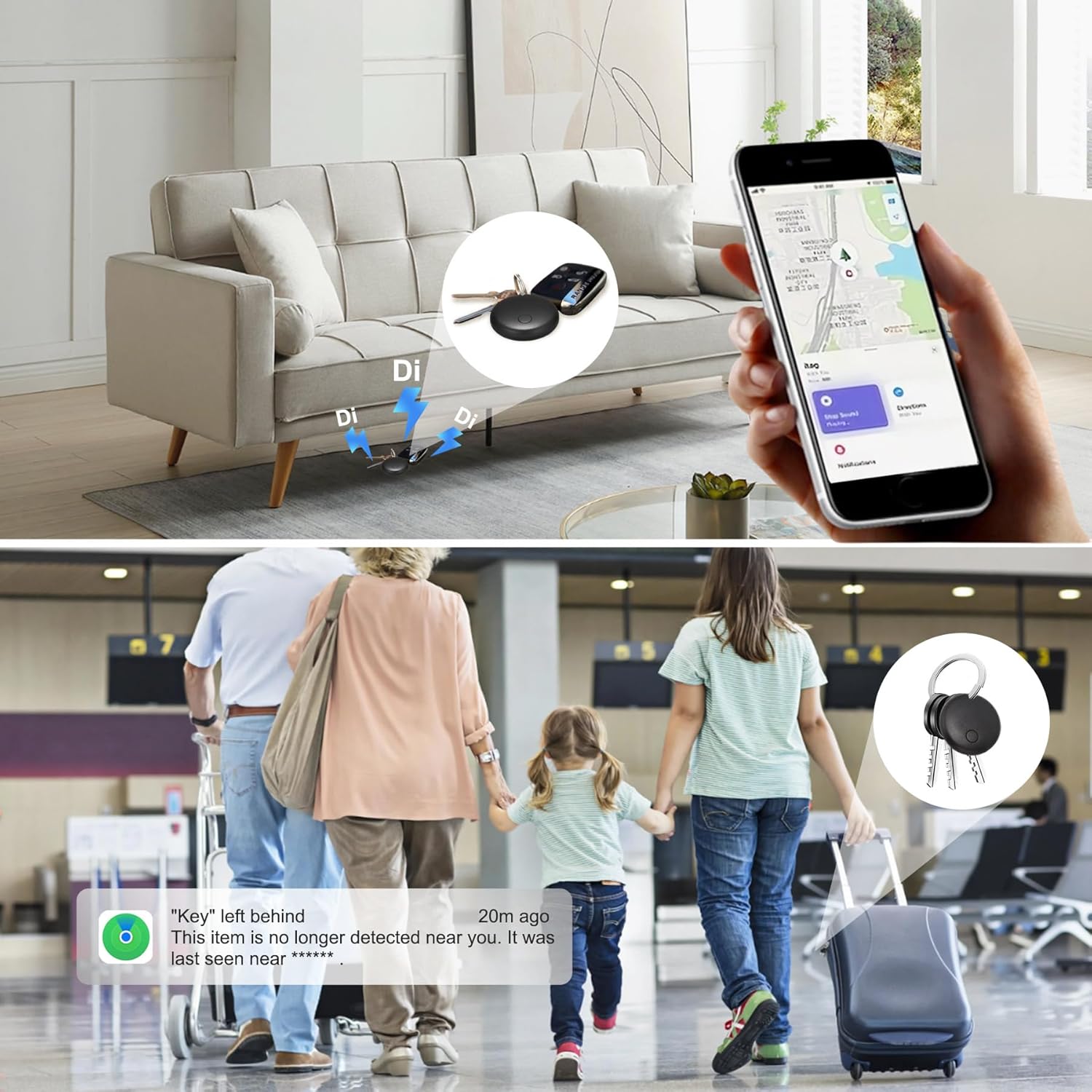
Figure 4.3: Usage Scenarios and Location Tracking. The top scene shows a Smart Tag attached to keys on a sofa, indicating its use for finding items at home. The bottom scene depicts people at an airport with luggage, illustrating how the tag can help track items during travel and provide alerts if an item is left behind.
Locating Items:
- Locate on a Map: Open the "Find My" app on your iPhone. Tap the "Items" tab. Select your LOSHALL Smart Tag from the list to see its last known location on a map.
- Play Sound: If your item is nearby, tap "Play Sound" in the Find My app. The Smart Tag will emit an 80dB audible alert, helping you pinpoint its exact location.
- Lost Mode: If your item is lost and out of Bluetooth range, you can enable "Lost Mode" in the Find My app. This will allow other Apple devices in the Find My network to anonymously detect your tag's location and update you. You can also leave a contact message for anyone who finds your item.
- Left Behind Notifications: Configure "Notify When Left Behind" in the Find My app to receive an alert on your iPhone if you leave your tagged item behind at an unfamiliar location.

Figure 4.4: Wide Range of Uses. This image demonstrates the versatility of the Smart Tag, showing it attached to various items such as keys, a schoolbag, luggage, a pet collar, and a wallet, highlighting its utility for different personal belongings.
5. Maintenance
Battery Replacement:
The LOSHALL Smart Tag uses a replaceable CR2032 button battery, which typically lasts up to 12 months. When the battery is low, you may receive a notification on your iPhone via the Find My app.
- Locate the battery compartment on the back of the Smart Tag.
- Use the provided mini screwdriver to gently open the battery cover.
- Remove the old CR2032 battery.
- Insert a new CR2032 battery with the positive (+) side facing up.
- Replace the battery cover and secure it.
Dispose of used batteries responsibly according to local regulations.
6. Troubleshooting
If you encounter issues with your LOSHALL Smart Tag, please refer to the following common solutions:
| Problem | Possible Cause | Solution |
|---|---|---|
| Smart Tag not connecting to iPhone. | Bluetooth is off; iPhone iOS version is too old; Tag not in pairing mode; Interference during setup. | Ensure Bluetooth is on. Update iPhone to iOS 14.5 or later. Press and hold the tag's button for 10 seconds until it beeps to enter pairing mode. Avoid calls/messages during setup. Try resetting the tag by removing and reinserting the battery. |
| Cannot hear the 80dB alert. | Tag is out of Bluetooth range; Battery is low or dead. | Move closer to the tag (within 80 meters). Check the battery level in the Find My app or replace the CR2032 battery. |
| Location updates are inaccurate or not frequent. | Limited Find My network coverage in the area; Tag is in a location with poor signal. | The accuracy depends on the density of Apple devices in the Find My network. Move the tag to a more open area if possible. Ensure your iPhone has a stable internet connection. |
| Battery life is shorter than expected. | Frequent use of "Play Sound" feature; Extreme temperatures; Defective battery. | Minimize excessive use of the sound feature. Operate the tag within recommended temperature ranges. Replace the battery with a new, high-quality CR2032 battery. |
7. Specifications
| Model Number | F08 |
| Dimensions | 29mm (Diameter) x 7.8mm (Thickness) |
| Weight | 6 grams |
| Battery Type | CR2032 Button Battery (included) |
| Battery Life | Up to 12 months (typical use) |
| Connectivity | Bluetooth |
| Bluetooth Range | Up to 80 meters (line of sight) |
| Audible Alert | 80dB |
| Compatibility | iOS devices with iOS 14.5 or later (Apple Find My network) |
| Material | Acrylonitrile Butadiene Styrene (ABS) |
| Operating Temperature | 0°C to 40°C (32°F to 104°F) (Inferred, common for electronics) |
8. Warranty and Support
For specific warranty details and terms, please refer to the warranty card or documentation included with your purchase. Warranty periods and conditions may vary by region and retailer.
If you require technical assistance, have questions about your LOSHALL Smart Tag, or need to report an issue, please contact the seller or manufacturer directly through the platform where you purchased the product. Provide your purchase details and model number (F08) for faster service.


