
Ulefone Ulefone Note 18 Pro
Ulefone Note 18 Pro User Manual
Model: Ulefone Note 18 Pro
Brand: Ulefone
1. Introduction
Welcome to the Ulefone Note 18 Pro user manual. This guide provides detailed instructions on how to set up, operate, maintain, and troubleshoot your new Ulefone Note 18 Pro smartphone. The Ulefone Note 18 Pro is an advanced unlocked phone featuring a powerful camera system (64MP main, 50MP ultra-wide, 32MP selfie), a MediaTek Helio G91 processor, 12GB RAM, 256GB ROM, a 6.78-inch HD+ 90Hz display, and a 5450mAh battery. It runs on Android 14 and includes features like NFC, an IR Blaster, and a customizable key.
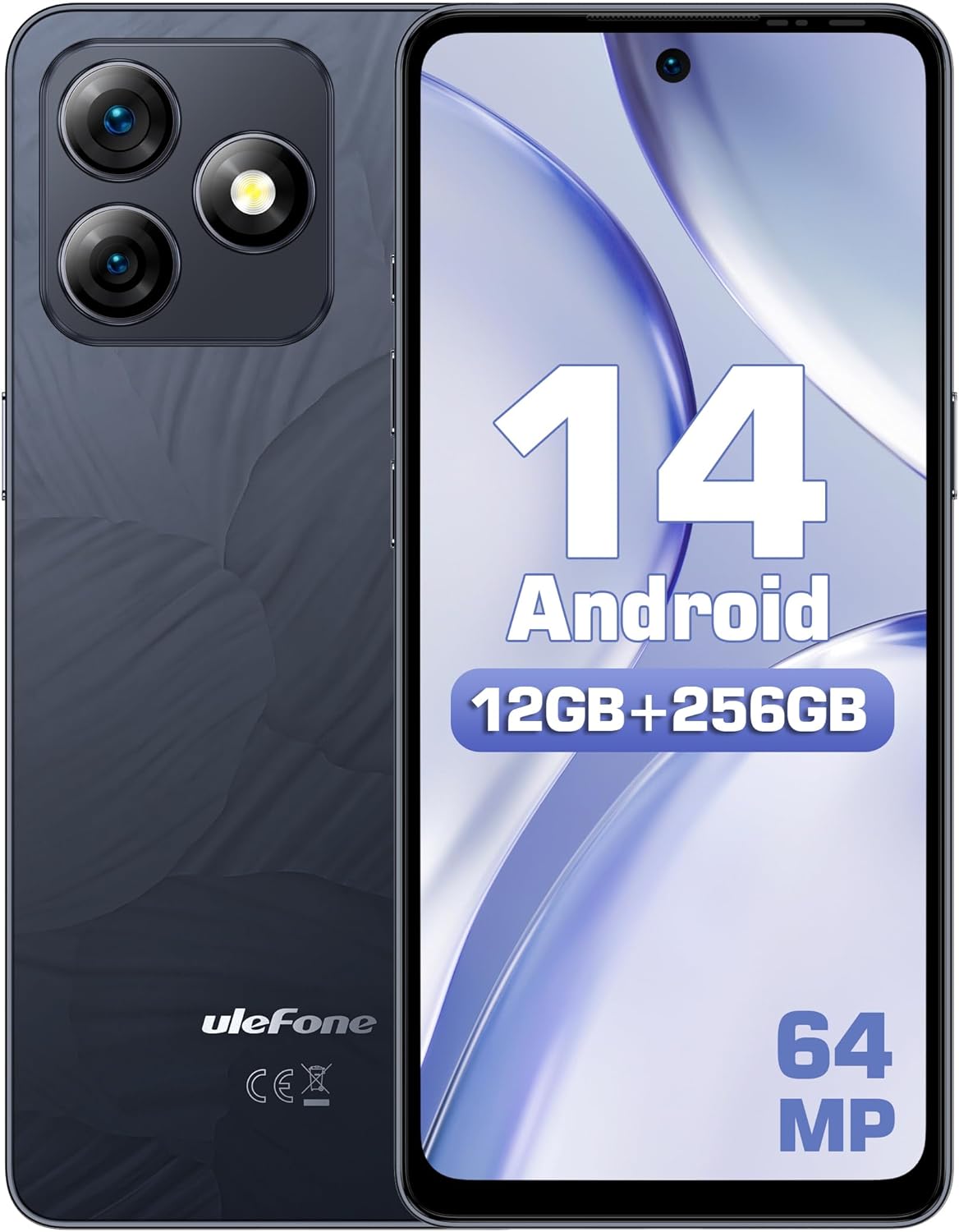
Figure 1.1: Front and back view of the Ulefone Note 18 Pro, highlighting its camera setup and Android 14 interface.
2. Getting Started: Setup
2.1. What's in the Box
Before you begin, ensure all components are present:
- 1x Ulefone Note 18 Pro Smartphone
- 1x AC Power Charger (18W/US Plug)
- 1x Type-C to Type-C Charger Cable (1m)
- 1x Tempered Glass Screen Protector
- 1x TPU Protective Case
- 1x SIM Needle
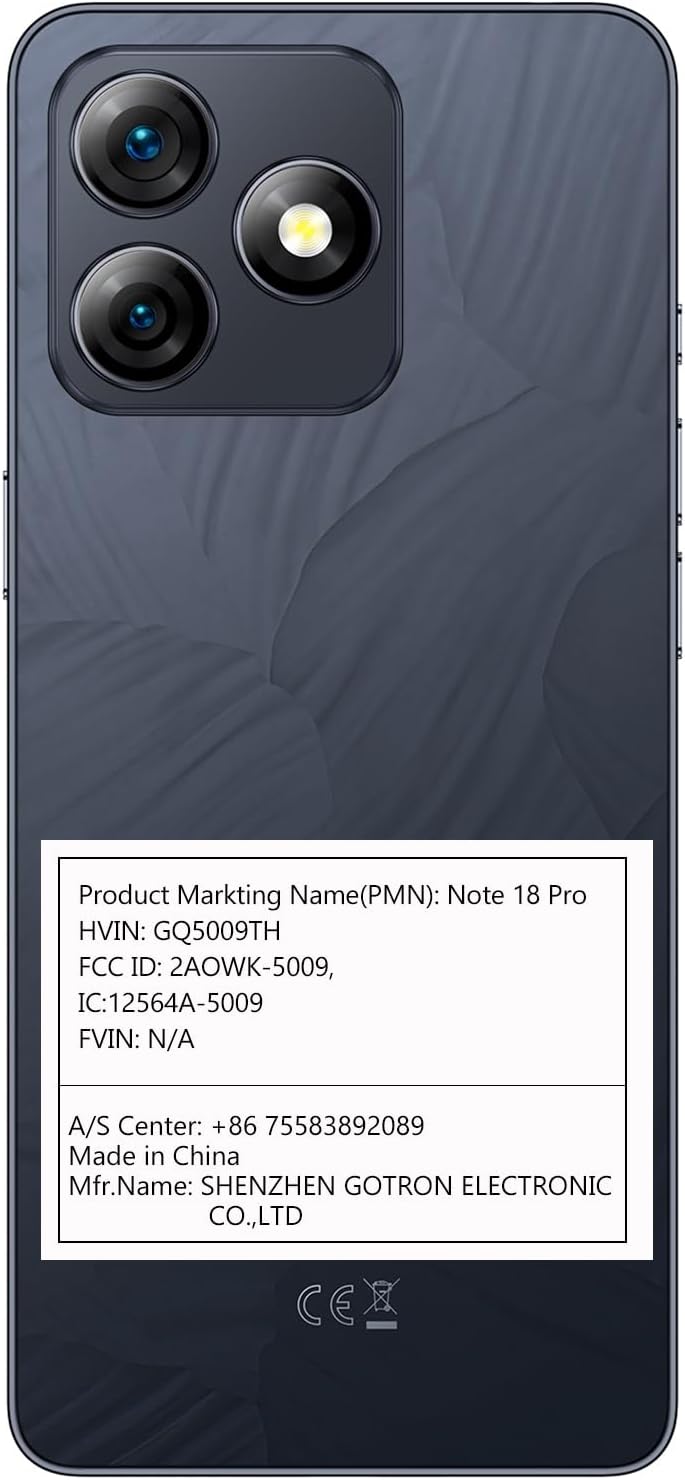
Figure 2.1: The Ulefone Note 18 Pro shown with its included TPU protective case.
2.2. Inserting SIM Cards and MicroSD Card
The Ulefone Note 18 Pro supports dual SIM dual standby and expandable storage up to 2TB via a TF card.
- Locate the SIM tray on the side of the phone.
- Insert the SIM needle into the small hole on the SIM tray to eject it.
- Place your Nano-SIM cards and/or MicroSD card into the designated slots on the tray. Ensure correct orientation.
- Gently push the tray back into the phone until it clicks into place.
2.3. Initial Power On and Setup
- Press and hold the Power button until the Ulefone logo appears.
- Follow the on-screen prompts to select your language, connect to Wi-Fi, and set up your Google account.
- Configure security settings, including fingerprint ID and face unlock, for enhanced device security.
3. Operating Your Device
3.1. Display and Navigation
The Note 18 Pro features a 6.78-inch HD+ punch-hole display with a 90Hz refresh rate, protected by Corning Gorilla Glass.
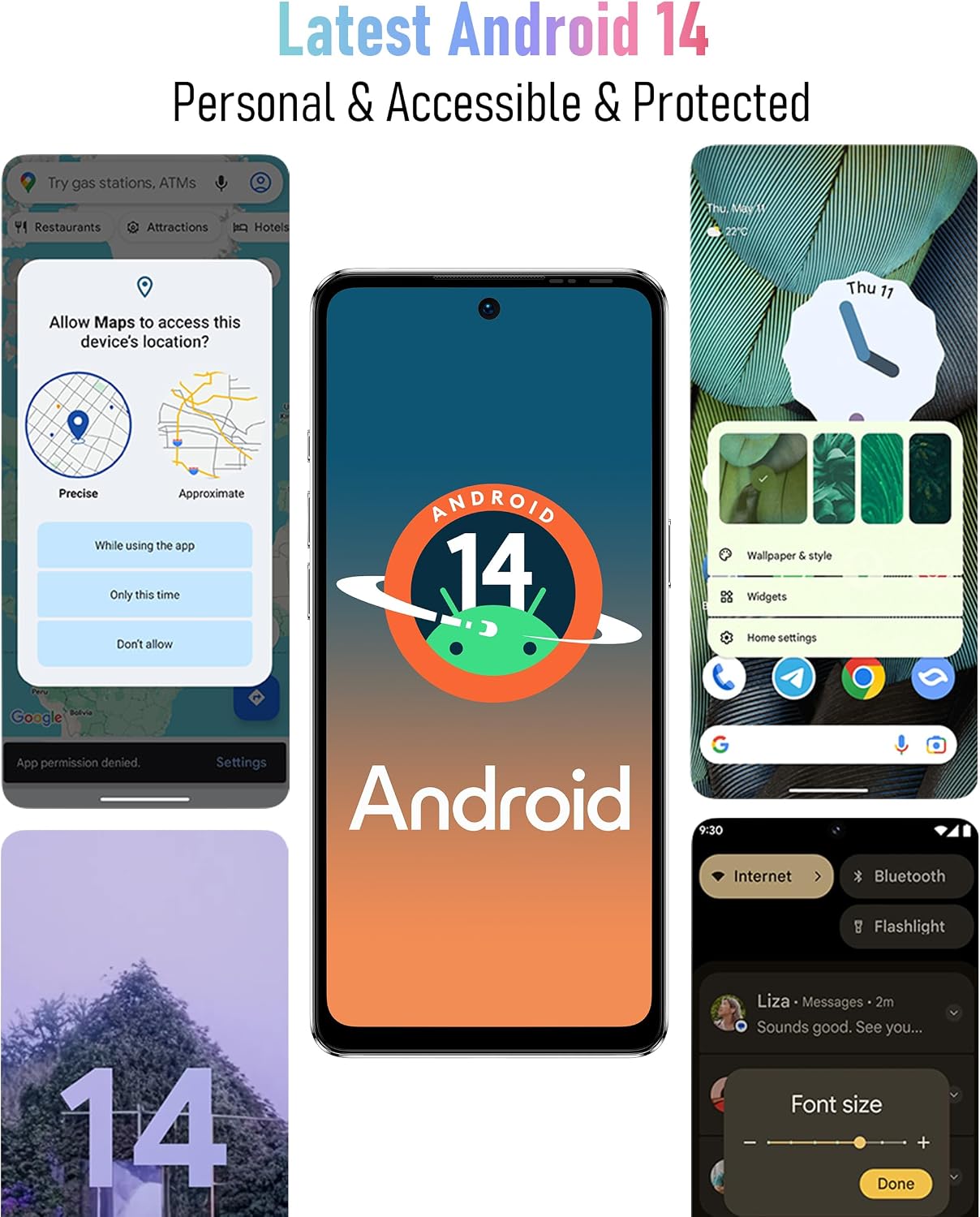
Figure 3.1: Visual representation of the 6.78-inch HD+ display with 90Hz refresh rate and Corning Gorilla Glass protection.
- Touch Gestures: Tap, swipe, pinch-to-zoom for navigation and interaction.
- Notification Panel: Swipe down from the top of the screen to access quick settings and notifications.
- App Drawer: Swipe up from the bottom of the screen to view all installed applications.
3.2. Camera Features
Capture stunning photos and videos with the versatile camera system:
- 64MP Main Camera: Equipped with Sony IMX682 sensor for high-resolution images.
- 50MP Ultra Wide-angle Camera: Offers a 117.3° field of view for expansive shots.
- 32MP Selfie Camera: For clear and detailed self-portraits.

Figure 3.2: Overview of the Ulefone Note 18 Pro's camera system, detailing the 64MP main, 50MP ultra-wide, and 32MP selfie cameras.
To open the camera, tap the camera icon on your home screen or app drawer. Select different modes like Photo, Video, Portrait, or Pro mode from the camera interface.
3.3. Custom Key Functionality
The Note 18 Pro features a customizable key for quick access to frequently used functions.

Figure 3.3: Illustration of the customizable key on the Ulefone Note 18 Pro, showing options for single click, double click, and long press actions.
You can assign actions such as:
- One Click: Start Sound recording, Open flashlight, Screenshots
- Double Click: Open Zello, Open SOS
- Long Press: Open Game Mode
To configure the custom key, navigate to Settings > Smart Assistant > Custom Key.
3.4. NFC and IR Blaster
The device includes NFC for contactless payments and an IR Blaster for controlling home appliances.

Figure 3.4: Depiction of the Ulefone Note 18 Pro's NFC capability for mobile payments and its IR Blaster for controlling various home electronics.
- NFC: Enable NFC in settings to use Google Pay or other compatible payment apps. Tap your phone to compatible payment terminals.
- IR Blaster: Use the pre-installed remote control app or download a universal remote app to control TVs, air conditioners, projectors, and other IR-enabled devices.
4. Battery and Charging
The Ulefone Note 18 Pro is equipped with a 5450mAh battery and supports 18W fast charging.

Figure 4.1: Information on the 5450mAh battery of the Ulefone Note 18 Pro, indicating up to 30 hours of talk time and 12 hours of video playback.
- Use the provided 18W AC Power Charger and Type-C to Type-C Charger Cable for optimal charging speed.
- Avoid using non-certified chargers or cables, as this may damage the device or battery.
- Typical battery life provides up to 30 hours of talk time and 12 hours of video playback.
5. Maintenance and Care
5.1. General Care
- Keep the device dry. Moisture can damage electronic circuits.
- Avoid extreme temperatures. High temperatures can shorten the life of electronic devices and damage batteries.
- Do not drop, knock, or shake the device. Rough handling can break internal circuit boards and fine mechanics.
- Clean the screen and back cover with a soft, lint-free cloth. The AG glass back cover is anti-fingerprint.

Figure 5.1: The elegant AG glass back cover of the Ulefone Note 18 Pro, designed for durability and an anti-fingerprint finish.
5.2. Software Updates
Regularly check for software updates to ensure your device has the latest features, security patches, and performance improvements. Go to Settings > System > System update.
6. Troubleshooting
6.1. Common Issues and Solutions
| Problem | Possible Solution |
|---|---|
| Device not turning on | Ensure the battery is charged. Connect to the charger for at least 10 minutes before attempting to power on. |
| Poor network signal | Check SIM card insertion. Move to an area with better network coverage. Restart the device. |
| Apps crashing or freezing | Clear app cache/data (Settings > Apps > [App Name] > Storage). Update the app. Restart the phone. |
| Battery drains quickly | Reduce screen brightness. Close background apps. Disable unnecessary features like GPS, Bluetooth, Wi-Fi when not in use. |
| Fingerprint ID not working | Ensure your finger is clean and dry. Re-register your fingerprint in settings. |
If issues persist, consider performing a factory reset (Settings > System > Reset options > Erase all data (factory reset)). Note: This will erase all data on your phone. Back up important data before proceeding.
7. Specifications
| Feature | Detail |
|---|---|
| Model Name | Ulefone Note 18 Pro |
| Operating System | Android 14 |
| Processor | MTK Helio G91 (Octa-core, up to 2.0 GHz) |
| RAM | 12GB (6GB physical + 6GB virtual) |
| Internal Storage | 256GB |
| Expandable Storage | Up to 2TB TF card |
| Display | 6.78-inch HD+ (720x1640) Punch-hole Display, 90Hz Refresh Rate, Corning Gorilla Glass |
| Rear Cameras | 64MP Main (Sony IMX682), 50MP Ultra Wide-angle (117.3° FOV) |
| Front Camera | 32MP |
| Battery Capacity | 5450mAh |
| Charging | 18W Fast Charging |
| Connectivity | Dual 4G SIM, Wi-Fi, Bluetooth, NFC, Infrared |
| Navigation | GPS, GLONASS, BeiDou, Galileo |
| Other Features | Custom Key, Splash Proof, Headset-free FM Radio, Face Unlock, Fingerprint ID, 3.5mm Audio Jack |
| Dimensions | 6.64 x 3.02 x 0.35 inches |
| Weight | 7.8 ounces |
8. Warranty and Support
8.1. US Warranty Information
The Ulefone Note 18 Pro comes with a US Warranty. For specific warranty terms and conditions, please refer to the warranty card included in your product packaging or contact Ulefone customer service.
8.2. Customer Support
For technical assistance, troubleshooting, or warranty claims, please contact Ulefone customer support:
- A/S Center: +86 75583892089
- Manufacturer: SHENZHEN GOTRON ELECTRONIC CO.,LTD
- Visit the official Ulefone website for FAQs and additional support resources: www.ulefone.com
Ask a question about this manual
Ask about setup, troubleshooting, compatibility, parts, safety, or missing instructions. Manuals+ will review the question and use this page’s manual context to help answer it.