
1. Introduction
Thank you for choosing the Laptomo 15.6 Inch Portable Monitor. This manual provides essential information for the safe and efficient use of your new device. Please read these instructions carefully before operation and retain them for future reference. This monitor is designed to extend your display capabilities for various devices, offering a high-quality visual experience on the go.
2. Package Contents
Please check the package contents upon unboxing to ensure all items are present:
- Laptomo 15.6 Inch Portable Monitor
- Protective Case (doubles as a stand)
- USB-C to USB-C Cable
- HDMI to Mini HDMI Cable
- USB-A to USB-C Power Cable
- User Manual

Image: The Laptomo 15.6 Inch Portable Monitor with its protective case, emphasizing its portability with a weight of 0.8kg, 15.6-inch comfortable size, and ultra-slim 0.5cm profile.
3. Product Features
The Laptomo Portable Monitor offers a range of features designed for enhanced productivity and entertainment:
- 15.6 Inch Full HD Display: Enjoy crisp visuals with 1920 x 1080P resolution, a 178° viewing angle, HDR support, and a clear IPS A-class screen.
- Eye Care Technology: Features low blue light and flicker-free technology to reduce eye strain during extended use.
- Ultra-Slim and Lightweight Design: Weighing only 0.8 kg and with a thickness of 0.1 cm (top) to 1 cm (bottom), it is highly portable.
- Plug and Play: No drivers or apps are required for most compatible devices, ensuring quick setup.
- Versatile Connectivity: Equipped with two USB-C ports and one HDMI port for broad device compatibility.
- Protective Case: Includes a multi-functional protective case that also serves as an adjustable stand, offering scratch, water, and drop protection.
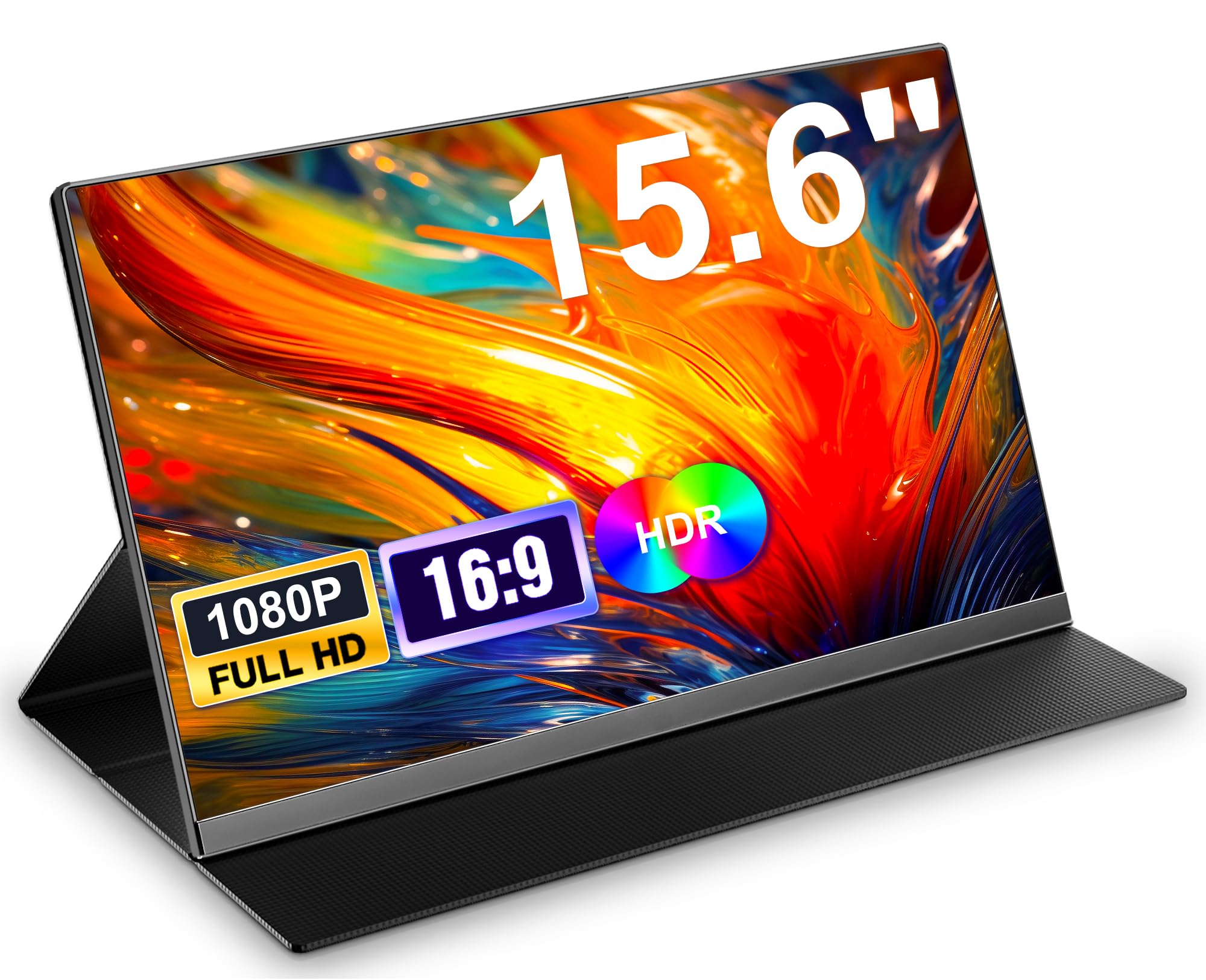
Image: The Laptomo portable monitor showcasing its display quality with an ultra-small bezel and FHD 1080P HDR support.
4. Setup and Connections
The Laptomo Portable Monitor is designed for easy plug-and-play functionality. Ensure cables are securely connected to the correct ports.
4.1. USB-C Connection (Full-featured)
If your device (laptop, smartphone) has a full-featured USB-C port that supports both video output and power delivery:
- Connect one end of the provided USB-C to USB-C cable to your device's full-featured USB-C port.
- Connect the other end of the USB-C to USB-C cable to one of the USB-C ports on the portable monitor.
- The monitor should automatically detect the signal and power on. No additional power cable is needed.
4.2. HDMI and USB-A/USB-C Connection (for power)
If your device does not have a full-featured USB-C port, or if you are connecting to a device like a PC, gaming console, or a laptop with only HDMI output:
- Connect one end of the provided HDMI to Mini HDMI cable to your device's HDMI output.
- Connect the Mini HDMI end of the cable to the Mini HDMI port on the portable monitor.
- Connect one end of the provided USB-A to USB-C power cable to a USB-A port on your device (or a wall adapter, not included).
- Connect the USB-C end of the power cable to the other USB-C port on the portable monitor to provide power.
- The monitor should detect the signal and power on.

Image: A visual guide to connecting the monitor via full-featured USB-C or HDMI with a separate USB-C power connection. It highlights that no drivers are required.
5. Operating Instructions
5.1. Power On/Off
The monitor will typically power on automatically when a signal and power are detected. To manually power off or on, locate the power button or jog dial on the side of the monitor and press/hold as indicated by the device's physical controls.
5.2. OSD Menu (On-Screen Display)
The monitor features an On-Screen Display (OSD) menu for adjusting various settings. Access the OSD menu using the jog dial or buttons on the side of the monitor. Common adjustable settings include:
- Brightness/Contrast: Adjust the display's luminance and contrast levels.
- Color Settings: Modify color temperature, hue, and saturation.
- Picture Mode: Select from preset modes (e.g., Standard, Game, Movie, Text).
- Input Source: Manually select the input signal (USB-C or HDMI) if auto-detection fails.
- Volume: Adjust the volume of the built-in speakers.
6. Device Compatibility
The Laptomo Portable Monitor offers wide compatibility with a variety of devices:
- Laptops: Compatible with Windows laptops, MacBooks (Mac OS), and other laptops with USB-C (full-featured) or HDMI output.
- Desktop PCs: Connects via HDMI.
- Smartphones: Compatible with many Android smartphones that support USB-C video output.
- Gaming Consoles: Works with PlayStation (PS4/PS5), Xbox, and Nintendo Switch via HDMI.

Image: The monitor demonstrating comprehensive compatibility with phones, Windows laptops, MacBooks, PCs, PlayStation consoles, and Nintendo Switch.
7. Care and Maintenance
To ensure the longevity and optimal performance of your portable monitor, follow these care guidelines:
- Cleaning: Gently wipe the screen with a soft, lint-free cloth. For stubborn marks, use a screen-specific cleaning solution applied to the cloth, not directly to the screen.
- Handling: Avoid applying excessive pressure to the screen. Always use the protective case when transporting the monitor.
- Storage: Store the monitor in a cool, dry place away from direct sunlight and extreme temperatures.
- Liquid Exposure: Keep the monitor away from liquids. While the protective case offers some water resistance, the monitor itself is not waterproof.

Image: The high-quality protective case for the Laptomo monitor, emphasizing its versatility as a stand and robust display protection, with icons for scratch-resistant, waterproof, and stylish attributes.
8. Troubleshooting
If you encounter issues with your Laptomo Portable Monitor, refer to the following common problems and solutions:
- No Signal:
- Ensure all cables are securely connected to both the monitor and your device.
- Verify that your device's output port is functioning correctly.
- If using HDMI, ensure the USB-C power cable is connected to provide sufficient power.
- Manually select the input source in the OSD menu.
- No Power:
- If using USB-C, ensure your device's USB-C port supports power delivery.
- If using HDMI, ensure the USB-C power cable is connected to a reliable power source.
- Try a different USB-C cable or power adapter.
- Flickering Screen:
- Ensure the power supply is stable and sufficient.
- Try a different cable.
- Adjust the refresh rate settings on your connected device.
- Poor Sound Quality from Built-in Speakers:
- The built-in speakers are designed for basic audio. For higher quality audio, connect external speakers or headphones to your device or the monitor's headphone jack.
- Adjust the volume settings on both the monitor and your connected device.
9. Technical Specifications
| Feature | Specification |
|---|---|
| Brand | Laptomo |
| Screen Size | 15.6 Inches |
| Resolution | FHD 1080p (1920 x 1080 Pixels) |
| Aspect Ratio | 16:9 |
| Screen Surface Description | Glossy |
| Refresh Rate | 60 Hz |
| Display Type | LCD (IPS) |
| Response Time | 1 Milliseconds |
| Item Dimensions (D x W x H) | 14.96"D x 9.45"W x 1.97"H |
| Additional Features | Built-In Speakers, Eye Care, Portable, Ultra-Slim |
| Connectivity Technology | HDMI, USB Type A, USB Type C |
| Color | Black |
| Model Number | Portable Monitor |
For detailed product information and energy efficiency data, please refer to the EPREL database: https://eprel.ec.europa.eu/qr/2378732

Image: EU Energy Label for the JEEGIA S3 Monitor, indicating an energy class A rating and 5 kWh/1000h consumption.
10. Warranty and Support
10.1. Warranty Information
The Laptomo Portable Monitor comes with a 1-year warranty from the date of purchase. This warranty covers manufacturing defects and malfunctions under normal use. It does not cover damage caused by misuse, accidents, unauthorized modifications, or improper installation.
10.2. Customer Support
For any questions, technical assistance, or warranty claims, please contact Laptomo customer service. We offer 24/7 online customer service to assist you. Refer to your purchase documentation or the Laptomo official website for specific contact details.
11. Important Safety Information
Please observe the following safety precautions to prevent damage to the monitor and ensure your safety:
- Do not expose the monitor to rain, moisture, or extreme temperatures.
- Avoid placing the monitor near heat sources or in direct sunlight.
- Use only the cables and accessories provided or recommended by Laptomo.
- Do not attempt to disassemble or repair the monitor yourself. Refer all servicing to qualified personnel.
- Keep the monitor away from strong magnetic fields.
- Unplug the monitor from the power source during lightning storms or when unused for long periods.
