
LOSHALL F09
LOSHALL Wallet Finder Card User Manual
Model: F09
Introduction
The LOSHALL Wallet Finder Card is a compact, rechargeable Bluetooth tracker designed to help you locate your valuable items such as wallets, purses, and luggage. It integrates seamlessly with Apple's Find My app, providing an efficient way to keep track of your belongings. Its ultra-thin design allows it to fit easily into tight spaces, and its durable construction ensures reliable performance.
Product Features
- Compact Design: Ultra-thin at just 2.3mm, making it ideal for wallets and other slim compartments.
- Apple Find My Compatible: Works exclusively with iOS devices and the Apple Find My app, requiring no additional applications.
- Wireless Charging: Features a built-in rechargeable lithium battery that offers up to 6 months of use on a single charge, supporting convenient wireless charging.
- Bluetooth Tracking: Provides a reliable Bluetooth range of up to 80 meters and includes an 80dB audible alert to help locate items nearby.
- Durable Protection: IPX7 waterproof rating ensures protection against water immersion, and includes an anti-tracking feature for privacy.
Setup Guide
1. Initial Charging
Before first use, ensure your LOSHALL Wallet Finder Card is fully charged. The device supports wireless charging. Place the card on a compatible wireless charging pad.

Image: The LOSHALL Wallet Finder Card being charged wirelessly on a charging pad. A full charge can last up to 6 months.
2. Pairing with Apple Find My App (iOS Only)
The LOSHALL Wallet Finder Card is designed to work exclusively with Apple's Find My app on iOS devices (iOS 14.5 or later). Android devices are not supported.
- Open Find My App: On your iPhone, open the "Find My" app. Ensure Bluetooth is enabled on your device.
- Activate Tracker: Press the power button on the LOSHALL Wallet Finder Card. The locator will beep to indicate it is ready for pairing.
- Add New Item: In the Find My app, navigate to the "Items" tab. Tap the "+" icon and select "Add New Item," then choose "Other Supported Item."
- Connect: Bring the LOSHALL Wallet Finder Card close to your iPhone. The app will search for and display "Loshall Card." Tap to connect and follow the on-screen prompts to complete the pairing process.

Image: A visual guide demonstrating the four steps to pair the LOSHALL Wallet Finder Card with the Apple Find My app: opening the app, pressing the tracker's button, adding a new item, and connecting.

Image: An iPhone screen displaying the Apple Find My app interface, showing the LOSHALL Wallet Finder Card's location. Text indicates compatibility with Apple Find My Network and voice commands like "Hey Siri, find my wallet."
Operating Instructions
1. Locating Your Item
Once paired, you can use the Apple Find My app to locate your LOSHALL Wallet Finder Card.
- Play Sound: If your item is within Bluetooth range (up to 80 meters), you can tap "Play Sound" in the Find My app. The tracker will emit an 80dB audible alert to help you pinpoint its exact location.
- Find Nearby: For items within close proximity, the "Find Nearby" feature can guide you to the item.
- Map Location: For items outside Bluetooth range, the Find My network will show you the last known location on a map.
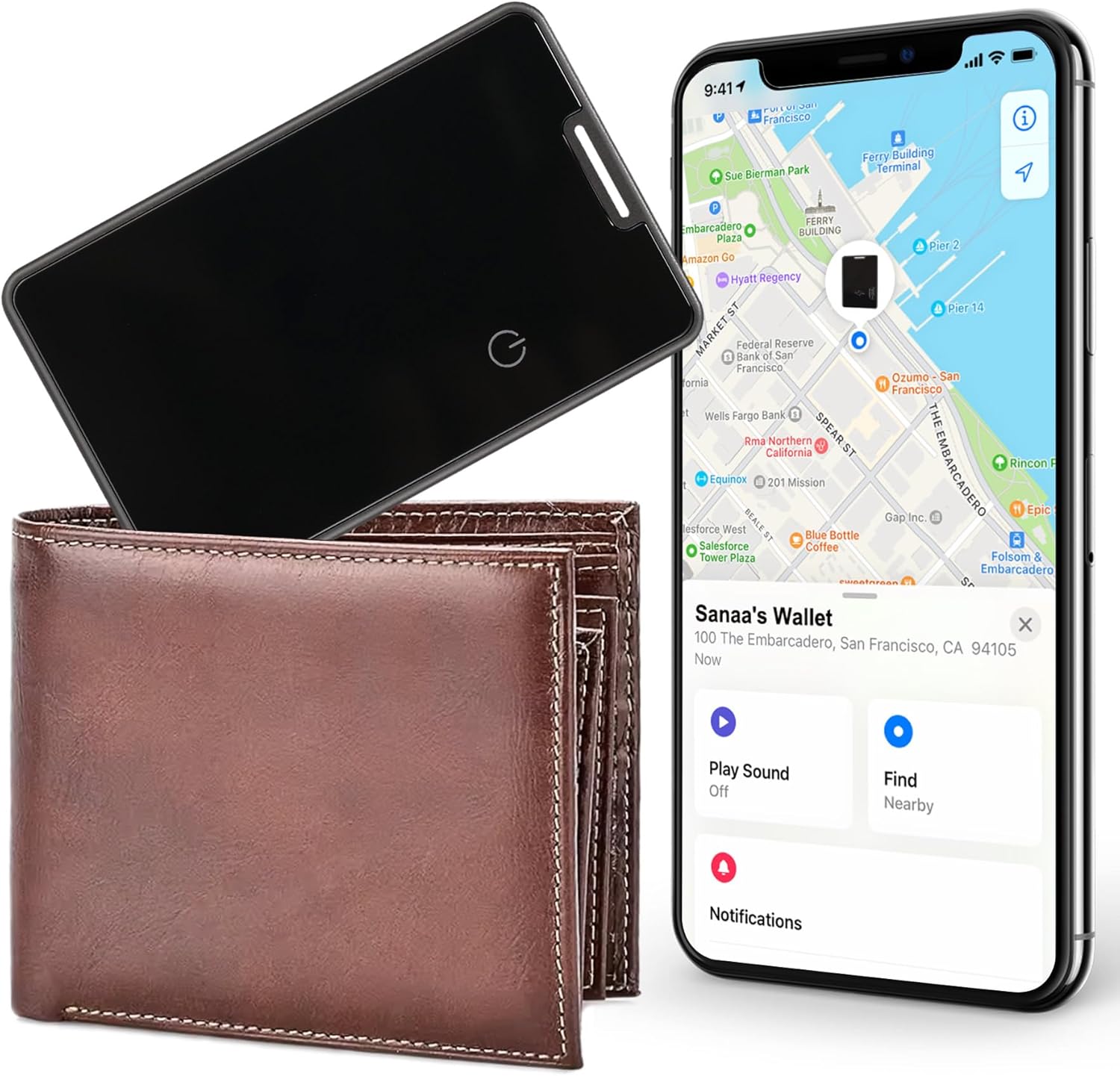
Image: The LOSHALL Wallet Finder Card placed next to a wallet, with an iPhone displaying the Apple Find My app interface, showing options to "Play Sound" and "Find Nearby" for a tracked item.
2. Left-Behind Reminders
The Find My app can notify you if you leave your item behind. This feature sends a notification to your iPhone when the LOSHALL Wallet Finder Card goes out of Bluetooth range.

Image: An iPhone screen displaying a "Left-Behind Remind" notification, indicating that the tracked item is no longer detected nearby and showing its last seen location.
3. Sharing Your Item
You can share your LOSHALL Wallet Finder Card with up to 5 other individuals within the Find My app. This allows them to also see the item's location on a map and help find it. Note that people you share items with will not receive tracking notifications when the items move with them.
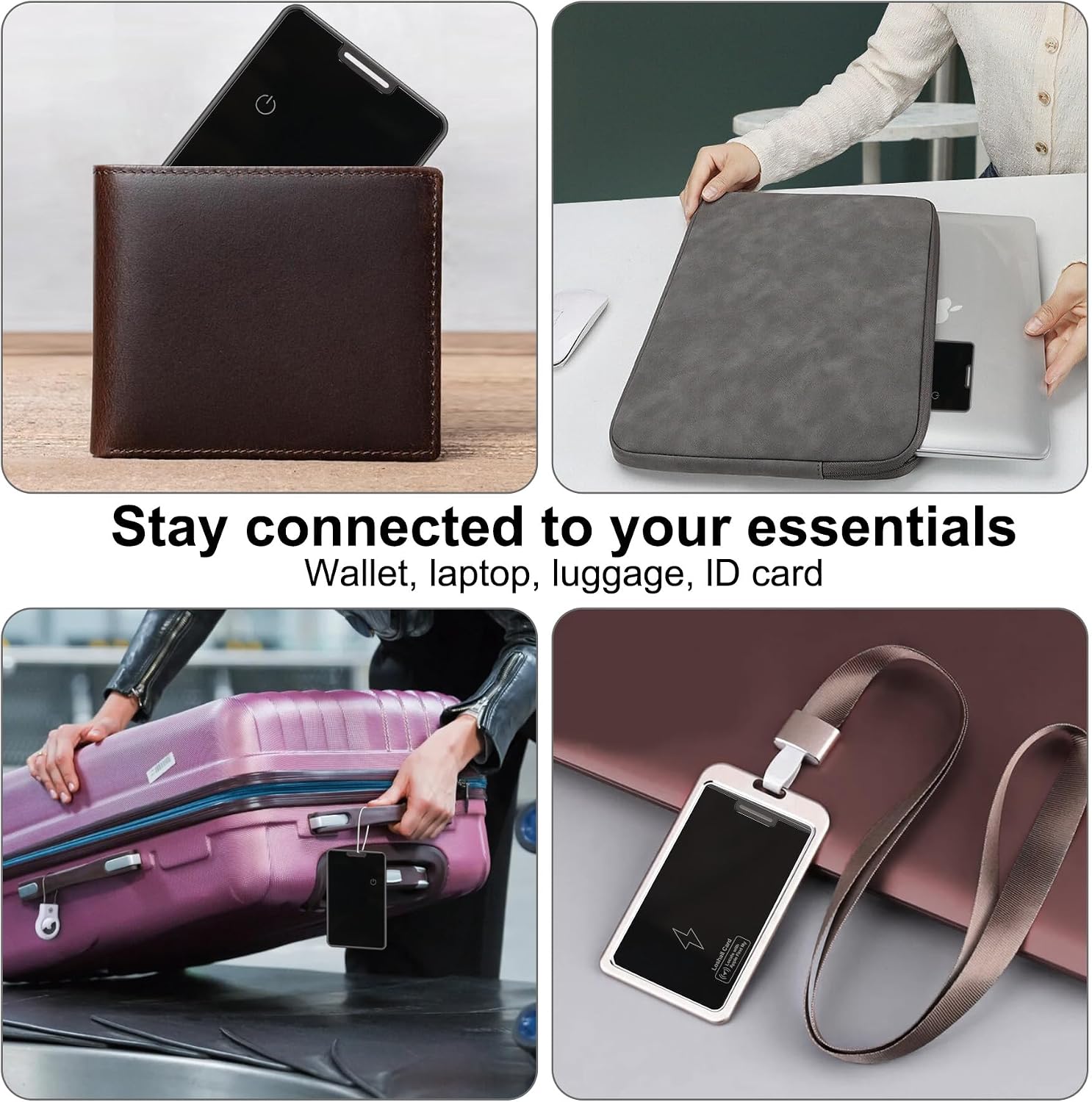
Image: An iPhone screen showing the option to "Share this item in Find My," explaining that shared users can see the item's location on a map.
4. Placement and Durability
The ultra-thin design (2.3mm) of the LOSHALL Wallet Finder Card makes it suitable for various applications. It can be easily slipped into wallets, purses, luggage, or attached to other items you wish to track. The device is IPX7 waterproof, meaning it can withstand immersion in up to 1 meter of water for 30 minutes, providing robust protection for daily use.

Image: A hand holding the ultra-thin LOSHALL Wallet Finder Card, demonstrating its 2.3mm thickness. Icons below highlight its 80dB loud sound, IPX7 waterproof rating, up to 80m Bluetooth range, and suitability for thin wallets.
Maintenance
Charging the Device
The LOSHALL Wallet Finder Card features a built-in rechargeable lithium battery. To charge, simply place the card on any compatible wireless charging pad. A single full charge can provide power for up to 6 months, though typical usage may result in approximately 3 months of battery life. Regular charging ensures continuous tracking capability.
Image: The LOSHALL Wallet Finder Card being charged wirelessly on a charging pad. A full charge can last up to 6 months.
Cleaning
To clean your LOSHALL Wallet Finder Card, gently wipe it with a soft, damp cloth. Avoid using harsh chemicals or abrasive materials, as these may damage the device's surface or internal components. Ensure the device is dry before placing it back into use or charging.
Troubleshooting
- Device Not Connecting to Find My App:
- Ensure your iPhone's Bluetooth is turned on.
- Confirm the LOSHALL Wallet Finder Card is charged.
- Make sure you are running iOS 14.5 or later.
- Restart both your iPhone and the tracker (by pressing its button).
- Try re-pairing the device by following the "Setup Guide" steps.
- No Sound from Tracker:
- Ensure the tracker is within Bluetooth range of your iPhone.
- Check the battery level of the tracker in the Find My app.
- Verify that the volume on your iPhone is not muted or too low.
- Inaccurate Location or No Location Update:
- Ensure Location Services are enabled for the Find My app on your iPhone.
- The Find My Network relies on other Apple devices to update location when out of your personal Bluetooth range. Updates may not be instantaneous.
- Compass Feature Not Available:
Please note that Find My Network compatible devices, including the LOSHALL Wallet Finder Card, do not include a compass feature for precise directional guidance like some other tracking devices.
- Android Device Compatibility:
The LOSHALL Wallet Finder Card is designed exclusively for Apple's Find My app and iOS devices. It is not compatible with Android smartphones or tablets.
Specifications
| Brand | LOSHALL |
| Model Number | F09 |
| Product Dimensions | 8.5 x 5.4 x 0.23 cm (L x W x Th) |
| Weight | 18 g |
| Battery Type | 1 Lithium Ion battery (included, rechargeable) |
| Battery Life | Up to 6 months on a single charge (typical 3 months) |
| Charging Method | Wireless Charging |
| Bluetooth Range | Up to 80 meters |
| Audible Alert | 80dB |
| Waterproof Rating | IPX7 |
| Material | Plastic |
| Manufacturer | Zhitong Technology |
Warranty and Support
For any questions, technical support, or warranty inquiries regarding your LOSHALL Wallet Finder Card, please contact the seller or manufacturer directly through the platform where the product was purchased. Please refer to your purchase documentation for specific warranty terms and conditions.
Related documentsF09


Ask a question about this manual
Ask about setup, troubleshooting, compatibility, parts, safety, or missing instructions. Manuals+ will review the question and use this page’s manual context to help answer it.