
1. Introduction
Thank you for choosing the MOREFINE M6 Mini PC N200. This compact and powerful mini computer is designed for various applications, from home entertainment to office tasks, offering efficient performance and versatile connectivity. This manual provides essential information for setting up, operating, maintaining, and troubleshooting your device.
2. Safety Information
- Power Supply: Use only the provided power adapter. Ensure the power source matches the specified voltage and current.
- Ventilation: Do not block ventilation openings. Ensure adequate airflow around the device to prevent overheating.
- Liquid Exposure: Keep the device away from water, moisture, and other liquids. Avoid spills.
- Temperature: Operate the device within a stable temperature range. Avoid extreme heat or cold.
- Cleaning: Disconnect power before cleaning. Use a soft, dry cloth. Do not use liquid cleaners or aerosols.
- Handling: Handle the device with care. Avoid dropping or subjecting it to strong impacts.
3. Package Contents
Verify that all items are present in your package:
- 1 x MOREFINE M6 Mini PC
- 1 x Power Adapter
- 1 x User Manual (this document)
- 1 x HDMI Cable
4. Product Overview
The MOREFINE M6 Mini PC N200 is a compact computing solution. Its small form factor allows for easy placement in various environments, while its robust internal components ensure reliable performance.
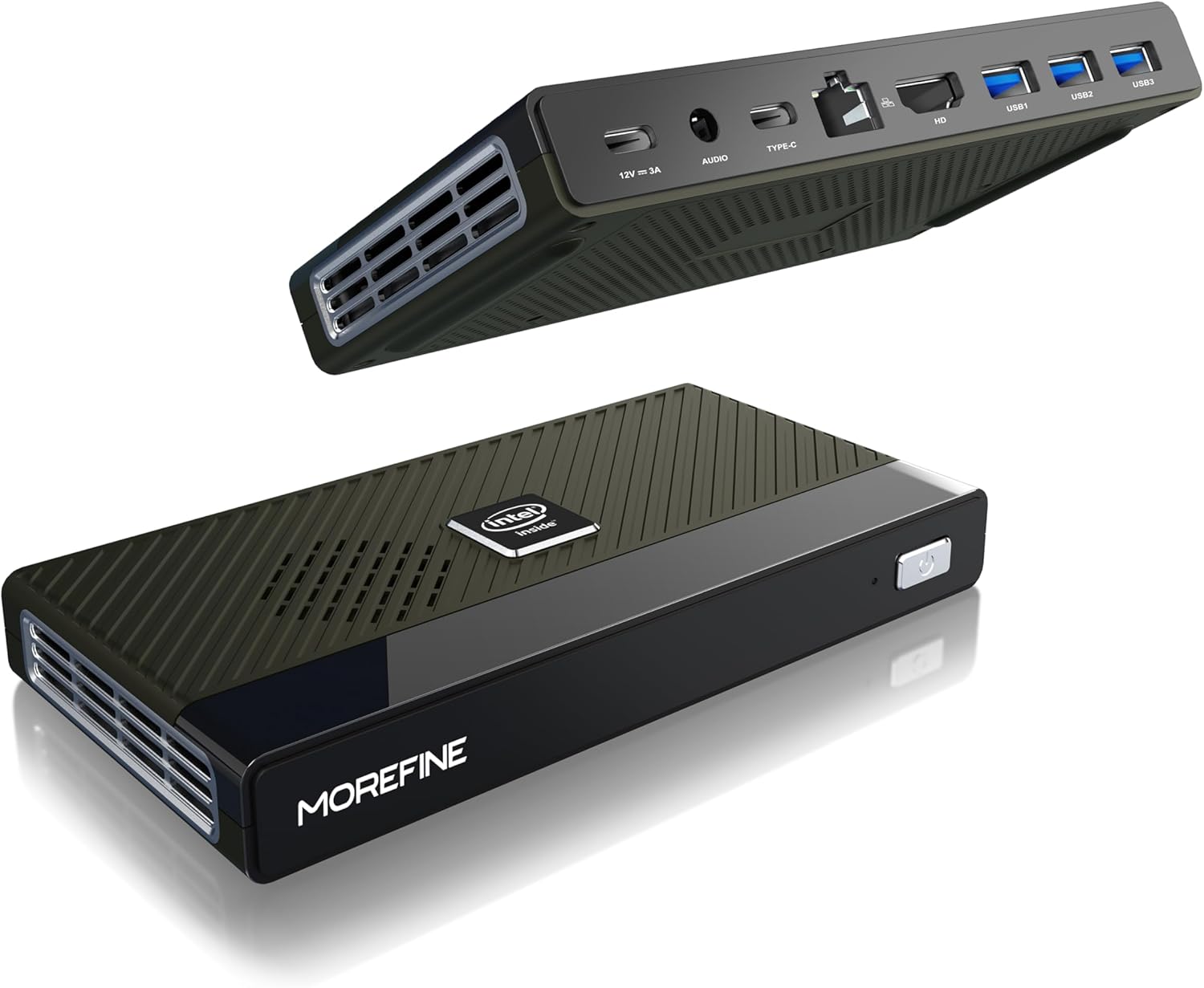
Figure 4.1: MOREFINE M6 Mini PC N200, showcasing its compact design and port layout.
4.1 Ports and Connectors
The M6 Mini PC features a comprehensive set of ports for connectivity:

Figure 4.2: Detailed view of the MOREFINE M6 Mini PC's input/output ports.
- DC-IN (Type-C): Power input (12V/3A).
- Audio Jack: 3.5mm audio output for headphones or speakers.
- Type-C (Data/Display): Supports 4K@60Hz display output and data transfer.
- 2.5G LAN: Ethernet port for high-speed wired network connection.
- HDMI: HDMI 2.0 port for 4K@60Hz display output.
- USB 3.2 Gen1 (x3): High-speed USB ports for peripherals.
4.2 Internal Components
The M6 Mini PC is powered by an Intel Alder Lake N200 processor, offering enhanced performance and energy efficiency. It includes 16GB LPDDR5 RAM and a 1TB PCIe M.2 SSD for fast operation and ample storage.

Figure 4.3: Intel Alder Lake N200 Processor overview.
The device incorporates a silent copper cooling fan to maintain optimal operating temperatures, ensuring stable performance even under load.

Figure 4.4: Internal components and cooling system.
4.3 Compact Design and Versatility
The M6 Mini PC's compact size (approximately 5.91 x 3.01 x 0.75 inches) and lightweight design make it highly portable and suitable for various applications, including office work, home entertainment, and digital signage.

Figure 4.5: Size comparison of the M6 Mini PC.
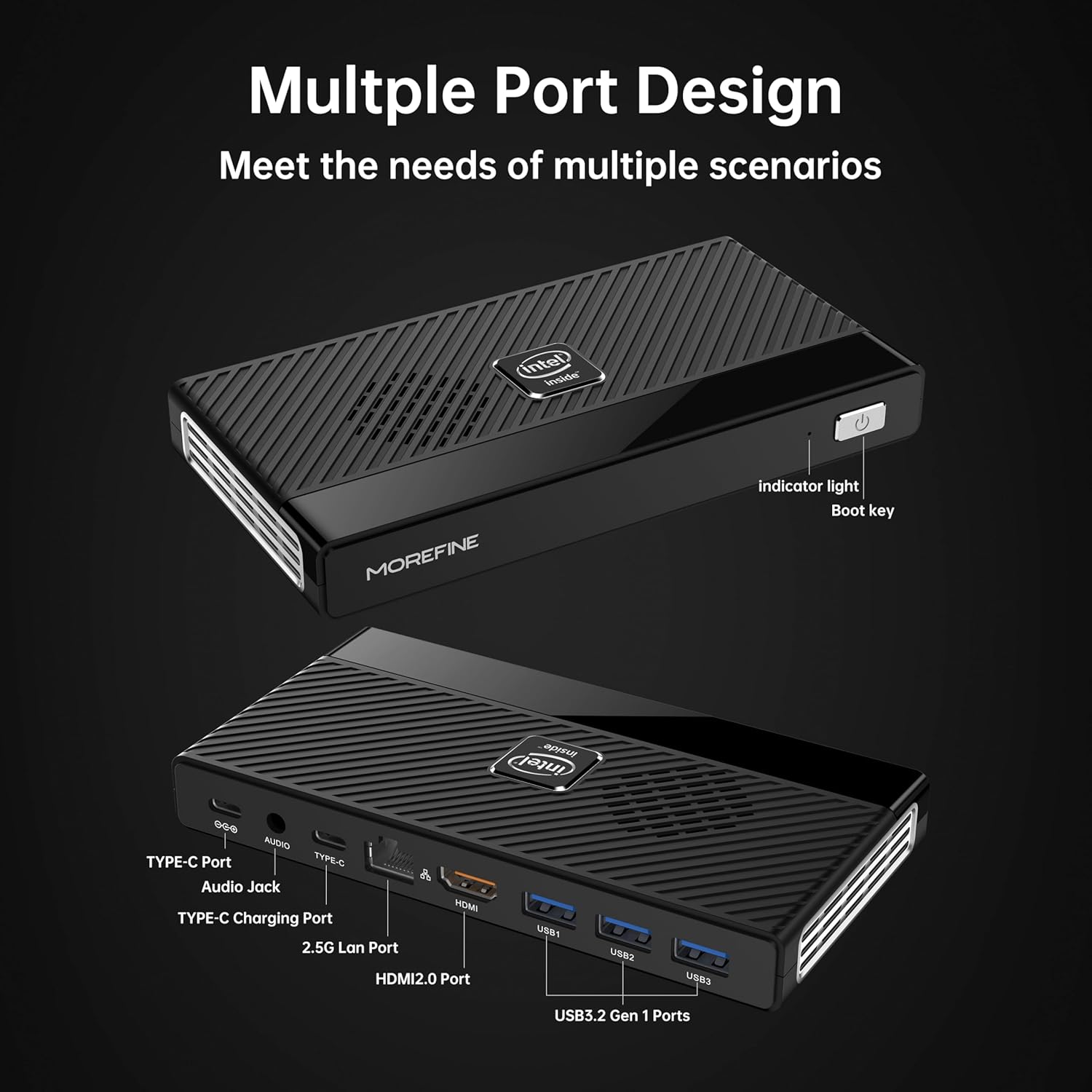
Figure 4.6: Illustrative usage scenarios for the M6 Mini PC.
5. Setup
5.1 Initial Connection
Follow these steps to set up your MOREFINE M6 Mini PC:
- Connect Display: Connect your monitor or TV to the Mini PC using the provided HDMI cable or a compatible Type-C to display cable. The device supports dual 4K@60Hz displays.
- Connect Peripherals: Plug in your keyboard, mouse, and any other USB devices into the available USB 3.2 ports.
- Connect Network (Optional): For a wired internet connection, connect an Ethernet cable to the 2.5G LAN port. Alternatively, the device supports WiFi 6 for wireless connectivity.
- Connect Power: Connect the power adapter to the DC-IN Type-C port on the Mini PC, then plug the adapter into a power outlet.
5.2 First Boot
After connecting all necessary components, press the power button on the front of the Mini PC. The device will power on, and the operating system (OS) setup process will begin. Follow the on-screen instructions to complete the OS configuration.

Figure 5.1: Dual 4K display setup example.
Video 5.1: An overview of the MOREFINE M6 Mini PC, demonstrating its features and compact design.
6. Operating Instructions
6.1 Power On/Off
- Power On: Press the power button once. The indicator light will illuminate.
- Power Off: To shut down the system, use the operating system's shutdown function. For a forced shutdown, press and hold the power button for approximately 5 seconds.
6.2 Dual Display Configuration
The M6 Mini PC supports connecting two external displays simultaneously via the HDMI and Type-C ports. Once connected, you can configure display settings within your operating system to extend or duplicate your desktop.
6.3 Storage Expansion
The Mini PC has two PCIe 3.0 SSD slots. One slot supports NVMe/SATA SSDs (up to 2TB), and the other supports NVMe SSDs (up to 2TB). To expand storage:
- Ensure the device is powered off and disconnected from the power supply.
- Carefully open the bottom cover of the Mini PC.
- Insert the M.2 SSD into the appropriate slot and secure it with the provided screw.
- Replace the bottom cover.
- Upon booting, you may need to initialize and format the new SSD through your operating system's disk management tools.
7. Maintenance
- Cleaning: Regularly clean the exterior of the Mini PC with a soft, dry cloth. Use compressed air to clear dust from ventilation openings.
- Ventilation: Ensure the Mini PC is placed in a well-ventilated area. Do not obstruct the air vents.
- Software Updates: Keep your operating system and drivers updated to ensure optimal performance and security.
- Data Backup: Regularly back up important data to an external storage device or cloud service.
8. Troubleshooting
This section addresses common issues you might encounter with your MOREFINE M6 Mini PC.
| Issue | Possible Cause | Solution |
|---|---|---|
| Device does not power on. | Power adapter not connected or faulty; power outlet issue. | Ensure power adapter is securely connected to the device and a working power outlet. Try a different outlet. |
| No display on monitor. | Display cable loose or faulty; incorrect input selected on monitor. | Check display cable connections. Ensure the monitor is set to the correct input source (HDMI/Type-C). Try a different cable or monitor. |
| Slow performance. | Too many applications running; insufficient storage space; outdated drivers. | Close unnecessary applications. Free up disk space. Update operating system and drivers. |
| Device feels hot. | Obstructed ventilation; prolonged heavy usage. | Ensure air vents are clear and the device is in a well-ventilated area. Reduce heavy workload if necessary. If overheating persists, contact support. |
| Cannot connect to Wi-Fi. | Wi-Fi module disabled; incorrect password; driver issue. | Check Wi-Fi settings in the OS. Verify password. Ensure Wi-Fi drivers are installed and up to date. |
9. Technical Specifications
| Feature | Specification |
|---|---|
| Processor | Intel Alder Lake N200 (up to 3.7 GHz, 4 Cores) |
| RAM | 16GB LPDDR5 4800MHz (non-removable) |
| Storage | 1TB PCIe M.2 SSD (expandable via 2 M.2 slots, up to 2TB each) |
| Graphics | Intel UHD Graphics |
| Video Output | HDMI (4K@60Hz) x1, Type-C (4K@60Hz) x1 |
| USB Ports | USB 3.2 Gen1 x3, Type-C x1 (data/display) |
| Network | 2.5G LAN (RJ45), WiFi 6 (802.11ax) |
| Bluetooth | Bluetooth 5.2 |
| Audio | 3.5mm Audio Jack |
| Operating System | Pre-installed OS (specific version may vary) |
| Dimensions | Approx. 5.90 x 3.07 x 0.75 inches (149.86 x 76.5 x 19.05 mm) |
| Weight | Approx. 0.102 ounces (240g) |
| Special Features | Wake On LAN, PXE Boot, RTC Wake, Auto Power On |
10. Warranty and Support
MOREFINE products are designed for reliability and performance. For warranty information, please refer to the documentation included with your purchase or visit the official MOREFINE website.
If you encounter any issues or require technical assistance, please contact MOREFINE customer support. You can typically find contact information on the MOREFINE official store page or through the retailer where you purchased the product. When contacting support, please have your product model (M6-N200) and purchase details ready.


