Introduction
This manual provides detailed instructions for the installation, operation, and maintenance of your Lian Li Hydroshift LCD 360 Liquid Cooler. Designed for optimal thermal performance and aesthetic integration, this all-in-one (AIO) liquid cooler features a flexible side-mounted coolant pathway and a customizable 2.88-inch LCD screen. Please read this manual thoroughly before proceeding with installation and use.
Product Overview
The Lian Li Hydroshift LCD 360 Liquid Cooler is engineered to provide efficient cooling for your CPU while offering unique customization options. Key features include:
- Compatible CPU Sockets: Intel LGA 1700, AMD AM5.
- Flexible Side-Mounted Coolant Pathway: Innovative design allows for clean tube routing along the radiator.
- 2.88-inch IPS LCD Screen: 480 x 480 resolution for real-time hardware monitoring, custom images, screenshots, or recorded videos.
- Enhanced Pump Design: Pump speeds up to 3800 RPM with improved coolant pathways and impeller size for superior performance.
- L-Connect Software: Updated software for quick themes, layouts, integrated hardware monitoring, screen capture, recording, and editing tools.
- Radiator Support: Supports 280 mm wide radiators and accommodates lengths of 395 to 403 mm.
- Fan-Less Design: This model (360N) does not include fans, allowing users to select their preferred fans.

Figure 1: Lian Li Hydroshift LCD 360 Liquid Cooler (Fan-Less) in Black.

Figure 2: Overview of the Hydroshift AIO's side-mounted design and key components.
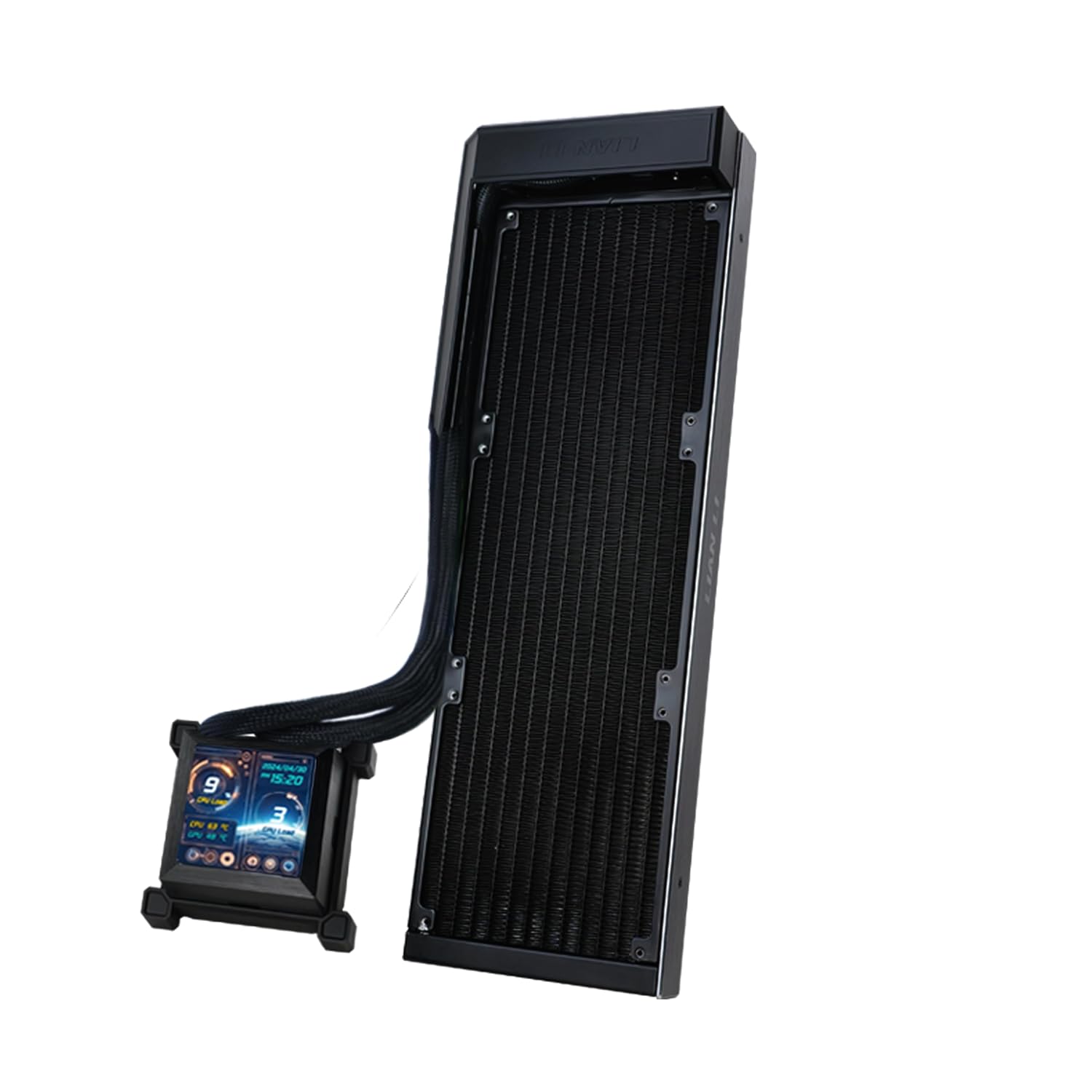
Figure 3: Radiator dimensions (403 x 124.5 x 27mm) and 2.88" IPS LCD screen details.

Figure 4: Detailed view of the 2.88" IPS LCD screen, showing 480x480 resolution and L-Connect 3 support.

Figure 5: Internal design of the pump block, highlighting enhanced performance and optimized waterflow pathways.

Figure 6: Detailed view of the pump's internal structure, emphasizing its compact yet powerful design.

Figure 7: The LCD screen displaying real-time system monitoring and customizable visuals.

Figure 8: The Hydroshift AIO is designed for high performance with a low noise level.
Setup and Installation
Follow these steps for proper installation of your Hydroshift LCD 360 Liquid Cooler. Ensure your system is powered off and unplugged before beginning.
1. Prepare the CPU Socket
- For Intel LGA 1700 or AMD AM5 sockets, install the appropriate backplate provided in the accessory box.
- Place the plastic spacers over the backplate screws.
- Apply thermal paste to the CPU IHS (Integrated Heat Spreader).
2. Mount the Pump Block
- Remove the protective plastic film from the bottom of the CPU pump block.
- Carefully align the pump block with the CPU and the mounting holes.
- Secure the pump block by tightening the screws evenly in a cross pattern until snug. Do not overtighten.
- Attach the magnetic cover to conceal the mounting screws for a clean aesthetic.
Video 1: Detailed installation guide for the Lian Li Hydroshift LCD 360 Liquid Cooler, demonstrating CPU block mounting and cable management.
3. Radiator and Fan Installation (Fans Sold Separately)
- Mount your chosen 120mm or 140mm fans to the radiator using the provided long screws.
- Install the radiator assembly into your PC case. The side-mounted design allows for flexible placement.
- Utilize the pre-installed retention brackets and the extra bracket for routing tubes along the pump block, ensuring a clean and streamlined appearance. The tubes can be rotated 360 degrees to optimize routing.
- Use the included cable clips to organize the cooling tubes and cables extending from the pump.

Figure 9: The Hydroshift AIO installed in a PC case, showcasing its side-mounted radiator and pump block with integrated cables.

Figure 10: The design allows for fan cables to be integrated into the cooling tubes, simplifying connections (fans sold separately).
4. Cable Connections
- Connect the pump's PWM cable to an available CPU_FAN or AIO_PUMP header on your motherboard.
- Connect the SATA power cable to your power supply.
- Connect the USB 2.0 cable from the pump block to an available USB 2.0 header on your motherboard. This is essential for L-Connect software functionality and LCD screen control.
- If using Lian Li P28 fans, connect their PWM cables directly to the pump's PWM male connector for integrated control.

Figure 11: The USB cable integrated into the pump for streamlined connectivity.

Figure 12: Cable clips help manage and route cables for a tidy internal PC appearance.
Operating the Cooler and L-Connect Software
The Hydroshift LCD 360 is controlled via the updated Lian Li L-Connect software, offering extensive customization and monitoring capabilities.
L-Connect Software Features:
- Hardware Monitoring: Real-time display of CPU/GPU temperatures, load percentages, and pump RPM directly on the LCD screen.
- Custom Themes and Layouts: Choose from various preset themes or create your own custom layouts for the LCD display.
- Screen Capture and Recording: Capture screenshots or record short videos directly from your desktop and display them on the LCD. Built-in editing tools are available.
- Dynamic Visual Effects: New 3D and sensor-reactive visual effects enhance the aesthetic appeal.
- Fan Control: Adjust fan speeds and profiles (if using compatible Lian Li fans) for optimal balance between cooling performance and noise levels.
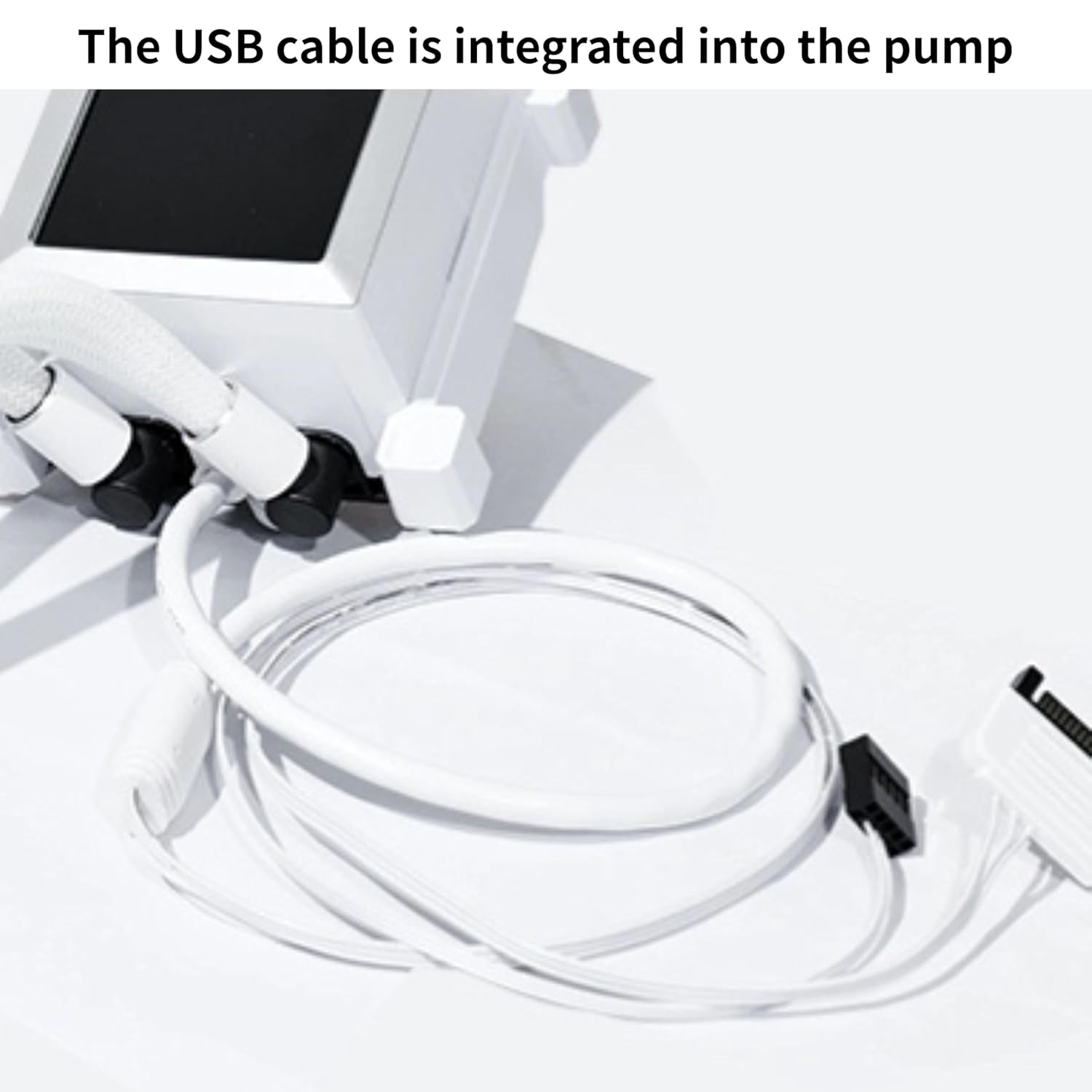
Figure 13: L-Connect software interface for customizing LCD display and monitoring system performance.

Figure 14: Example of graphic display options for the LCD screen.
Maintenance
Regular maintenance ensures the longevity and optimal performance of your liquid cooler.
- Dust Cleaning: Periodically clean dust from the radiator fins and any installed fans using compressed air. Ensure the system is powered off before cleaning.
- Tube Inspection: Check the coolant tubes for any signs of kinks, leaks, or damage.
- Software Updates: Keep the L-Connect software updated to the latest version for new features, bug fixes, and performance improvements.
- Thermal Paste: While not frequently required, consider reapplying thermal paste if you notice a significant increase in CPU temperatures over time.
Troubleshooting
If you encounter issues with your Lian Li Hydroshift LCD 360 Liquid Cooler, refer to the following common solutions:
- No Display on LCD Screen:
- Ensure the USB 2.0 cable is securely connected to both the pump block and the motherboard header.
- Verify that the L-Connect software is installed and running.
- Check for any loose power connections (SATA).
- High CPU Temperatures:
- Confirm the pump block is securely mounted to the CPU and thermal paste is properly applied.
- Ensure fans (if installed) are operating correctly and oriented for optimal airflow (pushing air through the radiator).
- Check pump RPM in L-Connect software; if it's unusually low, check the PWM connection.
- Ensure there is no excessive dust buildup on the radiator fins.
- Unusual Noise (Bubbling/Gurgling):
- A slight bubbling noise upon initial power-up is normal as air settles in the loop. This should subside within a few minutes.
- Ensure the pump is not the highest point in the loop to prevent air from accumulating in the pump.
- L-Connect Software Issues:
- Restart the software or your computer.
- Ensure the USB 2.0 connection is stable.
- Download and install the latest version of L-Connect from the official Lian Li website.
Specifications
| Feature | Detail |
|---|---|
| Brand | Lian Li |
| Model Number | G99.V100RX.01 |
| Compatible CPU Sockets | Intel LGA 1700, AMD AM5 |
| Cooling Method | Water |
| Pump Speed | Up to 3800 RPM |
| Noise Level | 29.8 Decibels |
| Radiator Dimensions | Approx. 403 x 124.5 x 27mm (Length x Width x Thickness) |
| LCD Screen Size | 2.88 inches IPS |
| LCD Screen Resolution | 480 x 480 |
| Power Connector Type | 4-Pin (PWM) |
| Voltage | 12 Volts (DC) |
| Wattage | 15 watts |
| Material | Aluminium, Copper, Glass, Plastic, Rubber, PVC, Metal |
| Item Weight | 5.3 pounds |
Warranty and Support
The Lian Li Hydroshift LCD 360 Liquid Cooler comes with a 6-year warranty, ensuring peace of mind regarding its quality and durability.
For technical support, warranty claims, or further assistance, please visit the official Lian Li website or contact their customer service directly. Keep your proof of purchase for warranty validation.
Lian Li Official Website: www.lian-li.com


