
IPEROT JYTX-B
IPEROT Scientific Calculators with Graphing Calculator User Manual
Model: JYTX-B
Introduction
This manual provides comprehensive instructions for the IPEROT Scientific Calculator with Graphing capabilities, model JYTX-B. Designed for students, engineers, and professionals, this calculator offers a wide range of functions including advanced graphing, statistical analysis, and complex number operations. Please read this manual thoroughly to understand all features and ensure optimal performance.
Setup
Battery Installation
The IPEROT Scientific Calculator requires 4 AAA batteries for operation. These batteries are included with your purchase. To install or replace batteries:
- Locate the battery compartment cover on the back of the calculator.
- Slide the cover off in the direction indicated by the arrow.
- Insert 4 AAA batteries, ensuring correct polarity (+/-) as marked inside the compartment.
- Replace the battery compartment cover until it clicks securely into place.
Initial Power-On and Settings
Press the ON button to power on the calculator. To access and configure settings such as contrast, auto power-off time, and multi-line display font settings, press [SHIFT] followed by [MODE]. This will open the settings menu.
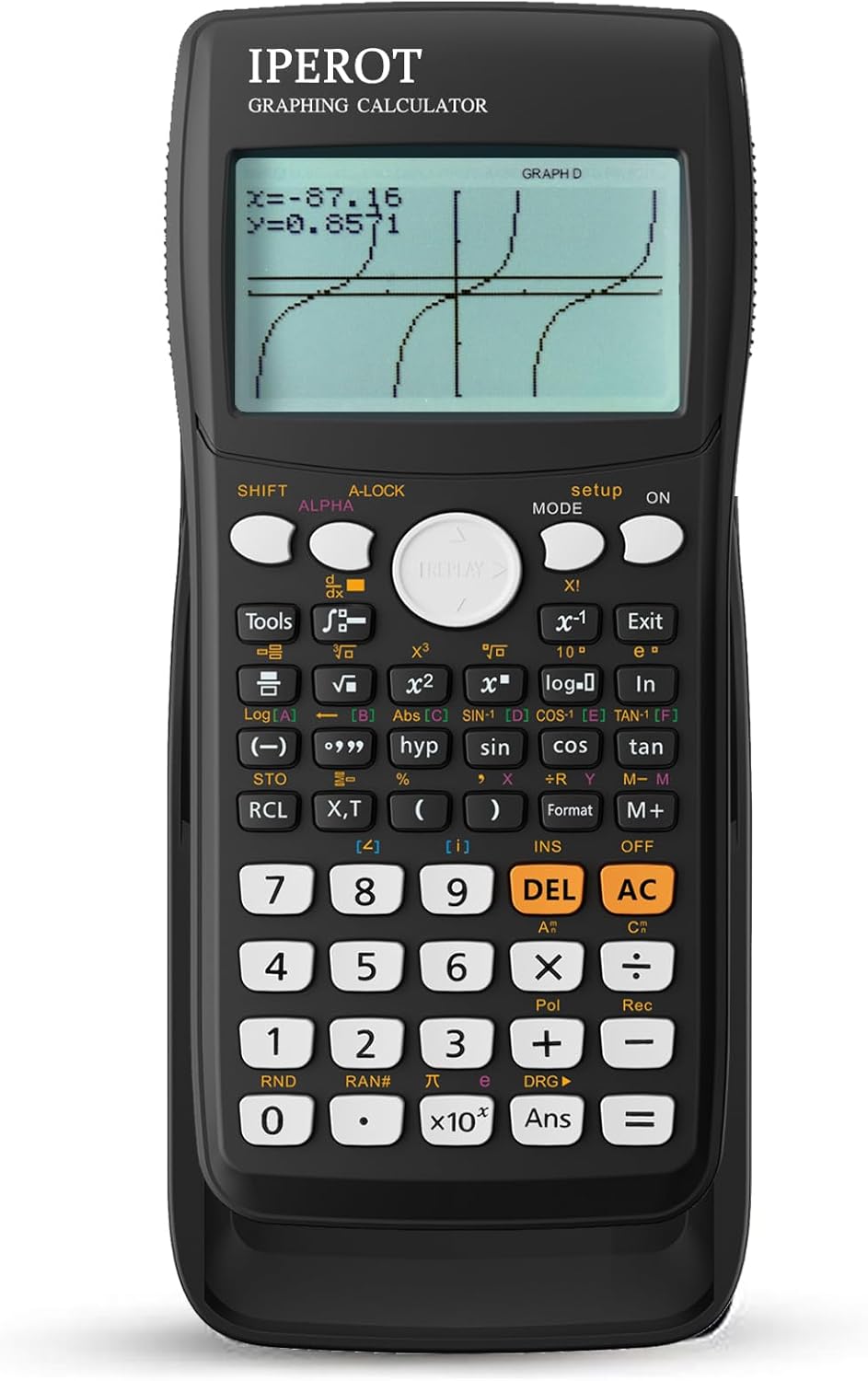
Figure 1: Front view of the IPEROT Scientific Graphing Calculator, showing the display and key layout.
Operating Modes
The IPEROT graphing calculator features 10 built-in function modes to cater to diverse mathematical and scientific calculation needs. Use the MODE button to switch between these functions.

Figure 2: Display illustrating the selection of various function modes, including Calculate, Complex, Statistics, Base-N, Equation, Table, Matrix, Vector, Graphic, and G-Solve.
- 1: Calculate: Standard arithmetic and scientific calculations.
- 2: Complex: Operations involving complex numbers.
- 3: Statistics: Statistical calculations, including mean, standard deviation, and regression analysis.
- 4: Base-N: Calculations in different number bases (binary, octal, decimal, hexadecimal).
- 5: Equation: Solving various types of equations.
- 6: Table: Generating numerical tables for functions.
- 7: Matrix: Matrix operations, including addition, subtraction, multiplication, and inverse.
- 8: Vector: Vector calculations.
- 9: Graphic: For plotting graphs of functions.
- 10: G-Solve: Graphical solving functions, such as finding roots, intersections, and extrema on a graph.
Advanced Graphing Capabilities
The calculator supports a variety of advanced graphing functions, making it an ideal tool for visual analysis of mathematical expressions.

Figure 3: Screen showing the various graphing options available, including Cartesian, Conic, Polar, and Parametric equations, along with a set of 8 commonly used function drawings.
- Drawing of Cartesian Coordinate equation: Plot functions in the standard x-y coordinate system.
- Drawing of Conic Curve: Graph conic sections such as circles, ellipses, parabolas, and hyperbolas.
- Drawing of Polar Coordinate Function: Plot functions defined by polar coordinates (r, θ).
- Drawing of Parametric Equation: Graph curves defined by parametric equations (x(t), y(t)).
- Set of 8 commonly used function drawings: Access pre-defined common function types for quick plotting.

Figure 4: Illustration of the graphical solving equation process, demonstrating how to input an equation (e.g., y=tan(X)) and execute to display its graph, with examples of different graphical outputs.
Product Design and Features
High-Resolution Large Screen
The calculator features a 128x64 high-resolution display with a screen size of 66.5 x 43.8 mm (2.62" x 1.72"). This large screen design ensures clear display of input data, calculation results, and graphs, enhancing readability and user experience.
Ergonomic Keyboard Layout
The well-designed keyboard layout with appropriately sized keys helps prevent accidental key presses, improving calculation efficiency and accuracy.
Energy-Efficient Design
To conserve battery life, the calculator is designed to automatically shut down after 6 minutes of inactivity. This feature extends the overall battery lifespan.
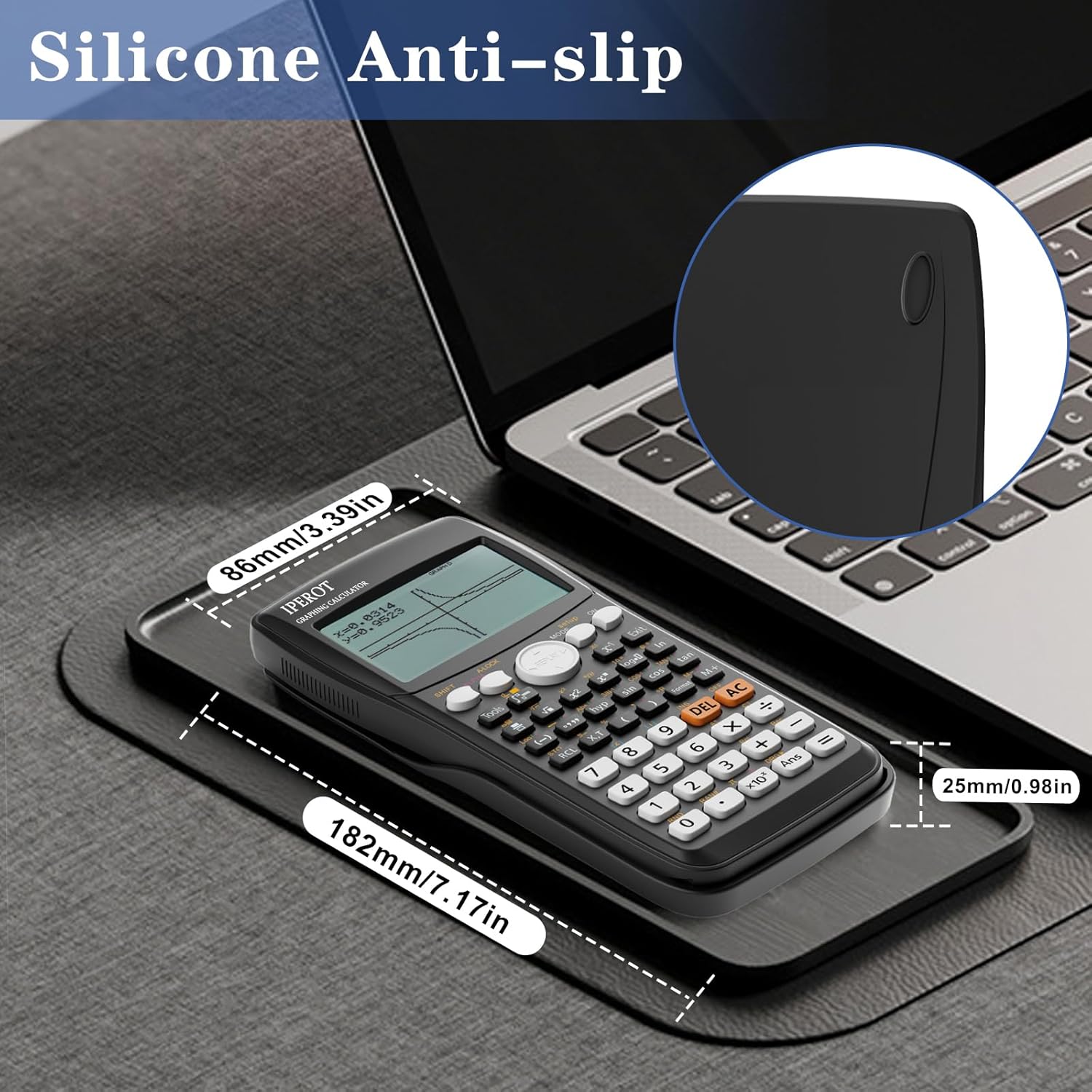
Figure 5: Image highlighting the silicone anti-slip feature on the back of the calculator and its dimensions (182mm/7.17in length, 86mm/3.39in width, 25mm/0.98in thickness).
Maintenance
Cleaning
To clean the calculator, use a soft, dry cloth. For stubborn dirt, slightly dampen the cloth with water and wipe gently. Avoid using harsh chemicals, abrasive cleaners, or solvents, as these can damage the calculator's surface and internal components.
Battery Replacement
When the display becomes dim or the calculator functions erratically, it may be time to replace the batteries. Follow the battery installation steps outlined in the "Setup" section. Ensure to dispose of old batteries responsibly according to local regulations.
Troubleshooting
Calculator Does Not Turn On
- Check if the batteries are installed correctly with the correct polarity.
- Replace the batteries with new AAA batteries.
- Ensure the ON button is pressed firmly.
Display is Dim or Unclear
- Adjust the display contrast through the settings menu ([SHIFT] + [MODE]).
- Replace the batteries if they are low.
Incorrect Calculation Results
- Ensure the calculator is in the correct mode for your calculation (e.g., DEG/RAD, specific function mode).
- Perform a reset operation via the settings menu ([SHIFT] + [MODE]) if persistent errors occur. Note that resetting will clear all memory and settings.
Specifications
| Feature | Detail |
|---|---|
| Model Number | JYTX-B |
| Product Dimensions | 7.16 x 3.89 x 0.1 inches |
| Item Weight | 9.1 ounces |
| Power Source | 4 AAA batteries (included) |
| Screen Size | 2.88 Inches (66.5 x 43.8 mm) |
| Display Resolution | 128x64 pixels |
| Calculator Type | Scientific, Graphing |
Warranty and Support
For information regarding warranty coverage and customer support, please refer to the warranty card included with your product or visit the official IPEROT website. Our support team is available to assist with any questions or issues you may encounter.
Ask a question about this manual
Ask about setup, troubleshooting, compatibility, parts, safety, or missing instructions. Manuals+ will review the question and use this page’s manual context to help answer it.