
1. Introduction
This manual provides detailed instructions for the operation and maintenance of your CNBRO Fitness Tracker, model US-X-W5VP. Please read this manual thoroughly before using the device to ensure proper function and to maximize your user experience. Keep this manual for future reference.
2. Product Overview
The CNBRO Fitness Tracker is designed to monitor various aspects of your daily activity and sleep patterns. It features a digital display, step counting, calorie tracking, distance measurement, sleep monitoring, and an alarm clock function. The device is waterproof and charges via USB.

Image 1: Front view of the CNBRO Fitness Tracker, displaying the time.
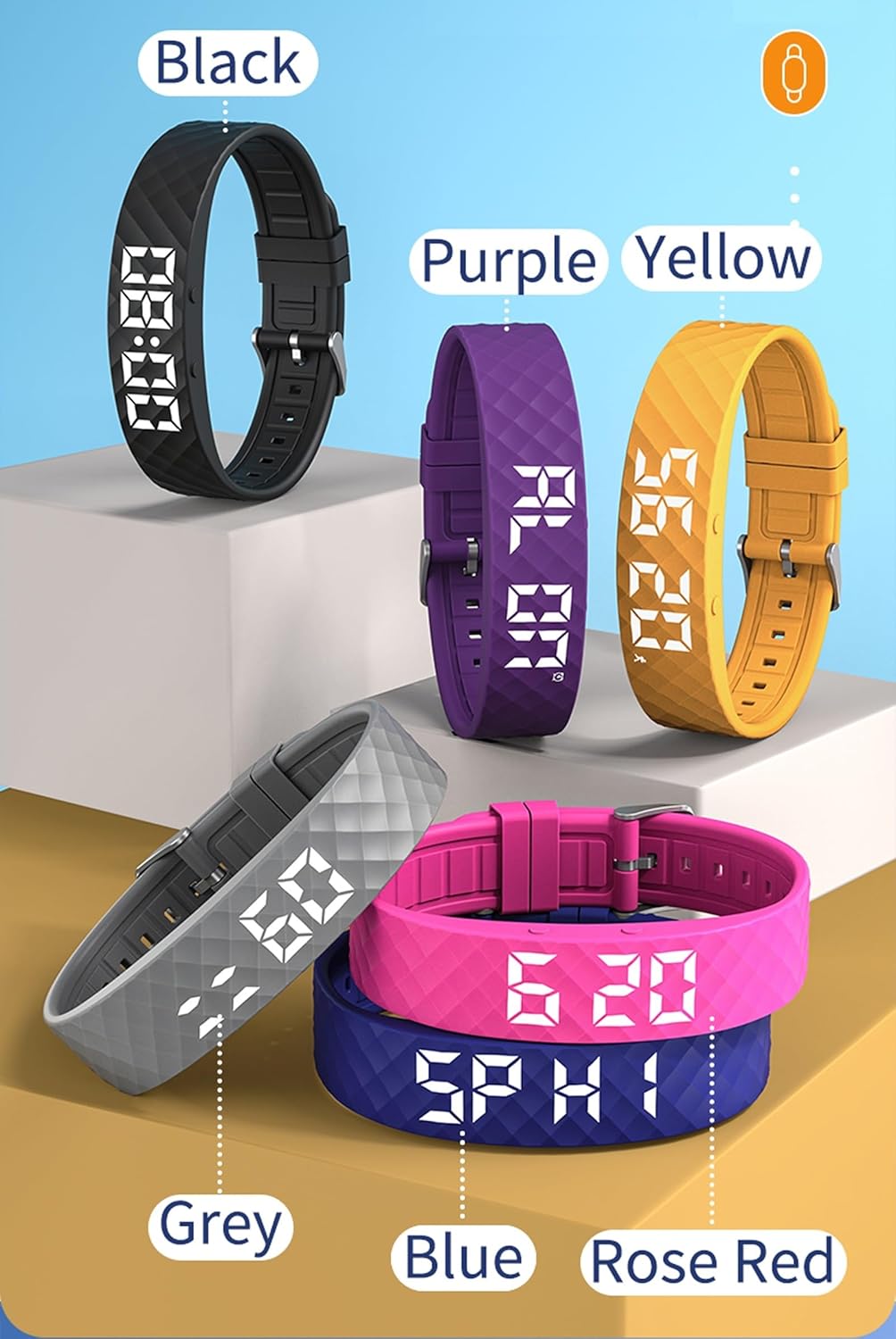
Image 2: CNBRO Fitness Trackers displayed in multiple available colors.
Key Features:
- Step Counting
- Calorie Consumption Calculation
- Distance Tracking
- Sleep Monitoring
- Vibration Alarm Clock
- 12/24 Hour Display Switch
- Calendar Display
- Raise Wrist to Light Up Screen
- Waterproof Design
- USB Direct Charging
3. Setup
3.1 Charging the Device
Before initial use, fully charge your fitness tracker. The device features USB direct charging, eliminating the need for a separate charging cable.
- Gently remove the strap from one end of the tracker to reveal the USB charging connector.
- Insert the USB connector into any standard USB port (e.g., computer, USB wall adapter, power bank).
- The display will indicate charging status. A full charge typically takes approximately 0.5 hours.
- Once fully charged, remove the device from the USB port and reattach the strap securely.
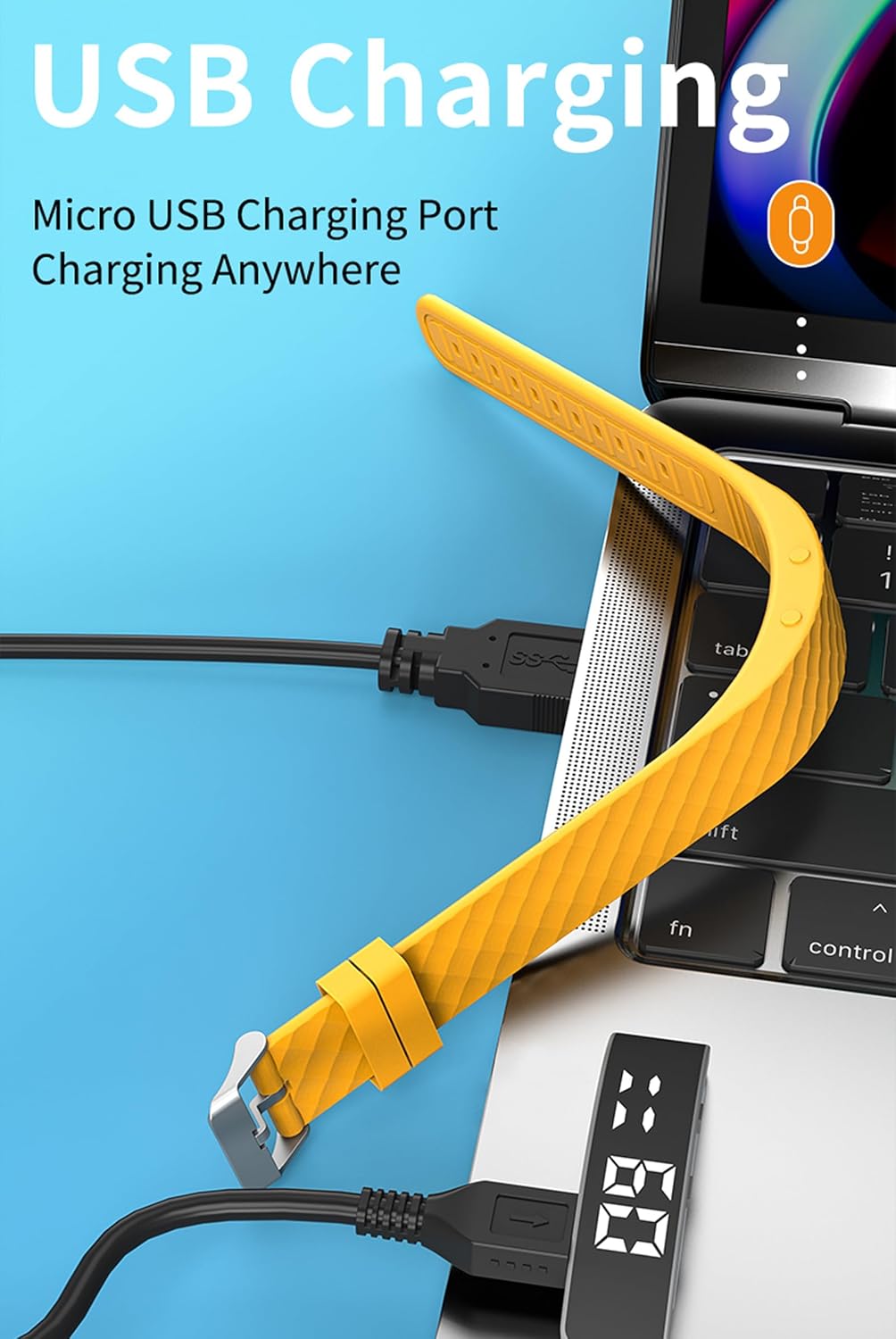
Image 3: Illustration of the USB direct charging method for the fitness tracker.
3.2 Powering On/Off
- Power On: The device typically powers on automatically when charged or when the function button is pressed and held.
- Power Off: Refer to the on-screen menu for a power-off option, usually accessed by navigating through the functions using the button.
3.3 Wearing the Device
Wear the fitness tracker snugly on your wrist, about one finger's width above your wrist bone. Ensure it is not too tight to restrict blood flow, nor too loose to move freely, as this can affect the accuracy of activity tracking.
4. Operating Instructions
4.1 Button Functions
Your fitness tracker has at least one primary button for navigation and selection. This is typically referred to as the Function Button or Display Button.

Image 4: Location of the Display Button and Function Button on the fitness tracker.
- Short Press: To cycle through different display modes (time, steps, calories, distance, sleep, etc.).
- Long Press: To enter a specific mode's settings or to confirm a selection.
4.2 Activity Tracking (Steps, Calories, Distance)
The tracker automatically records your daily steps, calculates calories burned, and estimates distance traveled.
- From the main time display, short press the function button to cycle through the activity data screens.
- To view historical data, press the function button 3 times to reach the steps display, then press and hold the button to check daily steps for the past 30 days.
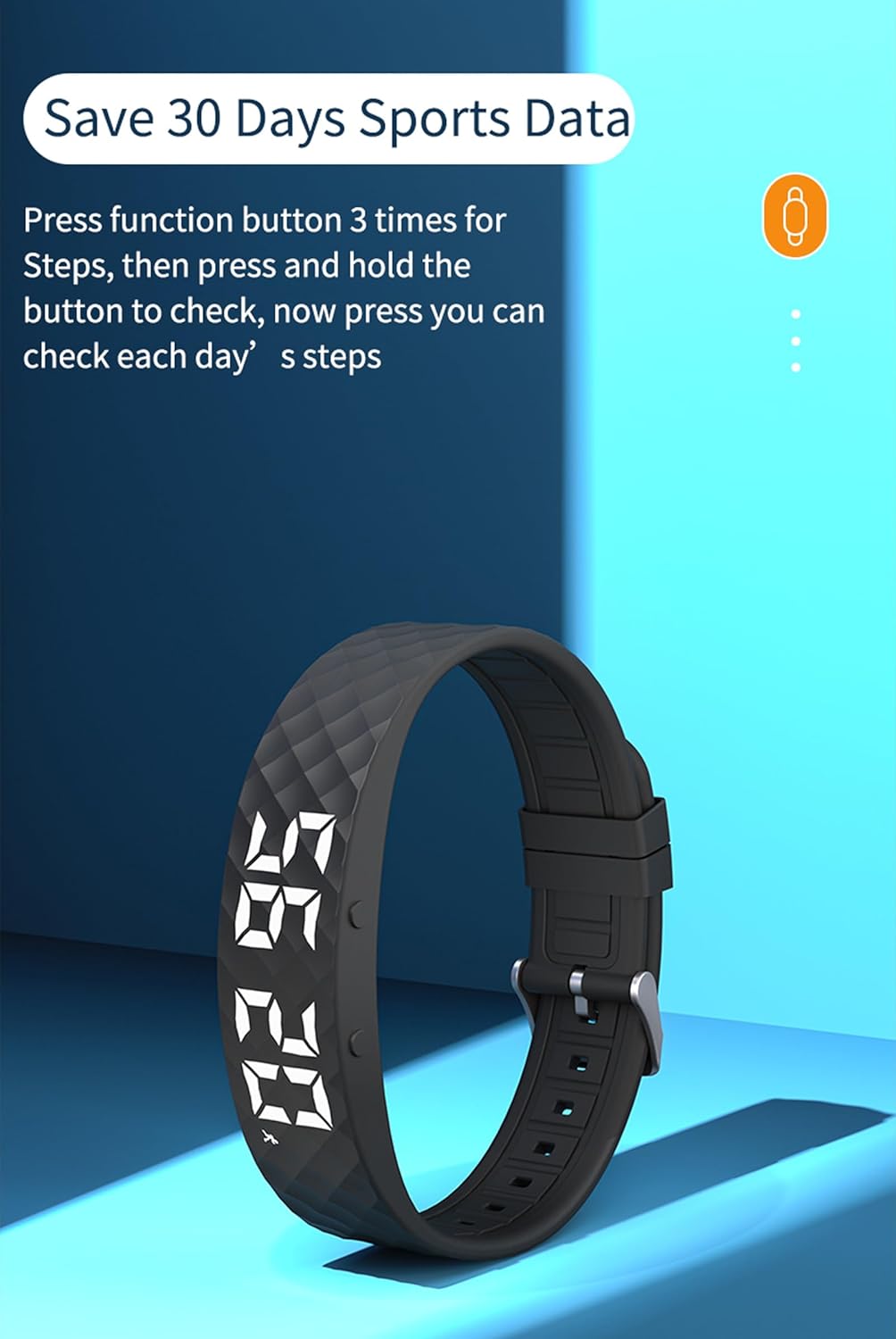
Image 5: Instructions for accessing 30 days of sports data, specifically steps.
4.3 Sleep Monitoring
The device monitors your sleep patterns automatically when worn during sleep.
- Wear the tracker while sleeping.
- To view sleep data, press the display button 6 times to navigate to the sleep monitor screen.
- The display will show your sleep status, typically categorized as H1 (Good Sleep), C2 (General Sleep), or L3 (Bad Sleep).

Image 6: Sleep Monitor interface showing sleep quality categories.
4.4 Alarm Clock
You can set up to 3 vibration alarms on your fitness tracker.
- Navigate to the alarm setting screen using the function button.
- Long press the function button to enter alarm edit mode.
- Use short presses to adjust the hour and minute, and long presses to confirm and move to the next setting.
- Confirm to save the alarm.

Image 7: Display showing the capability to set up to 3 alarms.
4.5 Other Functions
- Raise Wrist to Light Up Screen: This feature automatically illuminates the display when you raise your wrist to view the time.
- Stopwatch/Countdown: Navigate through the menu to find and activate the stopwatch or countdown timer functions.
- Calendar Display: The device can display the current date.
5. Maintenance
5.1 Cleaning
- Regularly clean your tracker and strap with a soft, damp cloth.
- Avoid using harsh chemicals or abrasive materials, as these can damage the device.
- Ensure the charging contacts are clean and dry before charging.
5.2 Water Resistance
The CNBRO Fitness Tracker is designed to be waterproof. It is suitable for daily use, including hand washing and light rain. However, it is not recommended for swimming, showering with hot water, or diving, as steam and high water pressure can compromise the seal.
5.3 Storage
When not in use for extended periods, store the device in a cool, dry place. It is advisable to charge the device periodically to maintain battery health.
6. Troubleshooting
- Device not powering on: Ensure the device is fully charged. If the issue persists, try connecting it to a different USB port or charger.
- Inaccurate activity data: Ensure the tracker is worn correctly and snugly on your wrist. Avoid excessive arm movements not related to walking.
- Display not lighting up: Check if the 'Raise Wrist to Light Up Screen' feature is enabled. If not, press the function button to activate the display.
- Charging issues: Verify that the USB connector is fully inserted and the charging contacts are clean.
If you encounter persistent issues not covered here, please refer to the support section for assistance.
7. Specifications
| Model Name | US-X-W5VP |
| Product Dimensions | 0.28 x 0.59 x 0.14 inches |
| Item Weight | 4.9 ounces |
| Battery | 1 Lithium Ion battery (included) |
| Charging Time | Approximately 0.5 hours |
| Usage Time | 3-5 days |
| Standby Time | 7 days |
| Screen Size | 1 Inch |
| System Requirements | Android 6.0 and above, iOS 12.0 and above, Bluetooth 5.2 support |
| Connectivity Technology | Bluetooth |
| Special Feature | Fitness Tracker |
8. Warranty and Support
For any questions or assistance regarding your CNBRO Fitness Tracker, please contact customer support through the following method:
- Go to your Amazon account and click on 'Orders' in the upper right corner.
- Locate your order for this product.
- Click on 'Sold by Fusong US' (or the relevant seller name) below the product name.
- Click the yellow button 'Ask a question'.
- Select 'I need assistance with an order I placed'.
- Click the yellow button 'Write message' and describe your request.
Customer support aims to respond within 24 hours.