
Introduction
This manual provides detailed instructions for the Fantech Tamago WHG01 Wireless Headphones. It covers product features, setup, operation, maintenance, and troubleshooting to ensure optimal performance and user experience. The WHG01 offers tri-mode connectivity (StrikeSpeed 2.4GHz wireless, Bluetooth 5.2, and wired Type-C) and a detachable microphone, designed for versatile audio needs.
What's in the Box
Verify that all items listed below are included in your package:
- Fantech Tamago WHG01 Headset
- USB Receiver (for StrikeSpeed 2.4GHz wireless)
- Type-C Charging Cable
- Detachable Omnidirectional Microphone
- User Manual

Product Overview
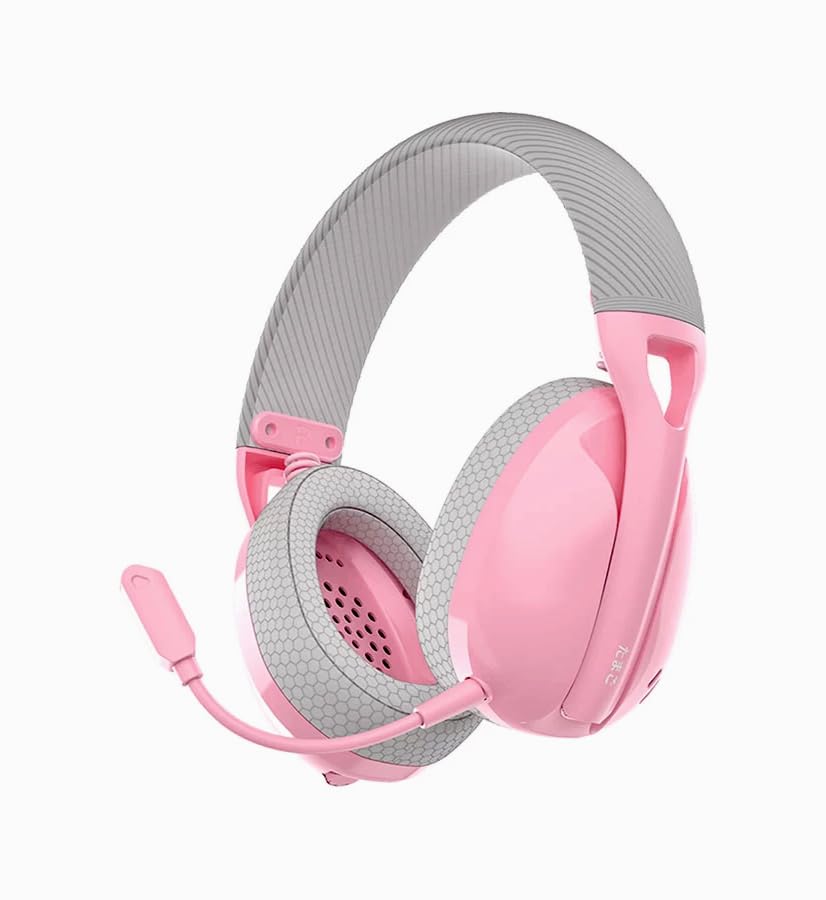
The Fantech Tamago WHG01 headphones are designed for comfort and versatility. Key features include:
- Ultra-lightweight Design: Weighing approximately 168g (172g with microphone), ensuring comfort during extended use.
- Breathable Ear Cushions: Fabric-covered ear cushions for enhanced comfort and airflow.
- Detachable Microphone: A flexible omnidirectional microphone for clear communication, which can be removed when not needed.
- On-ear Controls: Integrated buttons for power, volume adjustment, and microphone mute.

Setup
1. Charging the Headset
Before first use, fully charge the headset. A built-in 400mAh battery provides up to 18 hours of playtime.
- Connect the supplied Type-C charging cable to the charging port on the headset.
- Connect the other end of the cable to a USB power source (e.g., computer USB port, USB wall adapter).
- The LED indicator on the headset will show charging status (refer to LED indicator section for details).
- Once fully charged, disconnect the charging cable.

2. Attaching the Microphone
The WHG01 features a detachable omnidirectional microphone.
- Locate the microphone port on the left ear cup.
- Align the microphone's connector with the port and gently push it in until it clicks into place.
- To detach, gently pull the microphone out of the port.
3. Connectivity Modes
The headset supports three connectivity modes: StrikeSpeed 2.4GHz Wireless, Bluetooth 5.2, and Wired Type-C.

StrikeSpeed 2.4GHz Wireless Connection
This mode provides low-latency wireless audio, ideal for gaming.
- Insert the USB receiver into an available USB port on your device (PC, laptop, compatible console).
- Power on the headset. The headset will automatically attempt to connect to the USB receiver.
- The LED indicator will confirm successful connection (refer to LED indicator section).
- Ensure the headset is selected as the audio output/input device in your system settings.
Bluetooth 5.2 Connection
For wireless connection to Bluetooth-enabled devices like smartphones, tablets, or laptops.
- Power on the headset.
- Press and hold the mode button (or power button, depending on model specifics - refer to physical controls diagram if available) to enter Bluetooth pairing mode. The LED indicator will flash, indicating it's discoverable.
- On your device, go to Bluetooth settings and search for "Fantech Tamago WHG01" (or similar).
- Select the headset to pair. The LED indicator will change to a solid light upon successful pairing.
Wired Type-C Connection
For a direct, stable connection and simultaneous charging.
- Connect the Type-C charging cable to the headset's Type-C port.
- Connect the other end of the cable to a compatible Type-C port on your device.
- The headset will function as a wired audio device.
Operating Instructions
Power On/Off
- To Power On: Press and hold the Power button (usually located on the ear cup) for approximately 3 seconds until the LED indicator lights up.
- To Power Off: Press and hold the Power button for approximately 5 seconds until the LED indicator turns off.
Volume Control
- Increase Volume: Press the '+' button on the ear cup.
- Decrease Volume: Press the '-' button on the ear cup.
Microphone Mute/Unmute
- Mute Microphone: Press the dedicated microphone mute button (or a specific combination, refer to product diagram) on the ear cup.
- Unmute Microphone: Press the microphone mute button again.
Switching Connectivity Modes
The headset allows seamless switching between its tri-modes.
- Press the Mode button (if available) to cycle through StrikeSpeed Wireless, Bluetooth, and Wired modes.
- The LED indicator will change to reflect the active mode.
Maintenance
Cleaning
- Use a soft, dry cloth to wipe the headset's surfaces.
- For ear cushions, gently wipe with a slightly damp cloth and allow to air dry completely.
- Do not use harsh chemicals, solvents, or abrasive cleaners.
Storage
- Store the headset in a cool, dry place away from direct sunlight and extreme temperatures.
- Avoid placing heavy objects on the headset.
- If storing for an extended period, ensure the battery is partially charged (around 50%) to prolong its lifespan.
Troubleshooting
- No Power: Ensure the headset is charged. Connect the Type-C cable and check if the charging indicator lights up.
- No Sound (Wireless):
- Check if the headset is powered on and connected to the correct device.
- For StrikeSpeed, ensure the USB receiver is properly inserted and recognized by your device.
- For Bluetooth, ensure the headset is paired and selected as the audio output in your device's settings.
- Increase the volume on both the headset and your connected device.
- Microphone Not Working:
- Ensure the microphone is securely attached to the headset.
- Check if the microphone is muted using the headset's controls.
- Verify that the correct microphone input device is selected in your computer's or device's sound settings.
- Connection Issues:
- Try restarting both the headset and the connected device.
- For Bluetooth, try unpairing and re-pairing the headset.
- Ensure there are no significant obstructions or interference sources between the headset and the wireless receiver/device.
Specifications
| Model | WHG01 |
| Connectivity | Tri-mode (StrikeSpeed 2.4GHz Wireless, Bluetooth 5.2, Wired Type-C) |
| Weight | 168g (172g with microphone) |
| Speaker Driver | 40mm |
| Speaker Sensitivity | 106dB±3dB |
| Microphone Type | Detachable Omnidirectional |
| Microphone Dimension | ø6mm*2.7mm |
| Microphone Sensitivity | -42±3 dB |
| Battery Capacity | 400mAh |
| Playtime | Up to 18 hours |
| Charging Port | USB Type-C |
| Core Construction | ABS |
| Compatible Devices | PC, Laptop, Mobile devices |
Warranty and Support
For warranty information and technical support, please refer to the official Fantech website or contact your local distributor. Keep your proof of purchase for warranty claims.
Manufacturer: Fantech
Importer/Packer: MRJ Electronics Ahmedabad Gujarat. electronicsmrj@gmail.com. Contact: 9023265213
Date First Available: 25 September 2024


