
Introduction
This manual provides detailed instructions for the operation and maintenance of your CNBRO Fitness Tracker, model US-X-W5VP. Please read this manual thoroughly before using the device to ensure proper function and to maximize its features. This fitness tracker is designed to monitor various health and activity metrics, including steps, calories burned, distance, and sleep patterns.
What's in the Box
Upon opening the package, verify that all items are present:
- 1 x CNBRO Fitness Tracker (US-X-W5VP)
- 1 x User Manual
Setup
1. Charging the Device
Before initial use, fully charge your fitness tracker. The device features a USB direct charging design.
- Locate the USB charging port on the device. This is typically integrated into one end of the strap.
- Insert the USB end of the tracker directly into a standard USB port (e.g., computer, USB wall adapter).
- The screen will indicate charging status. A full charge takes approximately 0.5 hours.
- A fully charged device provides 3-5 days of use and up to 7 days of standby time.
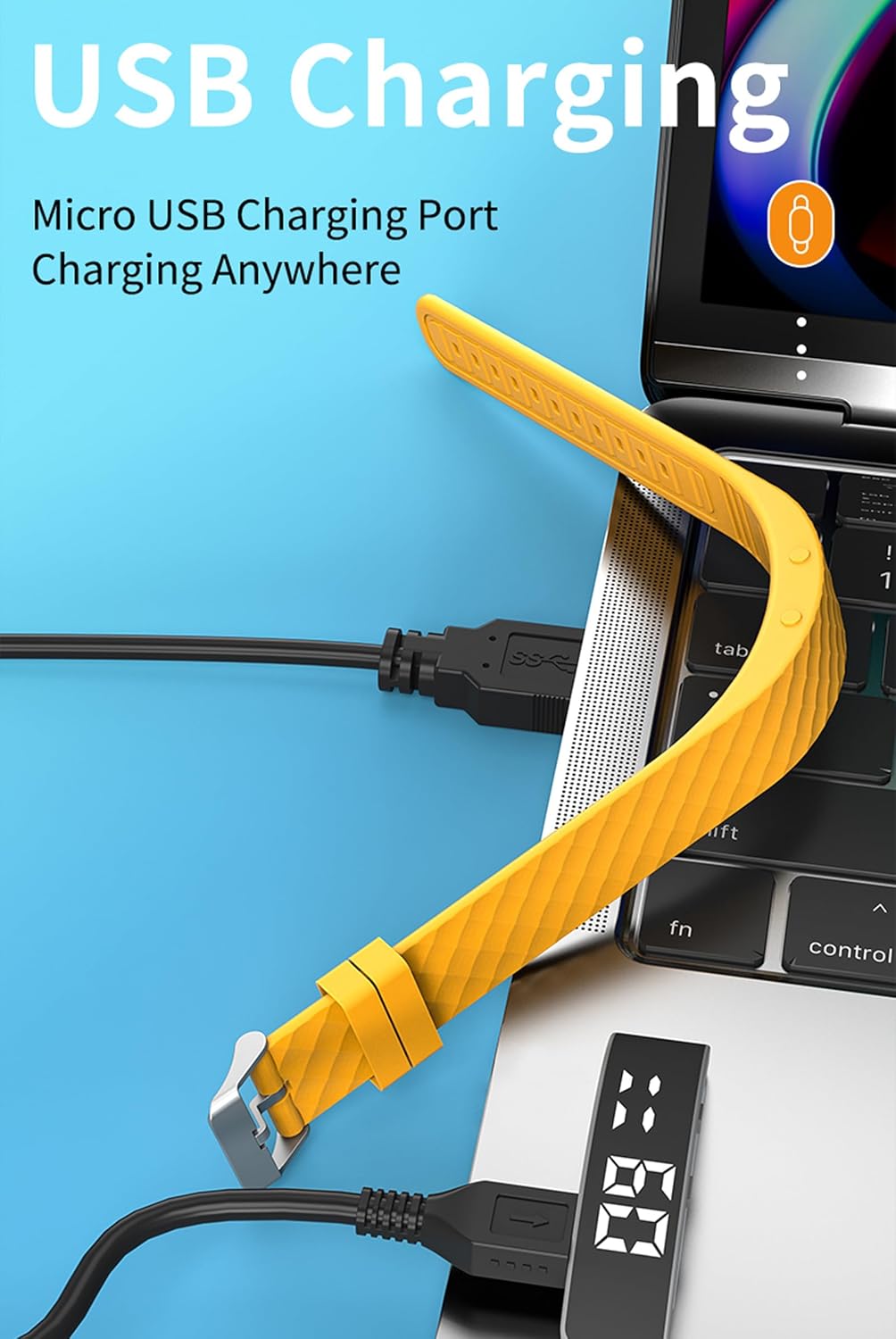
Image: The fitness tracker's USB end plugged into a laptop's USB port for charging, illustrating the direct USB charging method.
2. Basic Device Operation
The fitness tracker operates using a combination of a Display Button and a Function Button, typically located on the side or bottom of the device body.
- Raise Wrist to Light Up Screen: The screen will automatically illuminate when you raise your wrist to view the time.
- Button Functions: Specific functions for the Display and Function buttons are detailed in the "Operating Instructions" section.

Image: A yellow fitness tracker highlighting the positions of the 'Display Button' and 'Function Button' on its side.
Operating Instructions
1. Time and Date Display
To view the current time and date:
- Press the Function Button once to display the time.
- Press the Function Button twice to display the date.

Image: Two fitness trackers, one showing "6 20" (date) and another showing "09:00" (time), demonstrating the time and date display function.
2. Activity Tracking
The tracker automatically records your daily activity metrics.
- Step Counting: Monitors the number of steps taken throughout the day.
- Calories Burned: Estimates the calories consumed based on your activity level.
- Distance: Calculates the total distance covered.
These data points can be viewed directly on the tracker's display by cycling through the screens using the Function Button.
3. Sleep Monitoring
Wear the fitness tracker while sleeping to monitor your sleep patterns.
- The device automatically detects when you fall asleep and wake up.
- It records different sleep stages: Deep Sleep (H1), General Sleep (C2), and Light Sleep (L3).
- To view sleep data, press the Display Button 6 times.

Image: A yellow fitness tracker displaying "H1" for good sleep, with text indicating sleep monitoring from 23:00 PM to 7:00 AM, and a person sleeping in the background.
4. Alarm Settings
The tracker supports setting up to 3 alarms with vibration reminders.
- Refer to the on-screen prompts or specific button combinations (not detailed in provided data) to set alarm times.
- Alarms will vibrate to notify you at the set time.

Image: A grey and a purple fitness tracker, both displaying digital time, with an overlay indicating the capability of setting up to 3 alarms.
5. Vibration Reminders
In addition to alarms, the tracker can provide vibration reminders for various notifications. The specific customization options for vibration melodies are managed through the device's settings (not detailed in provided data).
6. Multi-Sport Modes
The tracker supports multiple sport modes to accurately track specific activities. These include:
- Running
- Cycling
- Rope Skipping
- Fitness
- Mountain Climbing
- Yoga
- Golf
- Dancing
To select a sport mode, navigate through the device's menu using the Function Button until the desired mode is displayed, then confirm selection (specific confirmation method not detailed in provided data).
7. Menstrual Cycle Tracking
The device offers menstrual cycle tracking. This feature allows users to log and monitor their cycle directly on the tracker. Specific setup and usage instructions for this feature are typically found within the device's menu options.
Maintenance
Cleaning
To maintain the device's appearance and functionality:
- Wipe the tracker regularly with a soft, damp cloth.
- Avoid using harsh chemicals or abrasive cleaners, as these can damage the device.
- Ensure the charging contacts are clean and dry before charging.
Water Resistance
The CNBRO Fitness Tracker is designed to be water-resistant. This means it can withstand splashes, rain, and brief immersion in shallow water. However, it is not suitable for diving, hot showers, or prolonged submersion. Always ensure the device is dry before charging.
Troubleshooting
If you encounter issues with your fitness tracker, refer to the following common solutions:
Device Not Turning On or Responding
- Check Battery: Ensure the device is fully charged. Connect it to a USB power source for at least 30 minutes.
- Restart: If the device is unresponsive, try holding down the Function Button for an extended period (e.g., 10-15 seconds) to force a restart.
Inaccurate Activity Tracking
- Wearing Position: Ensure the tracker is worn snugly on your wrist, about one finger's width above your wrist bone.
- Firmware Update: While this model does not require smartphone connection, ensure the device's internal software is up-to-date if an update mechanism is available (consult manufacturer for details).
- Reset: A factory reset (if available) can sometimes resolve persistent tracking issues. Note that this will erase all data.
Screen Not Lighting Up
- Raise Wrist Gesture: Ensure you are performing the "raise wrist" gesture correctly.
- Battery Level: A very low battery might prevent the screen from lighting up. Charge the device.
If these steps do not resolve the issue, please contact customer support.
Specifications
| Model Name | US-X-W5VP |
| Brand | CNBRO |
| Product Dimensions | 0.28 x 0.59 x 0.14 inches |
| Item Weight | 4.9 ounces |
| Screen Size | 1 Inches |
| Battery Type | 1 Lithium Ion battery (included) |
| Battery Cell Composition | Lithium Polymer |
| Charging Time | Approximately 0.5 hours |
| Usage Time | 3-5 days |
| Standby Time | Up to 7 days |
| Operating System Compatibility | Android 6.0 and above, iOS 12.0 and above (Note: This product does not require smartphone connection for basic functions) |
| Connectivity Technology | Bluetooth (for potential future features or advanced settings, though not required for basic operation) |
| Special Feature | Activity Tracker, Sleep Monitor, Pedometer, Calorie Counter, Alarm Clock, Raise Wrist to Light Up Screen |
| Water Resistance | Yes (Splash and rain resistant, not for swimming or hot showers) |
Warranty Information
Specific warranty details for the CNBRO Fitness Tracker US-X-W5VP are not provided in this manual. Please refer to the product packaging or the retailer's website for information regarding warranty coverage and terms. Keep your purchase receipt as proof of purchase for any warranty claims.
Customer Support
For any questions, technical assistance, or support regarding your CNBRO Fitness Tracker, please contact the seller directly through the platform where you made your purchase.
To contact support via Amazon (if purchased there):
- Go to your Amazon account and click on "Orders" in the upper right corner.
- Locate your order for the CNBRO Fitness Tracker.
- Click on "Sold by Fusong US" (or the relevant seller name) below the product name.
- Click the yellow button "Ask a question".
- Select "I need assistance with an order I placed".
- Click the yellow button "Write message" and send your inquiry.
Customer support aims to respond within 24 hours.