
Introduction
This manual provides essential information for setting up, operating, maintaining, and troubleshooting your HP 27-cr100 All-in-One Desktop. Please read these instructions carefully before using your device.
What's in the Box
Verify that all items are present in the packaging:
- HP 27-cr100 All-in-One Desktop
- Power Cord
- HP 310 Black Wired Keyboard
- HP Black Wired Mouse
- Documentation (this manual, safety guide, etc.)
- 32GB USB Drive
Setup
1. Unpacking and Placement
Carefully remove the All-in-One desktop and its components from the packaging. Place the desktop on a stable, flat surface with adequate ventilation around the unit.
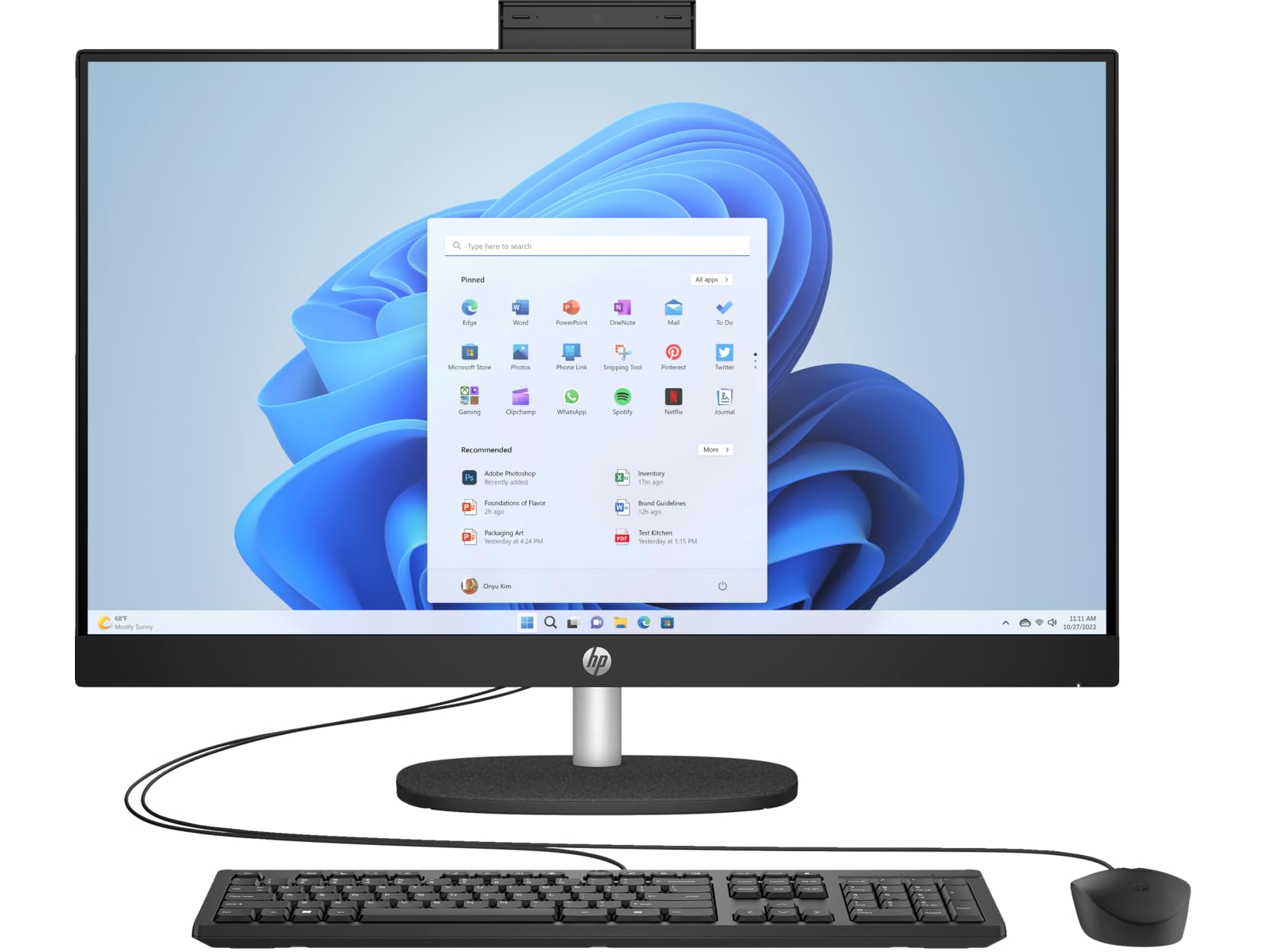
Figure 1: HP 27-cr100 All-in-One Desktop with included keyboard and mouse.
2. Connecting Peripherals
- Connect the wired keyboard to an available USB port on the back of the desktop.
- Connect the wired mouse to another available USB port.

Figure 2: Rear view of the desktop highlighting the various ports for peripheral connections.
3. Power Connection
- Connect the power cord to the power input on the back of the desktop.
- Plug the other end of the power cord into a grounded electrical outlet.
4. Initial Boot-Up
- Press the power button, usually located on the side or bottom edge of the display.
- Follow the on-screen instructions to complete the Windows 10 Pro setup process. This may include setting up your user account, network connection, and other preferences.

Figure 3: The desktop display showing the Windows operating system interface.
Operating Instructions
Windows 10 Pro Basics
Your HP All-in-One Desktop comes pre-installed with Windows 10 Pro. Familiarize yourself with the operating system's interface, Start Menu, taskbar, and file explorer for efficient use.
Connectivity
- Wi-Fi: To connect to a wireless network, click the Wi-Fi icon in the taskbar, select your network, and enter the password.
- Bluetooth: Enable Bluetooth in Windows settings to pair with compatible devices like headphones or speakers.
- USB Ports: Use the available USB 3.2 Gen 1 Type-C, USB 3.2 Gen 1 Type-A, and USB 2.0 Type-A ports for connecting external devices such as USB drives, printers, or other accessories.
- HDMI: The HDMI v1.4 port allows you to connect an external display or projector.
- LAN: For a wired network connection, connect an Ethernet cable to the 10/100/1000Mbps LAN port.
Using the Camera
The integrated 720p HD camera features a privacy shutter. To use the camera, slide the shutter open. Close it when not in use for privacy and security.
Audio
The desktop includes dual 2W speakers for audio output. You can also connect headphones or external speakers to the Headphone/Microphone Combo Jack.
Maintenance
Cleaning
- Screen: Use a soft, lint-free cloth lightly dampened with water or a screen-cleaning solution. Avoid harsh chemicals.
- Chassis: Wipe the exterior surfaces with a soft, dry cloth. Ensure ventilation openings are clear of dust.
- Keyboard and Mouse: Use compressed air to remove debris from between keys. Wipe surfaces with a slightly damp cloth.
Software Updates
Regularly check for and install Windows updates to ensure system stability, security, and performance. HP also provides driver updates through its support website or HP Support Assistant software.
Data Backup
It is recommended to regularly back up your important data to an external drive or cloud storage to prevent data loss.
Troubleshooting
If you encounter issues with your HP 27-cr100 All-in-One Desktop, refer to the following common solutions:
- No Power: Ensure the power cord is securely connected to both the desktop and the electrical outlet. Test the outlet with another device.
- No Display: Check all cable connections. If using an external monitor, ensure it is powered on and correctly connected. Try restarting the computer.
- No Internet Connection: Verify Wi-Fi is enabled and connected to the correct network. For wired connections, ensure the Ethernet cable is properly seated. Restart your router/modem if necessary.
- Peripherals Not Working: Ensure the keyboard and mouse are correctly plugged into the USB ports. Try different USB ports.
- Slow Performance: Close unnecessary applications. Check for background processes consuming high resources. Ensure sufficient free space on the SSD.
For more complex issues or further assistance, please visit the official HP Support website or contact HP customer service.
Specifications
| Feature | Detail |
|---|---|
| Model Name | 27-cr100 |
| Processor | Intel Core Ultra 7 155U 12-Core (Up to 4.8 GHz) |
| Graphics | Intel Iris Xe Graphics (Integrated) |
| Display | 27" LED-backlit IPS (1920 x 1080) 60Hz, 300 nits, Anti-glare |
| Memory | 64GB DDR5 SDRAM 4800 MHz |
| Storage | 4TB M.2 SSD |
| Operating System | Windows 10 Pro |
| Camera | 720p HD Camera with Privacy Shutter |
| Audio | Dual 2W speakers |
| Wireless Connectivity | Wi-Fi 6 (2x2), Bluetooth 5.3 |
| Ports | 1x USB-C 3.2 Gen 1, 2x USB 3.2 Gen 1 Type-A, 2x USB 2.0 Type-A, 1x HDMI v1.4, 1x Headphone/Microphone Combo Jack, 1x RJ-45 LAN |
| Dimensions (H x W x D) | 20.35 x 24.11 x 7.34 inches |
| Weight | 14.81 lbs |
| Color | Jet Black |
Warranty and Support
Your HP 27-cr100 All-in-One Desktop includes 1 Year Support from HP within the US. For warranty claims, technical assistance, or additional support resources, please visit the official HP Support website or contact their customer service department. Keep your purchase receipt and product serial number readily available when seeking support.
For more information, visit: HP Support


