Introduction
This manual provides detailed instructions for the Cable Matters 8-in-1 USB C Hub Multiport Adapter, Model 201356. This device expands the connectivity of your USB-C enabled laptop or desktop, offering multiple ports for video output, data transfer, network connectivity, and power delivery. Please read this manual thoroughly before use to ensure proper operation and to maximize the product's capabilities.

Image: The Cable Matters 8-in-1 USB C Hub Multiport Adapter, showcasing its compact design and various ports.
Product Features
The Cable Matters 8-in-1 USB C Hub Multiport Adapter offers a comprehensive solution for expanding your device's connectivity. Key features include:
- Dual HDMI Ports: Supports dual 4K@60Hz video output. HDMI 1 supports single 8K@30Hz / 4K@120Hz.
- 140W Power Delivery (PD): Provides fast charging for your laptop via the USB-C PD port.
- Gigabit Ethernet: Offers stable wired network connectivity up to 1000Mbps.
- High-Speed Data Transfer: Two USB-C 3.2 Gen 2 ports and one USB-A 3.2 Gen 2 port support 10Gbps data transfer.
- Additional USB Port: One USB 2.0 port for low-speed devices like keyboards or mice.
- Compact Design: Portable form factor with integrated cable storage for easy travel.

Image: An overhead view of the hub connected to a laptop and various peripherals, illustrating its 8-in-1 functionality including HDMI, USB-A, Ethernet, and USB-C ports.
Setup Instructions
- Connect to Host Device: Plug the integrated USB-C cable from the hub into an available USB-C port on your laptop or desktop. Ensure your host device's USB-C port supports DisplayPort Alternate Mode (Alt Mode) for video output and Power Delivery for charging.
- Connect Power Adapter (Optional but Recommended): For optimal performance and to charge your laptop, connect a compatible USB-C power adapter (up to 140W) to the USB-C PD port on the hub.
- Connect Displays:
- Connect your HDMI monitors to the HDMI ports on the hub using HDMI cables.
- For Windows systems, the hub supports single display up to 8K@30Hz / 4K@120Hz (via HDMI 1) or dual 4K@60Hz extended displays.
- For macOS systems, only one extended display is supported, with a maximum resolution of 4K@60Hz via HDMI. Two mirrored external displays are possible.
- Connect USB Devices: Plug your USB-A and USB-C peripherals (e.g., external hard drives, flash drives, keyboards, mice) into the corresponding USB 3.2 Gen 2 (10Gbps) or USB 2.0 (480Mbps) ports on the hub.
- Connect Ethernet: For a stable wired network connection, connect an Ethernet cable from your router or modem to the Gigabit Ethernet port on the hub.

Image: A visual guide demonstrating single 8K@30Hz display output and dual 4K@60Hz display output for Windows, and single 4K@60Hz display output for macOS, along with a compatibility table for different operating systems and Thunderbolt/USB-C versions.

Image: A laptop connected to two external monitors, demonstrating the dual display extension capability for Windows operating systems, with both monitors displaying different content.
Operating Instructions
Once connected, the hub operates automatically. Your operating system should detect the connected devices and displays. You may need to adjust display settings within your operating system.
- Display Configuration: Access your computer's display settings to configure extended or mirrored display modes for your external monitors.
- Data Transfer: Use the USB 3.2 Gen 2 ports for high-speed data transfer with compatible storage devices. The USB 2.0 port is suitable for less demanding peripherals.
- Power Delivery: The hub will pass through power from your connected USB-C power adapter to your laptop. Note that a portion of the input power is reserved for the hub's operation and connected devices, slightly reducing the power delivered to the laptop.
- Ethernet Connection: The Gigabit Ethernet port provides a stable and fast internet connection, ideal for situations where Wi-Fi is unreliable or slower.
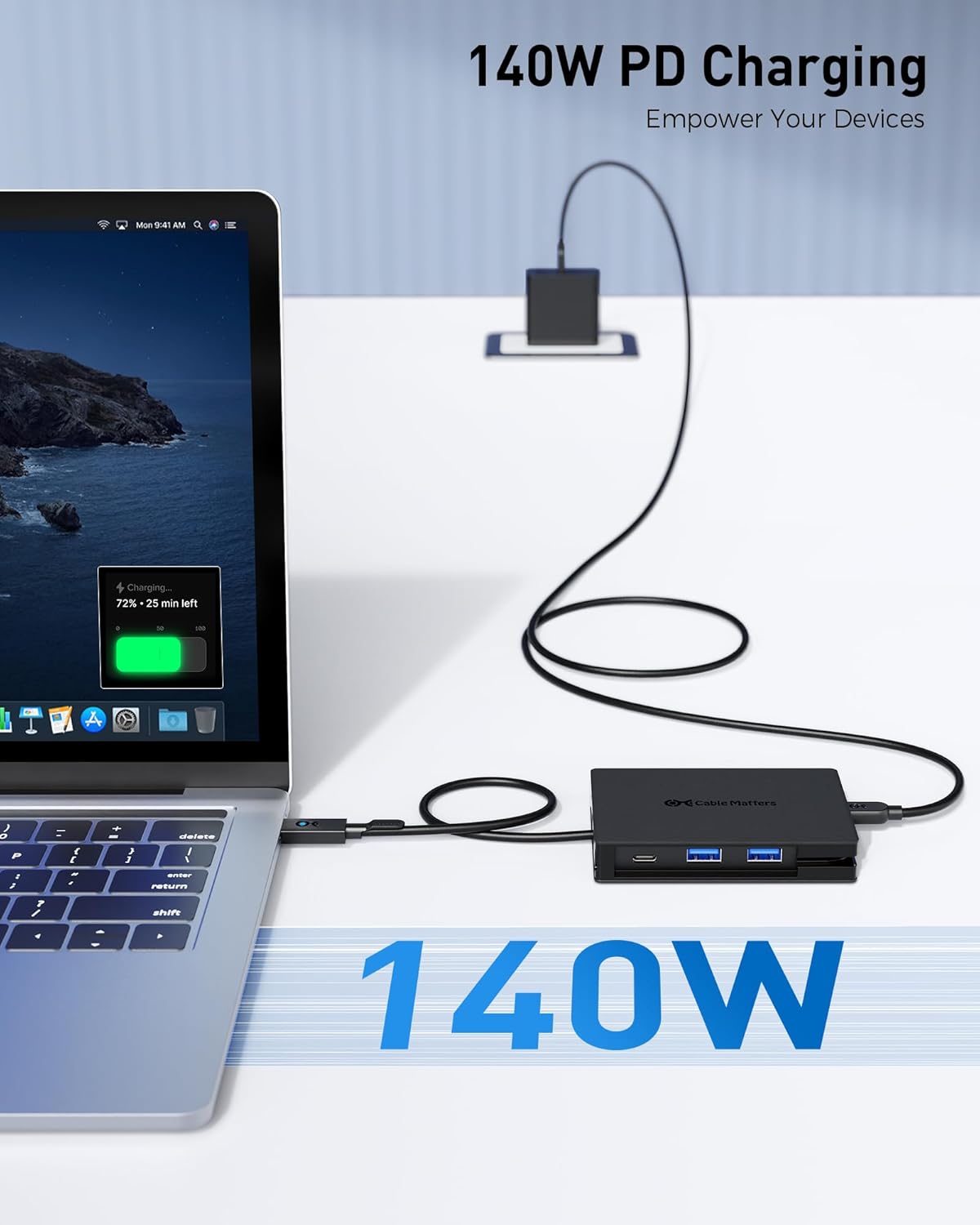
Image: A laptop connected to the USB C Hub, which is in turn connected to a 140W power adapter, illustrating the power delivery function and charging status on the laptop screen.

Image: A person working on a laptop that is connected to the USB C Hub, with an Ethernet cable providing a wired network connection, highlighting the 1Gbps Ethernet capability.
Maintenance
To ensure the longevity and optimal performance of your Cable Matters 8-in-1 USB C Hub:
- Keep the hub clean and free from dust. Use a soft, dry cloth for cleaning.
- Avoid exposing the hub to extreme temperatures, humidity, or direct sunlight.
- Do not attempt to disassemble or repair the device yourself. Refer to qualified service personnel.
- When traveling, utilize the integrated cable storage and consider using the included storage bag to protect the hub.

Image: A close-up of the USB C Hub demonstrating its integrated cable storage feature, where the pigtail cable wraps neatly around the device, and the hub being placed into a small travel pouch.
Troubleshooting
- No Display Output:
- Ensure your host device's USB-C port supports DisplayPort Alt Mode.
- Check all cable connections (USB-C to host, HDMI to monitors).
- Verify display settings on your computer.
- Try connecting one display at a time to isolate the issue.
- No Power Delivery:
- Ensure your USB-C power adapter is connected to the hub's PD port and is functional.
- Verify your laptop supports USB-C Power Delivery.
- Check the wattage of your power adapter; a higher wattage (up to 140W) is recommended for demanding laptops.
- USB Devices Not Recognized:
- Reconnect the USB device to the hub.
- Try a different USB port on the hub.
- Ensure the device drivers are up to date on your computer.
- Ethernet Connection Issues:
- Check the Ethernet cable connection to both the hub and your network device.
- Verify network settings on your computer.
- Ensure your router/modem is functioning correctly.
Specifications
| Feature | Specification |
|---|---|
| Model Number | 201356 |
| Host Connection | USB-C (DisplayPort Alt Mode, Power Delivery compatible) |
| Video Output | 2x HDMI (HDMI 1: 8K@30Hz / 4K@120Hz single, 4K@60Hz dual; HDMI 2: 4K@60Hz single/dual) |
| Power Delivery | Up to 140W via USB-C PD port |
| USB Data Ports | 2x USB-C 3.2 Gen 2 (10Gbps), 1x USB-A 3.2 Gen 2 (10Gbps), 1x USB 2.0 (480Mbps) |
| Ethernet | Gigabit Ethernet (10/100/1000Mbps) |
| Dimensions | 5.2 x 3.9 x 0.94 inches (Package) |
| Item Weight | 4.6 ounces |
| Compatible Devices | Laptops, Desktops with compatible USB-C ports |
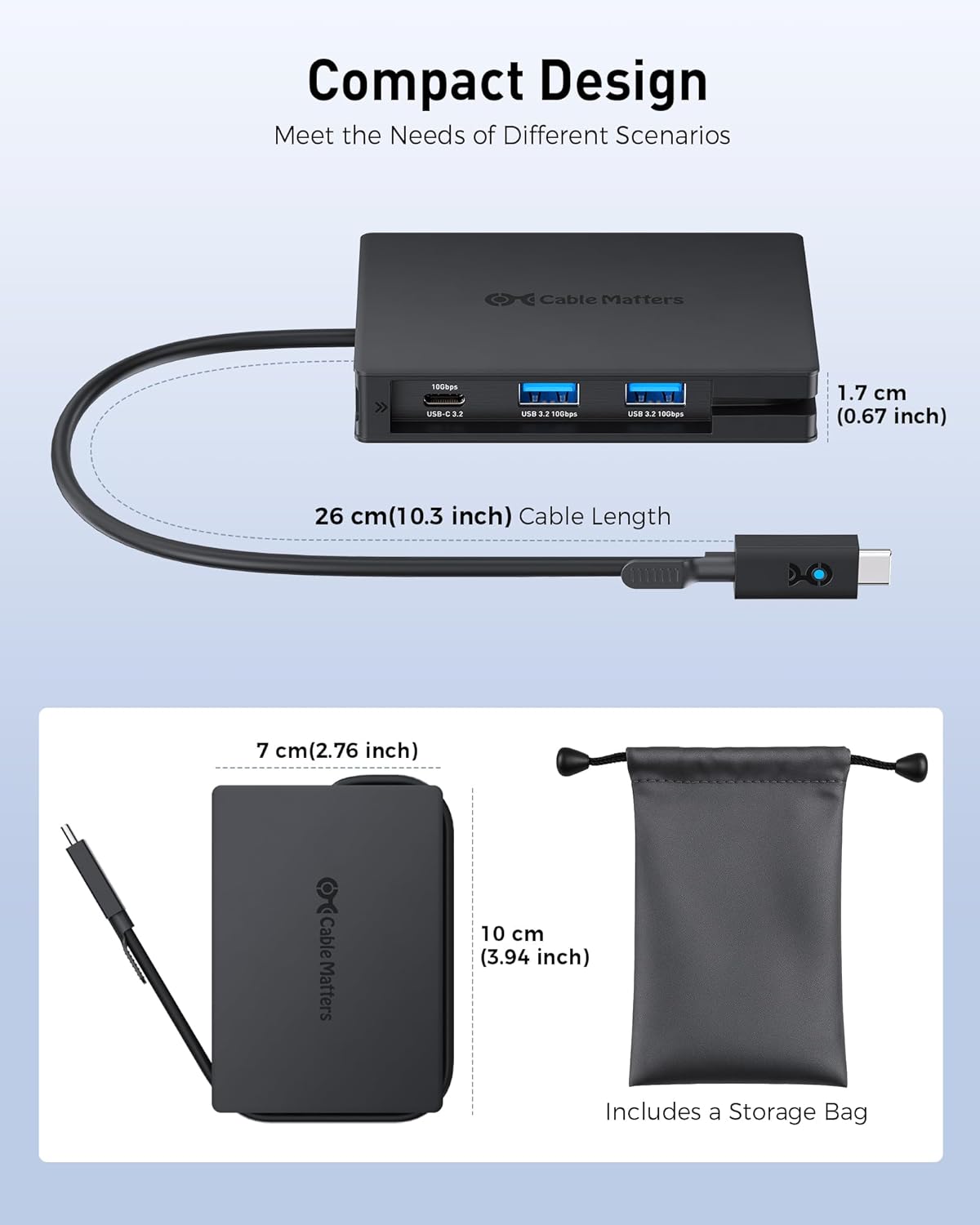
Image: A diagram illustrating the physical dimensions of the USB C Hub, including its length, width, and the length of its integrated USB-C cable, along with a small storage bag.
Warranty and Support
Cable Matters products are backed by a limited warranty. For specific warranty terms, technical support, or further assistance, please visit the official Cable Matters website or contact their customer service department. Keep your purchase receipt for warranty claims.


