
HODO 15 Port Docking Station(Grey)
HODO 15-in-1 USB C Docking Station User Manual
Model: 15 Port Docking Station (Grey)
Product Overview
The HODO 15-in-1 USB C Docking Station is a versatile hub designed to expand the connectivity of your USB-C enabled laptop. It provides multiple ports for display output, data transfer, power delivery, and network connectivity, transforming your laptop into a comprehensive workstation.

Image: The HODO 15-in-1 USB C Docking Station, showcasing its compact design and numerous connected peripherals like HDMI, DisplayPort, USB-A, USB-C, Ethernet, and SD/TF cards.
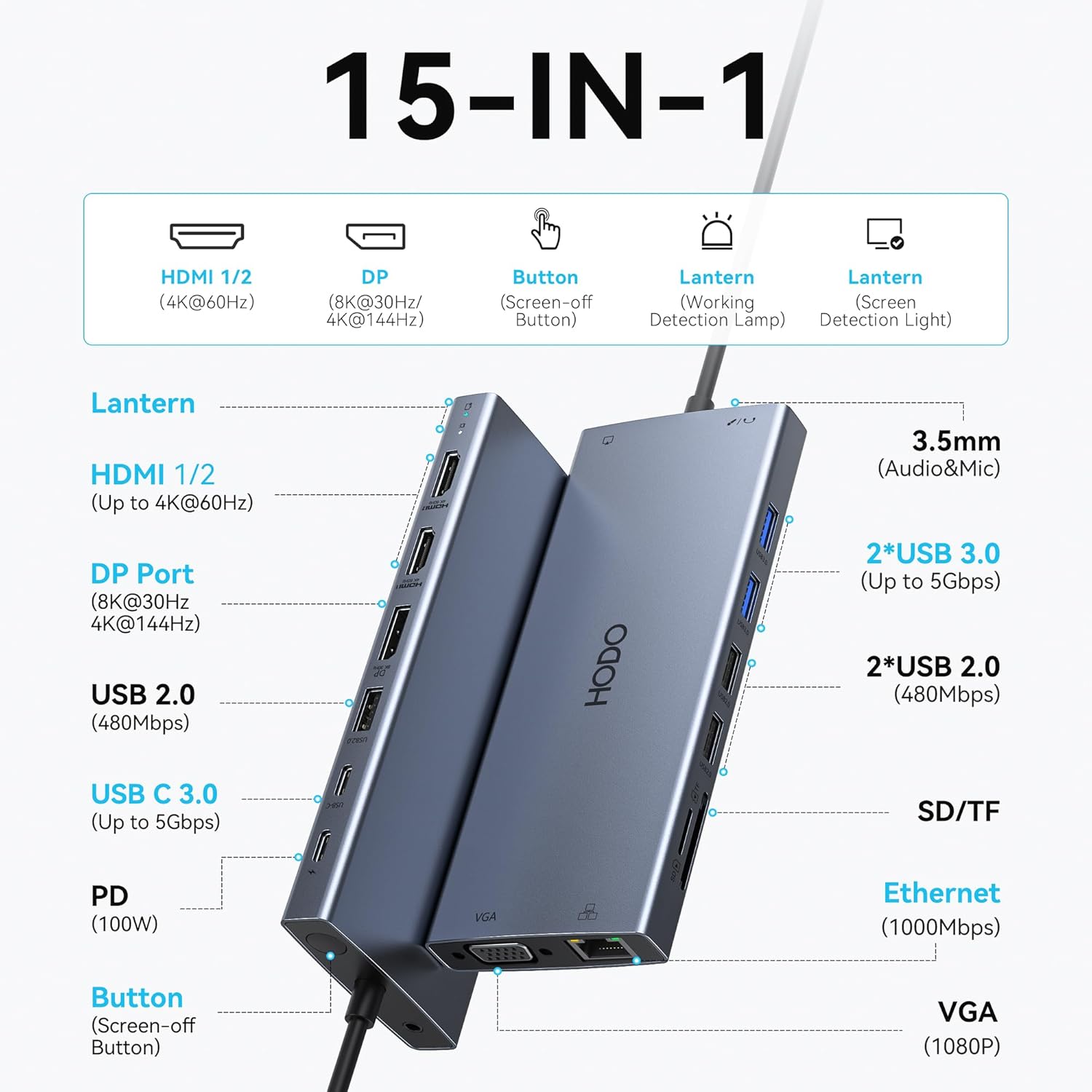
Image: A detailed diagram illustrating all 15 ports of the HODO docking station, including HDMI 1/2 (4K@60Hz), DP (8K@30Hz/4K@144Hz), Screen-off Button, Lantern (Working Detection Lamp & Screen Detection Light), 3.5mm Audio&Mic, 2x USB 3.0 (Up to 5Gbps), 2x USB 2.0 (480Mbps), USB C 3.0 (Up to 5Gbps), PD (100W), SD/TF card slots, Ethernet (1000Mbps), and VGA (1080P).
Setup Instructions
- Power Connection: Connect a 100W (or higher) USB-C Power Delivery charger to the PD port on the docking station. This is required to power the docking station and provide pass-through charging to your laptop.
- Laptop Connection: Connect the integrated USB-C cable from the docking station to a full-featured USB Type-C port (supporting Display, charging, and data transfer protocol) on your laptop.
- Monitor Connection:
- Connect your external monitors to the available HDMI, DisplayPort (DP), and VGA ports on the docking station.
- For optimal performance, ensure your display cables are of good quality and within recommended length (HDMI/DP/VGA cable cannot exceed 3 meters).
- Peripheral Connection: Connect your USB devices (keyboard, mouse, external hard drives, etc.) to the USB-A and USB-C data ports. Connect Ethernet cable to the Gigabit Ethernet port for wired network access. Insert SD/Micro SD cards into the respective slots.

Image: A visual guide to identifying the capabilities of your laptop's USB-C port, distinguishing between Thunderbolt Full Function, Data+PD Displayport Alt, and Data+Displayport Alt, and indicating ports that only support charging or data transfer.
Operating Instructions
Display Configuration (Windows)
The docking station supports various display configurations on Windows systems, including dual, triple, and quadruple displays. Ensure your laptop supports DP 1.4 DSC for optimal multi-display performance.
- Single Display: DisplayPort can reach 8K@30Hz or 4K@144Hz.
- Dual/Triple Display (2HDMI+DP): Can output up to 4K videos (for laptops with DP 1.4 DSC).
- Quadruple Display (Dual HDMI, DP, and VGA): All outputs are 1080@60Hz.
- Important Note: If the VGA Port is connected, it will affect the resolution of all displays, limiting them to 1080P only. For DP1.2, when expanding three monitors in MST Mode, the resolution of one of the monitors will be lower than 1080P@60Hz.

Image: A visual representation of various multi-monitor setups for Windows, detailing resolutions and modes like Dual 4K Extend, Triple 4K Extend, and Quadruple Display Extend.

Image: A table outlining single display configurations for Windows, showing resolutions and refresh rates based on DP version (DP1.4 DSC, DP1.4 DSC, DP1.2) for Mirror and Extend modes.

Image: A table detailing dual display configurations for Windows, showing resolutions and refresh rates for various port combinations (HDMI, DP, VGA) across different DP versions and modes (Mirror, Extend, MST).

Image: A table presenting triple display configurations for Windows, showing resolutions and refresh rates for various port combinations (HDMI, DP, VGA) across different DP versions and modes (Mirror, Extend, MST).

Image: A table illustrating quad display configurations for Windows, showing resolutions and refresh rates for various port combinations (HDMI, DP, VGA) across different DP versions and modes (Mirror, Extend, MST), indicating unsupported configurations.
Display Configuration (macOS)
In macOS systems, the external display screen is always the same, whether in mirror mode or expansion mode. macOS does not support Multi-Stream Transport (MST).

Image: A diagram illustrating that MacBooks only support the same image on external monitors (Quadruple Display Non-Mirror Mode) and do not support Extend Mode (MST), meaning all external monitors will display the same content.

Image: A table outlining Mac OS display configurations, showing resolutions for non-mirror mode with HDMI and DP outputs, and explicitly stating that macOS does not support Multi-Stream Transport (MST).
One-Click Wake-up/Sleep Button
The docking station features a convenient one-click button to wake up or put your monitor to sleep without needing to unplug cables or adjust complex settings. This enhances privacy and ease of use.

Image: A user demonstrating the "Upgraded Design Button & Light" feature, pressing the screen-off button on the docking station to turn off screen casting for privacy, with monitors displaying "OFF" and "ON" states.
Image: A diagram detailing the "Screen on/off key" feature, showing the screen on/off button, functioning detection light, and screen detection light, explaining how to control screen content by turning it on and off.
Data Transfer and Charging
- USB 3.0 Ports (2x USB-A, 1x USB-C): Offer data transfer speeds up to 5Gbps for quick file transfers. Note that the USB-C data port is not for video output.
- USB 2.0 Ports (3x USB-A): Provide speeds up to 480Mbps, ideal for connecting keyboards, mice, and other low-bandwidth peripherals without lag.
- 100W Power Delivery (PD) Port: Supports fast charging for your laptop. An 85W output is achieved with a 100W+ charger. A 65W charger may show a slow charge warning but will still charge.
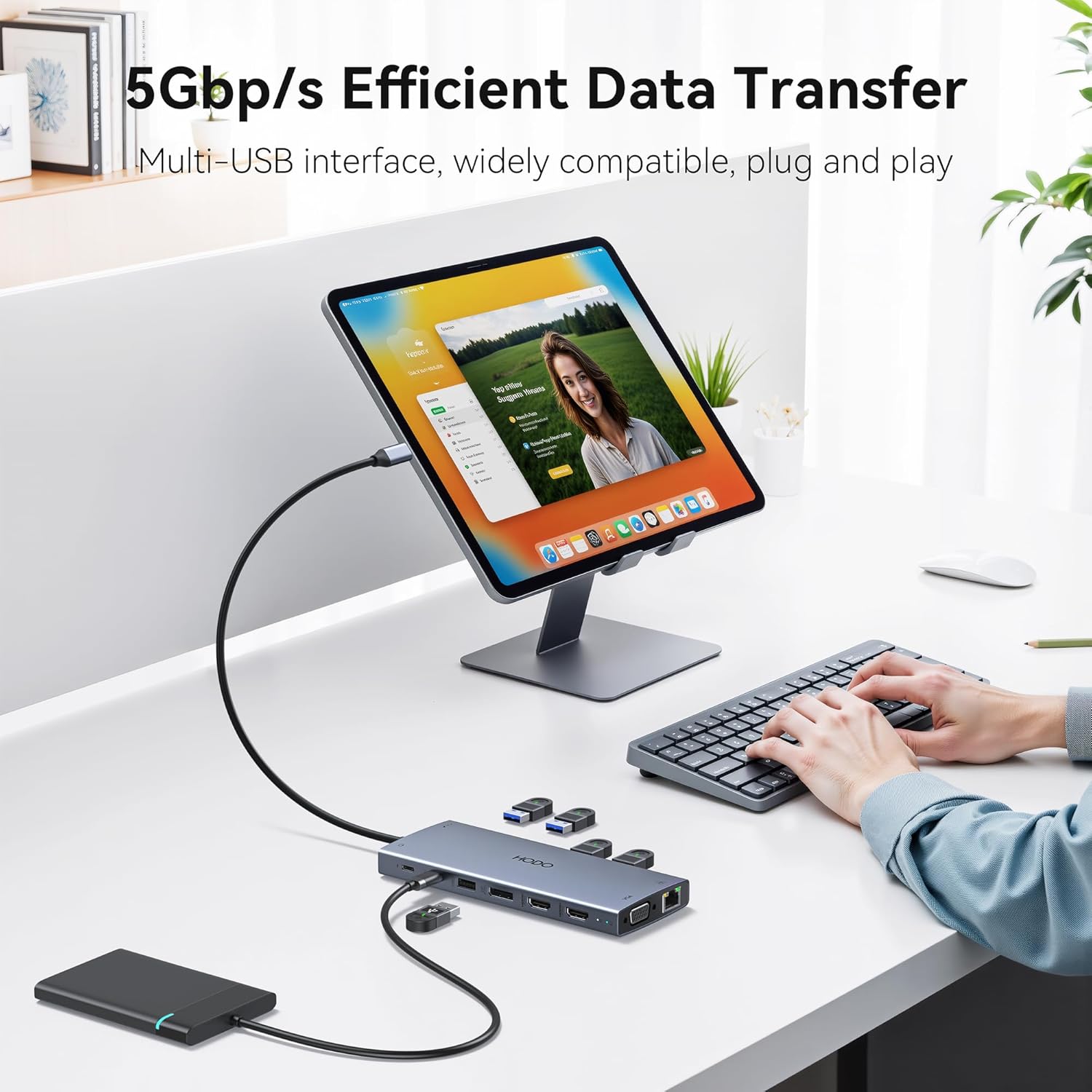
Image: A person using the HODO docking station to connect a tablet and an external hard drive, illustrating the 5Gbps efficient data transfer capability of the multi-USB interface.

Image: A diagram highlighting the efficient USB-C file transfer, stating that the USB-C 3.0 port allows for blazing-fast 5Gbps transfers, enabling quick file movement, 4K viewing without lag, and easy storage expansion.

Image: A diagram illustrating the USB-C PD 3.0 port for faster charging speeds and the 3.5mm audio port for wired headphones and headsets. It notes that only laptop input charging is supported and the power adapter/cable are not included.
Gigabit Ethernet and Audio
- Gigabit Ethernet Port: Supports 10/100/1000BASE-T LAN networks, providing ultra-fast and reliable wired internet connection, eliminating concerns about Wi-Fi instability.
- 3.5mm Audio & Mic Port: Allows connection of wired headsets for audio output and microphone input, enabling private listening and communication.

Image: A person using a laptop connected to the HODO docking station, which is then connected to an Ethernet cable, demonstrating the "No Lag Wired Speed, Huge Storage" feature with Gigabit Ethernet ports supporting auto-switch 10/100/1000 Mbps.
Maintenance
- Cleaning: Use a soft, dry cloth to clean the docking station. Avoid using liquid cleaners or aerosols.
- Storage: Store the device in a cool, dry place away from direct sunlight and extreme temperatures.
- Heat Dissipation: The durable aluminum hub shell is designed with heat-dissipating grooves to prevent overheating and ensure stable performance. Ensure proper airflow around the device during use.

Image: The HODO docking station depicted in a cold, snowy setting, emphasizing its "Thermoptimized" durable aluminum hub shell with heat-dissipating grooves, designed to prevent overheating and deliver stable performance while resisting scratches, showing a +7% heat dissipation performance.
Troubleshooting
- No Display Output:
- Ensure your laptop's USB-C port supports video output (DisplayPort Alt Mode). Refer to your laptop's specifications.
- Check all cable connections between the docking station, monitors, and laptop.
- Verify that the correct input source is selected on your monitors.
- For Windows, adjust display settings: Go to System > Display. Rearrange screens, extend desktop to displays, and adjust resolutions.
- For macOS, adjust display settings: Go to System Settings > Displays. Select "Extended display" or "Mirror for Built-in Display" as needed. Remember macOS does not support MST.
- Display Resolution Issues:
- If resolutions are lower than expected, especially with multiple displays, ensure your laptop supports DP 1.4 DSC.
- Connecting a VGA cable will limit all display resolutions to 1080P.
- For detailed steps on adjusting display resolution, please refer to the video guide below.
- No Power Delivery/Slow Charging:
- Ensure you are using a 100W or higher power adapter connected to the PD port of the docking station.
- Check if your laptop's USB-C port supports Power Delivery.
- USB Devices Not Recognized:
- Ensure the docking station is properly powered and connected to your laptop.
- Try connecting the USB device to a different port on the docking station.
- Ethernet Connectivity Issues:
- Verify the Ethernet cable is securely connected to both the docking station and your router/modem.
- Check your network settings on your computer.
Video Guide: How to Set the Resolution of the Expansion Screen
Video: This video demonstrates how to configure display settings for both Windows and macOS, including adjusting resolutions and setting up mirror or extended display modes for single, dual, triple, and quadruple monitor setups.
Specifications
| Feature | Description |
|---|---|
| Product Dimensions | 6.1 x 2.6 x 0.7 inches |
| Item Weight | 5.8 ounces |
| Brand | HODO |
| Model | 15 Port Docking Station (Grey) |
| Color | USB-C HUB Multiport Adapter 15-IN-1 |
| Hardware Interface | Ethernet, HDMI, Thunderbolt, USB 2.0, USB 3.0, USB Type C, VGA |
| Special Features | Fast Charging, Fast Data Transfer, Heat Resistant, Plug and Play |
| Display Outputs | 2x HDMI (up to 4K@60Hz), 1x DisplayPort (up to 8K@30Hz / 4K@144Hz), 1x VGA (1080P) |
| USB Ports | 2x USB-A 3.0 (5Gbps), 1x USB-C 3.0 Data (5Gbps), 3x USB-A 2.0 (480Mbps) |
| Power Delivery | 100W USB-C PD charging port (85W output with 100W+ charger) |
| Network | 1000Mbps Gigabit Ethernet Port |
| Card Readers | SD/Micro SD Card Readers |
| Audio | 3.5mm Mic/Audio Port |
| Compatibility | Laptops with Full-featured USB Type-C port (support Display, charging, data transfer protocol), Support Windows, MacOS, Linux, and Vista system. Compatible with Dell XPS13/15/17, Dell latitude 5420/7420, Lenovo Thinkpad, Lenovo Yoga, HP Elitebook 840, HP envy, Surface pro 7 8, MacBook Pro/Air. |
Warranty and Support
Warranty Information: Specific warranty details are not provided in this manual. Please refer to the product packaging or the manufacturer's official website for warranty terms and conditions.
Customer Support: If you experience any issues while using this HODO USB C Hub, please reach out to us. We are committed to solving your problem within 24 hours.
For further assistance, visit the HODO Store on Amazon.