
1. Introduction
This manual provides detailed instructions for the installation, operation, and maintenance of your GYVCBREU Car Radio Stereo. Designed specifically for Toyota Tacoma models from 2005 to 2015, this replacement head unit features Android 13, a 4-core CPU, 2GB RAM, 64GB ROM, and a 9-inch 1080x720 HD touchscreen. It offers a faster, smoother, and clear visual experience, ensuring enhanced performance and a perfect fit without requiring additional accessories.
2. What's in the Box
Your GYVCBREU Car Radio Stereo package includes the following components:
- Car Radio Stereo Unit with integrated frame
- Power Cable Harness
- OEM USB Cable
- Backup Camera Video Input Cable
- RCA Cable
- External Microphone
- Backup Camera
- Backup Camera Extension Cable
- GPS Cable
- Frame Removal Tool
- Installation Guide (User Manual)

Video: Unboxing the GYVCBREU Car Radio Stereo components. This video demonstrates the contents of the product package, including the main unit, cables, and accessories.
3. Setup and Installation
Follow these steps for a successful installation of your new car radio stereo:
3.1 Removing the Original Head Unit
- Use a plastic opening tool to carefully pry open the air conditioning panel from the gap. Avoid using metal tools to prevent scratching the interior.
- Pry open the buckles around each side of the main console and remove the entire panel.
- Unplug all the plugs on the back of the car stereo. (Note: Press and hold to unplug normally).
- Unplug the flash button light connector.
- Remove the screws holding the original head unit and take out the original 5 clips (these will be reused on the new frame).
Video: Installation tutorial for removing the original car radio from a Toyota Tacoma (2005-2015).
3.2 Installing the New Head Unit
- Install the original car's dual flash button lights onto the new car frame.
- Install the 5 clips (removed from the old unit) onto the new face frame.
- Open the co-pilot storage box to install the GPS antenna and USB cable. Paste the GPS receiver in a suitable position.
- Connect the power cable harness. This harness is fully compatible with a variety of Tacoma car stereo models.
- Connect the camera signal cable (Rear CAM control). Don't cut off, just peel and connect.
- Connect the backup camera cable.
- Connect the screen's back port cables as shown in the video: emergency lights, GPS antenna, USB cable, backup camera cable, radio cable, and power cord.
- Reconnect the AC panel cables and secure the panel.
- Align the card position and buckle the host + car frame into place.
Video: Detailed installation steps for the GYVCBREU car radio stereo in a Toyota Tacoma (2005-2015).
3.3 Backup Camera Installation
- Put the rear camera through the hole where the license plate is.
- Remove the car's rear taillight.
- Connect the backup lights: The red wire from the camera goes to the positive wire on the reverse light. (Note: Only low-end models need to be connected to the positive terminal of the reverse light. High-end models do not need this connection. Refer to the wiring diagram for details).
- Route the camera extension cable along the main driver's seat base to the front console.
Video: Backup camera alignment tutorial, showing wiring and routing.
4. Operating Instructions
Your car radio stereo offers a range of powerful and versatile functions:
4.1 Wireless CarPlay and Android Auto
- Connect your smartphone wirelessly to access map navigation, contacts, emails, notifications, music, and more via Siri or Google Assistant.
- Achieve completely hands-free operation for enhanced driving safety and convenience.
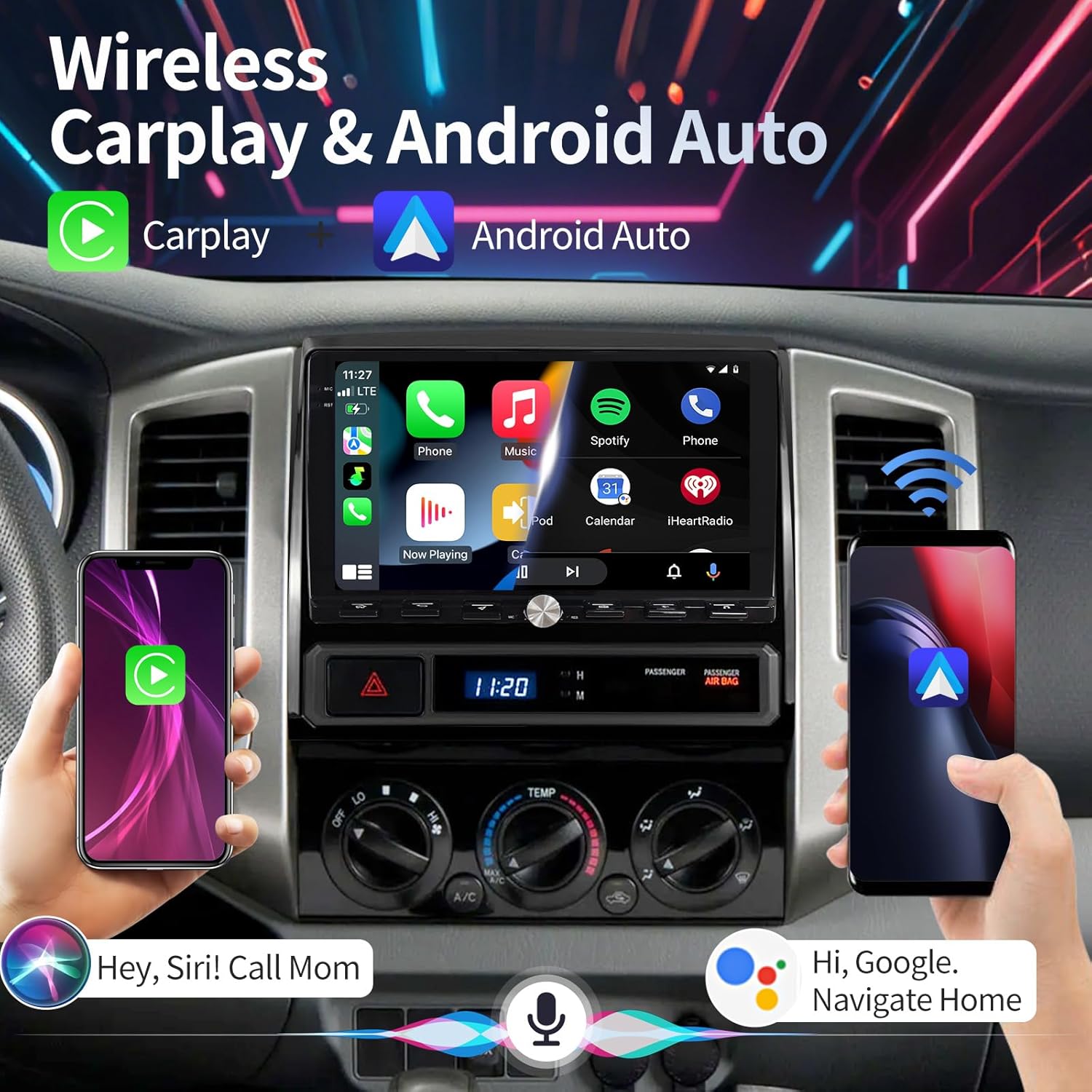
Image: The car radio display showing the Wireless CarPlay and Android Auto interface with phone integration.
Video: Demonstration of how to use CarPlay and Wi-Fi features on the car radio.
4.2 GPS Navigation
- Equipped with GPS + GLONASS for high-precision navigation and positioning.
- Supports online and offline maps, real-time traffic updates, and optimal route optimization.
- Compatible with popular map services like Apple Maps, Google Maps, and Waze.
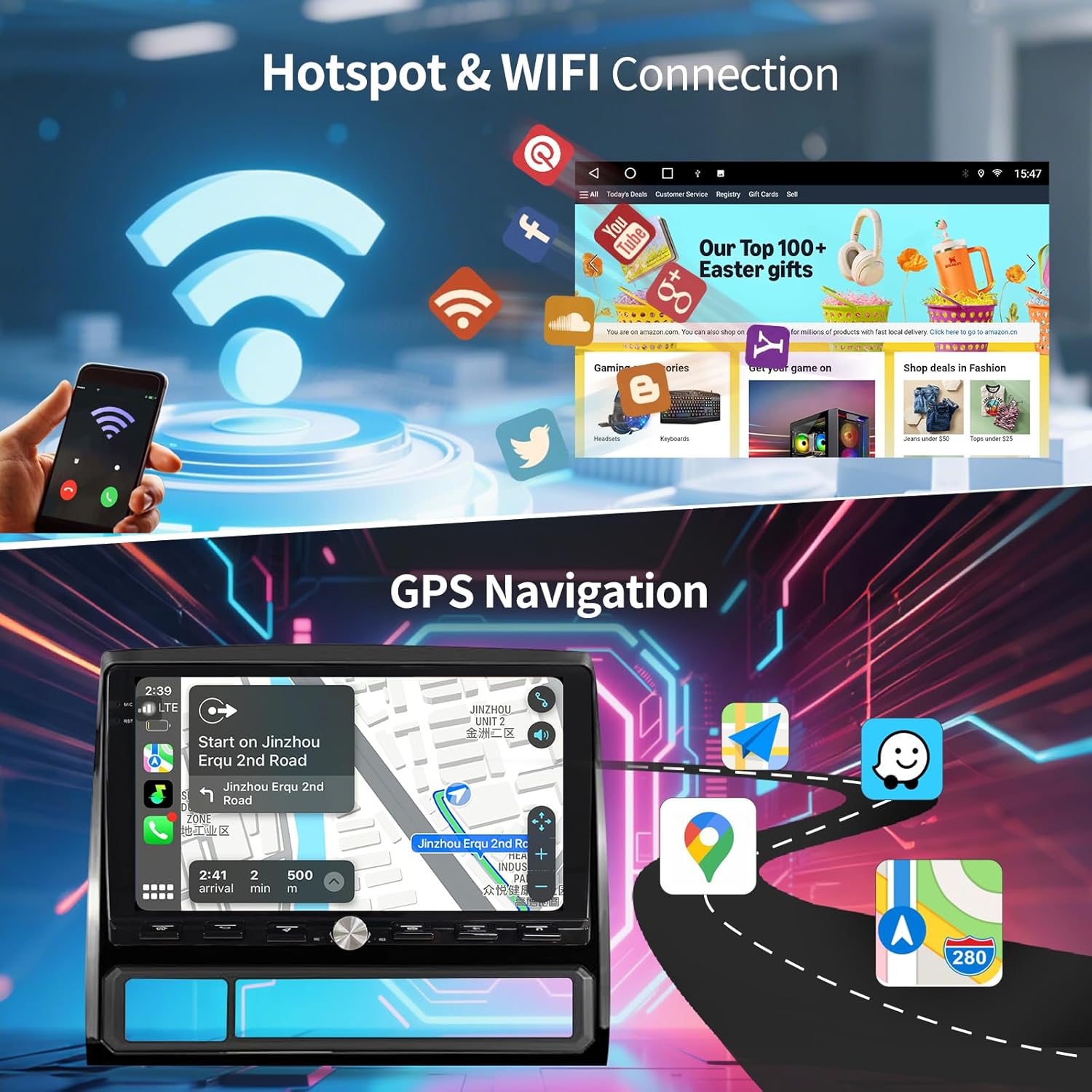
Image: Display showing GPS Navigation in action and options for Hotspot & WiFi Connection.
4.3 Bluetooth and WiFi Connectivity
- Bluetooth 5.0 for hands-free calling and wireless music streaming.
- WiFi connectivity enables online navigation, real-time traffic updates, and smooth online video playback.
- Download popular apps like YouTube, Netflix, and Facebook from the app store.
4.4 Digital Sound Processor (DSP)
- Built-in DSP allows for customized sound effects, including adjustable sound field, surround sound, and enhanced bass, treble, and midrange.

Image: The car radio display showing the Built-in DSP interface with various equalizer and sound settings.
4.5 AHD Backup Camera
- Integrated 1080P HD backup camera with a 170° ultra-wide angle and waterproof design.
- Provides clear reverse images for safer maneuvering.

Image: The car radio display showing the reverse image from the backup camera and highlighting steering wheel control functionality.
4.6 Steering Wheel Control (SWC)
- Enables hands-free operation to adjust volume, switch tracks, and manage functions directly from your steering wheel.
4.7 FM Radio
- Comes with an FM radio, allowing you to preset multiple stations for your favorite programs.
5. Maintenance
To ensure the longevity and optimal performance of your car radio stereo, follow these general maintenance guidelines:
- Regularly clean the touchscreen with a soft, lint-free cloth. Avoid abrasive cleaners.
- Keep the unit free from dust and debris.
- Ensure all cable connections remain secure.
- Avoid exposing the unit to extreme temperatures or direct sunlight for prolonged periods.
6. Troubleshooting
If you encounter any issues with your car radio stereo, please refer to the following general troubleshooting tips:
- No Power: Check all power connections to ensure they are securely plugged in. Verify the vehicle's fuse box for any blown fuses related to the stereo.
- No Sound: Ensure the volume is not muted or set to minimum. Check speaker connections. Verify audio settings in the DSP.
- Touchscreen Unresponsive: Try restarting the unit by turning off your vehicle and restarting it. If the issue persists, perform a factory reset (refer to settings menu).
- GPS Signal Loss: Ensure the GPS antenna is securely connected and placed in a location with a clear view of the sky (e.g., dashboard).
- CarPlay/Android Auto Connection Issues: Ensure Bluetooth and Wi-Fi are enabled on both the stereo and your smartphone. Delete previous pairings and try reconnecting.
- Backup Camera Not Displaying: Check the backup camera video input cable connection and ensure the red wire is correctly connected to the reverse light's positive terminal (if applicable for your model).
For more complex issues or if troubleshooting steps do not resolve the problem, please contact customer support.
7. Specifications
| Feature | Detail |
|---|---|
| Model | B0DHX961WM |
| Operating System | Android 13 |
| CPU | 4 Core |
| RAM | 2GB |
| ROM (Memory Storage Capacity) | 64 GB |
| Display Size | 9 Inches |
| Display Resolution | 1080*720 HD |
| Connectivity Technology | Bluetooth 5.0, Wi-Fi |
| Special Features | Bluetooth, Touchscreen, DSP, CarPlay, Android Auto, GPS Navigation, AHD Backup Camera, Steering Wheel Control |
| Map Type | Worldwide (Online/Offline) |
| Audio Output Mode | Stereo |
| Mounting Type | Dashboard Mount |
| Item Weight | 4 pounds |
| Package Dimensions | 10 x 8 x 4 inches |
8. Support
For any questions regarding compatibility, installation, operation, or troubleshooting, please contact our dedicated customer service team. You can reach us through the Amazon platform by sending a picture of your vehicle's control system before purchasing for compatibility checks, or by asking a question at any time for other inquiries.