
Introduction
This manual provides detailed instructions for the installation, operation, and maintenance of your Zunate PCIe to USB 3.2 Expansion Card. This card is designed to enhance your desktop PC with additional high-speed USB ports, offering a stable and efficient solution for connecting various peripherals.
The Zunate PCIe to USB 3.2 Expansion Card features 5 external USB 3.2 Gen 2 ports (3 Type-A and 2 Type-C), providing a total bandwidth of up to 20 Gbps. Each port supports data transfer speeds of up to 10 Gbps when used individually. It is compatible with Windows 7, 8, 10, 11 (32/64 bit), OS X 10.8.2 and later, and Linux.
Package Contents
- 1 x Zunate PCIe to USB 3.2 Expansion Card
Note: Additional accessories such as mounting screws or driver CDs may or may not be included depending on the specific product packaging.
Setup and Installation
Follow these steps to properly install the Zunate PCIe to USB 3.2 Expansion Card into your desktop computer.
- Power Down: Turn off your PC completely and unplug it from the power outlet.
- Open PC Case: Remove the side panel of your computer case to access the motherboard.
- Locate PCIe Slot: Identify an available PCI Express slot on your motherboard. The card is compatible with various PCIe slot sizes.
- Insert Card: Carefully insert the PCIe expansion card into the chosen PCI Express slot. Ensure it is seated firmly.
- Secure Card: Tighten the screws to secure the card in place within the PC case.
- Connect Power (Optional): If your system requires additional power for the USB ports, connect a SATA power cable from your power supply to the card's SATA power connector.
- Close PC Case: Replace the computer case cover.
- Power On: Plug your PC back into the power outlet and turn it on.
- Install Drivers:
- For Windows 10, Windows 11, OS X, and Linux: Drivers are typically not required and will install automatically.
- For Windows XP, Windows 7, and Windows Server: Drivers are required. Please refer to the manufacturer's website or included media for driver installation.

Image: Installation steps for the Zunate PCIe to USB 3.2 Expansion Card. This image illustrates the process of inserting the card into a PCI Express slot and securing it.
Note on Slot Area: In cases where the slot area at the rear of the PC mainframe is narrow, it may be necessary to carefully cut the crossbar between the two slots using small sheet metal hand pliers to ensure proper fit.
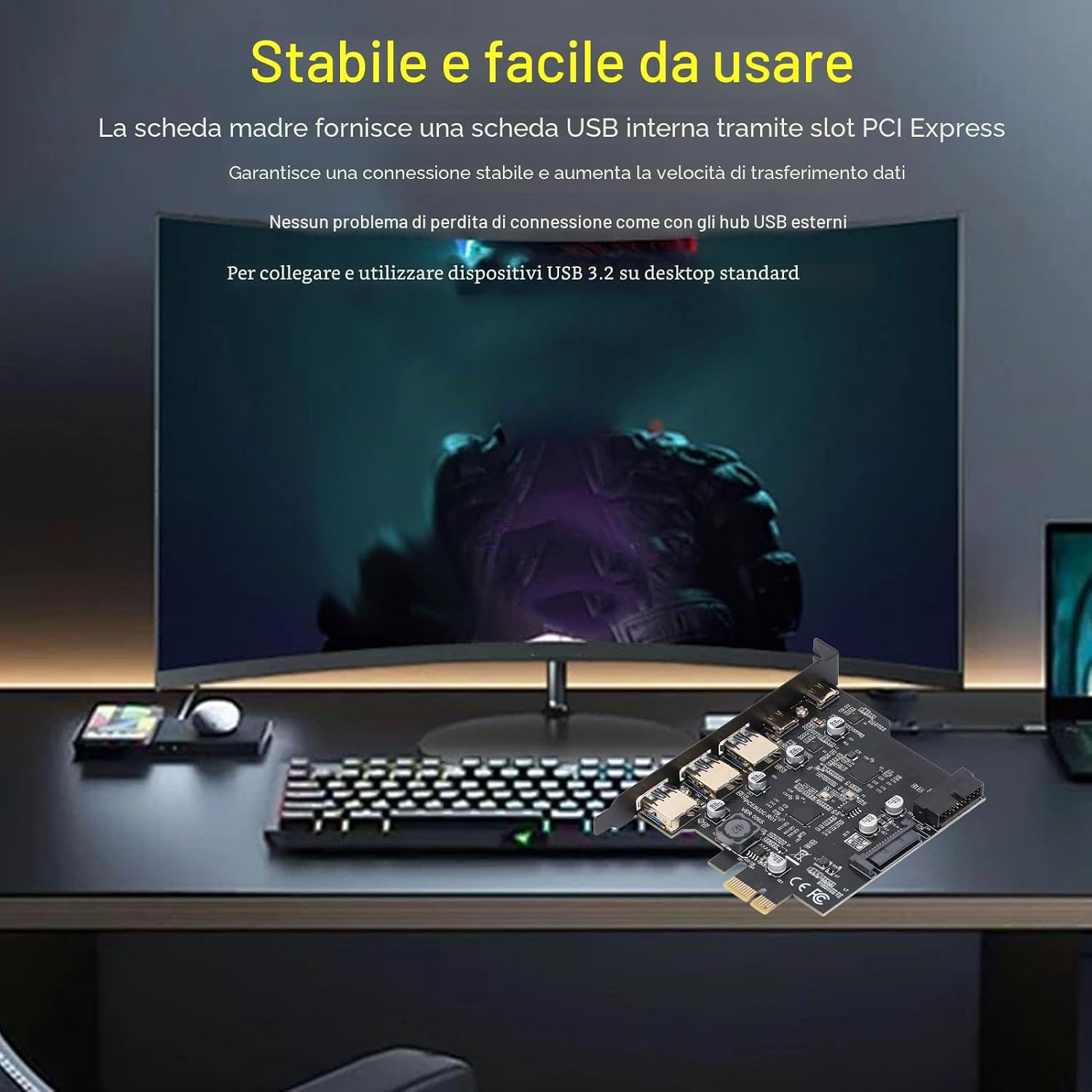
Image: This image shows the SATA power connector on the Zunate PCIe card, which may be required for stable operation and to provide sufficient power to connected USB devices.

Image: Compatibility information for the Zunate PCIe card, highlighting support for Windows 11 and specific driver requirements for older operating systems.
Operating Instructions
Once installed, the Zunate PCIe to USB 3.2 Expansion Card operates automatically.
- Connecting Devices: Simply plug your USB 3.2 compatible devices into the available Type-A or Type-C ports on the expansion card.
- High-Speed Data Transfer: The card supports data transfer speeds up to 10 Gbps per port, with a total bandwidth of 20 Gbps shared across all ports. This allows for rapid transfer of large files and efficient operation of high-bandwidth peripherals.
- Stable Connection: The internal PCIe slot connection ensures a stable and reliable data transfer, avoiding common connection loss issues associated with external USB hubs.

Image: This image highlights the high-speed data transfer feature, explaining that one USB Type-C and three USB Type-A ports share 10 Gbps bandwidth, with the remaining three ports sharing an additional 10 Gbps, totaling up to 20 Gbps. Each port supports up to 10 Gbps individually.

Image: This image emphasizes the card's stability and ease of use, stating that the motherboard provides an internal USB card via a PCI Express slot for stable connection and increased data transfer speeds, avoiding connection loss issues common with external USB hubs.
Maintenance
The Zunate PCIe to USB 3.2 Expansion Card requires minimal maintenance.
- Cleaning: Ensure the interior of your PC case remains free of excessive dust to prevent overheating and maintain optimal performance of all components, including the expansion card. Use compressed air to gently clean the card if necessary, ensuring the PC is powered off and unplugged.
- Firmware/Driver Updates: Periodically check the Zunate official website for any available firmware or driver updates for your specific model to ensure continued compatibility and performance.
Troubleshooting
| Problem | Possible Cause | Solution |
|---|---|---|
| Card not detected by PC. |
|
|
| USB devices not recognized or functioning. |
|
|
| Slow data transfer speeds. |
|
|
Specifications
| Feature | Detail |
|---|---|
| Brand | Zunate |
| Model Number | Zunatewedvgramug |
| Hardware Interface | USB 3.2 Gen 2 |
| Bus Type | PCIe |
| Ports | 2 x USB Type-C, 3 x USB Type-A, 19-pin internal header |
| Bandwidth | Up to 20 Gbps total (10 Gbps per individual port) |
| Compatible Operating Systems | Windows 7, 8, 10, 11 (32/64 bit), macOS 10.8.2+, Linux |
| Compatible Devices | PC, Laptop, Printer, Scanner, Game Controller, Digital Camera, DVD Drive, USB Drive, Webcam, Keyboard, Mouse, External Hard Drive |
| Material | PCB |
| Country of Origin | China |

Image: Detailed view of the external USB ports on the Zunate PCIe card, showing two blue USB Type-A ports and one USB Type-C port.

Image: Close-up of the 19-pin internal header on the Zunate PCIe card, used for additional USB connectivity.
Warranty Information
The manufacturer provides a warranty for this product for 90 days from the date of purchase. Please retain your proof of purchase for warranty claims.
Support
For technical assistance, driver downloads, or further inquiries regarding your Zunate PCIe to USB 3.2 Expansion Card, please visit the official Zunate website or contact their customer support.
Online Resources: Refer to the Zunate brand store on Amazon or their official website for the latest information and support.