
1. Product Overview
The Keychron K2 HE is a 75% layout wireless mechanical keyboard designed for both gaming and typing. It combines traditional mechanical keyboard features with advanced magnetic switch technology, offering a customizable and high-performance user experience. The keyboard is available in various editions, including a Special Edition with natural rosewood accents and a Standard Version with an aluminum frame.

Image 1.1: Keychron K2 HE keyboard with white keycaps and wooden frame.
The 75% layout is compact, saving desk space while retaining essential keys, making it suitable for various environments from gaming setups to office workstations.

Image 1.2: Keychron K2 HE keyboard in black with wooden frame, showcasing its compact design on a desk.
The Special Edition features natural rosewood accents, available with either light wood for the white version or dark wood for the black version. The Standard Version comes with an aluminum frame and shine-through black Cherry profile keycaps.
Video 1.1: An overview of the Keychron K2 HE keyboard, highlighting its design and features.
2. Setup and Connectivity
The Keychron K2 HE offers versatile connectivity options to suit various devices and usage scenarios:
- 2.4 GHz Wireless Mode: Utilizes a dedicated dongle for a rapid 1000 Hz polling rate, ideal for gaming where low latency is crucial.
- Bluetooth 5.1: Allows seamless multitasking by connecting to up to three different devices (computer, phone, tablet) and switching between them easily.
- Wired USB-C Connection: Provides a stable and reliable connection, also used for charging the keyboard.
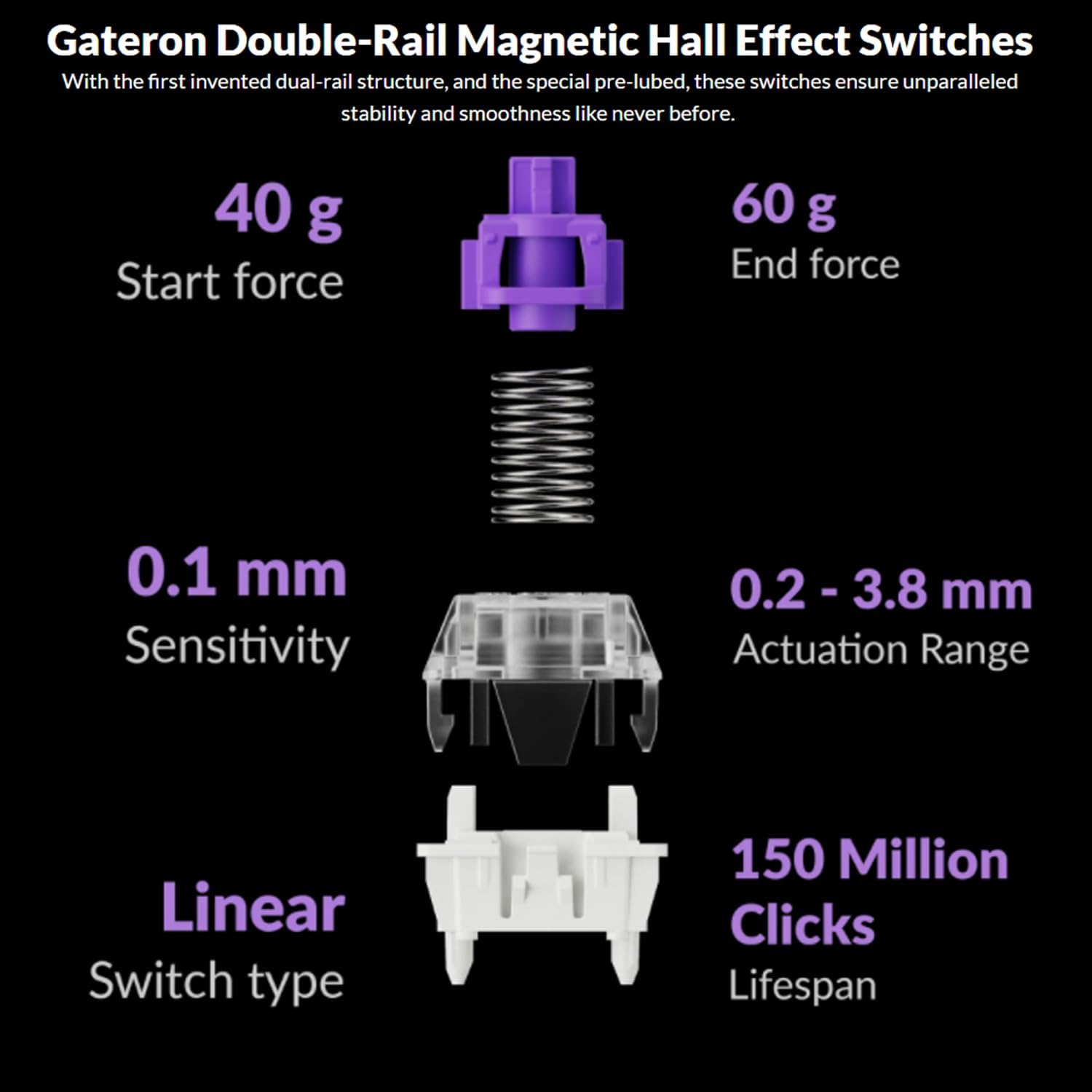
Image 2.1: Keychron K2 HE keyboard connected via its USB-C cable, demonstrating wired mode.
To switch between connection modes and operating systems (iOS/Mac or Windows/Android), use the dedicated switches located on the side of the keyboard. This flexibility allows you to use the keyboard across multiple platforms without re-pairing.
Video 2.1: A detailed review of the Keychron K2 HE, including a demonstration of its connectivity options and features.
3. Keycaps, Switches, and Customization
3.1 Keycaps
The Special Edition of the K2 HE features double-shot PBT keycaps with an OSA profile, known for their durability and resistance to shine over time. The Standard Version comes with shine-through black Cherry profile keycaps.
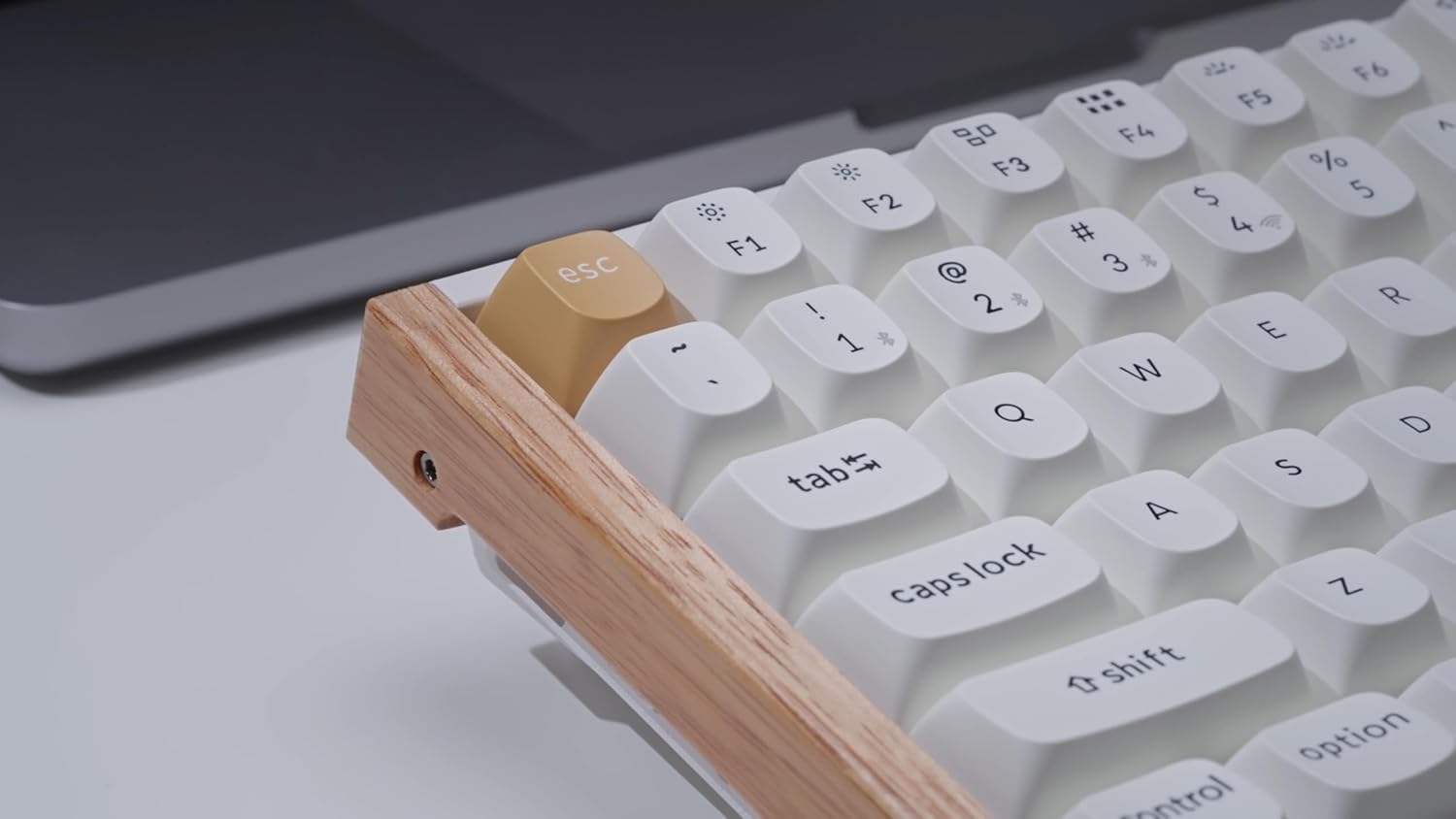
Image 3.1: A keycap being removed from the Keychron K2 HE, showing the switch underneath.
3.2 Gateron Double-Rail Magnetic Hall Effect Switches
The keyboard is equipped with Gateron Double-Rail Magnetic Hall Effect switches. These linear switches offer a smooth press with a 40g start force and 60g end force. They are hot-swappable, allowing users to easily change switches without soldering.
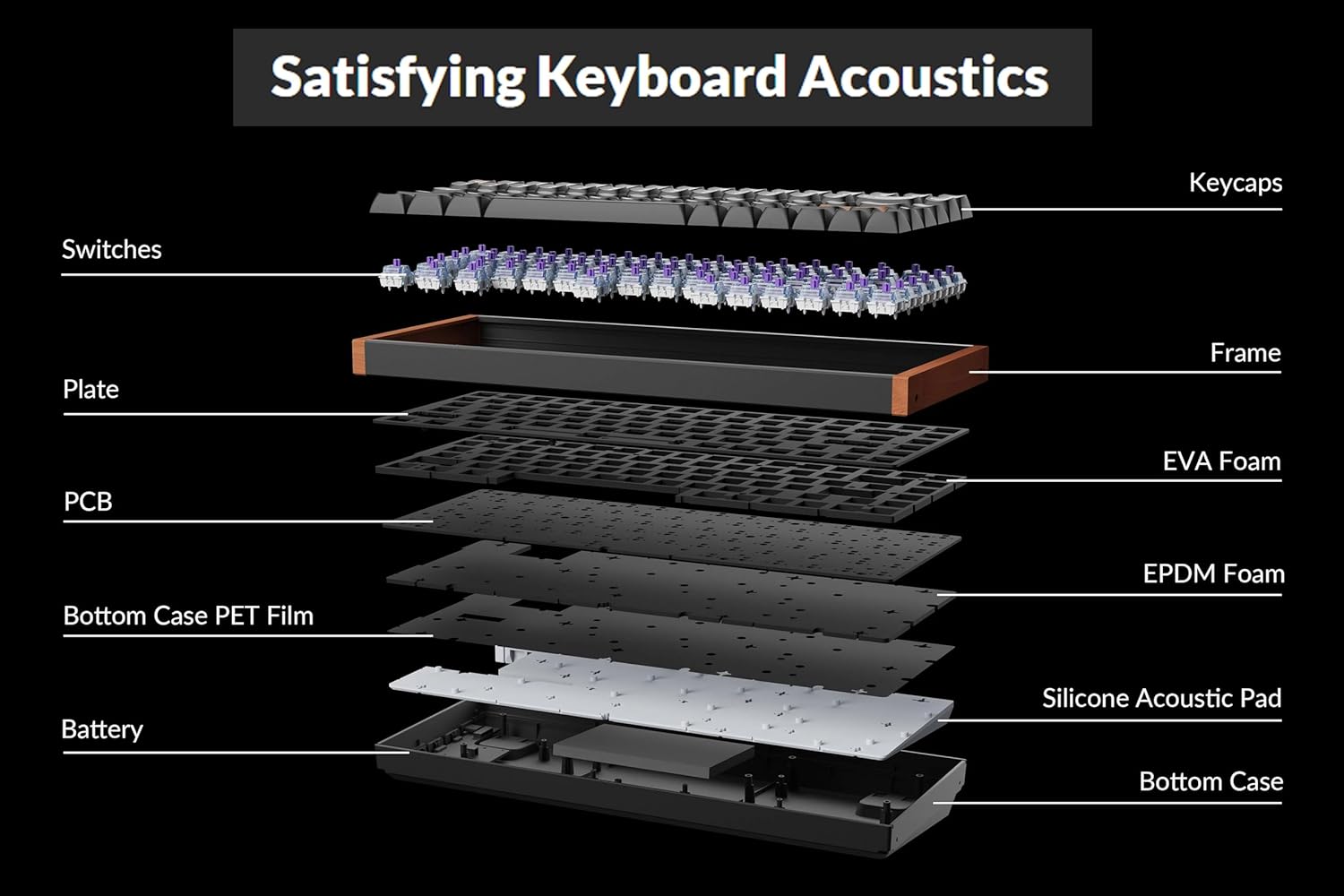
Image 3.2: Diagram of Gateron Double-Rail Magnetic Hall Effect Switches, detailing their linear type, actuation range, and lifespan.
3.3 QMK & Launcher Customization
The K2 HE supports QMK firmware, providing extensive customization options through the Keychron Launcher web application. This allows users to:
- Remap Keys: Assign new functions to any key.
- Create Macros: Program complex sequences of commands to a single key.
- Adjust Actuation Points: Customize the distance a key needs to be pressed to register an input, from 0.2mm to 3.8mm.
- Rapid Trigger: Enables instant key reset as soon as the key is lifted, enhancing responsiveness for gaming.
- Dynamic Keystrokes: Assign multiple actions to a single key based on the press depth.
- Last Key Priority: Prioritizes the last key pressed in simultaneous inputs, useful for gaming movements.
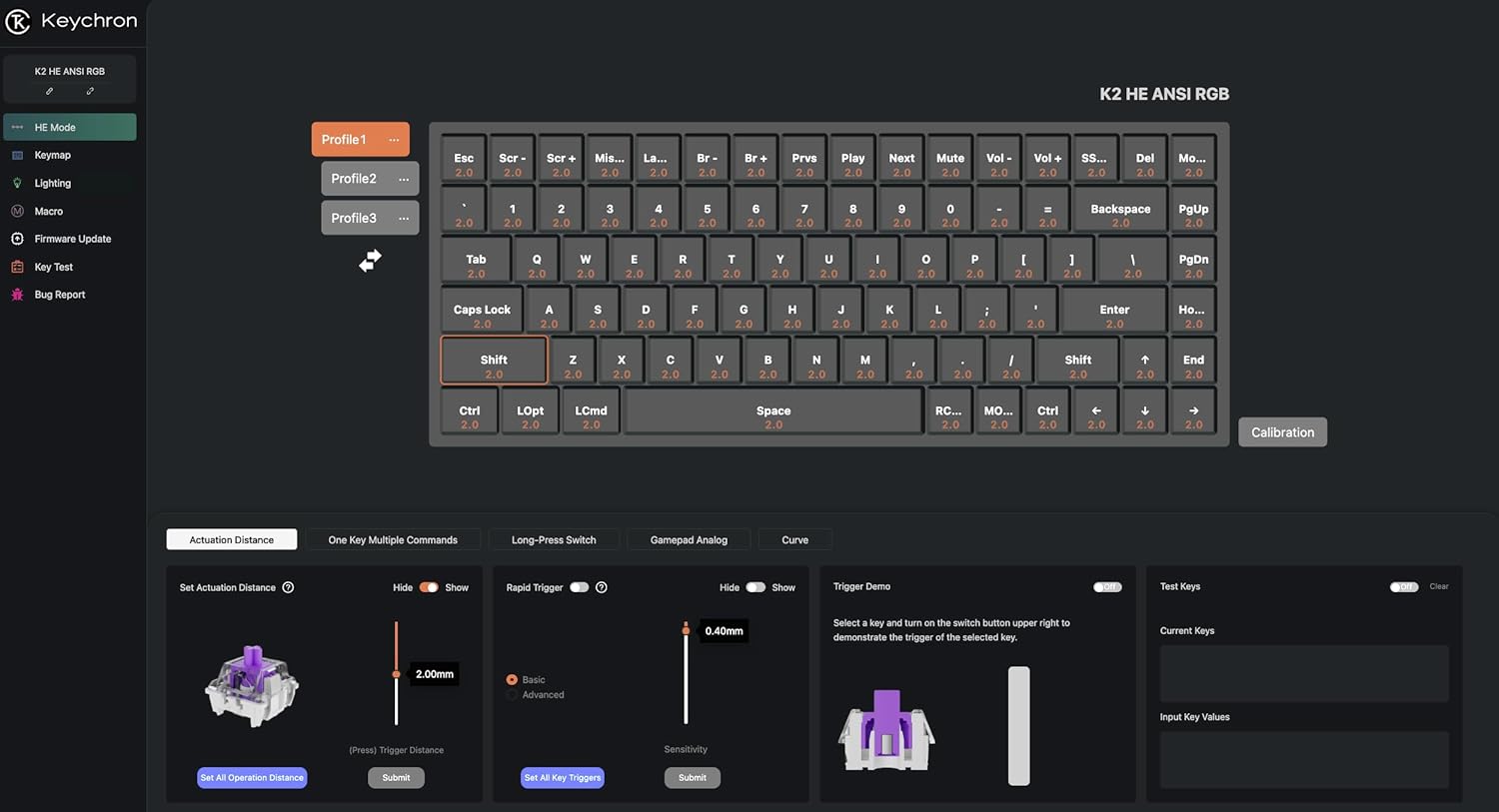
Image 3.3: Keychron Launcher web application interface, showing options for key remapping, macros, and actuation point adjustments.
4. Operating: RGB Backlighting
The Keychron K2 HE features south-facing RGB LED lights, designed to provide better illumination from the typist's angle and avoid interference with Cherry-profile keycaps. The keyboard offers over 22 different RGB lighting modes, with adjustable brightness, effects, and colors through the Keychron Launcher web application or directly via hotkeys on the keyboard.
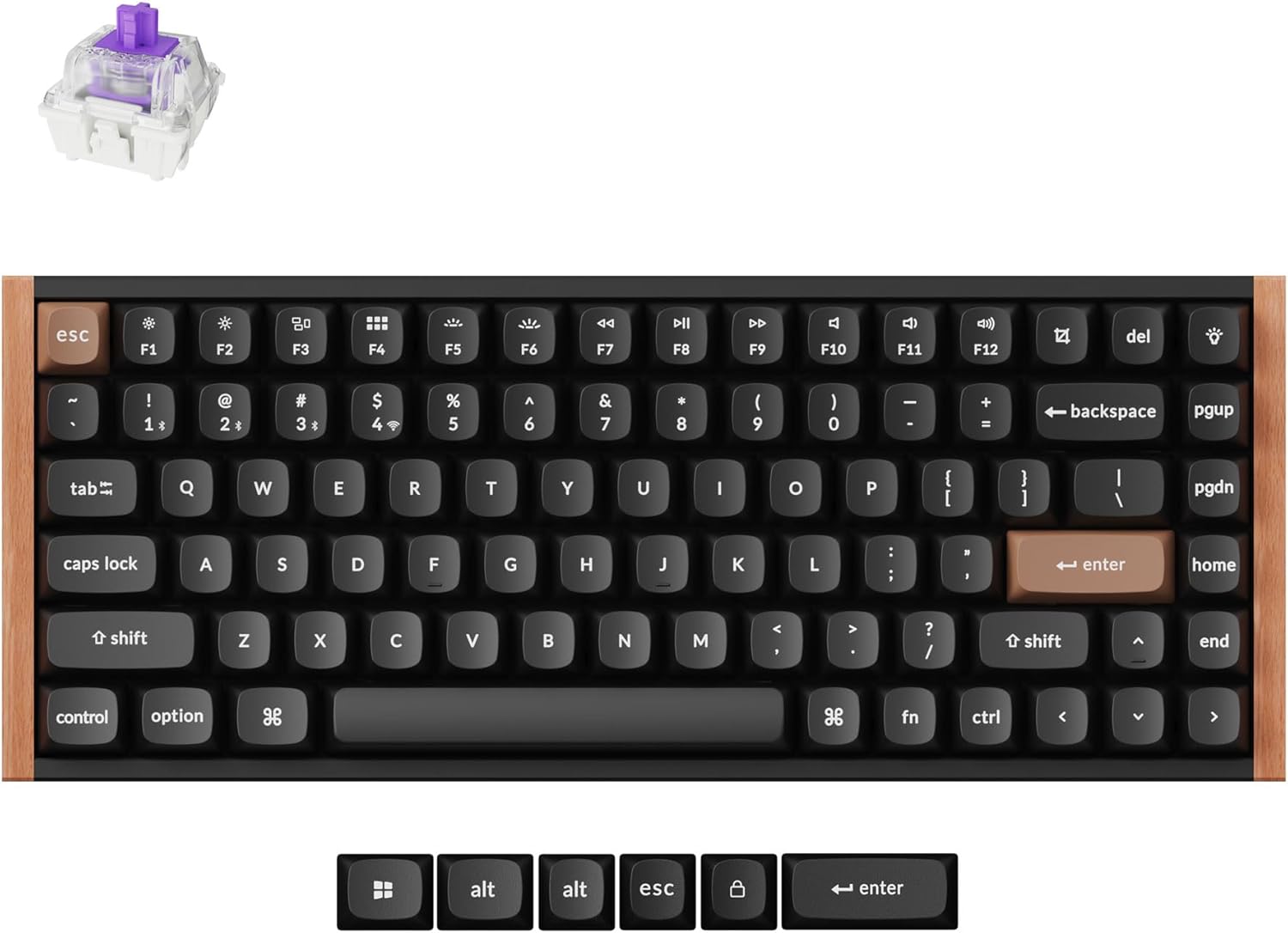
Image 4.1: Keychron K2 HE keyboard displaying its customizable RGB backlighting.
5. Structure and Sound
The internal structure of the K2 HE is engineered for optimal sound and feel. It incorporates multiple layers of sound-dampening materials, including EVA foam, EPDM foam, and a silicone acoustic pad. These layers contribute to a satisfying typing experience with a pleasant, dampened sound profile.

Image 5.1: Exploded view of the Keychron K2 HE, illustrating its multi-layered internal structure for enhanced acoustics.
Video 5.1: A sound test and review of the Keychron K2 HE, demonstrating its acoustic properties.
6. Maintenance
To ensure the longevity and optimal performance of your Keychron K2 HE keyboard, follow these maintenance guidelines:
- Regular Cleaning: Use a soft brush or compressed air to remove dust and debris from between the keycaps. For deeper cleaning, carefully remove keycaps using the provided keycap puller and clean the switches and plate.
- Keycap Care: PBT keycaps are durable but can be cleaned with a damp cloth and mild soap if necessary. Avoid harsh chemicals.
- Battery Care: To prolong battery life, avoid fully discharging the keyboard frequently. Charge it when the battery indicator is low. If storing for an extended period, charge it to about 50% and turn off the keyboard.
- Switch Care: The Gateron magnetic switches are pre-lubed for smoothness. If you choose to replace them, ensure proper alignment and gentle insertion to avoid damaging the switch sockets.
7. Troubleshooting
If you encounter issues with your Keychron K2 HE, consider the following troubleshooting steps:
- Connectivity Issues: Ensure the keyboard is in the correct mode (2.4 GHz, Bluetooth, or Wired) for your device. For Bluetooth, ensure your device's Bluetooth is enabled and the keyboard is paired. For 2.4 GHz, ensure the dongle is securely plugged in. Try re-pairing or reconnecting.
- Keys Not Responding: Check if the keyboard is powered on and connected. If using wireless, ensure the battery is charged. If specific keys are not responding, try removing and re-inserting the keycap and switch.
- Backlighting Problems: Adjust brightness and effects using the Keychron Launcher or keyboard hotkeys. Ensure the keyboard is not in a low-power mode that might disable backlighting.
- Customization Not Applying: Ensure the keyboard is connected to the Keychron Launcher web application and changes are saved/submitted.
- Firmware Update: Periodically check the Keychron website for firmware updates, which can resolve bugs and improve performance. Follow the instructions provided on the website for safe updating.
8. Specifications
| Package Dimensions | 14.17 x 7.99 x 2.72 inches |
| Item Weight | 3.27 pounds |
| Manufacturer | Keychron |
| Batteries | 1 Lithium Ion batteries required (included) |
| Connectivity Technology | 2.4 GHz Wireless, Bluetooth 5.1, USB-C Wired |
| Keyboard Description | Gaming, Mechanical |
| Recommended Uses | Gaming, Typing-intensive Work |
| Special Features | Rapid Trigger, Hot-Swappable, RGB Backlit, Launcher Web Configurator |
| Keyboard Backlighting | RGB (South-facing LEDs) |
| Material | Wood (Special Edition), Aluminum (Standard Version) |
| Included Components | USB Cable |
9. Warranty and Support
Specific warranty details are typically provided with your product packaging or on the manufacturer's official website. For technical support, troubleshooting assistance, or warranty claims, please refer to the contact information provided by Keychron in your product documentation or visit their official support channels online.


