
Keychron Q3 HE
Keychron Q3 HE QMK Wireless Custom Mechanical Keyboard User Manual
Model: Q3 HE
Introduction
This manual provides comprehensive instructions for the setup, operation, maintenance, and troubleshooting of your Keychron Q3 HE QMK Wireless Custom Mechanical Keyboard. The Keychron Q3 HE is an 80% layout wireless QMK custom keyboard featuring Hall Effect Gateron 2.0 magnetic switches, designed for enhanced gaming and typing experiences with adjustable actuation points and rapid triggering.
Crafted from durable 6063 aluminum, this keyboard offers robust construction and a premium feel. It supports multiple connectivity options including 2.4 GHz wireless, Bluetooth 5.1, and wired USB-C.
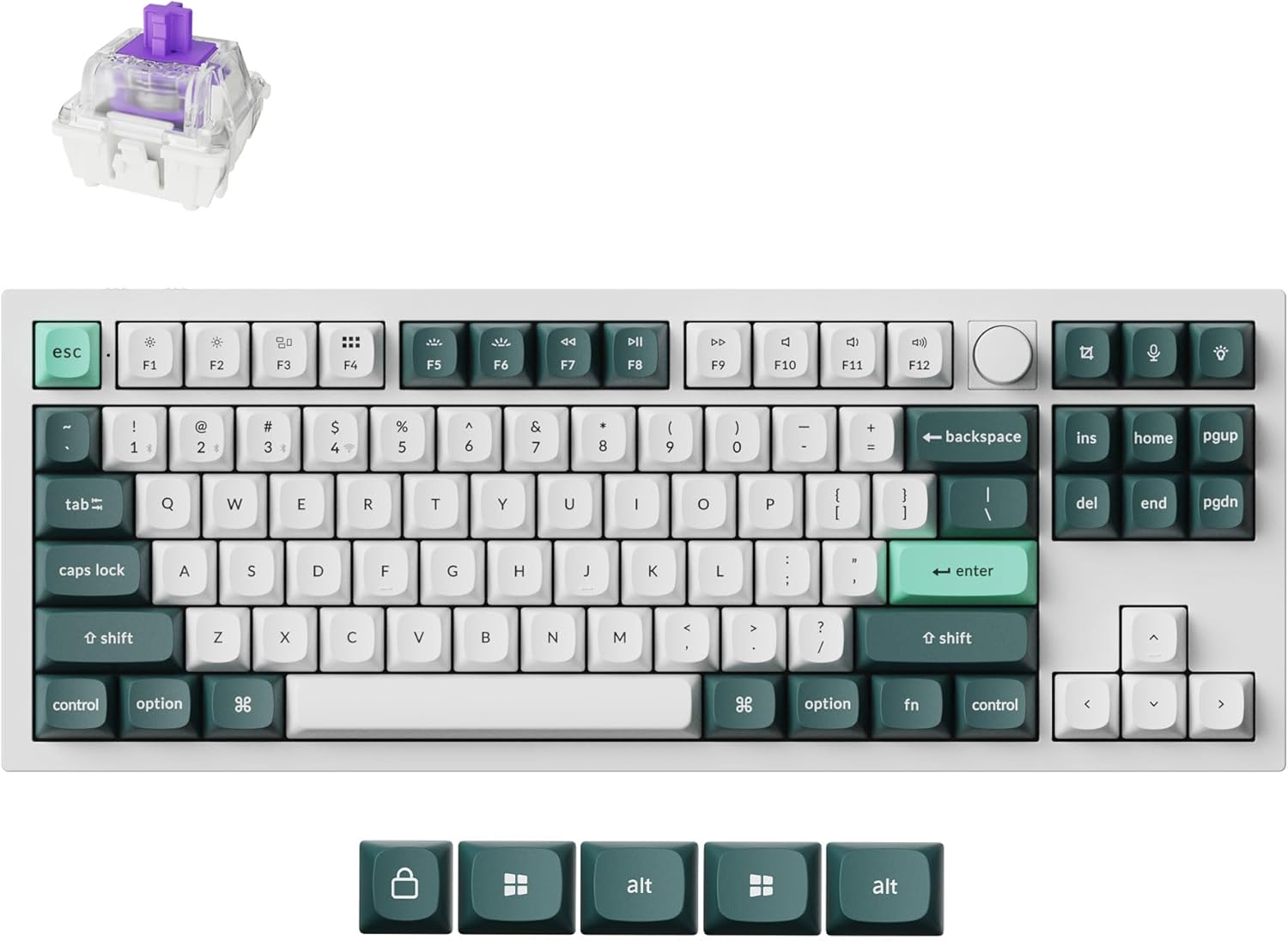
Image: The Keychron Q3 HE keyboard in Shell White, showcasing its 80% layout with a knob, and the distinct keycap colors.
Package Contents
Please verify that all items are present in your package:
- Keychron Q3 HE Keyboard
- USB-C to USB-C Cable
- USB-A to USB-C Adapter
- Keycap Puller
- Switch Puller
- User Manual (this document)
- Additional Keycaps (for Windows/Mac compatibility)
Setup Guide
1. Initial Charging
Before first use, connect the keyboard to a power source using the provided USB-C cable. The keyboard features a 4000 mAh battery. A full charge is recommended for optimal wireless performance.
2. Connectivity Options
The Keychron Q3 HE supports three connection modes: 2.4 GHz wireless, Bluetooth 5.1, and wired USB-C.
2.1. 2.4 GHz Wireless Connection
For high-performance gaming, the 2.4 GHz wireless connection offers a rapid 1000 Hz polling rate.
- Locate the 2.4 GHz receiver (dongle) typically stored in the keyboard's compartment or included separately.
- Plug the 2.4 GHz receiver into an available USB port on your computer.
- Toggle the keyboard's mode switch to the "2.4G" position.
- The keyboard should automatically connect. If not, refer to the troubleshooting section.
2.2. Bluetooth 5.1 Connection
The Bluetooth 5.1 connection allows seamless multitasking across up to three devices (computer, phone, tablet).
- Toggle the keyboard's mode switch to the "BT" (Bluetooth) position.
- Press and hold the Fn + 1 (or Fn + 2 / Fn + 3) key combination for 4 seconds until the indicator light flashes rapidly, indicating pairing mode.
- On your device (computer, phone, tablet), open Bluetooth settings and search for "Keychron Q3 HE".
- Select the keyboard to pair. The indicator light will stop flashing once connected.
- To switch between paired devices, press Fn + 1, Fn + 2, or Fn + 3.

Image: The Keychron Q3 HE keyboard connected wirelessly to a laptop, smartphone, and tablet, demonstrating its multi-device capability.
2.3. Wired Connection
For a stable, direct connection, use the provided USB-C cable.
- Connect one end of the USB-C cable to the keyboard's USB-C port.
- Connect the other end to a USB-C port on your computer. If your computer only has USB-A ports, use the provided USB-A to USB-C adapter.
- Toggle the keyboard's mode switch to the "Cable" position.
- The keyboard will be recognized as a standard USB HID device.
3. Operating System Switch
The keyboard has a switch to select between Windows and Mac layouts. Ensure this switch is set correctly for your operating system to ensure proper key mapping.
Image: The Keychron Q3 HE keyboard, showing the included alternative keycaps for Windows and Mac operating systems.
Operating Your Keyboard
1. Gateron Double-Rail Magnetic Hall Effect Switches
The Q3 HE features Gateron Double-Rail Magnetic Hall Effect Switches, offering precise and customizable performance. These switches have a sensitivity of 0.1 mm and an adjustable actuation range from 0.2 mm to 3.8 mm. They are designed for unparalleled stability and smoothness, with a lifespan of 150 million clicks.
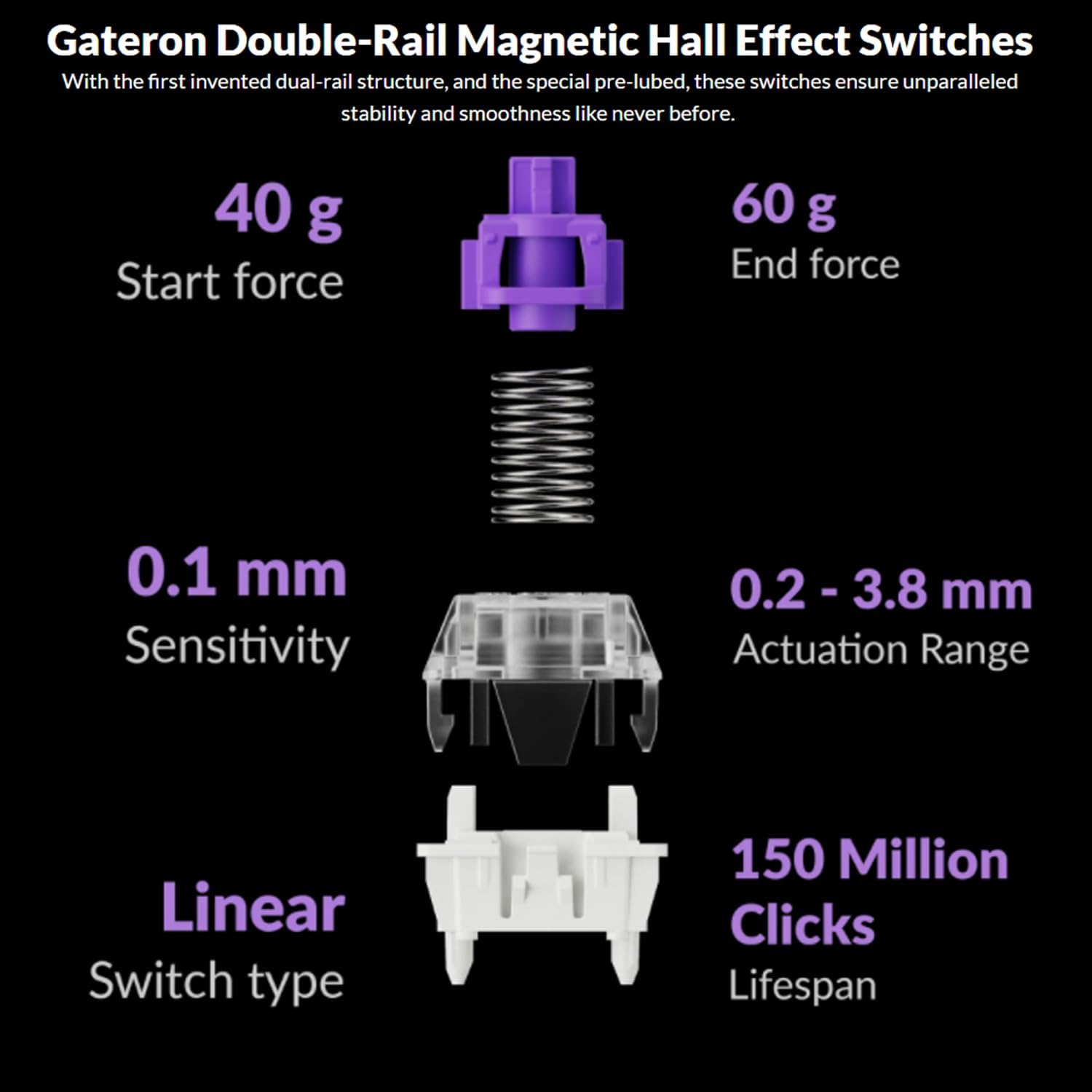
Image: Diagram illustrating the specifications of Gateron Double-Rail Magnetic Hall Effect Switches, including start force, end force, sensitivity, actuation range, switch type, and lifespan.
2. Programmable Knob and Keys
The integrated knob and all keys on the Q3 HE are fully programmable via the Keychron Launcher web app. This allows you to:
- Remap keys to different functions.
- Adjust the actuation points of the magnetic switches.
- Create personalized macro commands.
- Set custom shortcuts and key combinations.
Access the Keychron Launcher web app through your web browser to customize your keyboard settings.
3. RGB Backlighting
The Q3 HE features south-facing RGB LED lights, designed to provide optimal illumination from the typist's perspective. This orientation also prevents interference when using Cherry-profile keycaps.
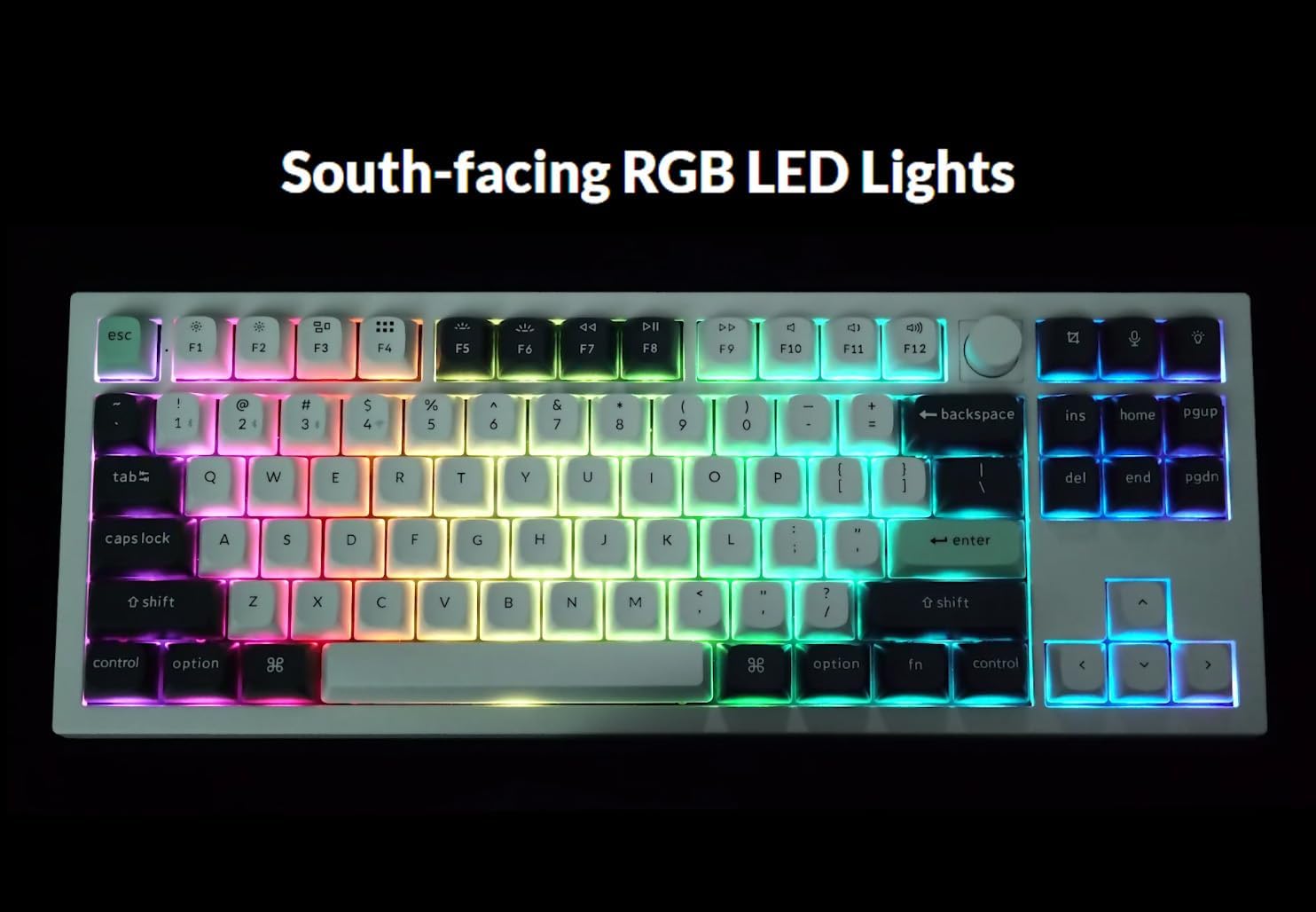
Image: The Keychron Q3 HE keyboard displaying its vibrant, south-facing RGB backlighting, illuminating the keycaps.
Use the designated function keys (e.g., Fn + Light Key or Fn + F5/F6) to cycle through different lighting effects and adjust brightness. Refer to the keyboard's quick start guide for specific key combinations.
4. OSA Double-Shot PBT Keycaps
The keyboard comes equipped with durable OSA Double-Shot PBT Keycaps. These keycaps are known for their resistance to shine and wear over time, ensuring longevity and a consistent typing feel.

Image: A close-up view of the OSA Double-Shot PBT Keycaps, showing their construction and texture.
Maintenance
1. Cleaning Your Keyboard
- Disconnect the keyboard from all power sources and devices before cleaning.
- Use a can of compressed air to remove dust and debris from between the keycaps.
- For surface cleaning, gently wipe the keycaps and frame with a soft, lint-free cloth dampened with a small amount of water or a mild, non-abrasive cleaning solution. Avoid excessive moisture.
- Do not spray cleaning solutions directly onto the keyboard.
2. Battery Care
- The keyboard is powered by a 4000 mAh Lithium Ion battery.
- To prolong battery life, avoid fully discharging the battery frequently.
- Store the keyboard in a cool, dry place when not in use for extended periods.
- If the keyboard will not be used for a long time, charge it to about 50% before storing.
Troubleshooting
| Problem | Possible Cause | Solution |
|---|---|---|
| Keyboard not responding (wired) | Loose cable connection, incorrect mode switch, driver issue. |
|
| Keyboard not connecting (2.4 GHz) | Receiver not plugged in, incorrect mode switch, interference. |
|
| Keyboard not connecting (Bluetooth) | Not in pairing mode, device Bluetooth off, already connected to max devices. |
|
| Keys randomly stop responding / Incorrect key output | Software glitch, incorrect actuation point setting, physical debris. |
|
| RGB lights not working or inconsistent | Low battery, software setting, light effect disabled. |
|
Specifications
| Feature | Detail |
|---|---|
| Model Name | Keychron Q3 HE |
| Layout | 80% (TKL) |
| Switches | Gateron Double-Rail Magnetic Hall Effect Switches |
| Actuation Range | 0.2 mm - 3.8 mm (adjustable) |
| Connectivity | 2.4 GHz Wireless, Bluetooth 5.1, USB-C Wired |
| Polling Rate (2.4 GHz) | 1000 Hz |
| Body Material | 6063 Aluminum |
| Keycaps | OSA Double-Shot PBT |
| Backlighting | South-facing RGB LED |
| Battery Capacity | 4000 mAh Lithium Ion |
| Battery Life | Up to 100 hours (at lowest brightness) |
| Item Weight | 5.5 pounds (approx. 2.5 kg) |
| Dimensions (Package) | 15.79 x 8.03 x 2.8 inches |
| Operating System Compatibility | Mac, Windows |
Warranty and Support
Keychron products are designed and manufactured to high quality standards. For detailed warranty information, including coverage period and terms, please refer to the official Keychron website or the warranty card included with your product.
For technical support, frequently asked questions (FAQs), and driver/software downloads (including Keychron Launcher), please visit the official Keychron support page:
When contacting support, please have your product model (Q3 HE) and serial number (if applicable) ready.
Related documentsQ3 HE


Ask a question about this manual
Ask about setup, troubleshooting, compatibility, parts, safety, or missing instructions. Manuals+ will review the question and use this page’s manual context to help answer it.