
1. Product Overview
The Ponek M02X Mini Sticker Printer is a portable, inkless thermal printer designed for various applications including learning, note-taking, photo printing, journaling, and label creation. Its compact size and Bluetooth connectivity make it convenient for on-the-go use.
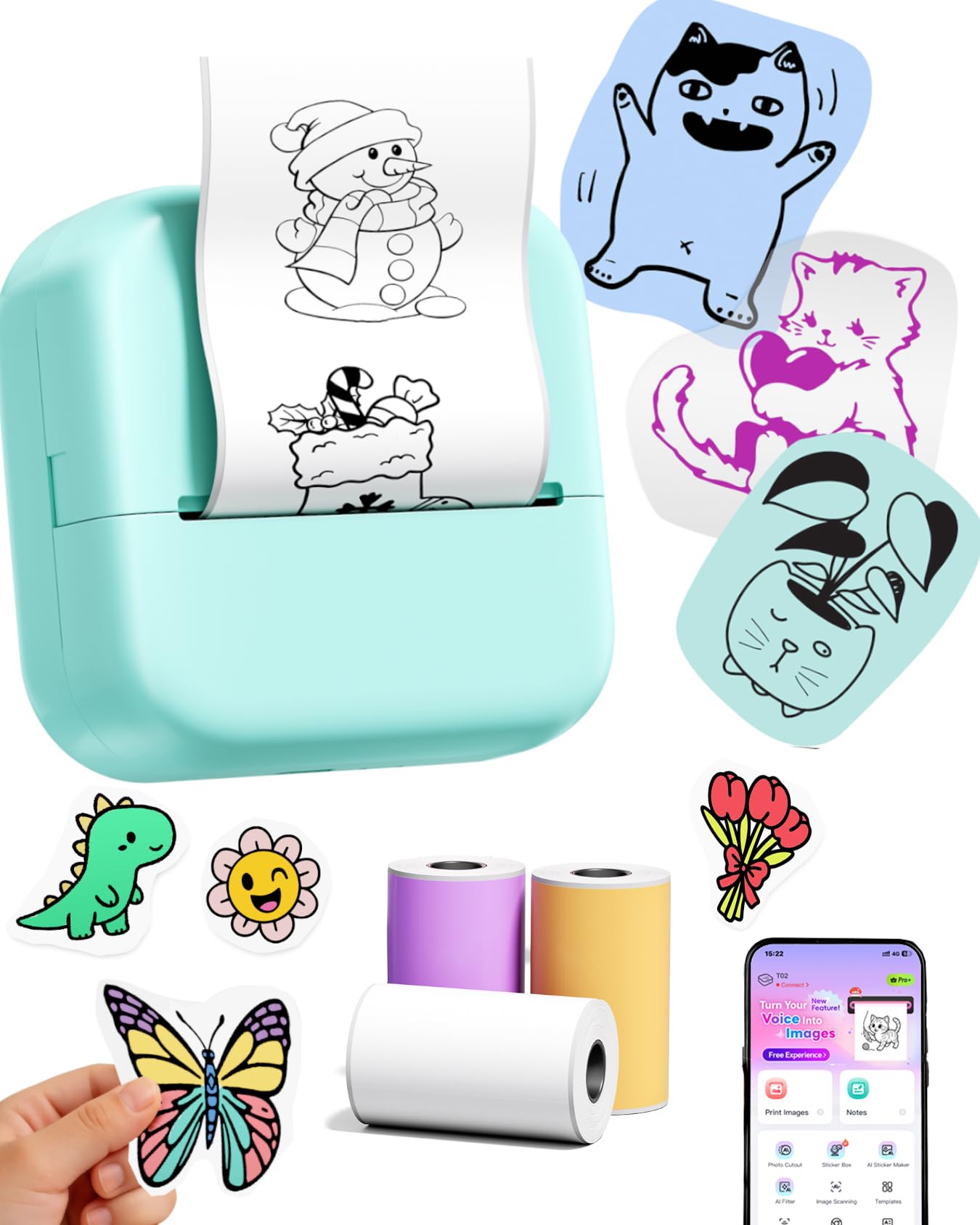
Image: The Ponek M02X Mini Sticker Printer, a compact and portable device.
Key Features:
- Inkless Thermal Printing: Utilizes thermal paper, eliminating the need for ink cartridges.
- Versatile Paper Compatibility: Supports adhesive and non-adhesive white thermal paper, as well as colored and transparent thermal sticker paper.
- Compact and Portable: Measures 3.35" x 3.35" x 1.56" (85 x 85 x 39.5 mm) and weighs 162g, ideal for travel and daily use.
- Bluetooth Connectivity: Easily connects to iOS and Android smartphones and tablets via a dedicated app.
- Multi-functional App: Offers various patterns, fonts, templates, AI tools (AI Art Generator, AI Background Remover), photo editing, and collage features.
- Educational Aid: Useful for printing study notes, diagrams, charts, and excerpts to enhance learning efficiency.
- Creative Applications: Perfect for DIY projects, bullet journaling, creating labels, greeting cards, and personalized stickers.
- Monochrome Output: Prints exclusively in black and white.
2. Setup Guide
2.1 Unboxing and Initial Charge
Upon receiving your Ponek M02X printer, carefully remove it from its packaging. It comes with a C battery included. It is recommended to fully charge the device before its first use to ensure optimal battery life.
- Connect the printer to a power source using the provided charging cable.
- The charging indicator light will show the charging status (refer to LED indicator section for details).
2.2 Installing the Paper Roll
Open the Printer Cover: Gently slide the top cover of the printer to open it.

Image: Step 1 of paper roll installation, showing the printer cover open and paper being inserted.
Insert Paper Roll: Place the thermal paper roll into the paper tray, ensuring the printing side faces the thermal print head. The paper should feed smoothly.
Image: Step 2 of paper roll installation, showing the paper roll correctly placed in the tray.
- Close the Cover: Close the printer cover firmly until it clicks into place. Leave a small portion of paper extending from the output slot.
2.3 App Download and Bluetooth Connection
- Download the App: Search for the official Ponek app in your device's app store (iOS App Store or Google Play Store).
- Power On Printer: Long press the power button on the printer to turn it on. The indicator light will illuminate.
Connect via Bluetooth: Open the Ponek app on your smartphone or tablet. Follow the in-app instructions to connect to the printer via Bluetooth. The app typically offers a one-click connection feature.
Image: Step 3, showing a smartphone screen with the Ponek app open and the printer connected via Bluetooth.
3. Operating Instructions
3.1 Basic Printing
Select Content: Within the Ponek app, choose the content you wish to print. This can include images, text, notes, or templates.

Image: The Ponek app interface, showcasing diverse functions for printing images, notes, and utilizing AI tools.
Preview and Print: Review the print preview in the app. Adjust settings if necessary (e.g., size, density). Tap the print button to send the job to the printer.
Image: Step 4, showing the printer actively printing content from the app.
- Tear Off Print: Once printing is complete, gently tear the paper upwards along the serrated edge of the printer output slot.
3.2 Advanced App Features
The Ponek app provides a rich set of features to enhance your printing experience:
- AI Art Generator: Create unique images from text prompts.
- AI Background Remover: Easily remove backgrounds from photos.
- Photo Editing: Edit images for optimal printing.
- Collage: Combine multiple pictures for printing.
- Scan Function: Use the "Scan" feature to clearly print study charts and diagrams.
- Templates: Access a variety of pre-designed patterns, fonts, and themes for different purposes.
3.3 Usage Scenarios

Image: The Ponek M02X printer assisting in studying, printing educational materials.
- Learning & Study: Print notes, diagrams, charts, and excerpts for subjects like mathematics, chemistry, and physics.
- Journaling & Scrapbooking: Print photos and decorative elements for bullet journals and scrapbooks.
- Organization: Create to-do lists, memos, address labels, receipts, and storage labels.
- DIY & Crafts: Design and print custom patterns, bookmarks, greeting cards, and stickers for various projects.
- Photo Sharing: Print small, memorable photos to share or add to albums.

Image: Practical applications of the Ponek M02X printer for daily organization and creative tasks.
4. Maintenance
4.1 Cleaning the Printer
- Ensure the printer is turned off and disconnected from power before cleaning.
- Use a soft, dry, lint-free cloth to wipe the exterior of the printer.
- For the thermal print head, gently wipe with an alcohol swab. Avoid touching the print head with bare hands.
- Do not use abrasive cleaners or solvents, as they may damage the printer.
4.2 Paper Handling and Storage
- Use only Ponek-compatible thermal paper rolls for optimal performance and print quality.
- Store thermal paper in a cool, dry place away from direct sunlight and excessive heat to prevent premature fading.
- Important Note: Printed content on thermal paper may fade over time, depending on environmental conditions and exposure to light or heat.

Image: The Ponek M02X printer demonstrating its compact size and the variety of thermal paper it supports.
5. Troubleshooting
5.1 Common Issues and Solutions
| Problem | Possible Cause | Solution |
|---|---|---|
| Printer not turning on | Low battery or power issue. | Charge the printer fully. Ensure the power button is long-pressed. |
| Cannot connect via Bluetooth | Bluetooth is off, printer is out of range, or app issue. | Ensure Bluetooth is enabled on your device. Bring the printer closer. Restart the app and printer. |
| Poor print quality / Faint prints | Print head dirty, incorrect paper, or low battery. | Clean the thermal print head. Ensure you are using Ponek thermal paper. Charge the printer. |
| Paper jam | Paper incorrectly loaded or foreign object. | Turn off the printer, open the cover, and carefully remove any jammed paper. Reload paper correctly. |
| Printer not responding | Temporary software glitch. | Restart the printer and the app. |
6. Specifications
| Feature | Detail |
|---|---|
| Model Name | M02X |
| Brand | Ponek |
| Product Dimensions | 8.48 x 8.48 x 3.94 cm (3.35" x 3.35" x 1.56") |
| Item Weight | 162 g (approx. 0.36 lbs) |
| Connectivity Technology | Bluetooth |
| Printing Technology | Thermal |
| Printer Output | Monochrome (Black Ink) |
| Max Print Speed Monochrome | 15.0 pages per minute (B&W) |
| Maximum Media Size | 2.91 x 1.57 inches (74 x 40 mm) |
| Compatible Devices | Smartphones, Tablets (iOS, Android) |
| Batteries | 1 C battery required (included) |
| Control Method | Touch (via app) |
| Maximum Print Resolution | 200 dpi |
| Country of Origin | China |
7. Product Video
Video: A demonstration of the Ponek M02X Mini Sticker Printer in action, showcasing its ease of use, inkless printing, paper tearing, DIY cutting, bullet journaling, study note application, photo sharing, coloring, and label creation. This video highlights various practical applications of the printer.
8. Warranty and Support
For warranty information, technical support, or any inquiries regarding your Ponek M02X Mini Sticker Printer, please refer to the contact information provided with your purchase or visit the official Ponek website. Keep your purchase receipt as proof of purchase for warranty claims.
Manufacturer: Ponek