
1. Introduction
This manual provides detailed instructions for the installation, operation, and maintenance of your Zomolither Android 15 Car Stereo Radio. Please read this manual thoroughly before using the product to ensure proper function and safety. This unit is designed for Ford Fusion Mondeo models from 2013 to 2019, specifically for vehicles without a large factory screen.
2. Product Compatibility
This Android 15 car stereo is compatible with Ford Fusion Mondeo vehicles manufactured between 2013 and 2019. It is specifically designed for original car center controls that do not feature a large factory screen. Please verify your car's model and dashboard configuration before installation.

Image: Dashboard comparison showing compatibility. The top row illustrates the dashboard before and after installation. The bottom row shows two types of original car controls: 'A' (left) indicates compatibility, while 'B' (right) indicates incompatibility with large screen models.
3. What's in the Box
The package includes the following components:
- 1x Android Car Stereo (with Frame)
- 1x User Manual
- 1x AHD Backup Camera
- 1x Cam-in Cable
- 1x External Microphone
- 1x GPS Antenna
- 2x USB Cables
- 1x Power Cable
- 1x RCA Cable
- 1x CANBUS Decoder
- 1x Installation Tool Set

Image: Overview of the car stereo dimensions and all included accessories, such as cables, camera, and tools.
4. Setup and Installation
Installation of this car stereo requires technical knowledge and experience. It is highly recommended to seek professional installation to avoid damage to the unit or your vehicle. Ensure the vehicle's power is disconnected before beginning any installation work.
General Installation Steps:
- Preparation: Disconnect the car battery. Remove the original car radio and trim panels carefully.
- Wiring: Connect the provided power cable, RCA cable, USB cables, GPS antenna, and external microphone to the corresponding ports on the new stereo. If your vehicle has a CANBUS system, connect the CANBUS decoder.
- Backup Camera (Optional): Install the AHD backup camera at the rear of the vehicle and route the cam-in cable to the stereo unit.
- Mounting: Secure the new car stereo into the dashboard opening using the provided frame and installation tools.
- Testing: Reconnect the car battery. Turn on the car and the stereo to test all functions, including audio, touchscreen, GPS, Bluetooth, and camera.
- Final Assembly: Reinstall all trim panels.
5. Operating Instructions
5.1. Display and User Interface
The unit features a 9-inch 1280*720 IPS touchscreen display, offering clear visuals and responsive touch control. You can customize the interface with 59 UI desktop themes and a large selection of wallpapers.

Image: The 1280*720 IPS touchscreen display highlighting ultra-wide viewing angle, clear and realistic colors, and distortion-free color reproduction.
Video: This video demonstrates the multifunctional display of the car radio, showcasing various UI desktop themes, wallpaper selection, and the smooth operation of the touchscreen interface.
5.2. Wireless CarPlay & Android Auto
The stereo supports wireless and wired Apple CarPlay and Android Auto via the Zlink App. This allows seamless integration with your smartphone for navigation, music, calls, and other apps.
- Wireless Connection: Ensure Bluetooth and Wi-Fi are enabled on your phone and the car stereo. Open the Zlink App on the stereo and follow the on-screen instructions to pair your device.
- Wired Connection: Connect your smartphone to the stereo using a USB cable. The Zlink App should automatically launch.
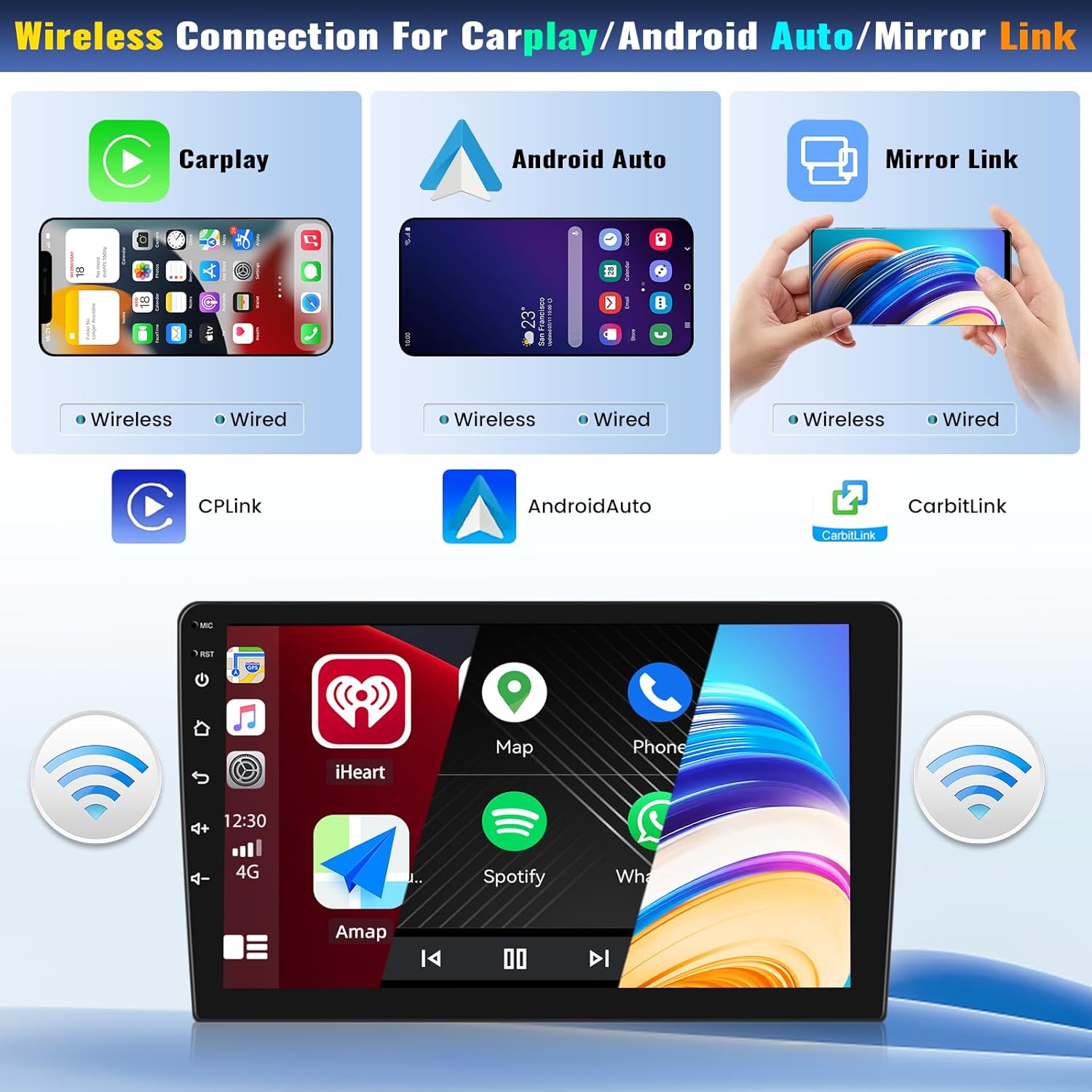
Image: Visual guide for connecting Apple CarPlay, Android Auto, and Mirror Link, showing both wireless and wired options.

Image: The CarPlay interface displayed on the car stereo, demonstrating app integration.
5.3. Bluetooth 5.0
The built-in Bluetooth 5.0 module enables hands-free calling, phone book synchronization, and audio streaming from your mobile device.
- Pairing: Go to the Bluetooth settings on the stereo and your phone. Search for available devices on your phone and select 'Car BT'. Confirm the pairing code if prompted.
- Hands-Free Calls: Once paired, you can make and receive calls directly from the stereo screen.
- Music Streaming: Play music from your phone through the car's speakers via Bluetooth.

Image: Bluetooth 5.0 interface on the stereo, displaying call functions and music playback options.

Image: The built-in Bluetooth interface, showing music player controls and Bluetooth connectivity status.
5.4. GPS Navigation & WiFi Connectivity
The unit includes a built-in GPS receiver and supports both online and offline navigation. With Wi-Fi enabled, you can download and install various apps from the Play Store, access real-time traffic information, and browse the internet.
- GPS Navigation: Use pre-installed navigation apps or download your preferred ones. Connect to Wi-Fi for online maps and traffic updates, or download offline maps for use without an internet connection.
- Wi-Fi Connection: Go to settings, enable Wi-Fi, and connect to an available network (e.g., your phone's hotspot).

Image: Display of Wi-Fi connectivity for online navigation and app downloads, alongside GPS navigation showing map routes.

Image: The built-in GPS interface, demonstrating support for online and offline maps with various navigation app icons.

Image: The built-in Wi-Fi feature, illustrating how it allows access to a wide range of applications for entertainment and utility.
5.5. Backup Camera Input & Driving Recorder
The stereo supports an AHD backup camera, automatically displaying the rear view when the car is in reverse. It also allows for connection of a driving recorder via a USB slot.
- Backup Camera: When the vehicle is shifted into reverse gear, the 9-inch IPS touchscreen will automatically display the HD reversing image from the AHD camera. The camera features a wide viewing angle, night vision, and is waterproof.
- Driving Recorder: Connect a compatible driving recorder to the USB port to record driving footage.
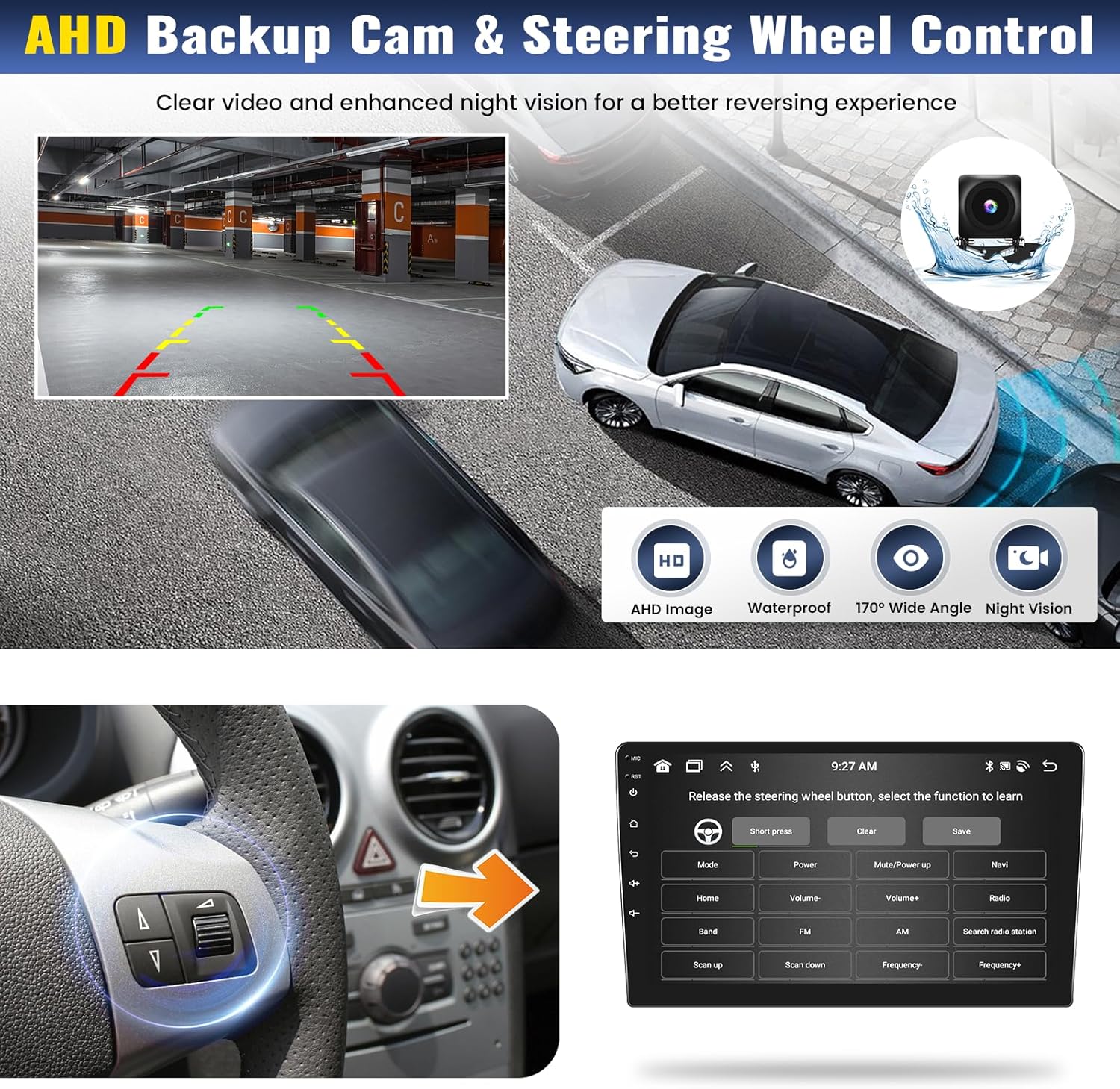
Image: AHD backup camera view displayed on the screen, showing parking guidelines. Inset images highlight the camera's features: AHD image quality, waterproof design, 170° wide angle, and night vision.

Image: The backup camera display, indicating 1080p Full HD resolution, waterproof design, night vision, and wide-angle view.
5.6. Steering Wheel Control (SWC)
The unit supports original steering wheel controls, allowing you to manage audio playback, volume, and other functions without taking your hands off the wheel. This enhances driving safety and convenience.
Image: A car's steering wheel with control buttons, and the stereo screen displaying a menu for mapping steering wheel functions.

Image: The steering wheel control interface, displaying a blue-themed control panel with various buttons and navigation elements for customization.
5.7. Audio Features (36 EQ, DSP, FM/RDS Radio)
Experience enhanced audio quality with the built-in 36-band Equalizer (EQ) and Digital Sound Processor (DSP). The FM/RDS radio allows you to listen to your favorite stations with clear reception.
- 36 EQ & DSP: Adjust sound frequencies to your preference using the 36-band EQ. The DSP technology optimizes audio output, reducing noise and distortion.
- FM/RDS Radio: Tune into FM radio stations. RDS (Radio Data System) provides additional information like station name and song title where available. The unit supports 18 preset stations.
Image: Display of the 36-band EQ settings and FM/RDS radio interface.

Image: The built-in DSP interface, showing various equalizer settings, frequency analyzers, and audio processing controls.

Image: The FM/RDS radio interface, displaying various controls and settings against a blue background.
5.8. Voice Control
The system supports voice commands, allowing you to control various functions using natural language. This feature enhances driving safety by minimizing manual interaction with the screen.
Video: This video demonstrates the voice control feature, showing how to open applications like FM radio using voice commands.
5.9. Split Screen Functionality
The split-screen feature allows you to run two applications simultaneously on the display, such as navigation and music playback, enhancing multitasking capabilities.

Image: The split-screen feature, demonstrating two applications (music player and navigation map) running side-by-side on the display.
Video: This video demonstrates the dual-screen functionality, showing two software applications working simultaneously, such as FM radio and a phone dialer.
5.10. Mirror Link
The Mirror Link function allows you to cast your smartphone screen directly onto the car stereo display, providing a more convenient way to view content from your phone.

Image: The Mirror Link feature, illustrating how a cell phone screen can be cast to the car's center display via Wi-Fi.
6. Specifications
| Feature | Specification |
|---|---|
| Operating System | Android 15 |
| Processor | 8-Core |
| RAM | 4GB |
| Internal Storage | 64GB |
| Display Size | 9 Inches |
| Display Resolution | 1280 * 720 IPS Touchscreen |
| Bluetooth Version | 5.0 |
| Connectivity | Bluetooth, Wi-Fi, Wireless |
| Special Features | 36 EQ, Wireless Apple CarPlay, Android Auto, Mirror Link, GPS Navigation, FM RDS Radio, Steering Wheel Control, Backup Camera Input |
| Mounting Type | Dashboard Mount |
| Item Weight | 4.18 pounds |
| Package Dimensions | 14.45 x 12.95 x 6.5 inches |
7. Troubleshooting
If you encounter issues with your Zomolither car stereo, please refer to the following common troubleshooting steps:
- No Power: Check all power connections and ensure the car's fuse for the radio is not blown.
- No Sound: Verify speaker connections, check volume levels, and ensure the audio source is correctly selected.
- Touchscreen Unresponsive: Try restarting the unit. If the issue persists, ensure no physical obstructions are on the screen.
- Bluetooth Connection Issues: Ensure Bluetooth is enabled on both the stereo and your phone. Delete previous pairings and try reconnecting.
- GPS Signal Loss: Ensure the GPS antenna is properly installed and has a clear view of the sky.
- CarPlay/Android Auto Not Connecting: Verify the Zlink App is running. Check USB cable connection for wired mode, or Bluetooth/Wi-Fi for wireless mode.
- Backup Camera Not Displaying: Check the camera's power and video signal connections. Ensure the car is in reverse gear.
For persistent issues, please contact customer support.
8. Warranty and Support
Your Zomolither car stereo comes with a 1-Year Warranty from the date of purchase. In addition, Zomolither offers comprehensive customer support:
- 30-Day Refund: If you are not satisfied with your purchase, you may be eligible for a refund within 30 days.
- 24-Hour After-Sale Support: Assistance is available for any post-purchase inquiries or issues.
- Lifetime Technical Support: Zomolither provides ongoing technical support for the lifetime of the product.
For online support or inquiries, please contact: Zomolither@126.com
If you are unsure about product compatibility with your car, you can send pictures of your car's dashboard to the support email before making a purchase for assistance.