
Hodozzy 8f5fc662-f88f-46e6-9567-5a2a6c1cffec
Hodozzy Carplay Android Car Stereo Instruction Manual
Model: 8f5fc662-f88f-46e6-9567-5a2a6c1cffec
1. Introduction
This manual provides detailed instructions for the installation, operation, and maintenance of your Hodozzy Carplay Android Car Stereo. Please read this manual thoroughly before using the product to ensure proper function and safety. Keep this manual for future reference.
2. Safety Information
- Always ensure the vehicle is parked safely before operating the car stereo.
- Avoid prolonged exposure to direct sunlight or extreme temperatures.
- Do not attempt to disassemble or modify the unit. This may void the warranty and cause damage.
- Professional installation is highly recommended to prevent damage to the unit or your vehicle's electrical system.
- If an airbag warning light appears during installation, please contact customer support immediately.
3. Product Overview
The Hodozzy Carplay Android Car Stereo is an advanced in-car entertainment and navigation system designed to enhance your driving experience. It features a 9.7-inch touchscreen, an 8-core processor, and supports a wide range of functions including wireless CarPlay, Android Auto, GPS navigation, Bluetooth 5.1, FM/RDS radio, and Digital Signal Processing (DSP).

Figure 3.1: Main view of the Hodozzy Carplay Android Car Stereo and included accessories.
4. Compatibility
This car stereo is specifically designed for:
- Buick Excelle models (2010-2014)
- Opel Astra J models (2009-2015) with an ECO button on the original center console.
Important Note: This model is not suitable for cars with a sport button on the original center console. If you are unsure about compatibility, please send a photo of your vehicle's center console to customer support for confirmation before installation.

Figure 4.1: Visual guide for vehicle compatibility, highlighting models with the ECO button.
5. Package Contents
Please verify that all items listed below are included in your package:
- Hodozzy Carplay Android Car Stereo Unit
- Power Cable
- RCA Cable
- USB Cable (x3)
- Rear Camera Input Cable
- GPS Antenna
- Camera
- External Microphone
- Canbus Decoder
- Radio Antenna
- Installation Tool
- User Manual

Figure 5.1: Detailed list and visual representation of package contents.
6. Technical Specifications
| Feature | Specification |
|---|---|
| Operating System | Android |
| Chipset | 8257 |
| Screen Size | 9.7 inches |
| Memory | 4GB RAM + 64GB ROM |
| Screen Resolution | 768 x 1024 |
| Output Power | 4 x 45W |
| Bluetooth Version | 5.1 |
| Operating Temperature | -20℃ to 75℃ |
| Power Amplifier Chip | 7388 |
| Radio Band | FM/RDS (87.5 MHz-107.5 MHz) |
| Video Output | Supported |
| Reverse Input | AHD/CVBS |
| External Microphone | Supported |
| Split Screen | Supported |
| Maps | Built-in offline maps (requires internet for download) |
| Wi-Fi | Supported |
| USB Ports | Dual USB |
| Audio Format Support | APE/FLAC/WAV/MP3/WMA etc. |
| Video Format Support | MKV/RMVB/AVI/MP4/MDV etc. |
| Image Format Support | PNG/JPEG/JPG/GIF/WBMP/BNP etc. |
| Factory Setting Keyword | 1234 |
| Supported Languages | Chinese/English/French/Italian/Korean/Japanese/Arabic/Spanish/Portuguese/Russian/Turkish/Vietnamese/Hebrew/Polish/German |
7. Installation Guide
Installation of this car stereo requires technical knowledge and may involve modifications to your vehicle's dashboard. It is strongly recommended to have the unit installed by a qualified professional.
7.1 General Steps
- Preparation: Disconnect the vehicle's battery before starting any electrical work.
- Remove Original Unit: Carefully remove the existing car stereo and trim panels.
- Wiring: Connect the provided power cable, RCA cables, USB cables, GPS antenna, and other accessories to the corresponding ports on the new stereo and your vehicle's harness. Ensure all connections are secure.
- Canbus Connection: Connect the Canbus decoder as per the wiring diagram to ensure integration with vehicle functions like steering wheel controls.
- Rear Camera Installation: Install the rear camera (if applicable) and route its cable to the stereo unit. Connect the reverse input cable.
- Fitment: Mount the new stereo unit into the dashboard. Note that some vehicle models may require minor modifications, such as cutting a portion of the original support bracket, for proper fitment.
- Test: Reconnect the battery and test all functions of the stereo before fully reassembling the dashboard.
7.2 Wiring Diagram
Refer to the detailed wiring diagram provided with your unit for specific connections. The 'Package List' image (Figure 5.1) provides a visual overview of the cables.
8. Operating Instructions
8.1 Power On/Off
The unit will typically power on automatically when the vehicle's ignition is turned on. To manually power off or restart, refer to the on-screen controls or physical buttons if available.
8.2 Touchscreen Interface
Navigate through the system using the 9.7-inch capacitive touchscreen. Swipe, tap, and pinch gestures are supported for various functions.
8.3 Wireless CarPlay and Android Auto
This unit supports both wireless CarPlay for Apple devices and Android Auto for Android devices.
- For Apple Phones: Connect wirelessly via Bluetooth or using a USB data cable.
- For Android Phones: Connect via a USB data cable.
- Once connected, you can access compatible applications such as maps, phone contacts, emails, notifications, and music directly on the car stereo screen.
- Note: Samsung phones may not be compatible with Android Auto via USB for this unit.

Figure 8.1: CarPlay and Android Auto interfaces, along with Mirror Link demonstration.
8.4 Bluetooth 5.1
The integrated Bluetooth 5.1 module allows for hands-free calling and audio streaming.
- Pairing: Go to the Bluetooth settings on the stereo and your mobile device to pair them.
- Hands-Free Calls: Use the built-in microphone for clear communication. Supports contact synchronization.
- Music Playback: Stream audio directly from your paired device.
8.5 FM RDS Radio
The FM radio receiver supports automatic station search and presetting (87.5 MHz-107.5 MHz). RDS (Radio Data System) provides additional information such as station name and program type.
8.6 DSP (Digital Signal Processor)
The integrated DSP enhances sound quality by reducing noise, distortion, and interference, providing a clearer audio experience.
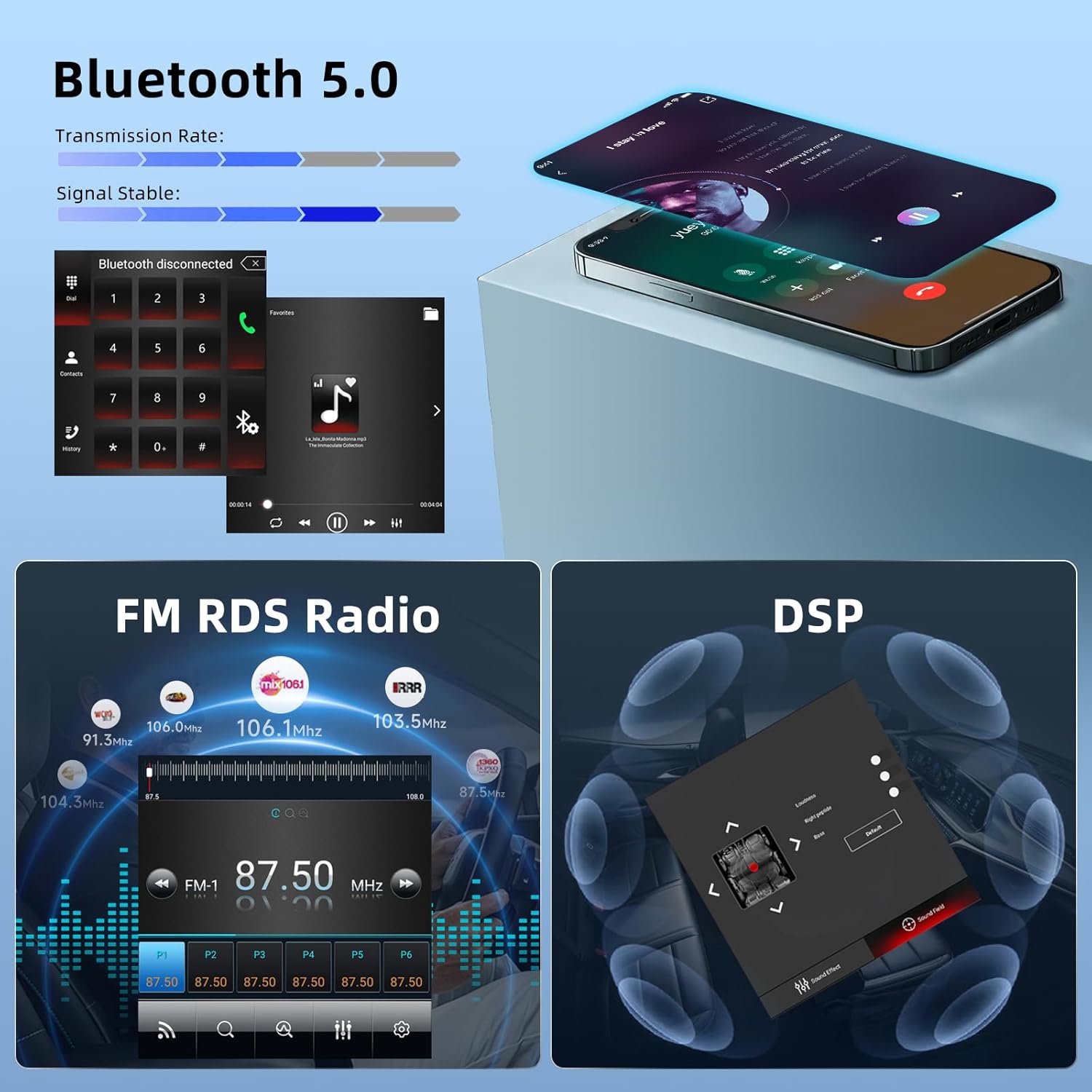
Figure 8.2: Bluetooth 5.0, FM RDS Radio, and DSP features.
8.7 GPS Navigation and WiFi
The unit features a built-in GPS receiver and WiFi connectivity.
- GPS Navigation: Download free offline maps from the 'Here We Go' application (requires internet for initial download) or use other online map applications.
- WiFi: Connect to a WiFi hotspot to download additional applications and access online services.

Figure 8.3: WiFi connectivity and GPS navigation features.
8.8 Split Screen Function
The split-screen function allows you to run two applications simultaneously, for example, listening to music while navigating.
8.9 Mirror Link
Synchronize your phone's screen with the car stereo display via a USB data cable or WLAN for a mirrored view of your mobile content.
8.10 Steering Wheel Control
Utilize your vehicle's existing steering wheel buttons to control the car audio functions, providing convenience and enhancing driving safety.
8.11 Reverse Assistance (Rear Camera)
The included AHD rear camera provides a clear, waterproof, night vision image with a wide angle. The display automatically switches to the reverse image when the vehicle is in reverse gear, aiding in parking and maneuvering.

Figure 8.4: Rear camera features and wiring for reverse assistance.
8.12 Retaining Original Vehicle Functions
The system is designed to integrate with and retain several original vehicle functions, including:
- Steering Wheel Controls
- Door Open Hint
- Factory Amplifier
- Radar/Parking Sensors
- Lane Watch/Right Camera (if equipped)
- A/C Information Display

Figure 8.5: Overview of retained original vehicle functions.
9. Maintenance
- Cleaning: Use a soft, dry cloth to clean the screen and unit. Avoid abrasive cleaners or solvents.
- Software Updates: Check for available software updates periodically to ensure optimal performance and access to new features. Information on guaranteed software updates is not available, so manual checks may be required.
- Environmental Conditions: Protect the unit from extreme temperatures and moisture.
10. Troubleshooting
If you encounter any issues, please refer to the following troubleshooting tips before contacting support.
- ECO Button Not Functioning: If the ECO button on your original console does not seem to work after installation, try holding the button for approximately 5 seconds to activate or deactivate the function.
- Airbag Warning Light: If an airbag warning light appears on your dashboard after installation, immediately contact customer support. This indicates a potential wiring or compatibility issue that requires professional attention.
- Sound or Heating Control Issues: If you experience bugs with sound output or heating controls, ensure all wiring, especially the Canbus connection, is correct. Check for any available software updates. If the issue persists, contact support.
- Microphone Not Working (Hands-Free): If the original vehicle's hands-free microphone does not function, use the external microphone provided with the unit. Ensure it is properly connected and positioned for clear audio capture.
- Original USB Port Not Working: The vehicle's original USB port may not be compatible with the new stereo. Utilize the dual USB ports provided with the Hodozzy unit for connectivity.
- System Slowness: If the system feels slow, try restarting the unit. Ensure no excessive background applications are running.
- Factory Settings Password: The default password for factory settings is 1234.
11. Warranty and Support
Your Hodozzy Carplay Android Car Stereo comes with a standard warranty. For specific warranty terms and conditions, please refer to your purchase documentation or contact the seller directly.
11.1 How to Contact Support
If you have questions or require technical assistance, you can contact Hodozzy customer support through the platform where you purchased the product. Typically, this involves:
- Navigating to your order details.
- Clicking on the seller's name (e.g., "Sold by Hodozzy").
- Selecting the option to "Contact Seller" or similar.

Figure 11.1: Guide on contacting Hodozzy for support.
Ask a question about this manual
Ask about setup, troubleshooting, compatibility, parts, safety, or missing instructions. Manuals+ will review the question and use this page’s manual context to help answer it.