Introduction
This manual provides detailed instructions for the RETROSUN V11 Infrared Remote Control. This remote is designed as a replacement and is compatible with various Zidoo media box models, including X8, X9S, X10, X6, H6 Pro, X5, X1ii, Z9S, and Z9X Pro Box. It features an infrared transmission for reliable control and a backlit function for use in low-light conditions.
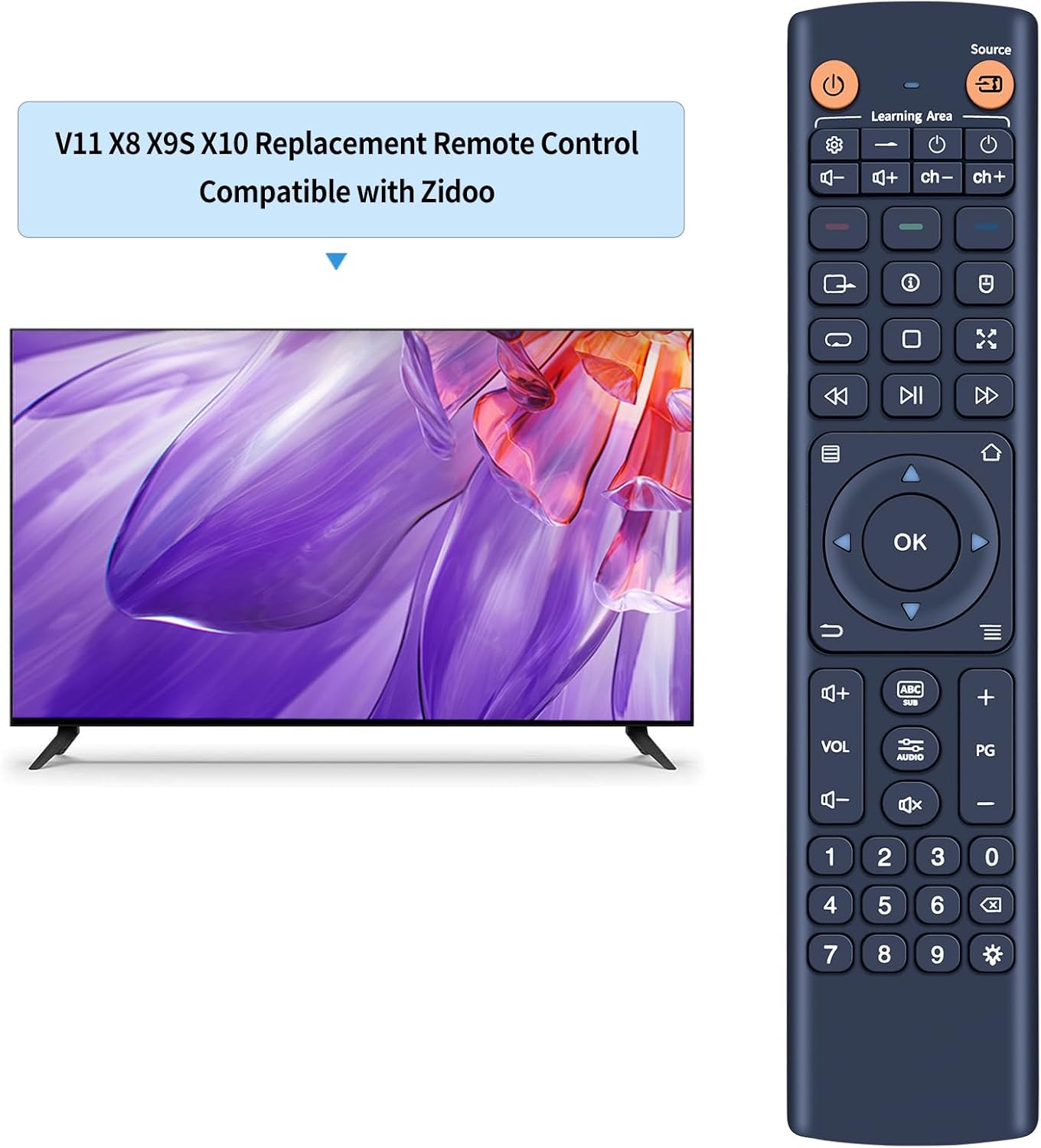
Image: The RETROSUN V11 Infrared Remote Control displayed alongside a television, illustrating its intended use.
Setup
1. Battery Installation
The RETROSUN V11 remote control requires three (3) AAA alkaline batteries (not included). Follow these steps to install them:
- Locate the battery compartment on the back of the remote control.
- Slide open the battery compartment cover.
- Insert three AAA batteries, ensuring the positive (+) and negative (-) terminals align correctly with the markings inside the compartment.
- Close the battery compartment cover securely.

Image: The rear view of the remote control with the battery cover removed, clearly showing the slots for three AAA batteries and polarity indicators.
2. Learning Function (Pairing)
The V11 remote control features a learning function to replicate commands from another infrared remote. This allows you to consolidate control for certain functions. Follow these steps:
- Press and hold the “Set” key on the V11 remote for 3 seconds until the indicator light remains steadily on.
- Press the specific key on the V11 remote that you wish to program (e.g., Power button). The indicator light will begin to blink.
- Point the infrared emission window of your original remote control directly at the infrared emission window of the V11 remote control (typically at the top).
- Press the corresponding key on your original remote control that you want the V11 remote to learn. The indicator light on the V11 remote will stop blinking once the learning is successful.
- Repeat steps 2-4 for any other keys you wish to program.
- After learning all desired keys, press the “Set” key again to exit the learning mode.

Image: A close-up of the remote control's top section, indicating the 'Learning Area' and various function buttons, relevant for the learning process.
Operating Instructions
Basic Functions
The V11 remote control provides standard functions for navigating and controlling your compatible Zidoo media box:
- Power Button: Turns the device on or off.
- Navigation Pad (OK, Up, Down, Left, Right): Used for menu navigation and selection.
- Volume Control (VOL +/-): Adjusts the audio output level.
- Channel/Page Control (CH/PG +/-): Changes channels or navigates through pages.
- Playback Controls (Play, Pause, Fast Forward, Rewind): Manages media playback.
- Numeric Keypad (0-9): For direct input of numbers or channel selection.
Backlight Function
To activate or deactivate the remote control's backlight, press the 💡 (light bulb) key. This feature enhances visibility in dimly lit environments.

Image: A user holding the remote control, pointing it towards a television, illustrating its effective long-distance infrared control capability.
Maintenance
To ensure the longevity and optimal performance of your RETROSUN V11 remote control, follow these maintenance guidelines:
- Cleaning: Use a soft, dry cloth to clean the remote control. Avoid using liquid cleaners, solvents, or abrasive materials, as these can damage the surface or internal components.
- Battery Replacement: Replace all three AAA batteries when the remote's performance degrades or the indicator light does not respond as expected. Always use new alkaline batteries.
- Storage: Store the remote control in a cool, dry place away from direct sunlight, extreme temperatures, and high humidity.
- Avoid Impact: Do not drop the remote control or subject it to strong impacts, which can damage its internal circuitry.
Troubleshooting
If you encounter issues with your RETROSUN V11 remote control, refer to the following common problems and solutions:
- Remote is not responding:
- Check if the batteries are correctly installed with the correct polarity.
- Replace the batteries with new AAA alkaline batteries.
- Ensure there are no obstructions between the remote control and the Zidoo media box's infrared receiver.
- Make sure you are within the effective operating range (up to 8 meters / 26 feet).
- Learning function is not working:
- Ensure the original remote control has working batteries and is transmitting a strong signal.
- Verify that the infrared emission windows of both remotes are pointed directly at each other and are in close proximity during the learning process.
- Repeat the learning steps carefully, ensuring the indicator light on the V11 remote blinks and then stops as described.
- Some original remotes may use different infrared frequencies or protocols that are not compatible with the learning function.
Specifications
| Brand | RETROSUN |
| Model Number | V11 (Replacement Remote) |
| Compatible Devices | Zidoo X8, X9S, X10, X6, H6 Pro, X5, X1ii, Z9S, Z9X Pro Box |
| Connectivity Technology | Infrared (IR) |
| Special Feature | Backlit Buttons |
| Power Supply | 3 x AAA Alkaline Batteries (not included) |
| Control Distance | Up to 8 meters (26 feet) |
| Response Time | Less than 0.2 seconds |
| Material | ABS Plastic, Soft Plastic Buttons |
| Color | Blue |
| Item Weight | 2.82 ounces |
| Package Dimensions | 7.95 x 1.77 x 0.87 inches |

Image: Detailed views of the remote control from the front and side, with precise measurements for length, width, and thickness.
Support
For further assistance or if your specific device model is not listed as compatible, please contact us through the Amazon messaging tool. Our support team will be able to verify compatibility and provide additional guidance.


