1. Introduction
This manual provides essential information for setting up, operating, maintaining, and troubleshooting your Lenovo ThinkCentre Neo 50T Gen4 Tower desktop personal computer. Please read this manual thoroughly before using your new system.
2. Package Contents
Verify that all items are present in your product packaging:
- Lenovo ThinkCentre Neo 50T Gen4 Tower Desktop PC
- USB Keyboard
- USB Mouse
- Power Cable
- Documentation (this manual and warranty information)
3. System Overview
3.1 Front Panel
The front panel provides convenient access to frequently used ports and controls.
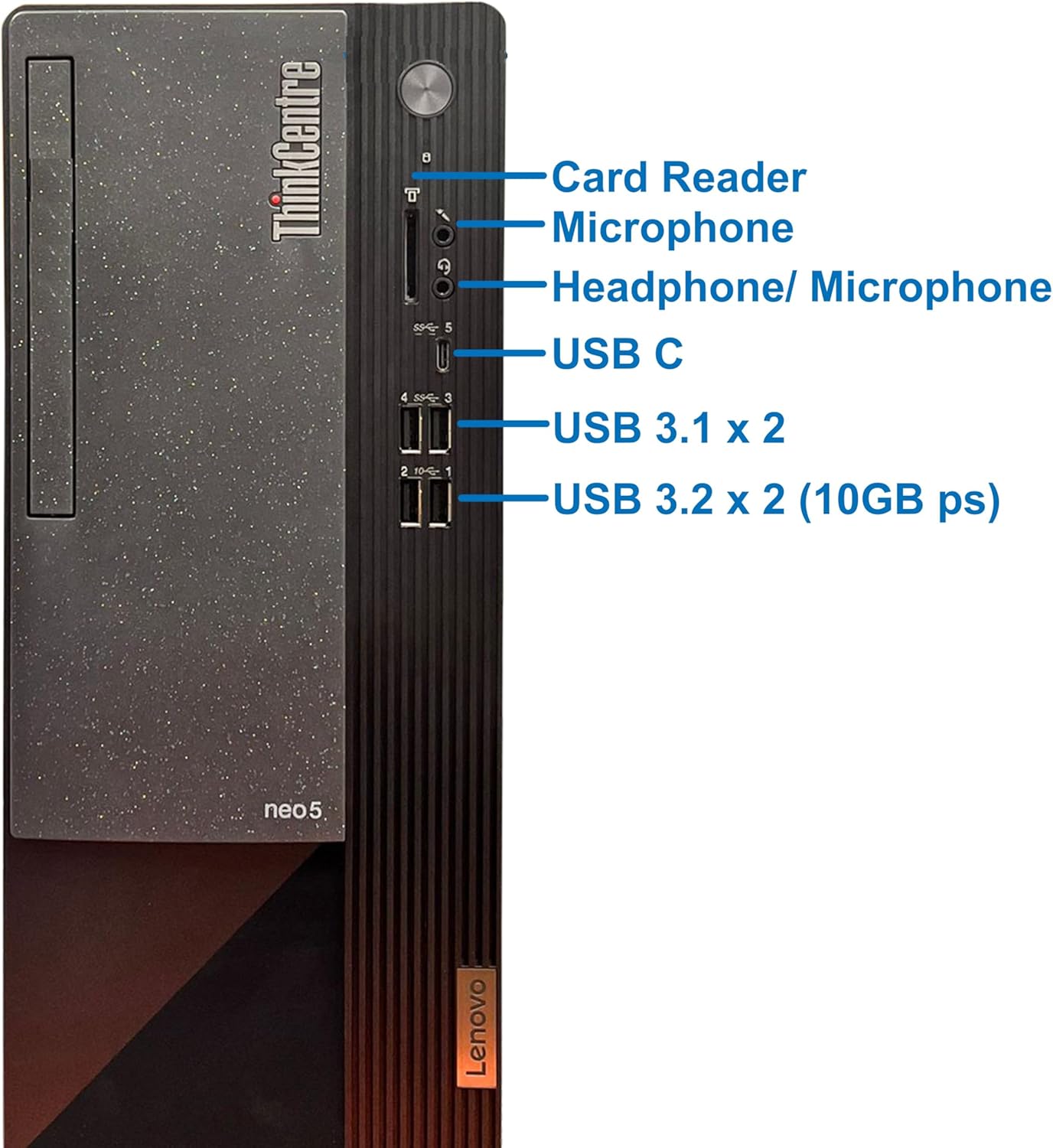
Image Description: A close-up view of the Lenovo ThinkCentre Neo 50T Gen4 Tower's front panel, highlighting its various ports. From top to bottom, these include a Card Reader, Microphone jack, Headphone/Microphone combo jack, USB-C port, two USB 3.1 ports, and two USB 3.2 (10 Gbps) ports.
- Card Reader: Supports SD, SDHC, and SDXC memory cards.
- Microphone Jack: For connecting an external microphone.
- Headphone/Microphone Combo Jack: For connecting a headset.
- USB-C 3.2 Gen 1: Supports data transfer and 5V 3A charging.
- USB 3.2 (5 Gbps) Ports (x2): For connecting USB devices.
- USB 3.2 (10 Gbps) Ports (x2): For connecting high-speed USB devices.
3.2 Rear Panel
The rear panel contains ports for connecting peripherals and network cables.

Image Description: A detailed view of the Lenovo ThinkCentre Neo 50T Gen4 Tower's rear panel, showing its connectivity options. Labeled ports include Audio Out, DisplayPort, HDMI, VGA, Serial Port, LAN (Ethernet), and four USB 2.0 ports. The power input is also visible at the bottom.
- Audio Out: For connecting external speakers or headphones.
- DisplayPort: For connecting a display, supports 4K resolution.
- HDMI: For connecting a display.
- VGA: For connecting an older display.
- Serial Port: For connecting legacy serial devices.
- LAN (RJ45): Gigabit Ethernet port for wired network connection.
- USB 2.0 Ports (x4): For connecting USB devices.
- Power Input: For connecting the power cable.
4. Setup
Follow these steps to set up your Lenovo ThinkCentre Neo 50T Gen4 Tower:
- Unpack the System: Carefully remove the computer and all accessories from the packaging.
- Connect Peripherals:
- Connect the USB keyboard and mouse to any available USB ports on the front or rear panel.
- Connect your monitor(s) to the DisplayPort, HDMI, or VGA ports on the rear panel. The system supports up to three monitors simultaneously.
- If using a wired network, connect an Ethernet cable to the LAN port on the rear panel.
- Connect any other desired peripherals (e.g., speakers, external drives).
- Connect Power: Plug the power cable into the power input on the rear of the computer, then plug the other end into a grounded electrical outlet.
- Power On: Press the power button located on the front panel of the computer. The system will boot up and guide you through the initial Windows 11 Pro setup.
- Initial Windows Setup: Follow the on-screen instructions to complete the Windows 11 Pro setup, including language, region, network connection, and user account creation.
5. Operating System
Your Lenovo ThinkCentre Neo 50T Gen4 Tower comes pre-installed with Windows 11 Professional 64-bit. This operating system provides a secure and productive environment for your computing needs.
- Updates: Ensure your system is regularly updated through Windows Update to maintain security and performance.
- Security: Utilize Windows Security features, including antivirus and firewall, to protect your system.
- User Accounts: Manage user accounts and permissions for multiple users.
6. Connectivity
The ThinkCentre Neo 50T Gen4 Tower offers various connectivity options:
- Wired Network: Gigabit Ethernet (RJ45) for stable and high-speed internet access.
- Wireless Network: Integrated 802.11ac Wi-Fi for wireless internet connectivity.
- Bluetooth: Bluetooth 4.2 for connecting wireless peripherals such as headphones, keyboards, and mice.
- USB Ports: A combination of USB 2.0, USB 3.2 (5 Gbps), and USB 3.2 (10 Gbps) ports, including a USB-C port, for connecting a wide range of devices.
7. Specifications
Detailed technical specifications for your Lenovo ThinkCentre Neo 50T Gen4 Tower:
| Component | Specification |
| Model | Lenovo ThinkCentre Neo 50T Gen4 Tower |
| Operating System | Windows 11 Professional 64-bit |
| Processor | Intel Core i9-12900K (16-Core, 3.2 GHz - 5.20 GHz) |
| Cache | 30MB |
| RAM | 64GB DDR4 3200MHz (Max Supported: 64GB) |
| Storage | 2TB NVMe SSD |
| Additional Storage Slot | 1x 3.5" HDD slot available |
| Graphics | Intel UHD Graphics 770 (Integrated) |
| Video Ports | 1x DisplayPort 4K, 1x VGA, 1x HDMI, 1x Serial, 1x Parallel |
| Card Reader | 3-in-1 (SD, SDHC, SDXC) |
| Front Ports | 2x USB 3.2 (5 Gbps), 2x USB 3.2 (10 Gbps), 1x USB-C 3.2 Gen 1 |
| Rear Ports | 4x USB 2.0 |
| Ethernet | RJ45 Gigabit |
| Wi-Fi | 802.11ac Wireless |
| Bluetooth | 4.2 |
| Audio | Headphone line In/Out |
| Speaker | 1W Internal Speaker |
| Power Supply | 180 Watts |
| Dimensions (LxWxH) | 11.57 x 5.7 x 13.39 inches |
| Weight | 15.4 pounds |
8. Maintenance
To ensure the longevity and optimal performance of your desktop PC, consider the following maintenance tips:
- Keep it Clean: Regularly clean the exterior of the computer with a soft, dry cloth. Use compressed air to clear dust from vents and ports.
- Software Updates: Keep your operating system and drivers updated to the latest versions.
- Backup Data: Periodically back up important files to an external drive or cloud storage.
- Proper Ventilation: Ensure the computer is placed in a well-ventilated area to prevent overheating. Avoid blocking air vents.
- Power Protection: Use a surge protector to safeguard against power fluctuations.
9. Troubleshooting
If you encounter issues with your ThinkCentre Neo 50T Gen4 Tower, try these basic troubleshooting steps:
- No Power:
- Check if the power cable is securely connected to both the computer and the electrical outlet.
- Verify the power outlet is functional by plugging in another device.
- No Display:
- Ensure the monitor is powered on and the video cable is securely connected to both the computer and the monitor.
- Try connecting the monitor to a different video port on the computer (e.g., HDMI instead of DisplayPort).
- No Internet Connection:
- For wired connections, check the Ethernet cable and router status.
- For wireless connections, ensure Wi-Fi is enabled in Windows and you are connected to the correct network. Restart your router if necessary.
- Peripheral Not Working:
- Try connecting the peripheral to a different USB port.
- Ensure the peripheral's drivers are installed and up to date.
- System Slowdown:
- Close unnecessary applications.
- Run a disk cleanup and defragmentation (for HDDs, not necessary for SSDs).
- Check for malware or viruses.
For more advanced troubleshooting or persistent issues, refer to the Lenovo support website or contact customer service.
10. Warranty and Support
Your Lenovo ThinkCentre Neo 50T Gen4 Tower is covered by a manufacturer's warranty. The specific terms and duration of your warranty may vary based on your region and purchase date. Please refer to the warranty documentation included with your product for detailed information.
- Warranty Service: For warranty claims or service requests, please visit the official Lenovo support website or contact Lenovo customer service.
- Online Support: Access drivers, manuals, and troubleshooting guides on the Lenovo Support Website.
- Technical Assistance: Contact Lenovo technical support for personalized assistance with product issues.
It is recommended to register your product on the Lenovo website to facilitate warranty service and receive important updates.


