
Introduction
Thank you for choosing the DUDUAUTO 1080P ADAS DVR Car Dash Cam. This manual provides essential information for the safe and efficient operation of your device. Please read it thoroughly before use and retain it for future reference.

Figure 1: DUDUAUTO 1080P ADAS DVR Car Dash Cam
Product Features
- 1080P HD Recording: Captures video at 1920*1080P resolution for clear footage.
- Seamless Loop Recording: Automatically records over older footage when the memory card is full, ensuring continuous recording. Smart motion detection allows the dash cam to record automatically when motion is detected.
- 160° Wide Viewing Angle: The extra-large wide-angle lens captures incidents with extreme clarity across a broad view of the road, minimizing blind spots.
- ADAS (Advanced Driver-Assistance Systems): Provides real-time monitoring of the vehicle's driving status and intelligent early warnings for potential dangers, reducing the possibility of rear-end collisions and other accidents. Note: ADAS relies on image-based algorithms and may have a certain error rate; it is primarily for auxiliary reminders.
- 360° Rotatable Lens: The rotatable lens design allows for easy capture of both exterior scenery and interior views of the car.
- Easy Installation: The USB driving recorder can be powered directly by Android car stereos via USB for simple setup.
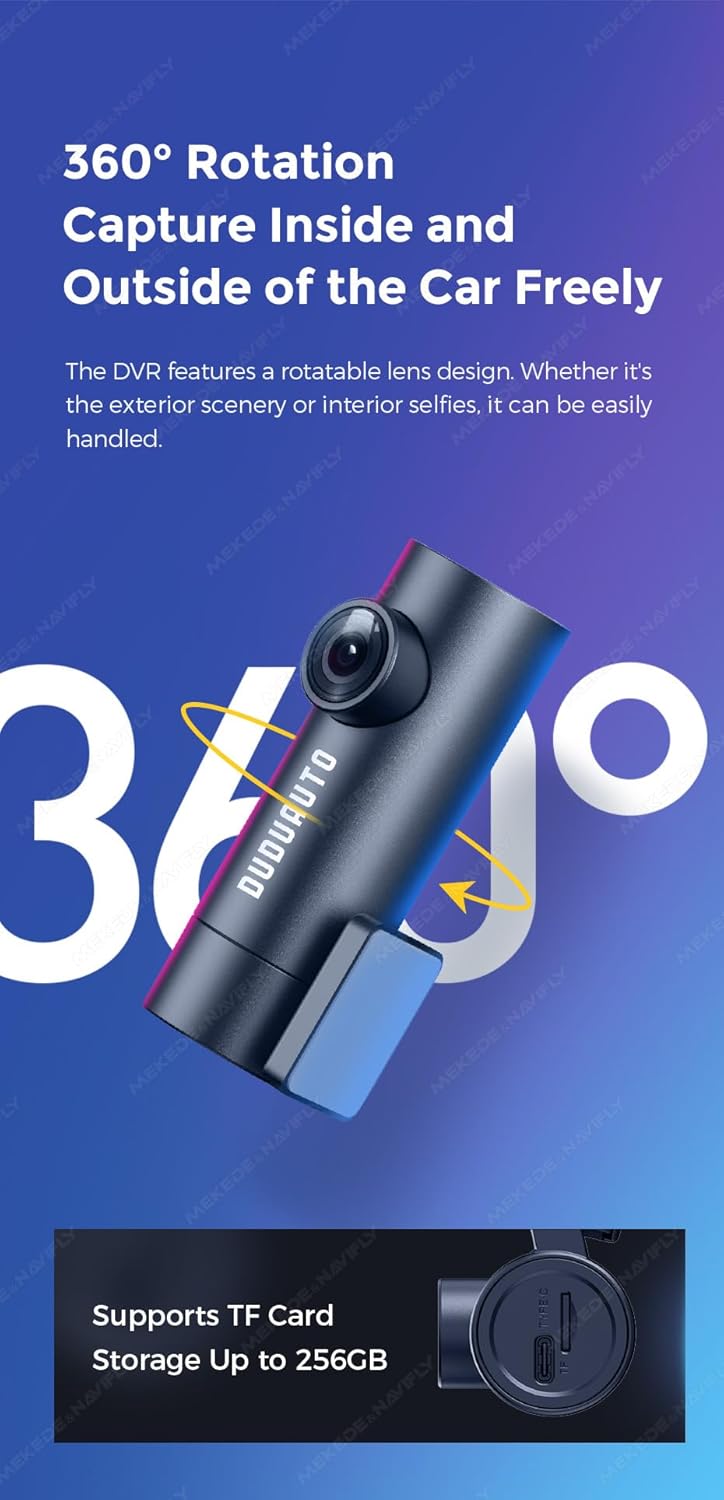
Figure 2: 360° Rotatable Lens for versatile recording.

Figure 3: ADAS Anti-collision warning system in action.
Package Contents
- DUDUAUTO 1080P ADAS DVR Car Dash Cam Unit
- USB Cable
- Car Mount (Dashboard Mount)
- User Manual
- Note: TF (Micro SD) card is not included and must be purchased separately. Supports up to 256GB, requires C10 or higher speed memory card.

Figure 4: Top view showing Type-C port and TF card slot.
Setup & Installation
Follow these steps to install your DUDUAUTO Dash Cam:
- Mount the Dash Cam: Secure the dash cam to your dashboard using the provided car mount. Ensure it has a clear view of the road ahead.
- Connect USB Cable: Connect the USB cable from the dash cam (Type-C end) to your Android car stereo's USB-A port.
- Install the Application: On your Android car stereo, open the file manager. Locate the APK file in the new USB device (the dash cam) and install it.
- Grant Permissions: After successful installation, allow all necessary permissions when prompted by the application.
- Check for Updates: Access the settings within the newly installed dash cam application on your Android stereo. Look for an option to "Check update" and perform any available updates. This is crucial for enabling features like ADAS.
Video 1: Installation and operation method for the DUDUAUTO Dash Cam, demonstrating USB connection, APK installation, and ADAS function activation.
Operating Instructions
Once installed and powered, the dash cam will typically start recording automatically. You can manage settings and view footage through the application on your Android car stereo.
- Recording: The dash cam features seamless loop recording. It will continuously record, overwriting the oldest files when the memory card is full.
- Motion Detection: With smart motion detection, the camera can automatically begin recording when movement is detected, even when the vehicle is parked.
- ADAS Alerts: After updating the application, the ADAS function will provide audio and visual warnings for lane departure and forward collision risks.
- Accessing Footage: Recorded videos and captured images can be accessed via the dash cam application on your Android car stereo.
- Settings: Within the application's settings, you can adjust video resolution (1080P FHD), video duration (e.g., 1, 3, or 5 minutes per file), and toggle features like video flip or mirror.

Figure 5: Dash Cam application interface on an Android car stereo.
Specifications
| Feature | Detail |
|---|---|
| Model Name | 1080P ADAS DVR |
| Video Capture Resolution | 1080p (1920*1080P@30fps) |
| Viewing Angle | 160° Extra-Large Wide-Angle Lens |
| Special Features | Loop Recording, Smart Motion Detection, ADAS (Advanced Driver-Assistance Systems) |
| Storage Method | Supports up to 256GB TF card storage (C10 or higher speed required, card not included) |
| Connectivity Technology | USB (Recorder end: Type-C, Car end: USB-A) |
| Supported Head Unit Types | All series of DUDUAUTO head units, other brands only support head units with Fangyitong |
| Operating Temperature | -20 to 70°C |
| Product Dimensions | 2 x 2 x 2 inches |
| Color | Black |
| Mounting Type | Dashboard Mount |
| Control Method | Touch (via Android car stereo screen) |

Figure 6: Dimensions and parameter configuration.
Maintenance
- Clean the Lens: Regularly clean the camera lens with a soft, lint-free cloth to ensure clear video quality.
- Check Memory Card: Periodically check the memory card for errors or corruption. Format the card regularly (e.g., once a month) to maintain optimal performance.
- Firmware Updates: Keep the dash cam application updated to the latest version to benefit from new features and bug fixes.
- Operating Environment: Avoid exposing the dash cam to extreme temperatures outside the specified operating range (-20 to 70°C) to prevent damage.
Troubleshooting
- Dash Cam Not Powering On: Ensure the USB cable is securely connected to both the dash cam and the Android car stereo. Verify that the car stereo is powered on.
- Recording Issues: Check if the memory card is inserted correctly and is not full. Format the memory card if necessary. Ensure the loop recording function is enabled.
- ADAS Not Working: Confirm that the dash cam application is updated to the latest version. Ensure all necessary permissions have been granted to the application.
- Poor Video Quality: Clean the camera lens. Ensure the dash cam is securely mounted and not vibrating.
- Application Not Launching: Reinstall the APK file from the dash cam. Ensure your Android car stereo meets the minimum OS requirements (OS 3.6 or above for ADAS).
Warranty and Support
For warranty information or technical support, please refer to the documentation provided with your purchase or contact the manufacturer directly. Keep your proof of purchase for warranty claims.