1. Introduction
This manual provides comprehensive instructions for the installation, operation, and maintenance of your VORGUT 4K 8MP Wired PoE Security Camera System. Please read this manual thoroughly before using the product to ensure proper setup and functionality. Keep this manual for future reference.
2. Product Overview
2.1 Package Contents
Verify that all items listed below are present in your package:
- 1x 8-Channel 4K PoE NVR with 1TB HDD pre-installed
- 4x 8MP PoE IP Cameras with Waterproof Lids
- 4x 20-meter Ethernet Cables
- 1x Power Adapter for NVR
- 1x USB Mouse
- 1x User Manual (this document)
- Mounting Screws and Wall Plugs

Figure 2.1: System Components - NVR, 1TB HDD, and four 8MP PoE Cameras.
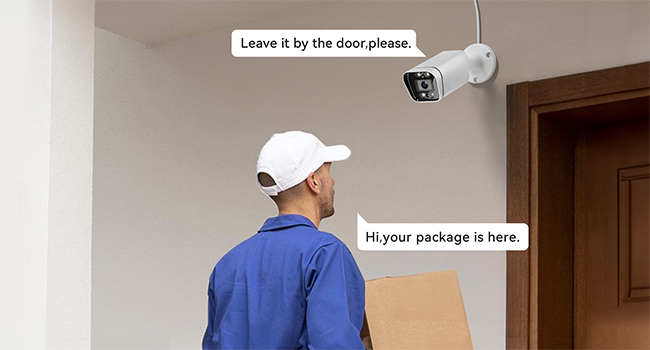
Figure 2.2: Detailed view of package contents including NVR, cameras, cables, and accessories.
2.2 Key Features
- Ultra HD 4K Clarity: 8MP (3840 x 2160) resolution for detailed video surveillance.
- Smart AI Detection: Distinguishes between human and vehicle movement, reducing false alarms.
- Intelligent Color Night Vision: Default infrared night vision switches to full-color with white light upon human detection, up to 30m range.
- Built-in 1TB HDD: Provides 24/7 continuous recording for up to 30 days without overwriting. Expandable up to 8TB.
- Durable & Weatherproof: IP66-rated aluminum alloy casing for outdoor use in various weather conditions.
- Easy PoE Installation: Power over Ethernet (PoE) technology simplifies setup with a single cable for power and data.
- Subscription-Free App: Real-time access, viewing, and playback from multiple cameras via a dedicated mobile application.

Figure 2.3: Key features of the VORGUT 4K PoE Security Camera System.
2.3 NVR and Camera Components

Figure 2.4: Detailed view of camera and NVR interfaces.
The NVR (Network Video Recorder) features multiple PoE ports for direct camera connection, HDMI and VGA outputs for display, and USB ports for mouse control and data backup. Each camera includes a durable metal casing, 3.6mm lens, 4 spotlights/IR lights, and a waterproof lid for cable protection.
3. Setup Guide
3.1 System Connection
The VORGUT PoE system simplifies installation by using a single Ethernet cable for both power and data transmission to each camera.
- Connect Cameras to NVR: Use the provided Ethernet cables to connect each PoE camera to the PoE ports on the back of the NVR.
- Connect NVR to Router: Connect the NVR's network port to your internet router using an Ethernet cable.
- Connect NVR to Display: Connect the NVR to a monitor or TV using an HDMI or VGA cable.
- Power On: Connect the NVR power adapter to the NVR and then to a power outlet. The system will boot up automatically.
- Initial Setup: Follow the on-screen prompts to complete the initial setup, including setting a password and configuring basic network settings.

Figure 3.1: PoE System Connection Diagram.

Figure 3.2: Example of PoE camera installation in a home environment.
3.2 Mobile App Setup
For remote access and control, download the VORGUT mobile application from your device's app store. Follow the in-app instructions to add your NVR system by scanning the QR code displayed on the NVR's monitor or by manually entering the device ID.
4. Operating Instructions
4.1 Continuous Recording
The NVR is equipped with a 1TB HDD for 24/7 continuous recording. This allows for constant surveillance and ensures that footage is captured even during network outages. The system supports up to 8TB of storage for extended recording periods.

Figure 4.1: 24/7 Continuous Recording with 1TB HDD.
4.2 Smart AI Detection
The system's advanced AI can differentiate between human and vehicle shapes, significantly reducing false alarms caused by animals or environmental factors. You can customize detection zones and sensitivity settings via the NVR interface or mobile app.
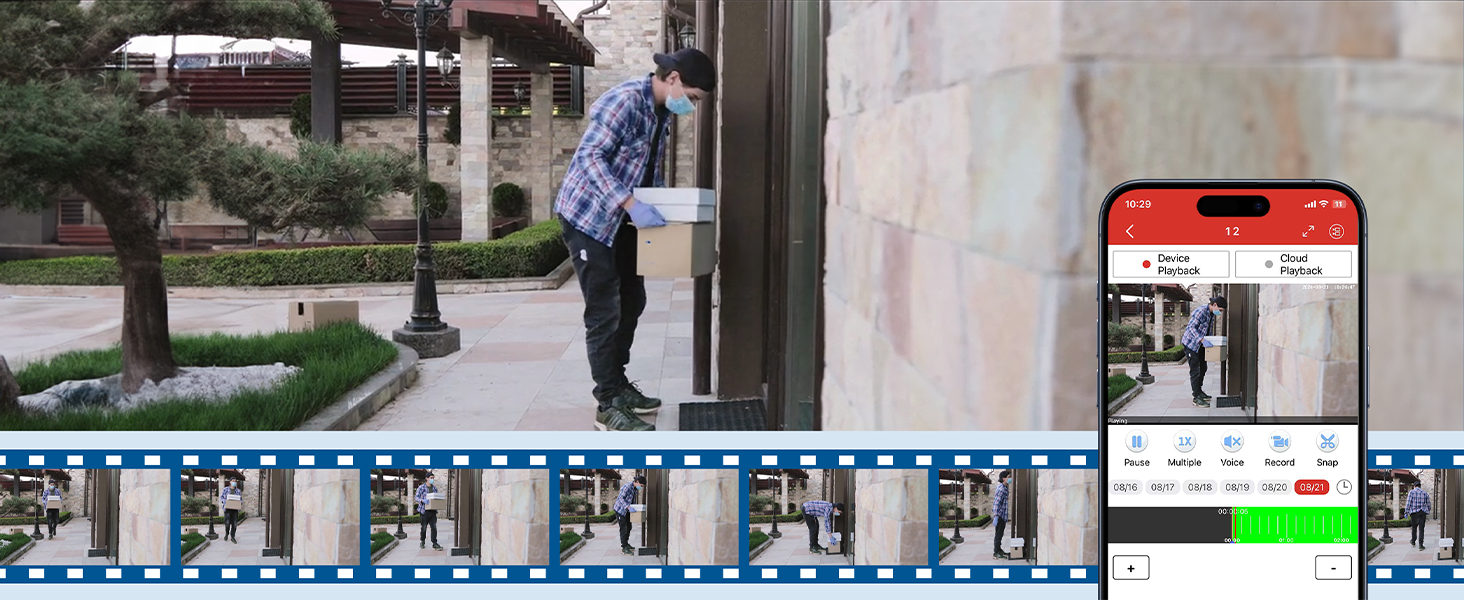
Figure 4.2: Intelligent Motion Detection with App Push, Email, and Buzzer Alerts.

Figure 4.3: Smart AI Detection in action, showing a person receiving an alert on their phone.
4.3 Night Vision Modes
The cameras feature two night vision modes:
- IR Mode: Default black and white infrared night vision for discreet monitoring.
- Motion Detected Color Mode: When a human is detected, the camera's white spotlights activate, providing full-color night vision for clearer identification.

Figure 4.4: Smart Night Vision Modes.
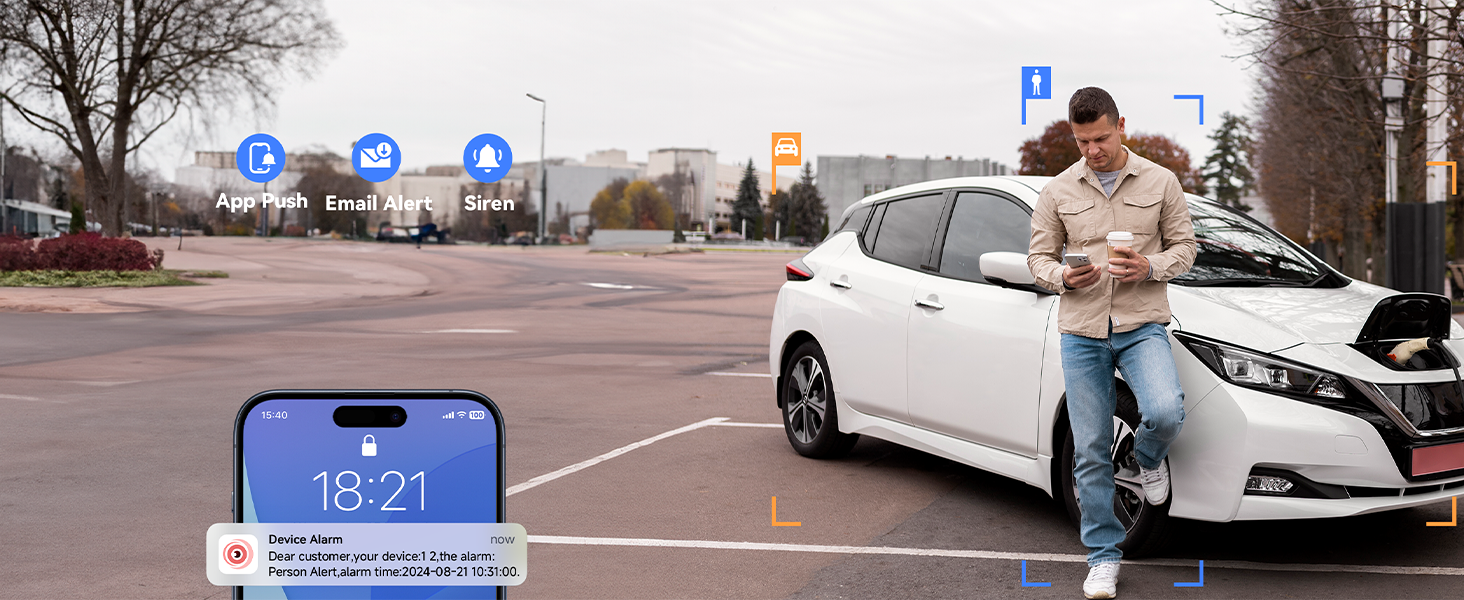
Figure 4.5: Intelligent Color Night Vision activation.
4.4 Remote Access and Playback
Access live feeds and recorded footage from anywhere using the VORGUT mobile app or desktop client. The app allows for easy navigation through recorded events and smart playback features.

Figure 4.6: Smart Playback interface on mobile app.
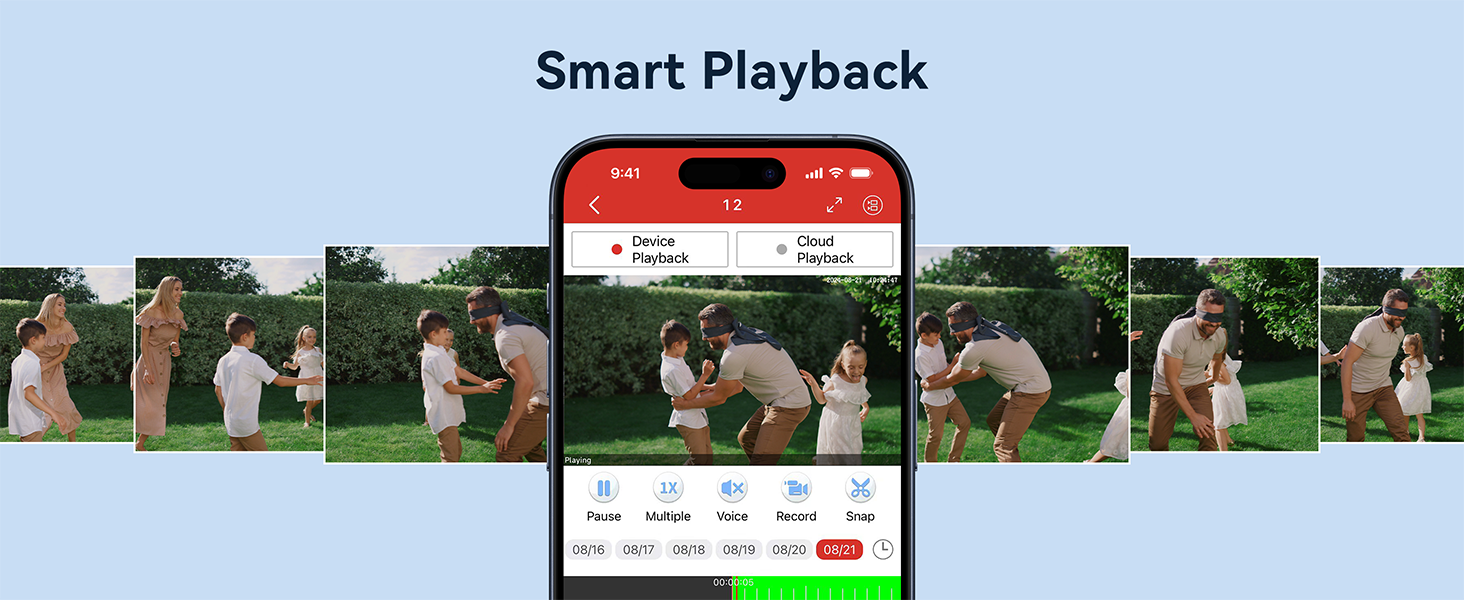
Figure 4.7: Remote access to camera feeds across various devices.
5. Maintenance
5.1 Camera Care
The cameras are designed with an IP66 weatherproof rating, making them resistant to dust and water. To ensure optimal performance:
- Regularly clean the camera lens with a soft, damp cloth to remove dirt or smudges that may affect image clarity.
- Ensure the waterproof lid for cable connections is securely fastened to prevent moisture ingress.
- Periodically check mounting brackets for stability, especially after severe weather conditions.
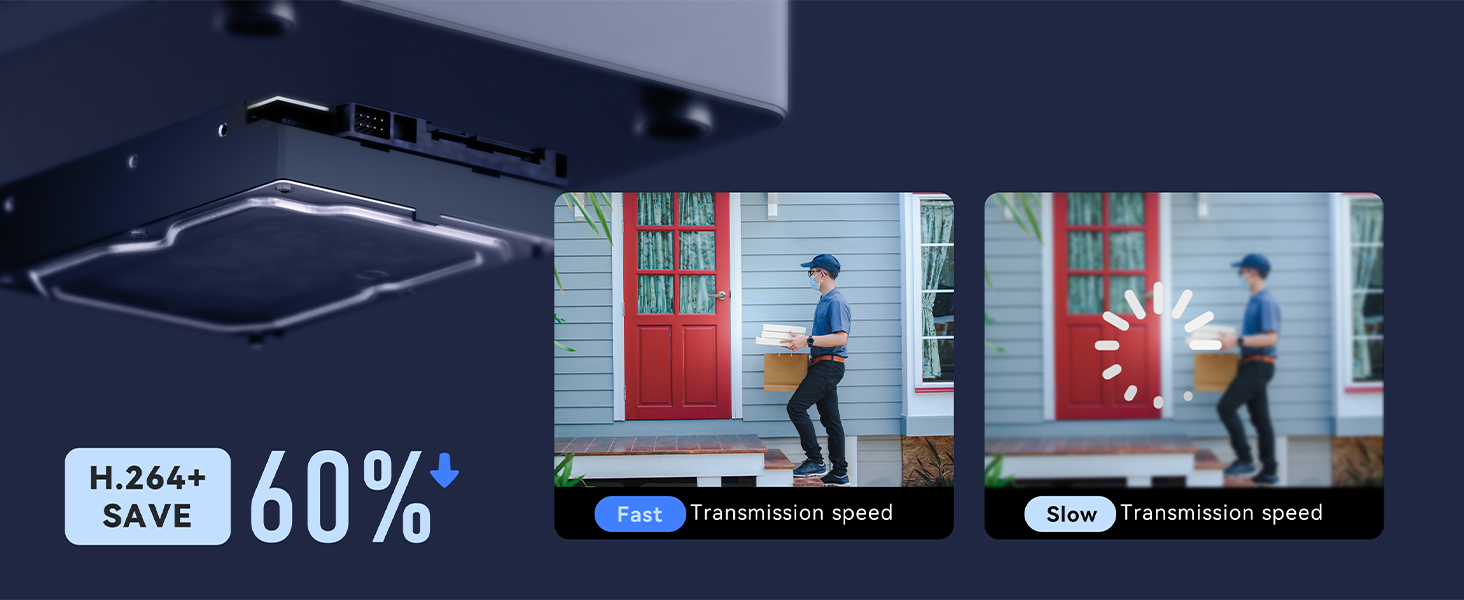
Figure 5.1: IP66 Weatherproof Camera Design.
5.2 NVR Maintenance
- Keep the NVR in a well-ventilated area to prevent overheating.
- Ensure the NVR is protected from dust and moisture.
- Periodically back up important footage to an external storage device.
6. Troubleshooting
If you encounter issues with your VORGUT security system, refer to the following common solutions:
- No Video Output: Check all cable connections (PoE, HDMI/VGA). Ensure the NVR is powered on and the display is set to the correct input source.
- No Network Connection: Verify the Ethernet cable between the NVR and router is secure. Check router status and NVR network settings.
- No Recording: Ensure the 1TB HDD is properly installed and recognized by the NVR. Check recording schedules and storage settings.
- False Alarms: Adjust AI detection sensitivity and customize detection zones in the NVR settings or mobile app to minimize unwanted alerts.
- Poor Night Vision: Clean the camera lens. Ensure there are no obstructions blocking the IR/spotlights.
For further assistance, please contact VORGUT customer support.
7. Specifications
| Feature | Specification |
|---|---|
| Brand | VORGUT |
| Model Number | VGUS-POE8884FS-C33-4 |
| Connectivity Technology | Wired (PoE) |
| Video Capture Resolution | 4K (3840 x 2160) |
| Number of Channels | 8 |
| Memory Storage Capacity | 1 TB (pre-installed), expandable up to 8 TB |
| Special Features | App Control, Human Detection, Night Vision, Siren Alarm, Vehicle Detection |
| Operating System | Linux |
| Night Vision Range | 30 meters |
| Frame Rate | 24 fps |
| Hardware Interface | Ethernet, HDMI, VGA, USB |
| IP Rating | IP66 (Cameras) |
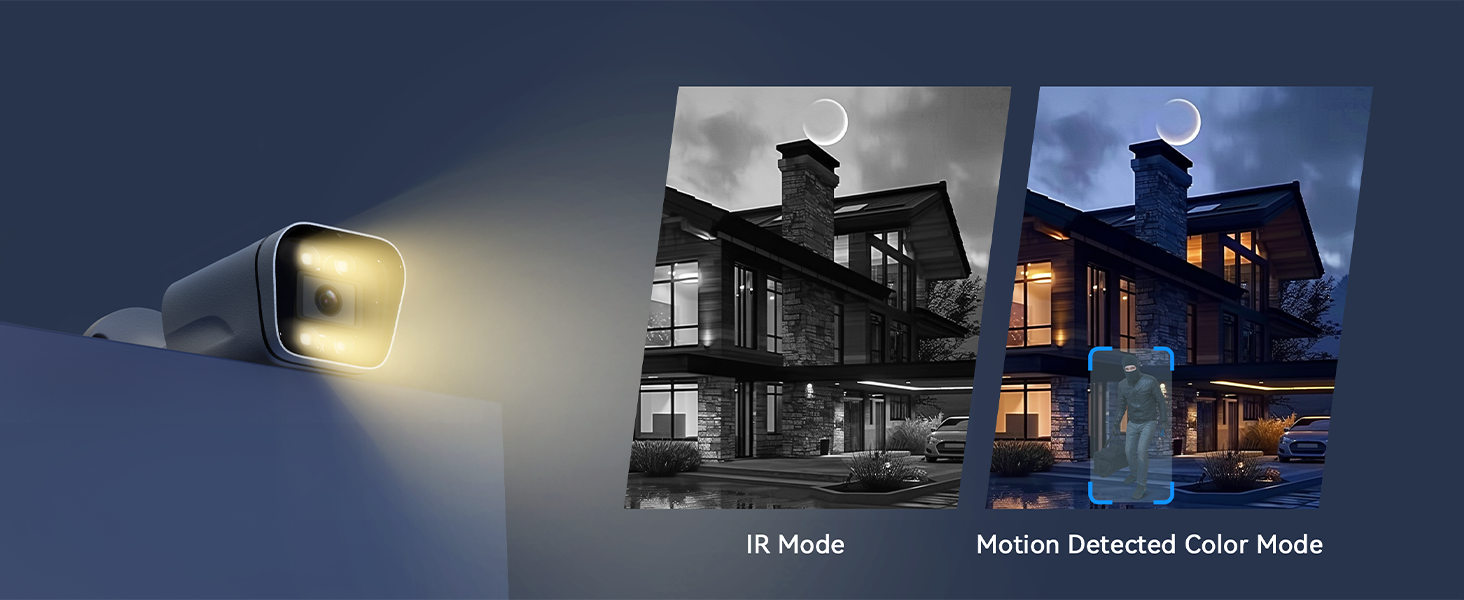
Figure 7.1: 4K Ultra HD Clarity.
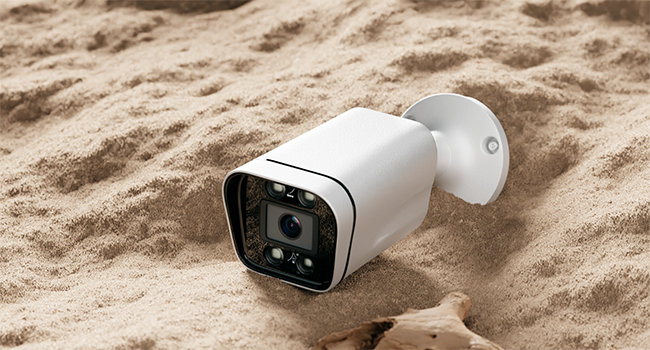
Figure 7.2: Expandable Storage Capacity.
8. Warranty and Support
VORGUT products are designed for reliability and performance. For warranty information, please refer to the warranty card included in your product packaging or visit the official VORGUT website. For technical support, troubleshooting assistance, or any inquiries, please contact VORGUT customer service through the contact information provided on the official website or your purchase platform.


