
1. Introduction and Overview
The MYHGRC G16 Universal Remote Control is designed to simplify your home entertainment experience by consolidating up to 8 different device controls into one convenient unit. This remote is compatible with a wide range of devices including TVs, DVD/Blu-ray players, streaming media players, soundbars, cable boxes, and satellite systems.
Its ergonomic design and backlit buttons ensure ease of use in any lighting condition. This manual provides detailed instructions for setting up, operating, and maintaining your G16 Universal Remote Control.
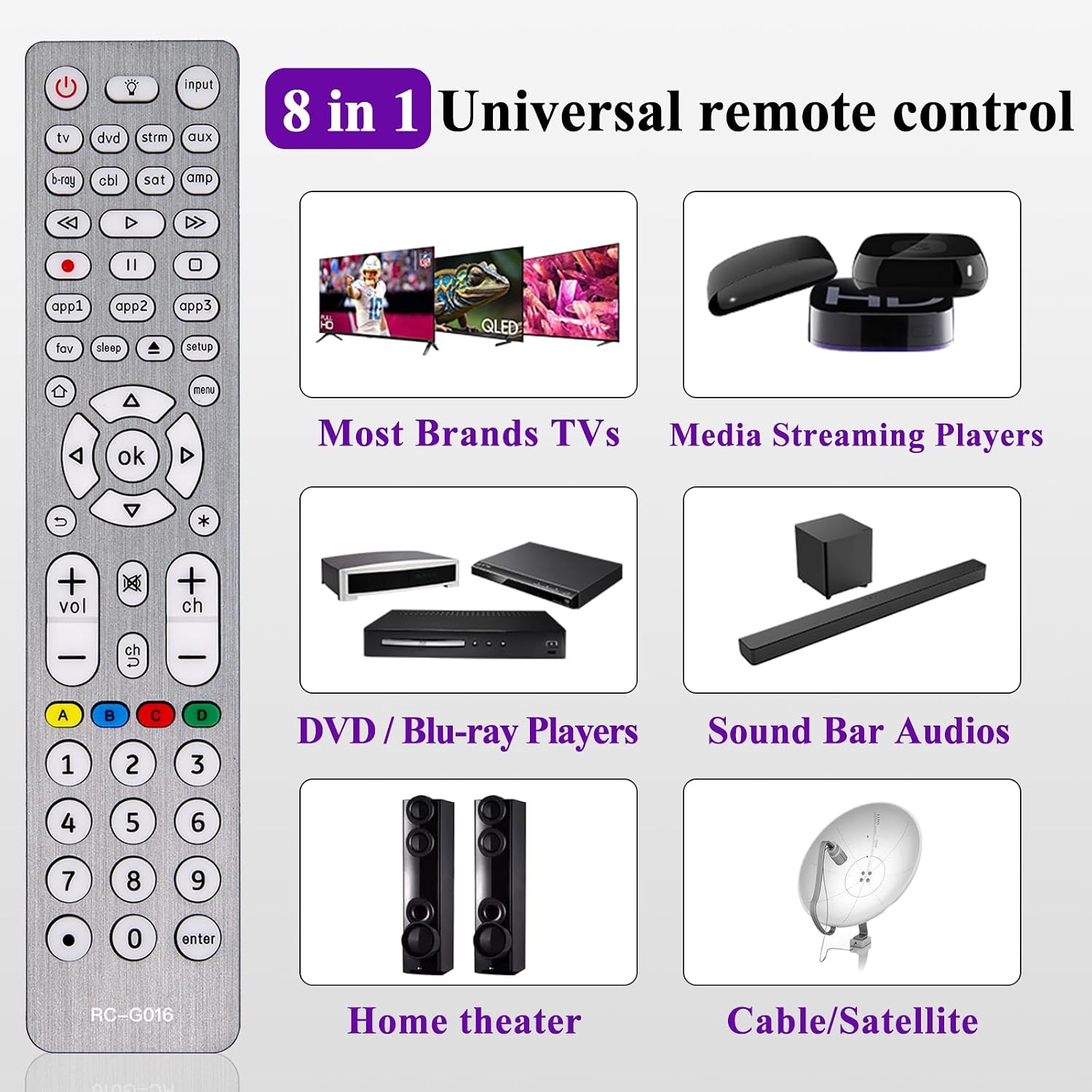
Image 1.1: The MYHGRC G16 Universal Remote Control is capable of controlling up to 8 different types of devices, including most brands of TVs, media streaming players, DVD/Blu-ray players, soundbar audios, home theater systems, and cable/satellite boxes. This image illustrates the remote's broad compatibility.

Image 1.2: This image highlights the key physical attributes of the MYHGRC G16 Universal Remote Control. It is constructed from durable ABS material, functions as an Infrared (IR) remote, offers stable performance, features comfortable silicone buttons, provides a slightly cozy grip, and is designed to be suitable for all users.
2. Product Features
- 8-in-1 Universal Control: Operates TVs, DVD/Blu-ray Players, Streaming Media Players, Soundbars, Home Theaters, Cable Boxes, Satellite Systems, and more.
- Backlit Design: Buttons illuminate for easy visibility in dark environments. The backlight can be toggled on or off by pressing the "Backlit" button.
- Quick Response: Features a fast transmission response time of 0.2 seconds for immediate command execution.
- Durable Construction: Made with high-quality ABS material and silicone buttons for long-lasting performance.

Image 2.1: This image demonstrates the backlit feature of the MYHGRC G16 Universal Remote Control. It shows how the buttons are clearly visible in both daylight and dark environments, enhancing usability.
3. Setup Instructions (Direct Code Entry)
Follow these steps to program your MYHGRC G16 Universal Remote Control for your devices:
- Locate Device Codes: In the Code List (included with your remote), circle the 4-digit codes for the type and brand of device you wish to control.
- Enter Setup Mode: Press and hold the SETUP button until the remote's red light turns on.
- Select Device Type: Press and release the desired device button (e.g., TV, DVD, STRM, AUX, B-RAY, CBL, SAT, AMP). The red light will blink once and remain on.
- Enter Code: Enter the first 4-digit code you circled in Step 1. The red light will turn off.
- Test and Verify: Point the remote at the device and test the buttons. If the buttons do not function as expected, repeat Steps 3-5 using the next code from the list until all buttons work properly.
- Repeat for Other Devices: Repeat the entire process for each additional device you wish to control with the remote.

Image 3.1: This image visually guides the user through the direct code entry setup process for the MYHGRC G16 Universal Remote Control, illustrating the steps to program the remote for various devices.
4. Operating Instructions (Button Functions)
Familiarize yourself with the functions of each button on your MYHGRC G16 Universal Remote Control:

Image 4.1: This detailed diagram illustrates the layout and function of each button on the MYHGRC G16 Universal Remote Control, providing a comprehensive guide for operation.
- Power (Power icon): Turns devices ON/OFF.
- Input: Selects video input source.
- Device Buttons (TV, DVD, STRM, AUX, B-RAY, CBL, SAT, AMP): Selects the device to control.
- Record, Play, Stop, Rewind, Fast Forward, Pause (Media control icons): Standard media playback controls.
- APP1-3: Accesses top apps like Netflix®, Hulu®, Amazon Prime®, and more.
- Fav: Programs up to 10 favorite channels.
- Sleep: Sleep timer functions.
- Home: Accesses streaming or Guide on cable and satellite receivers.
- OK: Accesses menu for selected device.
- Up, Down, Left, Right Navigation (Arrow icons): Navigates menus and selections.
- Exit: Exits the on-screen menu.
- Info (*): Displays on-screen content information.
- Mute (Mute icon): Mutes sound.
- Volume Up/Down (Vol +/-): Adjusts volume.
- Channel Up/Down (Ch +/-): Changes channels.
- Previous Channel (Return icon): Returns to previously selected channel.
- ABCD: Accesses additional features for DVDs, cable, and satellite receivers.
- Numbers (0-9): For direct channel selection.
- Dot (.): For direct entry of digital channels (e.g., 4.1).
- Enter: Some devices require ENTER to be pressed after channel selection.
- Backlight: Toggles the backlight ON/OFF.
5. Maintenance
Proper maintenance will ensure the longevity and optimal performance of your universal remote control.
- Cleaning: Use a soft, dry cloth to clean the remote. Do not use liquid cleaners or abrasive materials, as they may damage the surface or internal components.
- Battery Replacement: When the remote's performance degrades or the backlight dims significantly, it is time to replace the batteries. Open the battery compartment cover on the back of the remote, remove the old batteries, and insert new ones, ensuring correct polarity (+/-).
- Storage: Store the remote in a cool, dry place away from direct sunlight and extreme temperatures.
- Avoid Drops: While durable, avoid dropping the remote, as this can cause internal damage.
6. Troubleshooting
If you encounter issues with your MYHGRC G16 Universal Remote Control, please refer to the following common solutions:
- Remote Not Responding:
- Check the batteries. Ensure they are inserted correctly and have sufficient charge. Replace if necessary.
- Ensure there are no obstructions between the remote and the device you are trying to control.
- Verify that you have selected the correct device mode (e.g., TV, DVD) on the remote.
- Buttons Not Functioning Correctly After Setup:
- This often indicates that the entered code is not fully compatible with your device. Refer back to Section 3, "Setup Instructions," and repeat the programming process using the next available 4-digit code for your device brand from the included code list. Continue trying codes until all buttons function as expected.
- Backlight Not Working:
- Press the "Backlit" button to ensure it is toggled on.
- Check battery levels. Low batteries can affect backlight performance.
- Remote Does Not Control a Specific Device:
- Ensure the device is powered on and within range.
- Double-check the device code and re-program if necessary, trying all available codes for that brand.
- Confirm that the device type is supported by this universal remote.
7. Specifications
| Feature | Detail |
|---|---|
| Brand | MYHGRC |
| Model Number | G16 (ec2ffecd-d8ef-4101-849b-f75c52704782) |
| Connectivity Technology | Infrared (IR) |
| Max Number of Supported Devices | 8 (TVs, DVD/Blu-ray Player, Streaming Players, Soundbar Speaker, Cable Box, Satellite, Home Theater, Audio) |
| Special Feature | Universal, Backlit Buttons |
| Item Weight | 2.89 ounces |
| Package Dimensions | 7.91 x 1.89 x 1.14 inches |
| Country of Origin | China |
8. Warranty and Support
MYHGRC is committed to 100% customer satisfaction. If you encounter any problems with model matching, setup, operation, or any other issues, please do not hesitate to contact us.
We are dedicated to providing detailed instructions, specific steps, and comprehensive solutions to ensure your satisfaction. Please refer to the contact information provided with your product packaging or visit the official MYHGRC store on Amazon for support.
Note: Specific warranty terms and conditions may vary. Please consult your purchase documentation for details.
