
1. Introduction
The Brrnoo FWT11 is a versatile handheld cable testing tool designed for telecommunication engineering, wiring installation, and network maintenance. It efficiently traces RJ11, RJ45, and other metal wires, performs continuity checks, and tests telephone line statuses. This manual provides detailed instructions for proper setup, operation, and maintenance of your FWT11 cable tracker.
2. Product Overview
2.1 Key Features
- Efficient Wire Tracing: Locates RJ11, RJ45, and other metal wires quickly, even without removing wire covers.
- Wire Continuity Check: Verifies wire continuity for network maintenance and troubleshooting.
- Telephone Line Status: Tests idle, ringing, and off-hook telephone line statuses, and identifies tip and ring lines.
- Versatile Application: Suitable for telecommunication engineers, wiring specialists, and network maintenance personnel.
- Multifunctional Testing: Detects short-circuits, breaking circuits, open circuits, and crossing, along with testing cable level and polarity.
2.2 Components
The Brrnoo FWT11 system typically includes the following components:
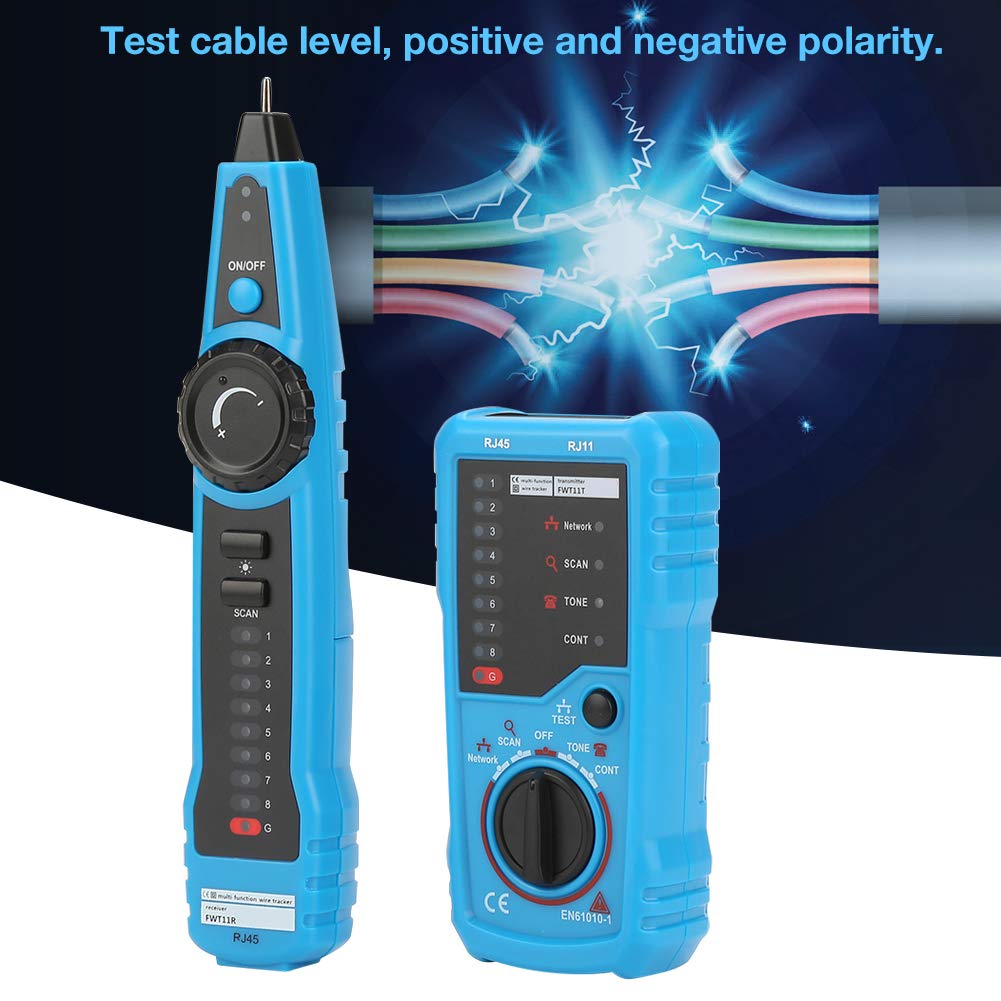
- Main Unit (Transmitter): The larger unit with controls for scanning, tone generation, and testing.
- Remote Unit (Receiver): The smaller unit used to detect signals from the main unit.
- RJ45 Adapter Cable: For connecting to RJ45 network cables.
- Alligator Clip Adapter: For connecting to other metal wires.


3. Specifications
| Feature | Detail |
|---|---|
| Brand | Brrnoo |
| Model | FWT11 |
| Material | ABS |
| Primary Functions | Wire Line Finder, Tracker, Continuity Check, Line Test |
| Package Dimensions | 9.06 x 4.72 x 1.97 inches |
| Item Weight | 8.89 ounces |
| Power Source | Battery (not included, typically 9V for each unit) |

4. Setup
4.1 Battery Installation
Both the main unit and the remote unit require a 9V battery for operation. Batteries are typically not included and must be purchased separately.
- Locate the battery compartment on the back of both the main unit and the remote unit.
- Open the battery cover by sliding it or unscrewing the retaining screw, if present.
- Insert a new 9V battery, ensuring correct polarity (+ and - terminals).
- Close the battery cover securely.

5. Operating Instructions
5.1 Power On/Off
To power on the main unit, slide the ON/OFF switch to the 'ON' position. To power off, slide it back to 'OFF'. The remote unit typically activates when connected or when a signal is detected.
5.2 Wire Tracing Function
This function helps locate a specific wire within a bundle or wall without damaging insulation.
- Connect the main unit to the cable you wish to trace using the appropriate adapter (RJ11, RJ45, or alligator clips).
- Set the main unit's function dial to 'SCAN' or 'TONE' mode.
- Use the remote unit's probe to scan along the suspected path of the cable. The remote unit will emit an audible tone when it detects the signal from the main unit, indicating the cable's location.
- Adjust the sensitivity dial on the main unit for precise tracing.
5.3 Network Cable Collation (RJ45)
This mode checks the wiring sequence and integrity of RJ45 network cables.
- Connect one end of the RJ45 cable to the main unit's RJ45 port and the other end to the remote unit's RJ45 port.
- Set the main unit's function dial to 'Network' or 'TEST' mode.
- Observe the LED indicators on both units. The LEDs will light up sequentially, indicating the status of each wire pair.
- Interpret the LED patterns to identify issues such as:
- Short-circuits: Two or more LEDs light up simultaneously.
- Breaking circuit/Open circuit: An LED fails to light up in sequence.
- Crossing: LEDs light up out of sequence.
- Cable Level and Polarity: Some models may indicate these directly via specific LED patterns or dedicated indicators.
5.4 Wire Continuity Check
This function verifies if a wire has a continuous electrical path.
- Connect the main unit to one end of the wire using the alligator clip adapter.
- Connect the remote unit to the other end of the same wire.
- Set the main unit's function dial to 'CONT' (Continuity) mode.
- An indicator (LED or audible tone) on the remote unit will confirm continuity.
5.5 Telephone Line Status Test (RJ11)
This mode assesses the operational status of an RJ11 telephone line.
- Connect the main unit to the RJ11 telephone line.
- Set the main unit's function dial to the telephone line test mode (often integrated with 'TEST' or 'Network' mode, or a dedicated 'TEL' setting).
- The unit will indicate the line status:
- Idle: Line is not in use.
- Ringing: An incoming call is detected.
- Off-hook: Line is in use.
- The tester can also help identify the 'TIP' and 'RING' lines, which are crucial for proper telephone connections.
6. Maintenance
To ensure the longevity and accurate performance of your Brrnoo FWT11 cable tracker, follow these maintenance guidelines:
- Cleaning: Wipe the device with a soft, dry cloth. Do not use abrasive cleaners or solvents.
- Storage: Store the device in a cool, dry place away from direct sunlight and extreme temperatures.
- Battery Replacement: Replace batteries promptly when the low battery indicator appears or if the device malfunctions. Remove batteries if the device will not be used for an extended period to prevent leakage.
- Handle with Care: Avoid dropping the device or subjecting it to strong impacts.
7. Troubleshooting
If you encounter issues with your FWT11 cable tracker, refer to the following common problems and solutions:
- Device does not power on:
- Check if batteries are installed correctly with proper polarity.
- Replace with fresh 9V batteries.
- Ensure the ON/OFF switch is in the 'ON' position.
- No tone or signal during wire tracing:
- Verify the main unit is set to 'SCAN' or 'TONE' mode.
- Ensure the cable is properly connected to the main unit.
- Adjust the sensitivity dial on the main unit.
- Check for a broken cable or poor connection.
- Incorrect network cable test results:
- Ensure both ends of the RJ45 cable are securely connected to the main and remote units.
- Verify the cable itself is not damaged.
- Confirm the main unit is in 'Network' or 'TEST' mode.
- Inaccurate telephone line status:
- Ensure the RJ11 cable is correctly connected.
- Confirm the main unit is in the correct telephone line test mode.
- Test with a known working telephone line to verify device functionality.
8. Warranty and Support
For warranty information, technical support, or service inquiries regarding your Brrnoo FWT11 Handheld RJ11/RJ45 Cable Tracker, please refer to the documentation included with your purchase or contact the retailer where the product was acquired. You may also visit the official Brrnoo website for further assistance.