
1. Product Overview
The ANYOYO USB-C 14-in-1 Docking Station (Model DS0203-2) is designed to expand the connectivity of your USB-C enabled laptop or device. It provides a comprehensive solution for connecting multiple displays, high-speed peripherals, network access, and power delivery through a single USB-C connection.
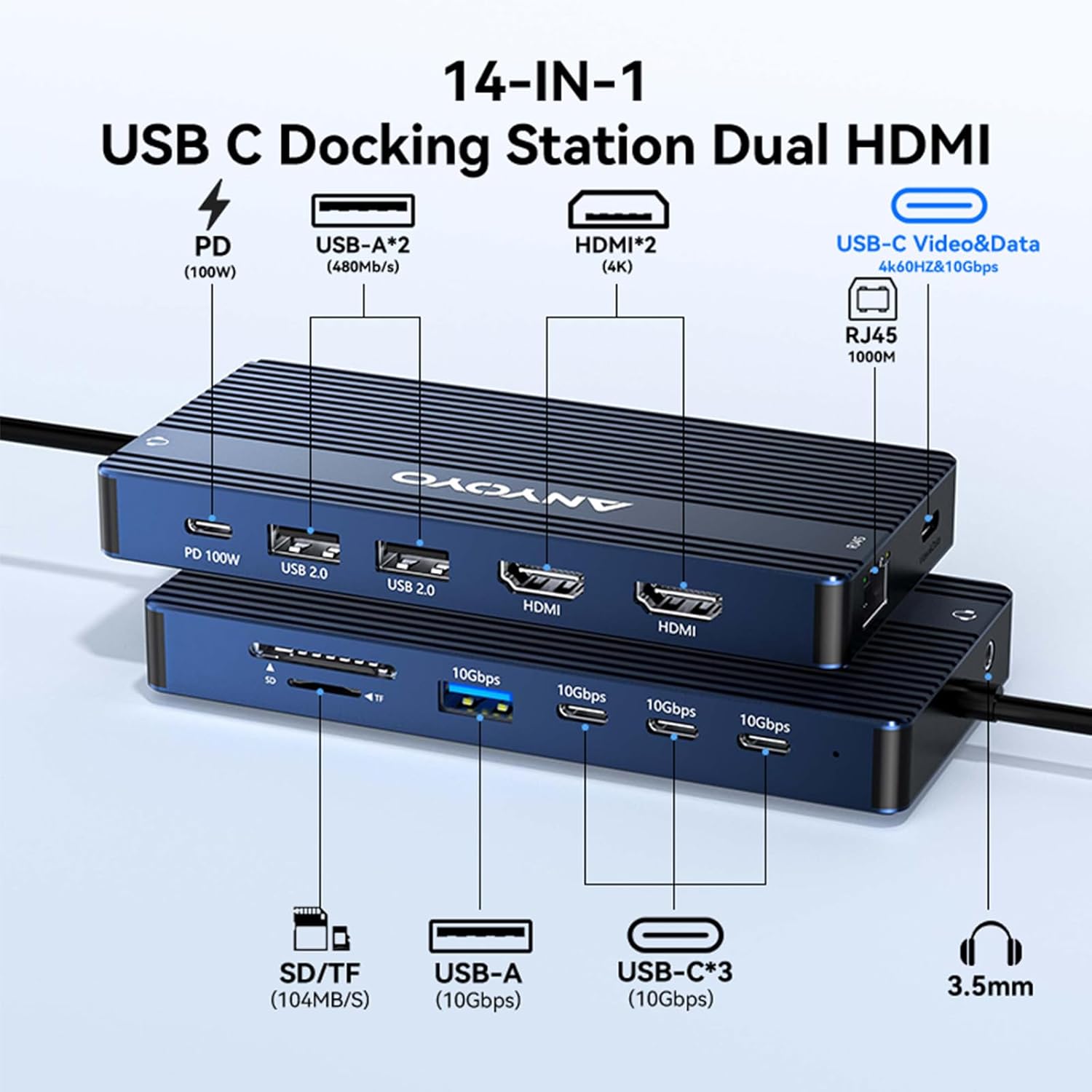
Image 1: Overview of the ANYOYO 14-in-1 USB-C Docking Station with all ports clearly labeled.
2. Key Features
- 14-in-1 Connectivity: Integrates 2 HDMI ports, 1 USB-C Video & Data port, 4 USB-C data ports, 1 USB-A data port, 1 USB-A 2.0 port, 1 PD 100W USB-C port, Gigabit Ethernet, SD/TF card readers, and a 3.5mm audio jack.
- Dual/Triple Display Output: Supports up to three external monitors (2 HDMI + 1 USB-C Video) with resolutions up to 4K/60Hz.
- High-Speed Data Transfer: Features 10Gbps data transfer speeds across multiple USB-C and USB-A 3.1 ports.
- Power Delivery: Provides up to 85W power output to your host laptop from a 100W input, ensuring your device stays charged while connected.
- Gigabit Ethernet: Offers stable and fast wired network connectivity at 10/100/1000Mbps.
- SD/TF Card Readers: Enables quick access to photos and videos from memory cards.
3. Setup Guide
3.1 Pre-purchase and Host Device Confirmation
Before connecting, ensure your host device's USB-C interface supports USB3/4, Thunderbolt 3/4/5, or a full-function USB-C port that supports video transmission (DP Alt Mode), data transmission, and charging functions. Devices with USB-C ports that only support data transfer or charging will not support video output.

Image 2: Visual guide for identifying compatible USB-C ports on your host device.
3.2 Connecting the Docking Station
- Connect the integrated USB-C cable from the docking station to your laptop's compatible USB-C port.
- For power delivery, connect your laptop's USB-C power adapter (up to 100W) to the PD 100W USB-C port on the docking station.
- Connect your external monitors to the HDMI ports and/or the USB-C Video & Data port on the docking station using appropriate cables.
- Connect any USB peripherals (e.g., mouse, keyboard, external drives) to the available USB-A or USB-C data ports.
- For wired network access, connect an Ethernet cable to the RJ45 Gigabit Ethernet port.
- Insert SD or TF cards into the respective card reader slots for data access.
Video 1: A short demonstration of the ANYOYO USB-C Docking Station's features and connectivity options.
4. Operating Instructions
4.1 Display Modes
The docking station supports various display configurations depending on your operating system:
- Windows: Supports Mirror Mode (all displays show the same content) and Extend Mode (each display shows different content, allowing for a multi-screen desktop). You can achieve dual or triple displays with different content.
- macOS: Supports Mirror Mode (all displays show the same content). For M1/M2 chip Macs, it can show up to three identical screens. macOS does not support Multi-Stream Transport (MST) for extended displays with different content across multiple external monitors.

Image 3: Illustration of various display modes supported by the docking station for Windows and macOS.
4.2 Data Transfer
Utilize the 10Gbps USB-C and USB-A data ports for rapid file transfers. The SD/TF card readers also provide fast access to your memory card content.

Image 4: High-speed data transfer in action with the docking station.
4.3 Power Delivery
Connect your laptop's power adapter to the PD 100W USB-C port on the docking station. This allows the docking station to provide up to 85W of power to your laptop, ensuring it remains charged during use. Note that the power cord and charger are not included with the product.

Image 5: Power delivery functionality, illustrating 100W input and 85W output.
4.4 Ethernet Connectivity
The Gigabit Ethernet port provides a stable and reliable wired internet connection, supporting speeds of 10/100/1000Mbps.

Image 6: Ethernet port providing fast and stable network connection.
5. Compatibility
The ANYOYO USB-C 14-in-1 Docking Station is compatible with a wide range of devices and operating systems, including Windows 10 and later, macOS, and Linux. However, specific display capabilities may vary based on your host device's hardware and operating system.
5.1 Host Device Compatibility
Ensure your laptop's USB-C port supports Power Delivery, DisplayPort Alt Mode, and Data Transfer for full functionality. Refer to your laptop's specifications or manufacturer for details.

Image 7: Detailed compatibility list for various host devices and operating systems.
5.2 Display Device Compatibility
The docking station supports various display devices, including TVs and monitors, with resolutions up to 4K/60Hz. The optimal screen resolution is achieved with a DP1.4 source and HDMI 2.0 or higher specification cables.
Image 8: Detailed compatibility list for various display devices.
6. Troubleshooting
- No Display Output: Ensure your host device's USB-C port supports DisplayPort Alt Mode. Check all cable connections and ensure they are securely plugged in. Verify that your display settings on your computer are correctly configured for extended or mirrored displays.
- Intermittent Display Connection (Windows 11): Some Windows 11 systems may have USB power management settings that cause displays to disconnect. To resolve this, disable the