
ciciglow WT20pro
ciciglow WT20pro Translation Scanning Pen User Manual
Model: WT20pro
Introduction
This manual provides comprehensive instructions for the setup, operation, and maintenance of your ciciglow WT20pro Translation Scanning Pen. Please read this manual thoroughly before using the device to ensure optimal performance and longevity.
Package Contents
Verify that all items are present in the package:
- 1 x ciciglow WT20pro Translation Scanning Pen
- 1 x USB Type-C Cable
- 1 x User Manual (this document)
Product Overview
The ciciglow WT20pro is a digital reading pen designed for translation, scanning, and dictionary functions. It features a 1.97-inch touch screen and Wi-Fi connectivity for online services.

Figure 1: Front view of the ciciglow WT20pro Translation Scanning Pen, displaying its 1.97-inch touch screen with various application icons.

Figure 2: The scanning pen in use, accurately capturing text from a printed document.
Key Features:
- 1.97-inch Touch Screen: High-definition display for clear text and navigation.
- Wi-Fi Connectivity: Enables online translation and access to expanded content.
- Accurate Scan Recognition: High scanning accuracy for various fonts and materials.
- Multiple Functions: Includes scan translation, voice translation, dictionary, recording, and text excerpt.
- Portable Design: Compact and lightweight for convenient use in various environments.
Setup
1. Charging the Device
Before first use, fully charge the device. Connect the supplied USB Type-C cable to the charging port on the pen and the other end to a standard USB power adapter (not included) or a computer's USB port.
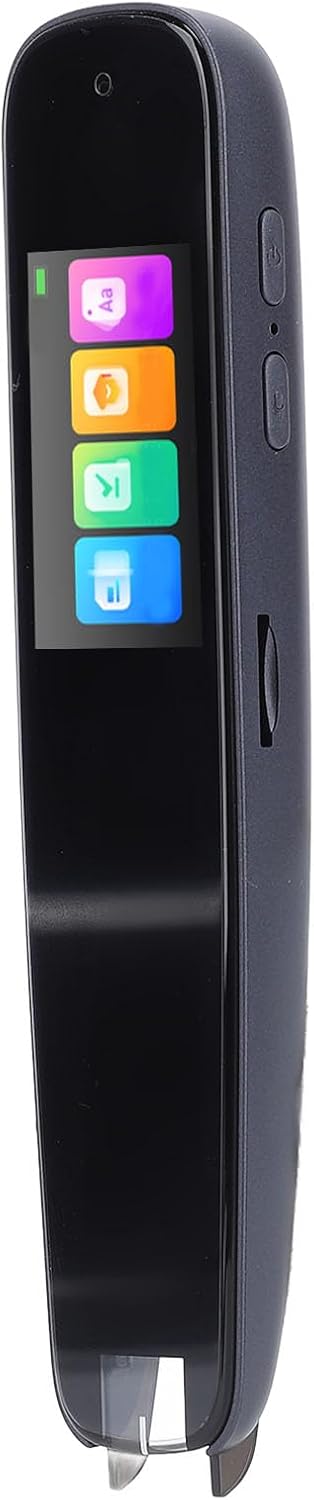
Figure 3: The scanning pen and its USB Type-C charging cable.
2. Power On/Off
- Power On: Press and hold the power button (usually located on the side) for a few seconds until the screen illuminates.
- Power Off: Press and hold the power button, then select "Power Off" on the screen.
3. Wi-Fi Connection
To access online features such as online translation and expanded content, connect the device to a Wi-Fi network:
- From the main screen, navigate to Settings.
- Select Wi-Fi.
- Toggle Wi-Fi On.
- Select your desired network from the list and enter the password if prompted.
Operating Instructions
1. Scan Translation
This function allows you to scan text and receive instant translations.
- Select Scan Translation from the main menu.
- Position the pen's scanning tip over the text you wish to translate.
- Gently glide the pen across the text. Ensure even pressure and a steady motion for accurate recognition.
- The translated text will appear on the screen.

Figure 4: Demonstrating the accurate scanning and smart translation capabilities of the pen.

Figure 5: The pen's versatility in scanning different content types and materials.
2. Voice Translation
Utilize the voice translation feature for real-time spoken language translation.
- Select Voice Translation from the main menu.
- Choose the source and target languages.
- Press and hold the voice input button (refer to device diagram for location) and speak clearly into the microphone.
- Release the button, and the translated audio will be played, with text displayed on the screen.
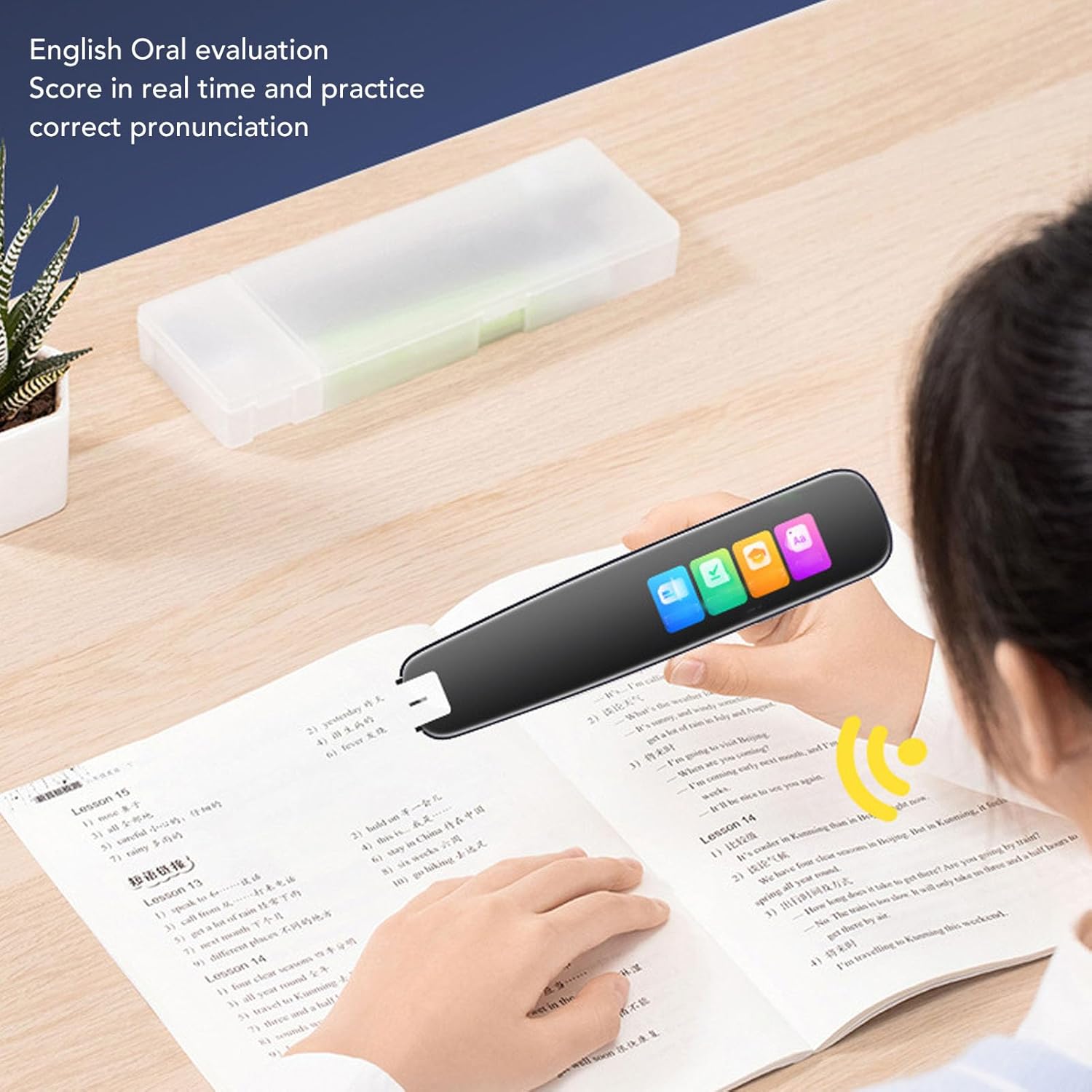
Figure 6: The pen can assist with English oral evaluation and pronunciation practice.
3. Dictionary Function
Access the built-in dictionary for word definitions and usage examples.
- Select Dictionary from the main menu.
- You can either type a word using the on-screen keyboard or scan a word directly to look it up.
4. Recording
The device can record audio for later playback or transcription.
- Select Recording from the main menu.
- Follow the on-screen prompts to start, pause, and stop recordings.
5. Text Excerpt
Capture and save text excerpts from scanned documents.
- After scanning text, you may have an option to save it as a text excerpt.
- These excerpts can be reviewed and managed within the Text Excerpt section.
6. Video Projection Support
The WT20pro supports video projection, allowing you to display the pen's screen content on a larger display for group learning or presentations. Consult the device's settings for projection options and connectivity details.
Video 1: Demonstration of the Translation Scanning Pen's features, including scanning and translation capabilities. This video illustrates the device in action.
Maintenance
1. Cleaning
- Use a soft, dry cloth to clean the exterior of the pen.
- For the screen, use a screen-specific cleaning cloth. Avoid abrasive materials or harsh chemicals.
2. Protecting the Scanning Tip
The scanning tip is equipped with a transparent dust cover. Always ensure this cover is in place when the pen is not in use to protect the scanning mechanism from dust and potential damage.
Troubleshooting
| Problem | Possible Cause | Solution |
|---|---|---|
| Device does not power on. | Low battery. | Charge the device using the provided USB Type-C cable. |
| Inaccurate scanning. | Uneven scanning pressure or speed; dirty scanning tip. | Ensure a steady, even glide. Clean the scanning tip if necessary. |
| Wi-Fi connection issues. | Incorrect password; out of range; network problem. | Verify password. Move closer to the Wi-Fi router. Restart the pen and router. |
| No audio output. | Volume too low; speaker obstructed. | Increase volume. Ensure speaker is not covered. |
Specifications
| Model: | WT20pro |
| Screen Size: | 1.97 inches |
| Processor: | Quad-core ARM 1.3GHz |
| Battery: | 400mAh Li-ion battery |
| Charging Port: | Type-C |
| Wireless Network: | 2.4GHz Wi-Fi |
| Duration (Online Scan): | 3-5 hours |
| Item Weight: | 4.3 ounces |
| Dimensions: | 7.09 x 2.36 x 1.97 inches |
Warranty and Support
For warranty information and technical support, please refer to the documentation included with your purchase or contact ciciglow customer service through their official channels. Keep your purchase receipt for warranty claims.
Ask a question about this manual
Ask about setup, troubleshooting, compatibility, parts, safety, or missing instructions. Manuals+ will review the question and use this page’s manual context to help answer it.