
Introduction
This manual provides detailed instructions for the installation, operation, maintenance, and troubleshooting of your AINAVI 13.3" Android 10 Car Headrest Touchscreen Monitor. Please read this manual thoroughly before using the device to ensure proper function and safety.
Safety Information
- Do not attempt to disassemble or modify the device. This may cause damage and void the warranty.
- Keep the device away from water, moisture, and extreme temperatures.
- Ensure all cables are securely connected to prevent accidental disconnection during vehicle operation.
- Avoid placing heavy objects on the device.
- Clean the screen with a soft, dry cloth. Do not use abrasive cleaners or solvents.
What's in the Box
Verify that all items are present in the package:
- 13.3-inch Headrest Monitor (1pc)
- Universal Mounting Bracket (1pc)
- 12V DC Adapter (1pc, for home use)
- Cigarette Lighter Power Cable (1pc, for car use)
- HDMI Cable (1pc)
- User Manual (1pc)

Image: Package contents and dimensions of the AINAVI 13.3 inch Car Headrest Monitor.
Setup
1. Mounting the Monitor
The monitor includes a universal mounting bracket compatible with over 95% of cars, specifically designed for round stainless steel headrest poles. Ensure your vehicle's headrest poles are round for proper installation.
- Adjust the headrest to a suitable height.
- Attach the universal mounting bracket to the headrest poles. Ensure it is securely fastened.
- Slide the monitor onto the mounting bracket until it clicks into place.
- Adjust the viewing angle as needed.

Image: Headrest monitor installation guide, showing compatible and incompatible headrest pole types.
2. Powering On the Device
The monitor supports multiple power supply methods:
- DC Adapter: Use the included 12V DC adapter for indoor use.
- Car Charger: Use the included cigarette lighter power cable for in-car use (12V car power).
- Car Fuse Box ACC Power: An optional connection (not included) for a more integrated power solution.
Connect the chosen power cable to the DC 12V power port on the side of the monitor.

Image: Demonstrates different charging methods for the monitor, including DC adapter for home use and car cigarette lighter cable for in-car use.
Operating Instructions
1. Android 10 System and Applications
The monitor runs on Android 10, allowing you to download and install various applications from the Google Play Store or APKpure. This includes games, music players, video streaming services, and social tools like Facebook, WhatsApp, Twitter, LinkedIn, and Skype.

Image: Android 10 operating system with various compatible applications.
2. Media Playback and Storage
The device features 2GB RAM and 32GB ROM for storing your favorite movies, songs, photos, and applications. It supports 4K file playback and is equipped with an SD card port and a USB port. Compatible formats include MP4, MPG, AVI, MKV, MOV, 3GP, MP3, WAV, FLAC, AAC, OGG, and OGA.

Image: Internal memory specifications (2GB RAM + 32GB ROM).
3. Connectivity
- WiFi: Connect to 5G or 2.4 GHz WiFi networks or use your phone's hotspot to access online content like YouTube, Netflix, Disney+, Prime Video, HBO, TikTok, and Facebook.
- Bluetooth: Connect Bluetooth headsets or other compatible audio devices.
- USB & SD Card: Play media directly from USB drives or SD cards.

Image: 5G WiFi and Hotspot connectivity support.
4. Wireless Phone Mirroring
The monitor supports iOS AirPlay and Android Miracast for screen mirroring. You can use the MyCar Link app to control the monitor from your phone. Ensure both your phone and the car TV are connected to the same WiFi network for this feature to work.

Image: Wireless phone screen mirroring via AirPlay and Miracast.
5. HDMI Input and Output
The monitor features both HDMI input and HDMI output ports. This allows you to connect two monitors to display the same content simultaneously. You can also connect external devices such as computers, TV boxes, Xbox, PS4, PS5, and projectors as a display source.
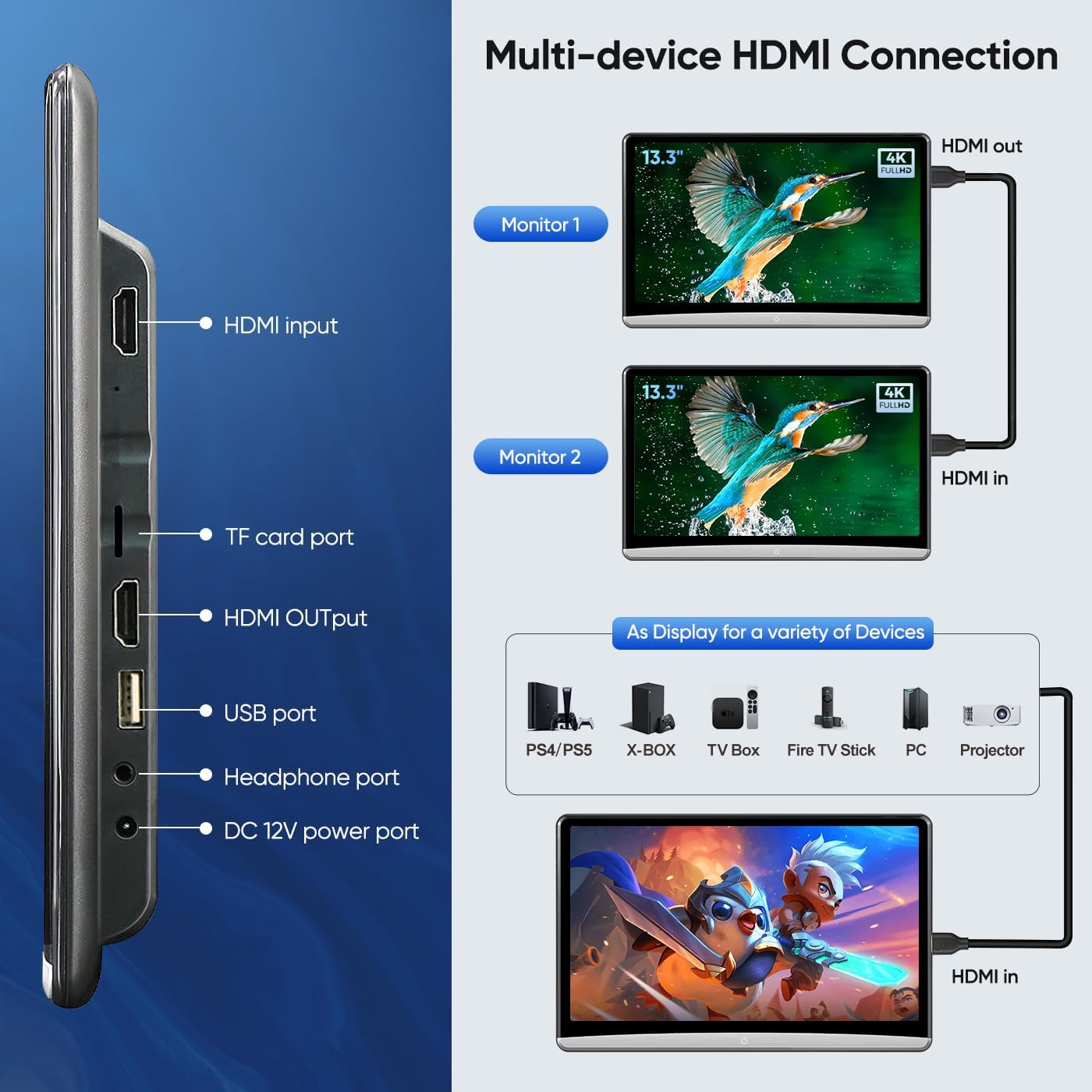
Image: Multi-device HDMI connection and port layout.
6. Audio Options
The monitor has built-in speakers. For alternative audio output, you can use the FM transmitter function to transmit audio to your car's speakers, connect Bluetooth headsets, or use wired headsets via the headphone port.
7. User Interface and LED Lights
You can customize the user interface (UI) theme and select car logos when the monitor starts. The device also provides 7 colorful LED light options, which can be set to automatic switching or manually selected to your preference.

Image: Mood lighting settings for the monitor's LED lights.

Image: Examples of multi-themed user interfaces.
Maintenance
- Cleaning: Use a soft, lint-free cloth to clean the screen and exterior. For stubborn smudges, slightly dampen the cloth with water. Avoid harsh chemicals or abrasive materials.
- Storage: When not in use for extended periods, store the monitor in a cool, dry place away from direct sunlight.
- Software Updates: The monitor supports OTA (Over-The-Air) system updates when connected to the internet. Regularly check for and install updates to ensure optimal performance and access to new features.
Troubleshooting
| Problem | Possible Cause | Solution |
|---|---|---|
| Device does not power on or restarts frequently. | Loose power connection, insufficient power supply, faulty cable. | Ensure power cables are securely connected. Check if the power source (DC adapter or car charger) is functioning correctly. If using in a car, verify the car's 12V outlet is active. Consider trying a different power cable if available. |
| Cannot connect to WiFi or screen mirroring fails. | Incorrect WiFi password, out of range, phone and monitor on different networks. | Verify the WiFi password. Ensure the monitor is within range of the WiFi router or hotspot. For screen mirroring, confirm both the phone and monitor are connected to the same WiFi network. Restart both devices. |
| Weak or muffled sound from built-in speakers. | Speaker volume too low, audio settings, inherent speaker limitations. | Increase the volume on the device. Check audio settings. For better audio quality, connect external headphones via Bluetooth or the headphone jack, or use the FM transmitter to play audio through your car's sound system. |
| Monitor does not retain settings or power when the car is off. | Device requires continuous power; no internal battery for extended off-car use. | This device is designed to operate when connected to a power source (car 12V or DC adapter). It does not have an internal battery for portable use when disconnected from power. Ensure the car's ignition is on or the DC adapter is plugged in for operation. |
| Difficulty with physical installation or removal from mount. | Incorrect mounting procedure, tight fit. | Refer to the installation steps carefully. Ensure the universal bracket is correctly oriented and secured. When removing, apply gentle but firm pressure to release the locking mechanism. Avoid excessive force. |
Specifications
| Feature | Detail |
|---|---|
| Screen Size | 13.3 Inches |
| Display Type | LED |
| Operating System | Android 10 |
| RAM | 2GB |
| ROM | 32GB |
| Connectivity | 5G/2.4 GHz WiFi, Bluetooth, USB, SD Card, HDMI Input, HDMI Output |
| Screen Resolution | 1920*1080 (Supports 4K file playback) |
| Power Supply | DC 12V Adapter, Car Cigarette Lighter (12V), Car Fuse Box ACC (Optional) |
| Color | Black |
| Item Weight | 9.39 pounds |
| Package Dimensions | 16.1 x 10.31 x 6.85 inches |
Warranty
For warranty information, please refer to the manufacturer's official website or the documentation provided with your purchase. Keep your proof of purchase for warranty claims.
Support
If you encounter any issues or require technical assistance, please contact AINAVI customer support. You can typically find contact information on the manufacturer's website or through your retailer.
For Amazon purchases, you can often reach the seller by:
- Navigating to your order details.
- Clicking on the seller's name (e.g., "HomeCar").
- Selecting "Ask a question" to send a message.
Providing pictures or videos of your technical or installation questions can help expedite support.

Image: Guide on how to contact seller support for installation and technical questions.