
Product Overview
The Liene PixCut S1 is an all-in-one device designed for DIY crafts, custom labels, and gifts. It seamlessly integrates high-resolution photo printing and precise die cutting. Utilizing thermal dye-sublimation technology, it delivers stunning 300 dpi prints with 16.7 million colors. Its AI image extraction and high-precision intelligent cutting system allow for flawless cuts of complex patterns. Stickers produced are durable, waterproof, fade-resistant, and scratch-resistant, with an easy-peel backing for repositioning.

The Liene PixCut S1 printer and cutting machine, ready for creative projects.
Demonstration of the Liene PixCut S1's integrated printing and precise auto-cutting functionality.
Setup Guide
1. Unboxing and Initial Setup
Carefully remove all components from the packaging. Connect the power adapter to the printer and a power outlet. Press the power button on the printer to turn it on. The indicator light will illuminate.

The Liene PixCut S1 printer, showing its compact design and readiness for use.
2. Installing the Ink Cartridge
Locate the ink cartridge slot on the side of the printer. Open the cover and gently insert the ink cartridge until it clicks into place. Ensure it is securely seated before closing the cover.
The Liene PixCut S1 printer, illustrating the ink cartridge and paper packs.
3. Loading Paper
Open the paper tray at the back of the printer. Adjust the paper guides to fit the paper size (4x7 inches for sticker paper or 4x6 inches for photo paper). Load the paper with the shiny side facing up into the tray. You can load up to 18 sheets at a time.

A hand inserting paper into the Liene PixCut S1 printer's paper tray.
Operating Instructions
1. Connecting via Bluetooth
Download the official Liene PixCut app from your device's app store (iOS or Android). Enable Bluetooth on your smartphone. Open the app and follow the on-screen instructions to pair your device with the Liene PixCut S1 printer. The indicator light on the printer will turn solid white once connected.

The Liene PixCut S1 supports wireless Bluetooth connection with up to 3 devices simultaneously.
2. Using the Mobile App
The Liene PixCut app offers a user-friendly interface for creating and customizing your designs. You can import photos, utilize AI image extraction to remove backgrounds, choose from a rich template library, add text, and apply various editing tools. Prepare your design within the app before sending it to the printer.
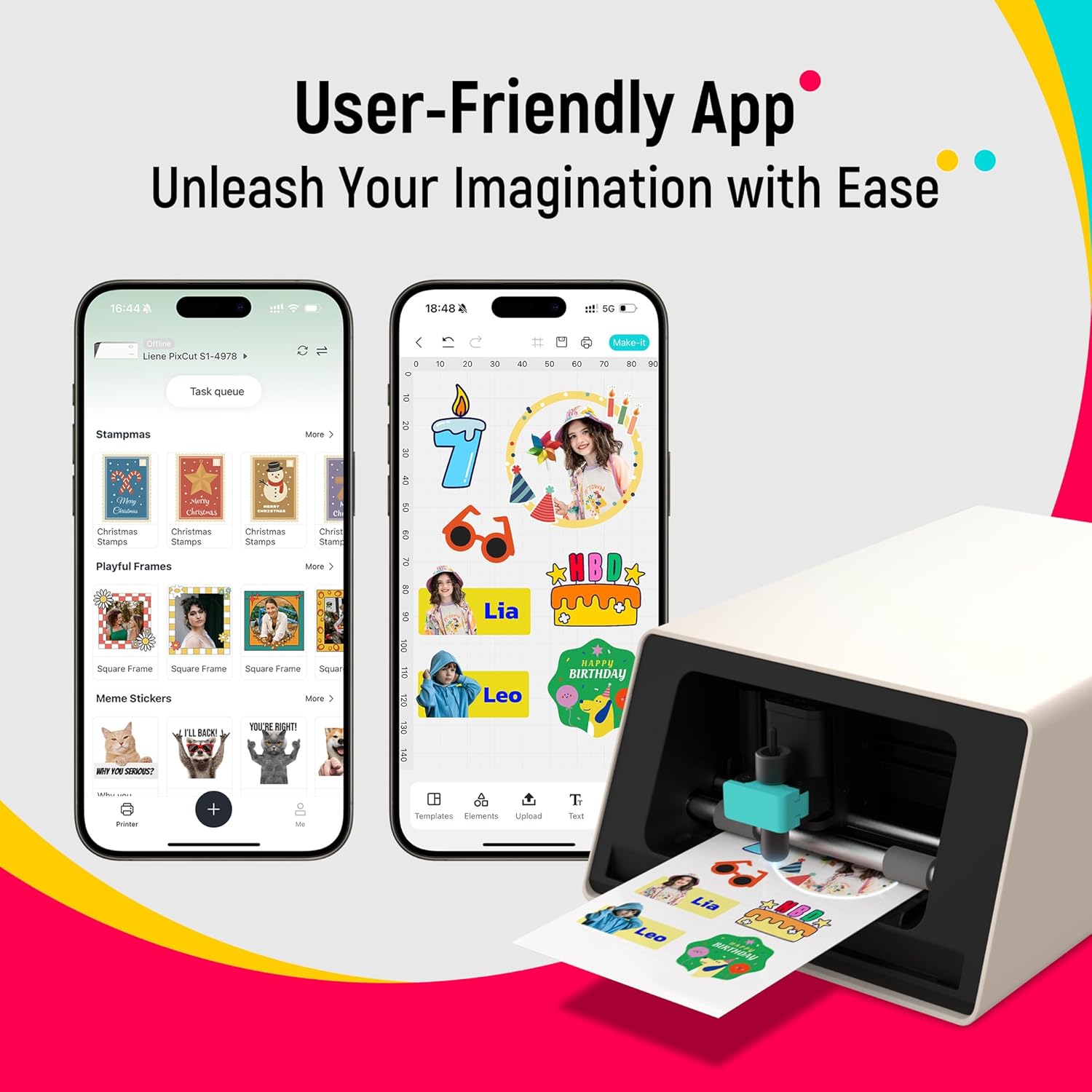
The intuitive mobile app allows for easy customization and design of stickers and photos.
3. Printing and Cutting
Once your design is ready in the app, select the print option. The PixCut S1 will automatically print your design using thermal dye-sublimation technology, followed by precise auto-cutting using its AI-powered intelligent cutting system. This all-in-one process ensures accurate and clean cuts without manual adjustments.
Demonstration of the Liene PixCut S1's integrated printing and precise auto-cutting functionality.
Maintenance
1. Replacing the Blade
To replace the cutting blade, open the front cover of the printer. Gently detach the blade holder from its position. Carefully remove the old blade and insert the new one, ensuring it is properly seated. Reattach the blade holder and close the front cover.

The cutting blade can be easily replaced by opening the front cover and detaching the blade holder.
2. Cleaning the Printer
Regularly wipe the exterior of the printer with a soft, dry cloth. Ensure no dust or debris accumulates in the paper path. Avoid using harsh chemicals or abrasive materials for cleaning.
Troubleshooting
Common Issues and Solutions
- Printer not connecting via Bluetooth: Ensure the printer is powered on and the indicator light is solid white. Restart the app and your device's Bluetooth. If issues persist, try restarting the printer.
- Poor print quality (faded colors, streaks): Check the ink cartridge level and replace if necessary. Ensure the paper is loaded correctly with the shiny side facing up. Clean the print head if streaks persist (refer to app for print head cleaning option if available, or general cleaning).
- Cutting inaccuracies: Ensure the paper is loaded straight and securely. Calibrate the cutting function through the mobile app if available. Replace the blade if it appears dull or damaged.
- Stickers not adhering well: Ensure the surface is smooth, clean, and dry. Stickers are designed for easy repositioning and residue-free removal, which may result in less aggressive adhesion on certain textured or uneven surfaces.
Specifications
| Feature | Detail |
|---|---|
| Product Dimensions | 11"D x 7.7"W x 4.1"H |
| Controller Type | iOS, Android |
| Maximum Media Size | 4x7 inches |
| Print media | Labels |
| Scanner Type | Portable, Photo |
| Max Input Sheet Capacity | 18 |
| Compatible Devices | Smartphones |
| Maximum Color Print Resolution | 300 dpi |
| Sheet Size | 4x7 Inches |
| Maximum Black and White Print Resolution | 300 dpi |
| Warranty Type | limited warranty |
| Color Depth | 24 bpp |
| Dual-sided printing | No |
| Ink Color | CMYK |
| Resolution | 300 x 300 |
| Additional Printer functions | All In One |
| Output sheet capacity | 18.0 |
| Number of Trays | 1 |
| Model Series | DHP700 |
| Specific Uses For Product | School, Home |
| Item Weight | 6.2 pounds |
| Item model number | DHP700 |
| Date First Available | January 16, 2025 |
| Manufacturer | Hannto Technology Co., Ltd. |
| Country of Origin | China |
| Connectivity Technology | Bluetooth |
| Printing Technology | Thermal Dye Sublimation |
| Special Feature | Sticker Making, Photo Printing |
| Color | White |
| Model Name | DHP700 |
| Printer Output | Color |
What's Included
- PixCut S1 Photo Sticker Printer and Cutter *1
- Photo Sticker Cutter Ink Cartridge *1 (36 sheets)
- Photo Paper 4"x6" (18 sheets)
- Sticker Paper 4"x7" (White) *18 sheets)
- Blade *1 (Pre-installed)

A visual representation of all components provided with the Liene PixCut S1 printer.
Warranty and Support
The Liene PixCut S1 comes with a limited warranty. For detailed warranty information and customer support, please visit the official Liene website or contact their customer service.
Manufacturer: Hannto Technology Co., Ltd.
For further assistance, visit the Liene Store on Amazon.

