1. Introduction
Thank you for choosing the WARRKY AE04 USB A/C to Ethernet Adapter. This manual provides detailed instructions for the proper installation, operation, and maintenance of your new adapter. Please read this manual thoroughly before use to ensure optimal performance and longevity of the product.
The WARRKY AE04 adapter allows you to connect your USB-A or USB-C enabled device to a wired Ethernet network, providing a stable and high-speed internet connection up to 1 Gigabit per second (1000 Mbps).
2. Product Overview
The WARRKY AE04 is a versatile 2-in-1 adapter designed for seamless wired network connectivity. It features both USB-A and USB-C connectors, allowing compatibility with a wide range of devices. The adapter is compact, portable, and built with quality materials for durability.

Figure 2.1: Two WARRKY AE04 USB A/C to Ethernet Adapters, showcasing their compact design and dual connectivity options.
Key Features:
- Dual Connectivity: Equipped with both USB-A and USB-C connectors for broad device compatibility.
- Gigabit Ethernet: Supports network speeds up to 1000 Mbps for fast and stable internet.
- Plug & Play: No drivers required for most operating systems.
- Durable Design: Features a gold-plated connector, aluminum shell, and anti-loss protection.
- LED Indicator: Provides visual status of network connection.
- Compact & Portable: Slim design for easy transport.

Figure 2.2: The WARRKY AE04 adapter demonstrating its dual USB-A and USB-C connector design, allowing for versatile use with various devices.

Figure 2.3: An illustration of the WARRKY AE04 adapter's quality features, including gold plating, aluminum shell, anti-loss protection, and an LED indicator, along with a bend test graphic.
3. Setup Instructions
The WARRKY AE04 adapter is designed for simple plug-and-play operation, requiring no driver installation for most compatible operating systems.
- Connect the Adapter to Your Device:
- If your device has a USB-C port, connect the USB-C end of the adapter directly into the port.
- If your device has a USB-A port, attach the included USB-A converter to the USB-C end of the adapter, then plug the USB-A connector into your device's USB-A port.
- Connect the Ethernet Cable: Insert a standard RJ45 Ethernet cable (Cat 6 or higher recommended for optimal performance) into the RJ45 port on the WARRKY AE04 adapter. Connect the other end of the Ethernet cable to your router, modem, or network switch.
- Verify Connection: Once connected, the LED indicator on the adapter should illuminate, indicating an active network connection. Your device should automatically detect the wired network connection.
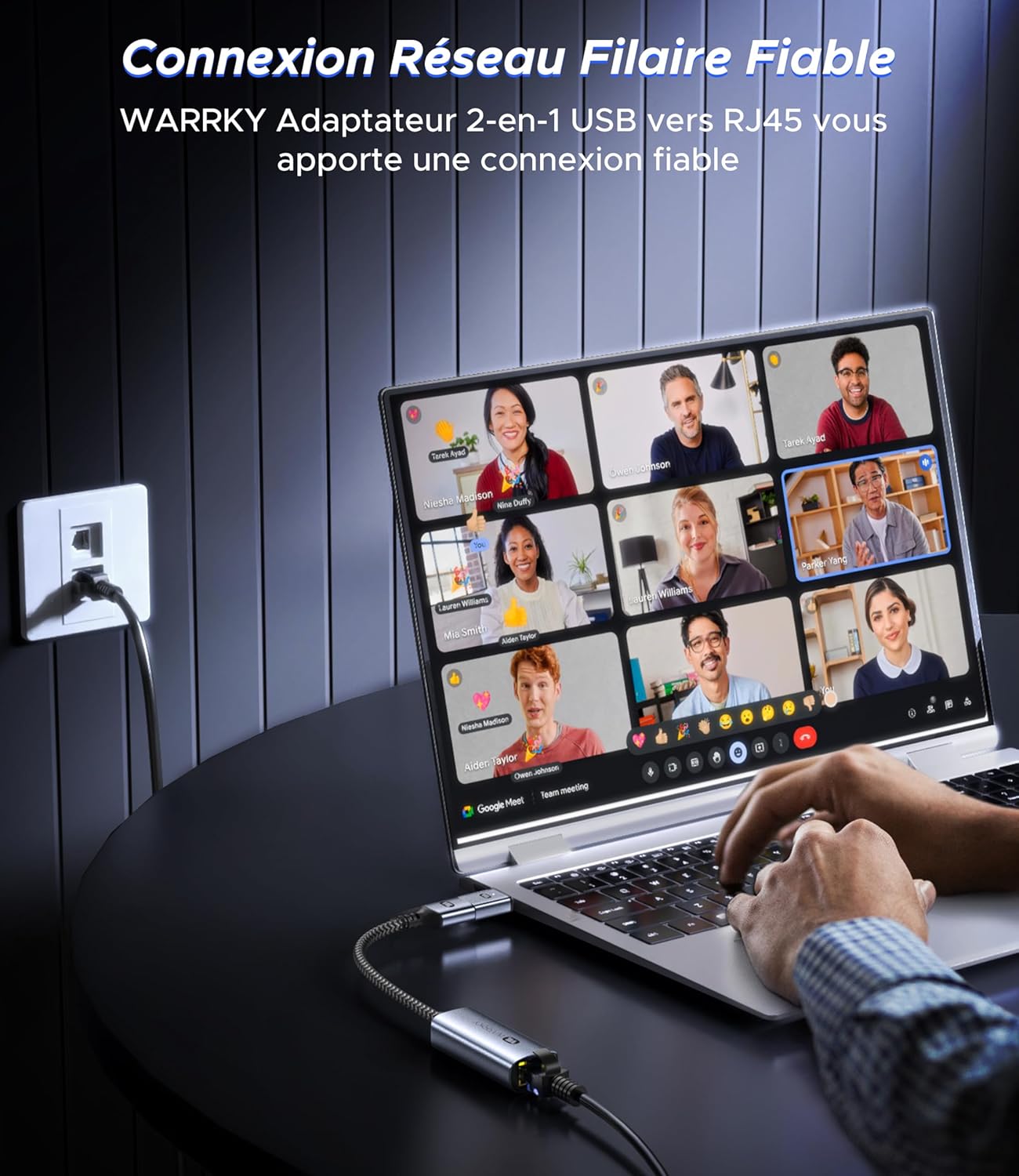
Figure 3.1: The WARRKY AE04 adapter providing a reliable wired network connection to a laptop, demonstrating the simple plug-and-play setup.
4. Operating Instructions
After successful setup, the WARRKY AE04 adapter operates automatically, providing a stable wired network connection.
- Network Speed: The adapter supports Gigabit Ethernet, capable of achieving speeds up to 1000 Mbps. For optimal performance, ensure your router, modem, and Ethernet cable (Cat 6 or higher) also support Gigabit speeds.
- LED Indicator: The integrated LED light on the adapter indicates the status of your network connection. A solid light typically signifies an active link, while a blinking light indicates data transfer.
- Stability: A wired connection generally offers greater stability and lower latency compared to Wi-Fi, making it ideal for online gaming, video conferencing, and large file transfers.

Figure 4.1: Visual representation of the WARRKY AE04 adapter delivering 1000 Mbps wired network speed, significantly faster than typical 100 Mbps Wi-Fi connections. It is recommended to use CAT 6 or higher Ethernet cables for 1Gbps speed.
5. Compatibility
The WARRKY AE04 adapter offers broad compatibility with various devices and operating systems, thanks to its dual USB-A and USB-C design and driver-free operation.
Compatible Operating Systems:
- Windows (XP/Vista/7/8/10/11)
- Mac OS
- Chrome OS
- Linux
- Android
- iPad OS

Figure 5.1: The WARRKY AE04 adapter featuring a Realtek chip, indicating wide compatibility with various operating systems including Windows, Mac OS, Chrome OS, Linux, Android, and iPad OS, without requiring additional drivers.
Compatible Devices:
- USB-A Devices: Desktop Computers, Laptops, Nintendo Switch, TV Boxes.
- USB-C Devices: Smartphones, MacBooks, Steam Deck, Tablets.
Note: This adapter is NOT compatible with Wii/Wii U consoles.
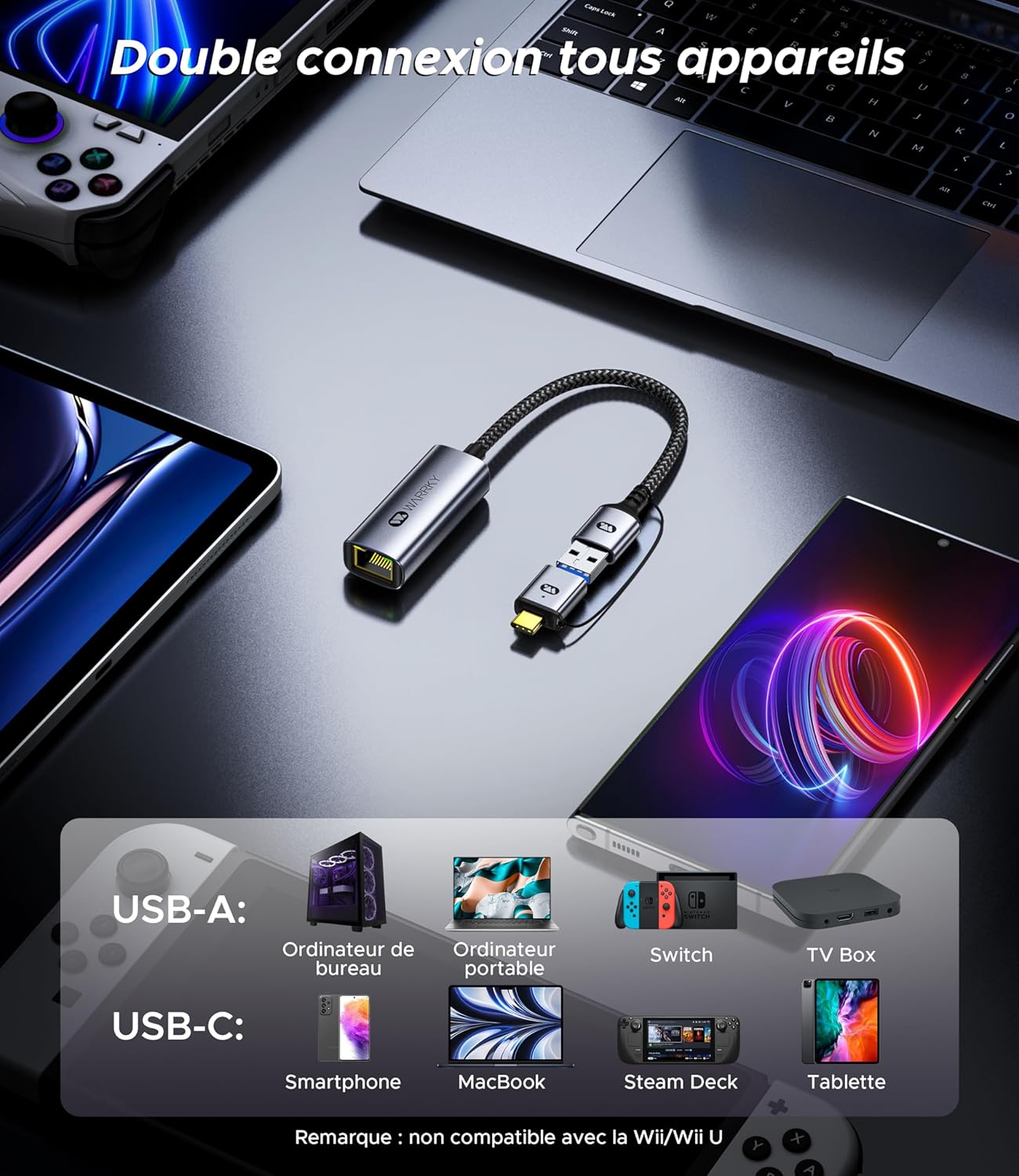
Figure 5.2: The WARRKY AE04 adapter demonstrating its dual connectivity with a range of devices, including desktop PCs, laptops, Nintendo Switch, TV boxes via USB-A, and smartphones, MacBooks, Steam Deck, and tablets via USB-C. It explicitly states incompatibility with Wii/Wii U.
6. Specifications
| Feature | Detail |
|---|---|
| Model Number | WARRKY-DT-AE04 |
| Connectivity | USB-A 3.0, USB-C 3.0, RJ45 Ethernet |
| Ethernet Speed | Up to 1000 Mbps (Gigabit Ethernet) |
| Number of Ports | 1x RJ45, 1x USB-A (via converter), 1x USB-C |
| Item Weight | 2.46 ounces (approx. 70 grams) |
| Package Dimensions | 4.65 x 3.46 x 0.67 inches |
| UPC | 721295573153 |
| Driver Requirement | Driver-free for most compatible OS |

Figure 6.1: The WARRKY AE04 adapter highlighting its compact and portable design, with dimensions of approximately 5.3 cm length and 2.2 cm width for the main body, and a 15 cm cable length.
7. Troubleshooting
If you encounter issues with your WARRKY AE04 adapter, please refer to the following common solutions:
- No Network Connection:
- Ensure the adapter is securely plugged into your device's USB-A or USB-C port.
- Verify that the Ethernet cable is firmly connected to both the adapter and your router/modem.
- Check if your router/modem is powered on and functioning correctly.
- Try connecting the adapter to a different USB port on your device.
- Test with a different Ethernet cable to rule out cable issues.
- Restart your computer and network equipment (router/modem).
- Slow Network Speed:
- Ensure your Ethernet cable is Cat 6 or higher, as older cables (e.g., Cat 5) may limit speeds.
- Verify that your internet service plan and network equipment (router/modem) support Gigabit speeds.
- Check for other devices on your network consuming significant bandwidth.
- Ensure your device's operating system is up to date.
- Adapter Not Recognized:
- Although driver-free, some operating systems might require a system update or specific settings. Consult your device's support documentation.
- Try connecting the adapter to another compatible device to determine if the issue is with the adapter or the original device.
8. Maintenance
To ensure the longevity and optimal performance of your WARRKY AE04 adapter, follow these simple maintenance guidelines:
- Cleaning: Use a soft, dry cloth to gently wipe the adapter. Avoid using liquid cleaners or abrasive materials, which can damage the device.
- Storage: When not in use, store the adapter in a cool, dry place, away from direct sunlight and extreme temperatures.
- Handling: Avoid bending or twisting the cable excessively, as this can damage internal wires. Do not expose the adapter to water or high humidity.
- Connector Protection: Utilize the anti-loss protection feature to keep the USB-A converter securely attached when not in use, preventing misplacement.
9. Warranty and Support
Warrky is committed to providing high-quality products and excellent customer service.
Lifetime Warranty:
Warrky offers a lifetime warranty for its products. You can upgrade to a lifetime warranty by registering your product on the official Warrky website: www.warrky.com.
Professional Support:
For any technical issues or questions, Warrky provides professional technical support. You can expect a response within 18 hours.
- Technical Support Email: support@warrky.com
- Suggestions or Critiques: official@warrky.com

Figure 9.1: The back panel of the WARRKY product packaging, outlining details for upgrading to a lifetime warranty, professional support contact information (support@warrky.com), and an email for suggestions or critiques (official@warrky.com).


