
Fdit C001D
Fdit BT Unlock Smart Lock Core User Manual
Model: C001D
1. Introduction
This manual provides instructions for the Fdit BT Unlock Smart Lock Core, Model C001D. This smart lock core offers multiple access methods including Bluetooth (BT), Tuya App, fingerprint, password, and traditional mechanical key unlock. It is designed for enhanced security on wooden and security doors with thicknesses ranging from 40mm to 100mm.
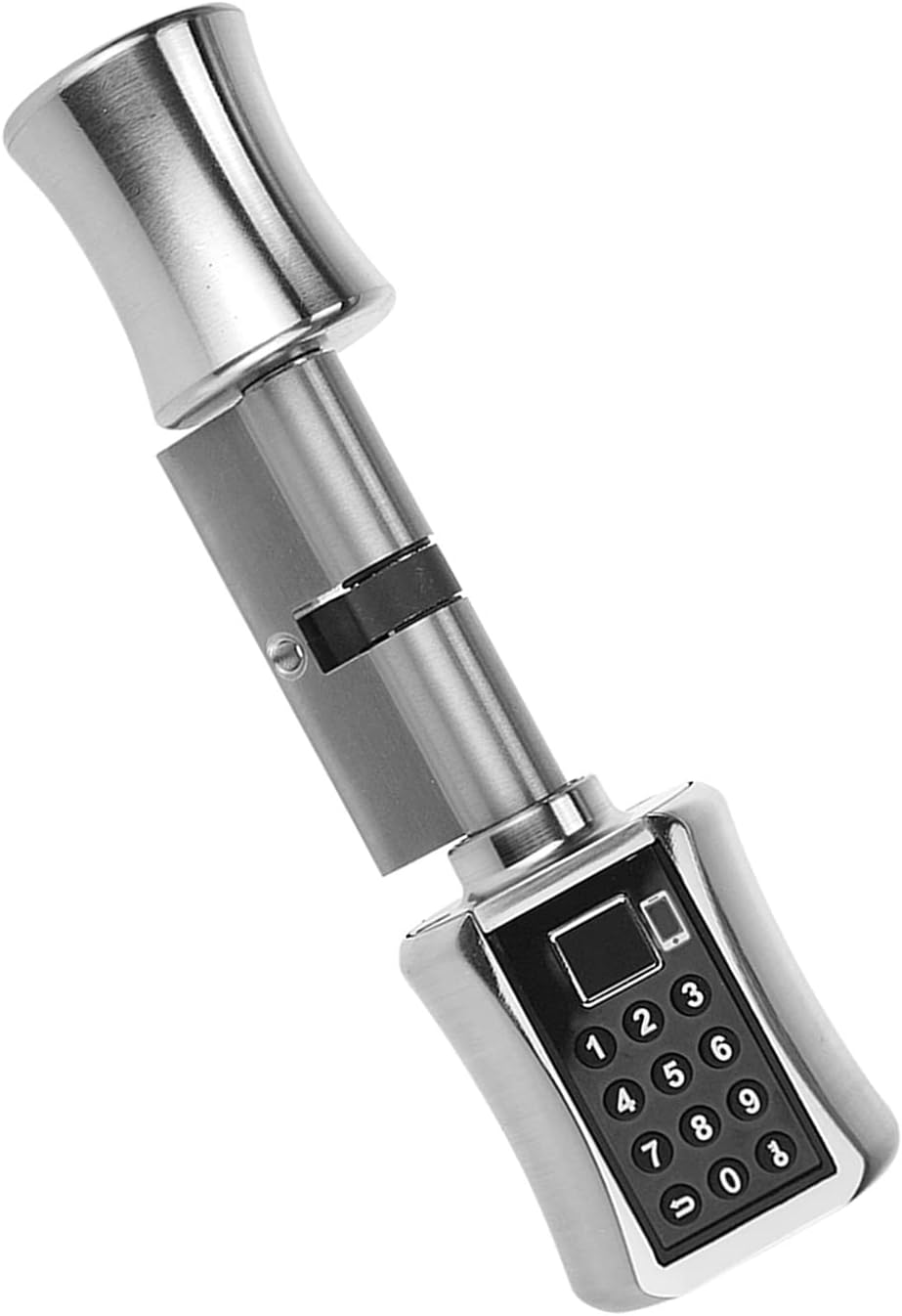
Figure 1: The Fdit BT Unlock Smart Lock Core. This image displays the complete smart lock core, highlighting its sleek design and integrated keypad for password entry.

Figure 2: Overview of unlock methods. This image illustrates the five primary ways to unlock the Fdit Smart Lock Core: Bluetooth, Tuya App, Fingerprint, Password, and Mechanical Key, along with a visual representation of the Tuya app interface.
2. Package Contents
Verify that all items are present in the package:
- 1 x Lock Cylinder
- 1 x Installation Guide
- 2 x Mechanical Keys
3. Specifications
| Model | C001D |
| Unlock Methods | Bluetooth (BT), Tuya App, Fingerprint, Password, Mechanical Key |
| Cylinder Size Options | 30/30mm, 35/35mm, 40/40mm, 60/40mm, 75/40mm |
| Suitable Door Thickness | 40mm - 100mm |
| Power Input | 3.6-5V |
| Electrostatic Conservation | 15KV |
| Item Dimensions (L x W x H) | 9.05 x 3.93 x 2.75 inches |
| Item Weight | 1.6 pounds |
4. Setup and Installation
The Fdit BT Unlock Smart Lock Core is designed for straightforward installation. Refer to the included Installation Guide for detailed, step-by-step instructions specific to your door type and cylinder size. Ensure your door thickness is between 40mm and 100mm for proper fitment.

Figure 3: Lock core dimensions. This image provides a visual reference for the lock cylinder's dimensions, indicating a total length of 80mm with 40mm on each side, crucial for proper installation.
4.1 Adjustable Lock Cylinder
The lock cylinder features an adjustable inner handle, allowing for a maximum extension of 20mm to accommodate various door configurations. This flexibility helps ensure a secure and flush fit.

Figure 4: Adjustable lock cylinder. This image demonstrates how the inner handle of the lock cylinder can be adjusted, extending up to 20mm to fit different door thicknesses and setups.
4.2 Installation Examples
The smart lock core is suitable for various door types, including security and wooden doors. Proper installation ensures optimal security and functionality.

Figure 5: Installed lock core examples. This collage shows the Fdit Smart Lock Core installed on different types of doors and from various angles, illustrating its versatile application.
5. Operating Instructions
5.1 Tuya App Remote Unlock
Manage your lock remotely using the Tuya app. This feature allows you to send temporary passcodes, view access logs, and control the lock from any location with an internet connection.
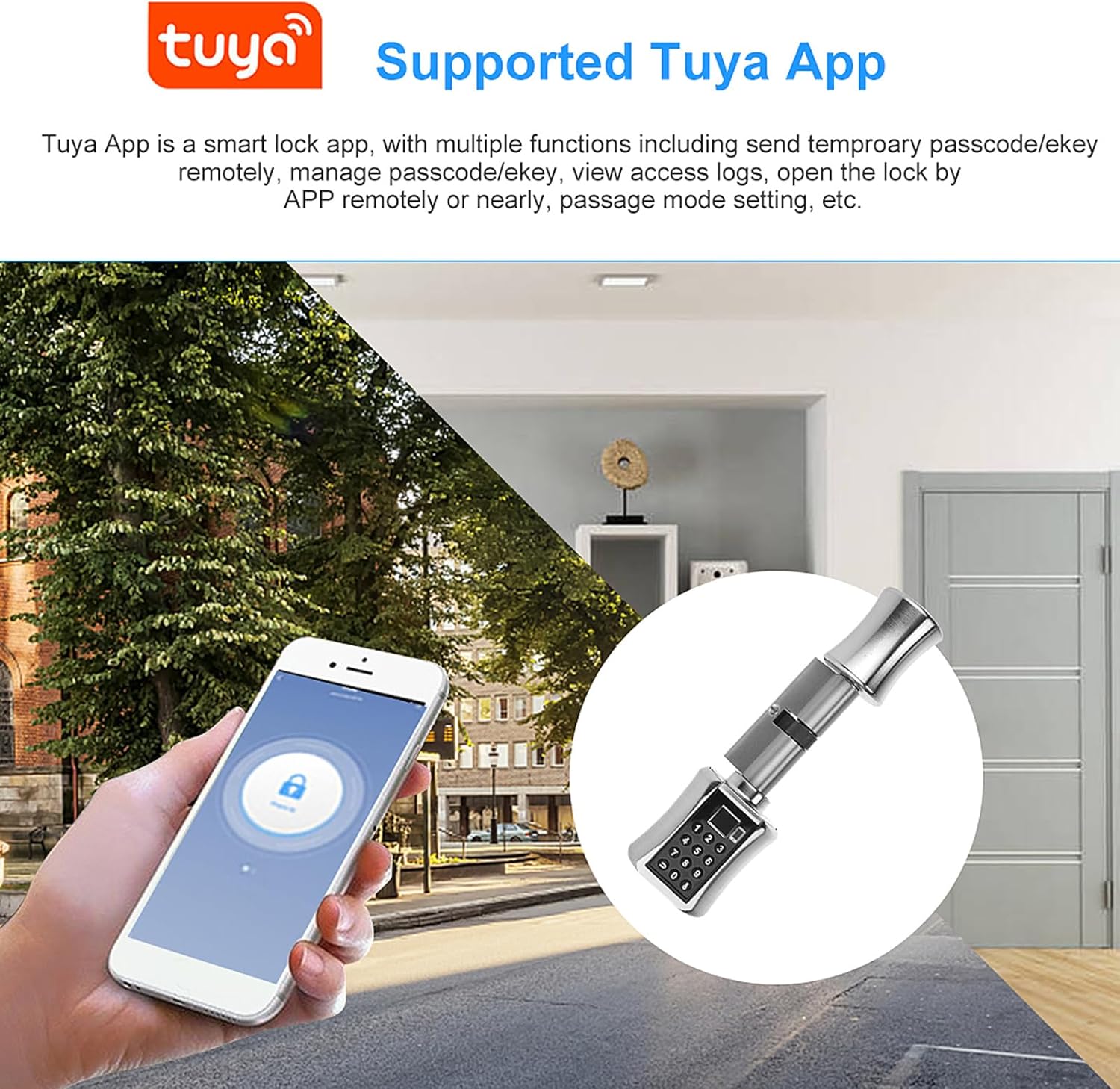
Figure 6: Tuya App functionality. This image depicts a smartphone displaying the Tuya app interface, demonstrating remote control capabilities for the smart lock, with an outdoor and indoor scene in the background.
5.2 Fingerprint Unlock
Unlock your door with a registered fingerprint. This method provides quick and secure access, adding a layer of biometric security to your home.

Figure 7: Fingerprint unlock interface. This image shows the smart lock core with a fingerprint icon displayed on its screen, indicating the fingerprint unlock method, alongside a smartphone displaying the Tuya app.
5.3 Password Unlock
Set up to 30 unique 6-12 digit passwords. The anti-peeping virtual password feature enhances security by allowing you to input random numbers before or after your actual password, preventing others from discerning your code.

Figure 8: Password entry and anti-peeping. This image illustrates the password entry process, demonstrating the anti-peeping feature where random numbers can be entered before or after the actual password to obscure it.
5.4 Bluetooth (BT) Unlock
Unlock your door conveniently through Bluetooth technology when you are within range of the lock. This provides a seamless and secure access experience without needing an internet connection.
5.5 Mechanical Key Unlock
Traditional mechanical keys serve as a reliable backup access method. In case of battery failure or other issues, you can always use the provided keys to unlock the door. An external power supply interface is also available for temporary power in emergencies.

Figure 9: Mechanical key and external power. This image shows the mechanical key slot for emergency access and the external power supply interface, which can be used to power the lock temporarily if batteries are depleted.
6. Maintenance
6.1 Battery Replacement
The lock core operates on batteries (included). When the battery level is low, the lock will provide an alert. Replace batteries promptly to ensure continuous operation. Refer to Figure 9 for the battery compartment location.
6.2 General Care
To maintain the longevity and functionality of your smart lock, avoid exposing it to extreme temperatures or harsh chemicals. Clean the surface with a soft, dry cloth. Do not attempt to disassemble the lock core beyond what is described in the installation guide.
7. Troubleshooting
If you encounter issues with your Fdit BT Unlock Smart Lock Core, consider the following:
- Lock not responding: Check the battery level and replace batteries if necessary. Use the external power supply interface for temporary power.
- Fingerprint not recognized: Ensure your finger is clean and dry. Re-register your fingerprint if the issue persists.
- Password not working: Verify the correct password is being entered. Ensure the anti-peeping feature is not causing confusion.
- App connectivity issues: Ensure Bluetooth is enabled on your device and the lock is within range. Check your internet connection for remote access via the Tuya app.
- Mechanical key not working: Ensure the key is fully inserted and turned correctly.
For further assistance, consult the detailed Installation Guide or contact customer support.
Ask a question about this manual
Ask about setup, troubleshooting, compatibility, parts, safety, or missing instructions. Manuals+ will review the question and use this page’s manual context to help answer it.