
1. Introduction
Thank you for choosing the Fdit DAB/DAB+ FM Radio. This portable digital radio offers a versatile listening experience with DAB/DAB+ and FM reception, Bluetooth 5.0 connectivity, and a clear 2.4-inch LCD display. This manual provides detailed instructions to help you set up, operate, and maintain your device for optimal performance.
2. Product Overview
The Fdit DAB/DAB+ FM Radio is designed for portability and ease of use, featuring a robust 1200mAh rechargeable battery. Its 2.4-inch LCD screen provides clear text and image display, enhancing user interaction. With support for 9 languages, it caters to a wide range of users.
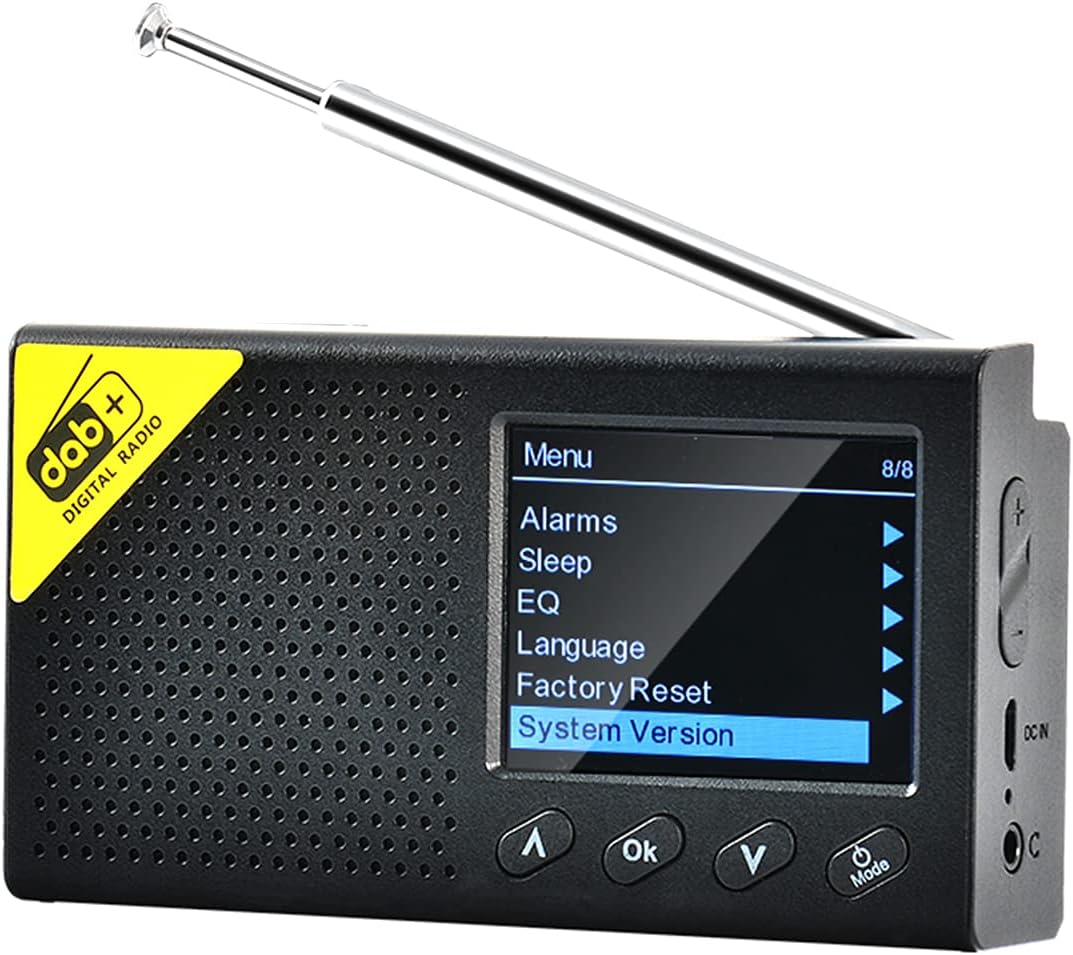
Image 2.1: Fdit DAB/DAB+ FM Radio, front view with screen displaying menu options. The radio features a black casing, a perforated speaker grille, and a retractable antenna. The screen shows a menu with options like 'Alarms', 'Sleep', 'EQ', 'Language', 'Factory Reset', and 'System Version'. Control buttons for navigation and 'OK' are visible below the screen.
3. Safety Information
- Do not expose the device to extreme temperatures, direct sunlight, or high humidity.
- Avoid dropping or subjecting the device to strong impacts.
- Do not attempt to disassemble or modify the device. This will void the warranty.
- Use only the specified charging cable and adapter.
- Keep out of reach of children.
4. Package Contents
Please check the package for the following items:
- Fdit DAB/DAB+ FM Radio
- USB Charging Cable
- User Manual
5. Setup
5.1 Charging the Device
Before first use, fully charge the radio. Connect the USB charging cable to the device's charging port and the other end to a compatible USB power adapter (not included) or a computer USB port. The charging indicator will show the charging status.
5.2 Antenna Adjustment
Extend the telescopic antenna fully for optimal reception of DAB/DAB+ and FM signals.
5.3 Initial Power On and Language Selection
- Press and hold the Power/Mode button to turn on the radio.
- Upon first power-on, you may be prompted to select a language. Use the Up/Down buttons to navigate and the OK button to confirm your selection. The radio supports 9 languages including English, German, Norwegian, Italian, French, Polish, Swedish, Danish, and Finnish.

Image 5.1: The Fdit DAB/DAB+ FM Radio on a wooden surface, showing the 'Backlight' option selected in the menu. This image illustrates the radio's menu interface, which is navigated during initial setup for language and other settings.
6. Operating Instructions
6.1 Power On/Off
Press and hold the Power/Mode button to turn the radio on or off.
6.2 Mode Selection
Briefly press the Power/Mode button to cycle through available modes: DAB/DAB+, FM, and Bluetooth.
6.3 DAB/DAB+ Radio Operation
- Select DAB mode using the Mode button.
- The radio will automatically scan for available DAB/DAB+ stations upon first use in this mode. To perform a full scan manually, navigate to the 'Full Scan' option in the DAB menu and press OK.
- Use the Up/Down buttons to browse through the list of available stations.
- Press OK to select and listen to a station.

Image 6.1: The Fdit DAB/DAB+ FM Radio on a wooden serving board, tuned to a DAB station 'NRK KLASSISK'. The screen displays station information, signal strength, and battery level, demonstrating active DAB reception.
6.4 FM Radio Operation
- Select FM mode using the Mode button.
- To auto-scan and save FM stations, navigate to the 'Auto Scan' option in the FM menu and press OK.
- Use the Up/Down buttons to manually tune the frequency or select a saved station.
- Press OK to confirm.
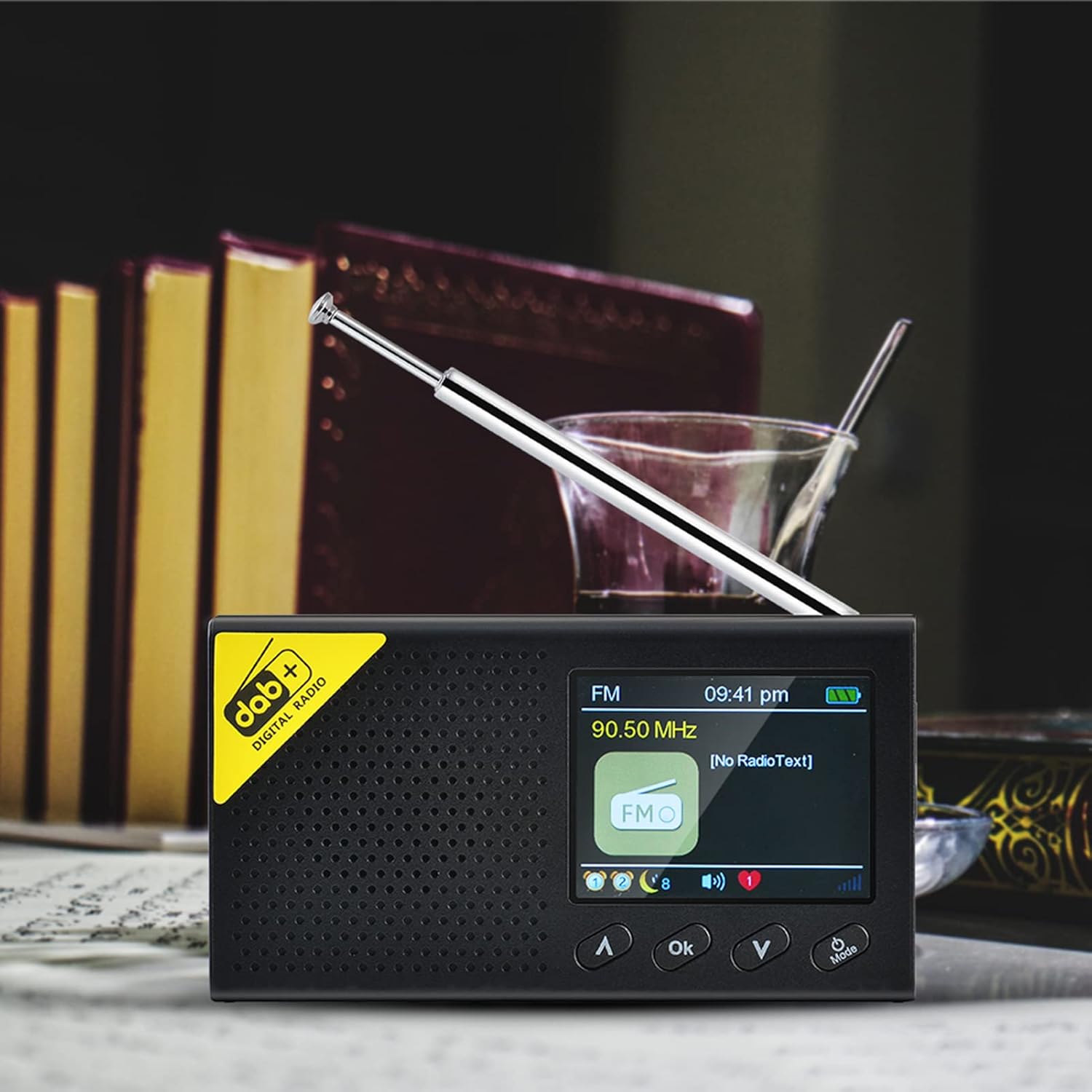
Image 6.2: The Fdit DAB/DAB+ FM Radio displaying an FM frequency (90.50 MHz) and 'No RadioText' on its screen. This image shows the radio operating in FM mode, indicating the current frequency and the absence of additional text information from the broadcast.
6.5 Bluetooth (BT) Mode Operation
- Select BT mode using the Mode button. The radio will enter pairing mode, indicated on the screen.
- On your smartphone or other Bluetooth device, enable Bluetooth and search for available devices.
- Select 'Fdit Radio' (or similar name) from the list to pair.
- Once paired, you can stream audio from your device to the radio.

Image 6.3: The Fdit DAB/DAB+ FM Radio connected via Bluetooth to a smartphone, displaying music information on its screen. This image demonstrates the radio's Bluetooth functionality, showing a smartphone playing music and the radio's screen displaying track details.
6.6 Alarm Function
The radio features a dual alarm setting. To set an alarm:
- Access the 'Alarms' option from the main menu.
- Select Alarm 1 or Alarm 2.
- Set the alarm time, source (DAB, FM, or Buzzer), and frequency (daily, once, weekends, weekdays).
- Confirm settings by pressing OK.

Image 6.4: The Fdit DAB/DAB+ FM Radio showing the current time and date on its LCD screen. This image highlights the radio's clock display, which is essential for setting and managing alarm functions.
6.7 Sleep Timer
To set a sleep timer:
- Access the 'Sleep' option from the main menu.
- Select the desired duration (e.g., 15, 30, 60 minutes). The radio will automatically turn off after the set time.
6.8 Equalizer (EQ)
Adjust the audio output to your preference:
- Access the 'EQ' option from the main menu.
- Choose from preset equalizer settings or customize your own.
6.9 System Settings
The 'System Version' option displays the current firmware version of the device. 'Factory Reset' will restore all settings to their default values.
7. Maintenance
7.1 Cleaning
Wipe the radio with a soft, dry cloth. Do not use abrasive cleaners or solvents, as they may damage the surface.
7.2 Battery Care
To prolong battery life, avoid fully discharging the battery frequently. If the radio will not be used for an extended period, charge it periodically.
8. Troubleshooting
| Problem | Possible Cause | Solution |
|---|---|---|
| No power | Battery is depleted | Charge the radio fully. |
| Poor radio reception | Antenna not extended, weak signal area | Extend the antenna fully. Try moving the radio to a different location. Perform a full scan for stations. |
| Bluetooth not connecting | Radio not in pairing mode, device not discoverable | Ensure the radio is in BT mode and visible. Restart both the radio and your Bluetooth device. |
| No sound | Volume too low, muted | Increase the volume. Check if the device is muted. |
9. Specifications
- Brand: Fdit
- Model Number: Fdito7z54ehbki
- Color: Black
- Connectivity Technology: Bluetooth 5.0
- Tuning Technology: DAB+, FM
- Supported Radio Bands: DAB/DAB+/FM
- Frequency Response: 20Hz-2KHz
- Output Power: 4Ω 1W
- Bluetooth Distance: 8m
- Display: 2.4-inch LCD (320 x 240 resolution)
- Battery: Built-in 1200mAh Polymer Rechargeable Battery
- Compatible Devices: Smartphone, headphones
- Language Options: 9 (UK, Germany, Norway, Italy, France, Poland, Sweden, Denmark, Finland)
10. Warranty and Support
10.1 Manufacturer's Warranty
This product comes with a 2-year manufacturer warranty. Please retain your proof of purchase for warranty claims. The warranty covers defects in materials and workmanship under normal use.
10.2 Customer Support
For technical assistance, troubleshooting, or warranty inquiries, please contact your retailer or the manufacturer's customer support. Refer to the product packaging or the retailer's website for specific contact details.