
1. Introduction
The FunFlix G1 Mini Projector is a compact and versatile device designed for home entertainment and portable use. This manual provides essential information for setting up, operating, and maintaining your projector to ensure optimal performance and longevity.
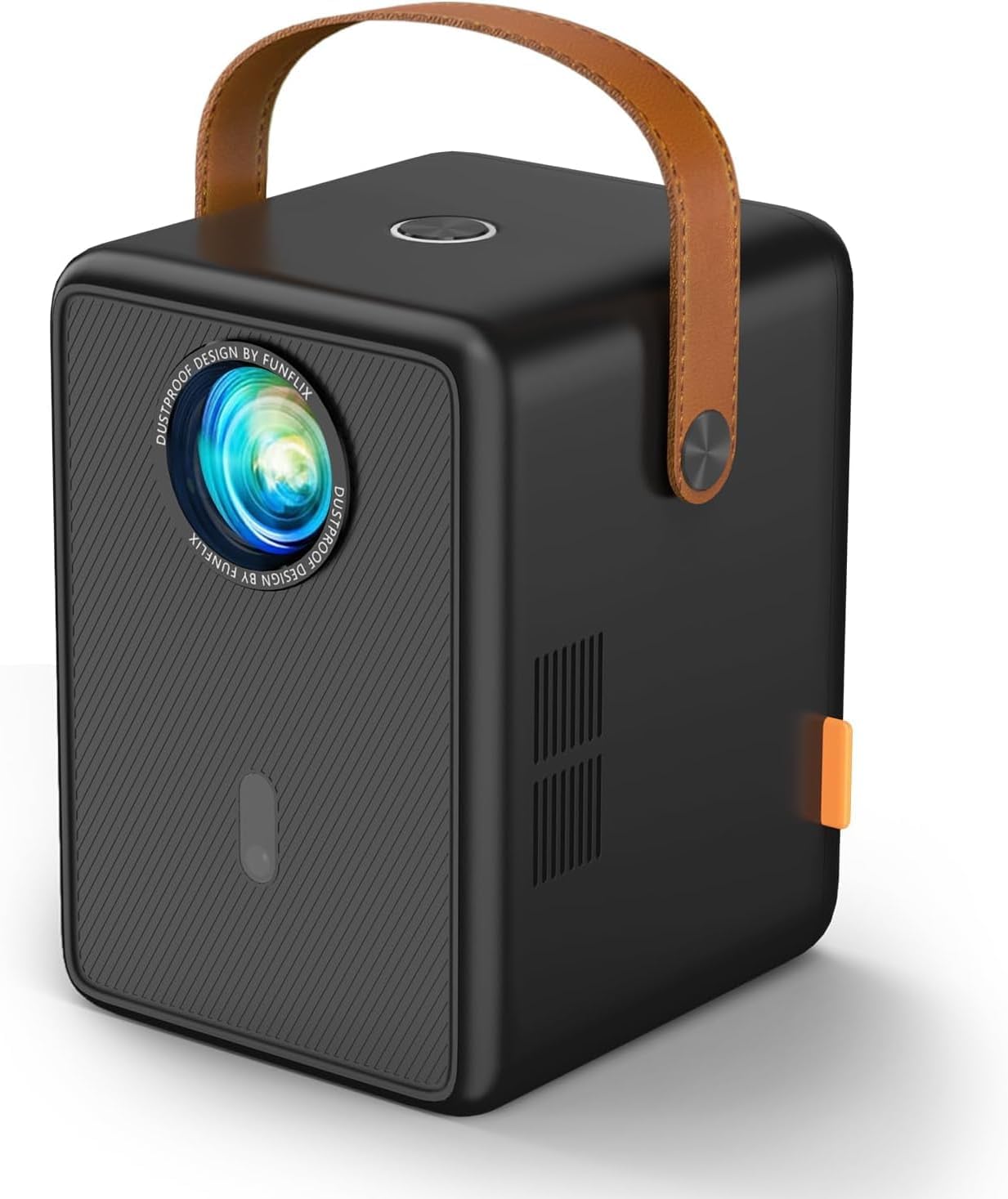
Figure 1: FunFlix G1 Mini Projector. This compact device features a sleek design with a leather handle for easy portability.
2. What's in the Box
- FunFlix G1 Mini Projector (x1)
- Instruction Manual (x1)
- HDMI Cable (x1)
- AV Cable (x1)
- Power Cable (x1)
3. Setup
3.1 Power Connection
- Connect the power cable to the projector's power input port.
- Plug the other end of the power cable into a suitable power outlet.
- Press the power button on the projector or remote control to turn on the device.
3.2 Focus and Keystone Adjustment
The projector features electric focus and 4P/4D keystone correction for optimal image clarity and shape.
- Electric Focus: Use the remote control to adjust the focus until the image is sharp and clear. This feature allows for quick and precise adjustments.
- 4P/4D Keystone Correction: If the projected image appears trapezoidal, use the remote control to access the keystone correction settings. Adjust the four corners or four sides of the image to achieve a perfect rectangular display.
- Zoom Function: The projector supports 50%-100% zoom, allowing you to adjust the screen size without moving the projector.

Figure 2: Illustrates the 4D Keystone Correction feature, allowing for flexible image adjustment from various angles.

Figure 3: Demonstrates the electric focus and 50%-100% zoom capabilities, enabling precise image sizing and clarity.
3.3 Connectivity
The FunFlix G1 offers multiple connectivity options:
- HDMI: Connect devices like laptops, TV sticks, gaming consoles (PS5), and Chromecast using the provided HDMI cable.
- USB: Plug in USB drives for direct media playback.
- 3.5mm Audio Output: Connect external headphones or speakers for enhanced audio.
- WiFi 6: Supports 2.4G and 5G dual WiFi for stable and fast wireless mirroring from Android and iOS devices.
- Bluetooth 5.2: Connect Bluetooth headphones or speakers wirelessly.
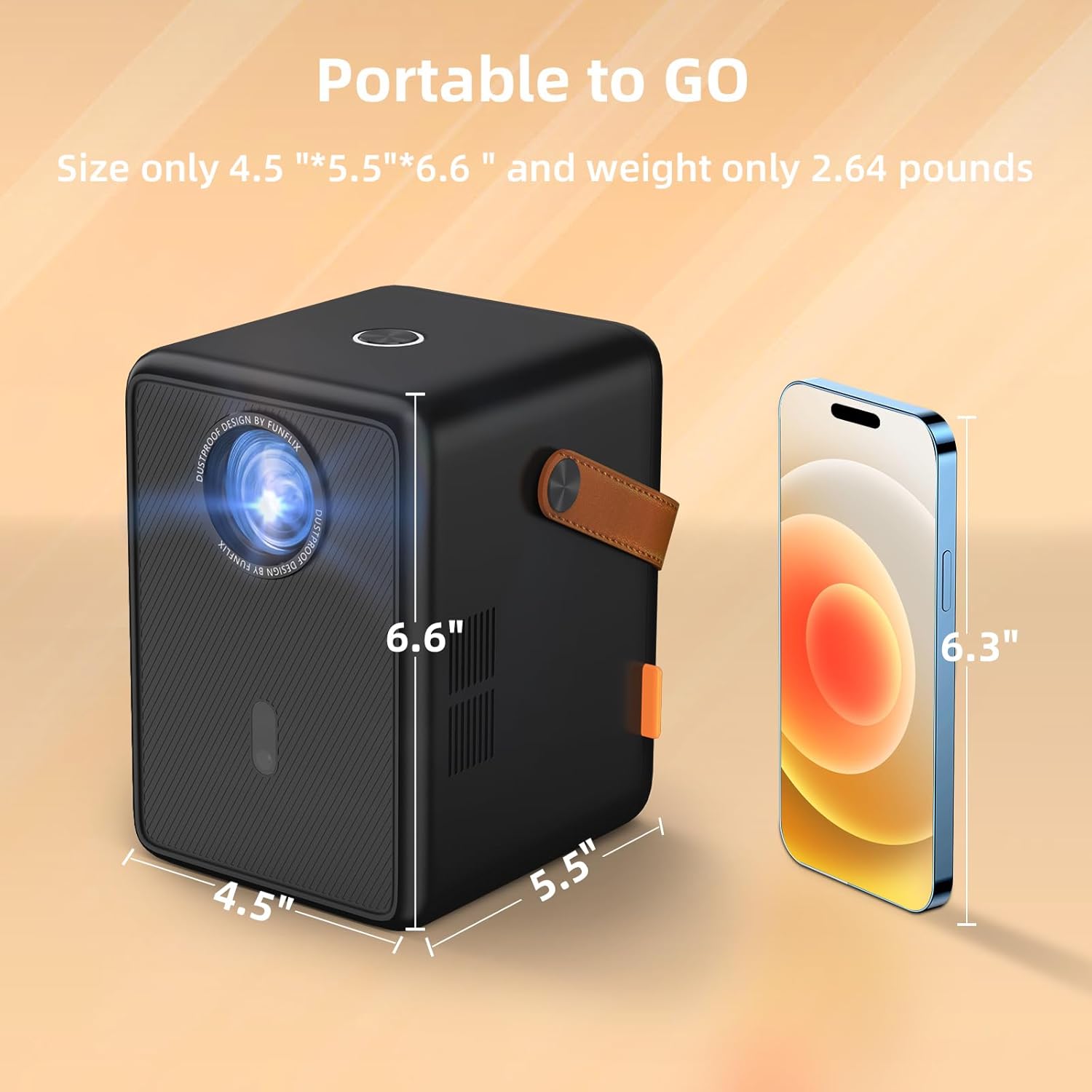
Figure 4: Rear view of the projector showing HDMI, USB, and audio ports for diverse connectivity.

Figure 5: Illustration of the upgraded Bluetooth 5.2 function, allowing seamless connection to external audio devices.
4. Operating Instructions
4.1 Basic Operation
- Power On/Off: Press the power button on the projector or remote control.
- Navigation: Use the arrow keys and OK button on the remote control to navigate through the on-screen menu.
- Source Selection: Select the desired input source (HDMI, USB, Screen Mirroring) from the main menu.
4.2 Screen Mirroring
The projector supports wireless screen mirroring via WiFi 6 for Android and iOS devices.
- Ensure your mobile device and the projector are connected to the same WiFi network.
- Select 'Screen Mirroring' from the projector's main menu.
- On your mobile device, activate the screen mirroring function (e.g., 'Screen Mirroring' on iOS, 'Smart View' or 'Cast' on Android) and select the projector from the list of available devices.
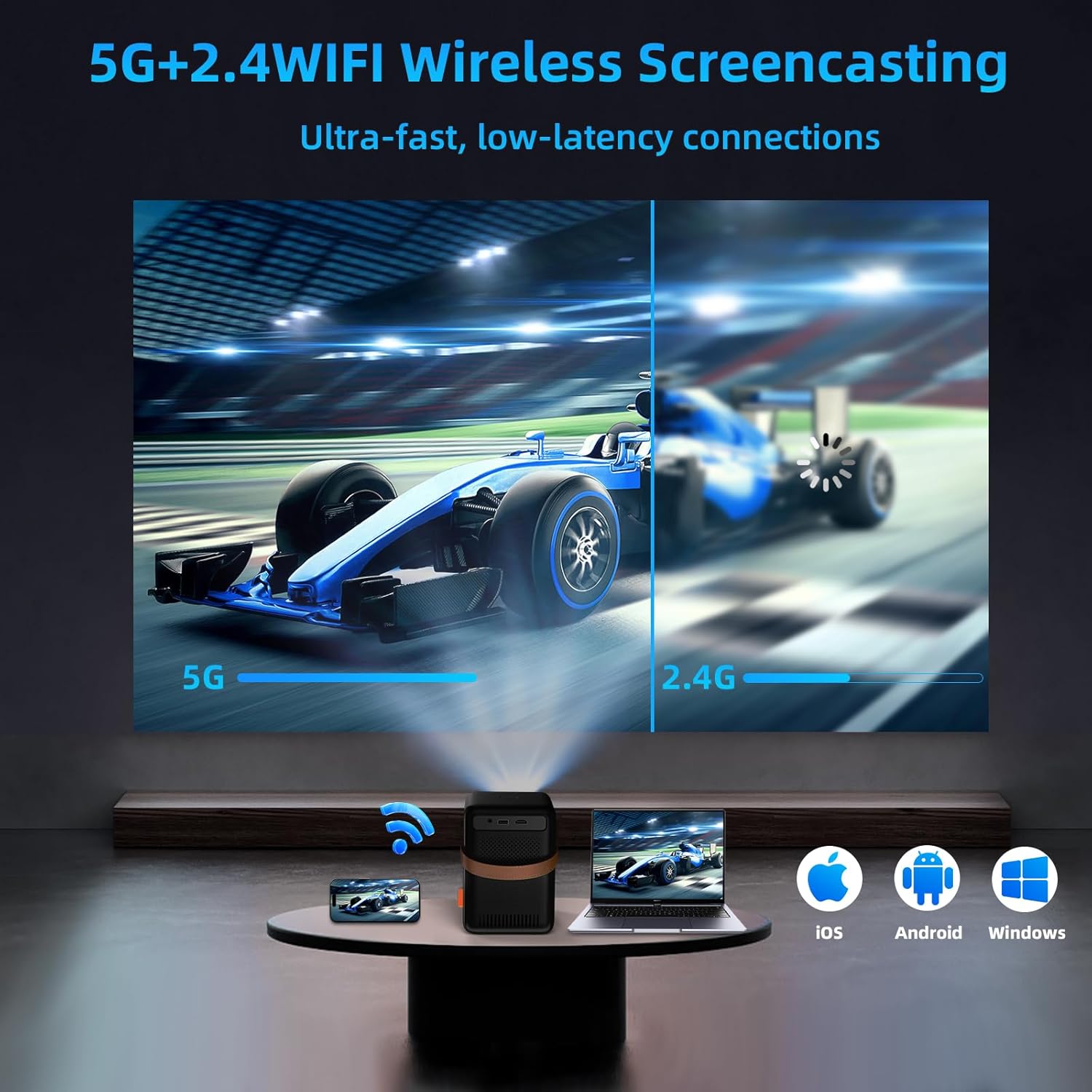
Figure 6: Demonstrates wireless screencasting from various devices (iOS, Android, Windows) using 5G+2.4 WiFi.
4.3 Media Playback
Play media directly from a USB drive or connected HDMI device.
- USB Playback: Insert a USB drive into the USB port. Select 'Media' or 'File Manager' from the main menu to browse and play your files.
- HDMI Playback: Connect your device via HDMI. Select 'HDMI' as the input source.
4.4 Projection Settings
Access the 'Settings' menu to fine-tune your projection experience.
- Projection Mode: Adjust settings for front, rear, ceiling, or desktop projection.
- Zoom Settings: Fine-tune the 50%-100% zoom level.
- Auto Trapezoid: Enable or disable automatic keystone correction.
- Manual Keystone: Manually adjust 4-point or 4-side keystone correction for precise image shaping.
5. Maintenance
5.1 Cleaning
The FunFlix G1 projector features an IP5X dustproof design to minimize dust accumulation and extend its lifespan.
- Regularly wipe the projector's exterior with a soft, dry cloth.
- For the lens, use a specialized lens cleaning cloth and solution. Avoid abrasive materials.
- Ensure ventilation vents are clear of obstructions to prevent overheating.

Figure 7: Highlights the IP5X dustproof feature, designed to prevent dust from entering and ensure a clearer picture over time.
6. Troubleshooting
- No Power: Check if the power cable is securely connected and the power outlet is functional.
- No Image: Ensure the correct input source is selected. Check HDMI/USB cable connections. Adjust focus.
- Blurry Image: Adjust the electric focus ring. Use keystone correction if the image is distorted.
- No Sound: Check volume levels on both the projector and the connected device. Ensure external speakers/headphones are properly connected or paired via Bluetooth.
- Wireless Connection Issues: Verify both devices are on the same WiFi network. Restart the projector and mobile device.
7. Specifications
- Native Resolution: 1280 x 720P (Supports 1080P Full HD)
- Brightness: 13000 Lumens
- Contrast Ratio: 15000:1
- Projection Size: Up to 300 inches
- Focus: Electric Focus
- Keystone Correction: 4P/4D Keystone Correction
- Zoom: 50%-100%
- WiFi: WiFi 6 (2.4G & 5G Dual Band)
- Bluetooth: Bluetooth 5.2
- Audio: Built-in High-Fidelity Stereo Surround Speakers
- Connectivity: HDMI, USB, 3.5mm Audio Out
- Dimensions: 5.2 x 6.18 x 6.88 inches (13.2 x 15.7 x 17.5 cm)
- Weight: 2.64 pounds (1.2 kg)
- Special Features: IP5X Dustproof, Low Noise
8. Warranty and Support
FunFlix offers a three-year warranty for this product. In case of damage, a free replacement service will be provided. For further assistance or support, please refer to the contact information provided in your product packaging or visit the official FunFlix website.


