
SIXWIN P3
SIXWIN Android 13 Car Radio User Manual
Model: P3 (4GB RAM + 64GB Storage)
1. Introduction
This manual provides detailed instructions for the installation, operation, maintenance, and troubleshooting of your SIXWIN Android 13 Car Radio. Please read this manual thoroughly before using the product to ensure proper functionality and safety. Keep this manual for future reference.
2. Product Overview
The SIXWIN Android 13 Car Radio is an advanced in-car entertainment and navigation system designed for select Volkswagen and Skoda models. It features a 9-inch HD touchscreen, Android 13 operating system, and extensive connectivity options.
Key Features:
- Operating System: Android 13
- Memory & Storage: 4GB RAM + 64GB ROM
- Display: 9-inch HD Touchscreen (1280*720 resolution)
- Connectivity: Wireless CarPlay, Wireless Android Auto, Mirror Link, Bluetooth, WiFi, GPS
- Audio: FM/RDS Radio, 32-band EQ, Optional AI DSP
- Ports: Dual USB ports
- Additional Functions: Split Screen, Steering Wheel Control support, Rear Camera input support (optional), DVR support (optional), External MIC support (optional)
Package Contents and Dimensions:
The package includes the main head unit and various accessories for installation and connectivity. Refer to the image below for a visual representation of the included items and the unit's dimensions.

Image: The image displays the packing list, including the main unit, power cable, RCA input/output, reversing camera input, USB cable, GPS antenna, and radio antenna. It also shows the unit's dimensions: 220mm (8.6 inches) width at the top, 212mm (10.5 inches) width at the bottom, and 133mm (5.2 inches) height.
Compatible Vehicles:
This car radio is designed for specific vehicle models. Please ensure your vehicle is compatible before installation.
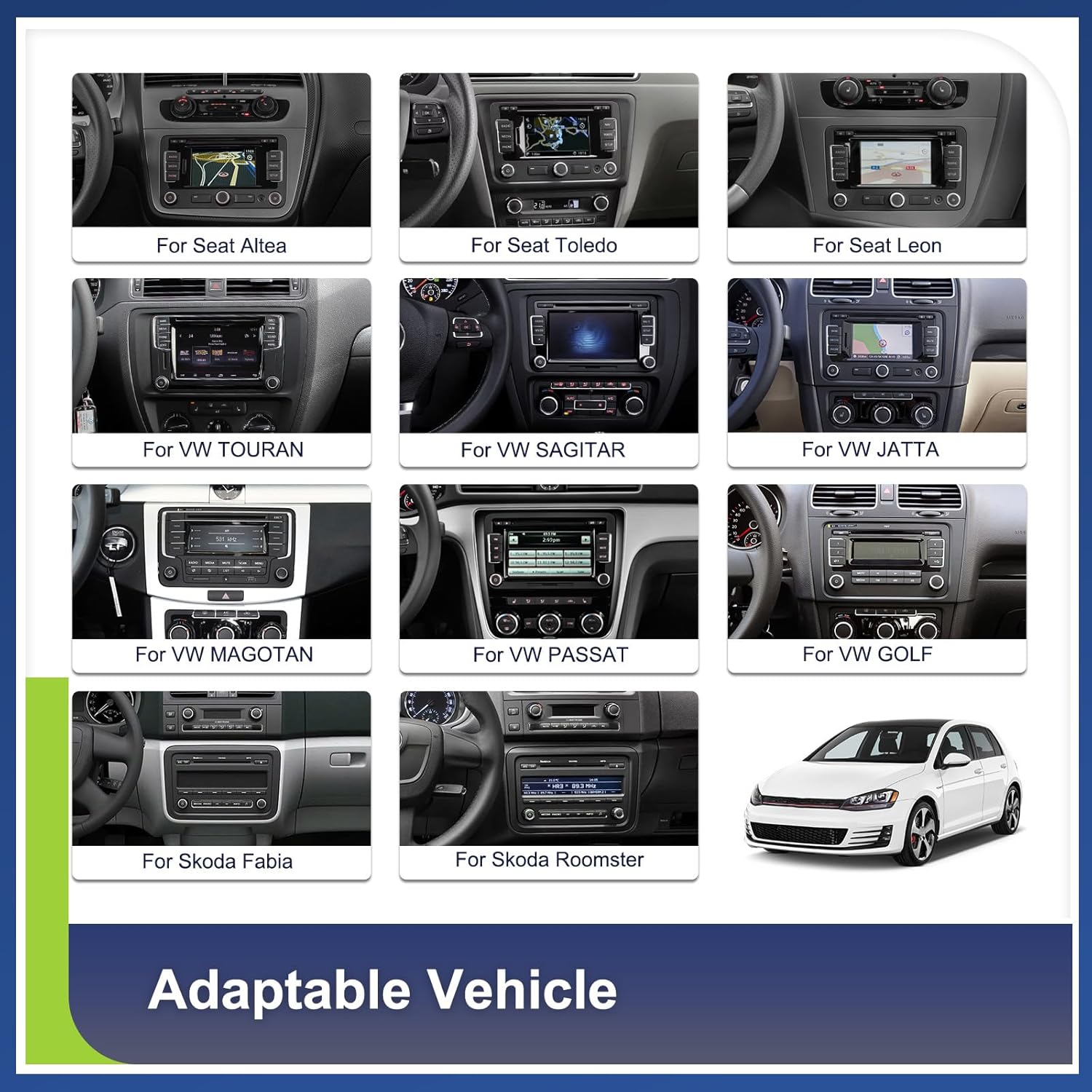
Image: This image illustrates various car dashboards, indicating compatibility with models such as Seat Altea, Seat Toledo, Seat Leon, VW Touran, VW Sagitar, VW Jetta, VW Magotan, VW Passat, VW Golf, Skoda Fabia, and Skoda Roomster.
3. Setup and Installation
Professional installation is recommended. Ensure the vehicle's power is disconnected before beginning installation. Refer to the wiring diagram provided with your unit for specific connections.
Installation Steps (General):
- Preparation: Gather all necessary tools and ensure you have all components listed in the packing list.
- Remove Old Unit: Carefully remove your vehicle's existing car radio.
- Connect Wiring: Connect the power cable, RCA cables, USB cables, GPS antenna, and radio antenna to the new SIXWIN unit. Ensure all connections are secure.
- CANBUS Connection: If your vehicle requires a CANBUS decoder for steering wheel controls or other vehicle data, connect it as per the wiring diagram.
- Test Functionality: Before fully securing the unit, temporarily connect the vehicle's power and test basic functions like power on/off, audio, and touchscreen response.
- Secure Unit: Once tested, carefully mount the SIXWIN car radio into the dashboard.
- Final Checks: Reconnect all vehicle panels and perform a comprehensive test of all features.
4. Operating Instructions
4.1 Android 13 System
The unit runs on Android 13, offering a fast and smooth user experience. Navigate through applications and settings using the responsive 9-inch touchscreen. Access millions of applications via the Google Play Store when connected to Wi-Fi.

Image: The main screen of the SIXWIN Android 13 Car Radio, displaying a grid of application icons such as EnBW, LINE, Pandora, WhatsApp, Stitcher, Tidal, Spotify, VOX, and YouTube Music, alongside a digital clock and signal strength indicator.
4.2 Wireless CarPlay & Android Auto
Connect your iPhone or Android smartphone wirelessly to access CarPlay or Android Auto. This allows for seamless integration of your phone's features, including navigation, music, calls, and messages, controllable via voice or touch on the unit's screen.

Image: This image shows the car radio displaying both Apple CarPlay and Android Auto interfaces. CarPlay is shown with icons for Phone, Music, Maps, Messages, Now Playing, Car, Podcasts, and Audiobooks. Android Auto is shown with Google Maps, YouTube Music, and Phone icons. A smartphone is also depicted, indicating wireless connection.
4.3 Mirror Link
Use Mirror Link to display your smartphone's screen directly on the car radio via a Wi-Fi connection. This feature allows you to view apps, music, and videos from your phone on the larger display.
4.4 Bluetooth Connectivity
Pair your mobile phone or other Bluetooth-enabled devices to the unit for wireless audio streaming, hands-free calling, and file transfer. This enhances safety by allowing you to manage calls without distraction.

Image: The car radio screen displays a Bluetooth interface, showing music playback controls and an incoming call screen. A smartphone is also shown, illustrating the wireless Bluetooth connection for audio and calls.
4.5 WiFi Connection
Connect the unit to the internet via a Wi-Fi hotspot or tethering from your smartphone. This enables online browsing, streaming content, and downloading applications directly to the device.

Image: The car radio screen shows a central Wi-Fi symbol surrounded by various app icons, indicating internet connectivity. Below, smaller screens display Google search results and a map, demonstrating online functionality.
4.6 GPS Navigation
Utilize the integrated GPS module for precise navigation. The unit supports both online and offline maps, providing voice guidance and real-time traffic information to help you reach your destination efficiently.
4.7 FM/RDS Radio
Enjoy clear reception of various radio stations with the built-in FM/RDS tuner. The Radio Data System (RDS) provides additional information such as station name, program type, and traffic announcements.

Image: This image displays the FM/RDS radio interface of the car radio, showing different frequency selections and the RDS logo. It also illustrates the equalizer settings for audio customization.
4.8 Dual USB Ports
Connect USB flash drives or external hard drives to the dual USB ports to play music, videos, or view photos. The USB ports also support charging for your mobile devices.
4.9 Split Screen Functionality
The split-screen feature allows you to run two applications simultaneously on the display. You can customize the size and position of each app and easily switch between them with a swipe gesture.
4.10 Steering Wheel Control
The unit supports learning functions for your vehicle's original steering wheel buttons. This enables convenient control of various functions directly from your steering wheel, enhancing driving safety.
4.11 Audio Equalizer (32 EQ) and AI DSP
Customize your audio experience with the 32-band equalizer, offering precise control over sound frequencies for a rich and clear sound. An optional AI DSP (Digital Signal Processor) provides advanced sound effects and optimization for various car environments.
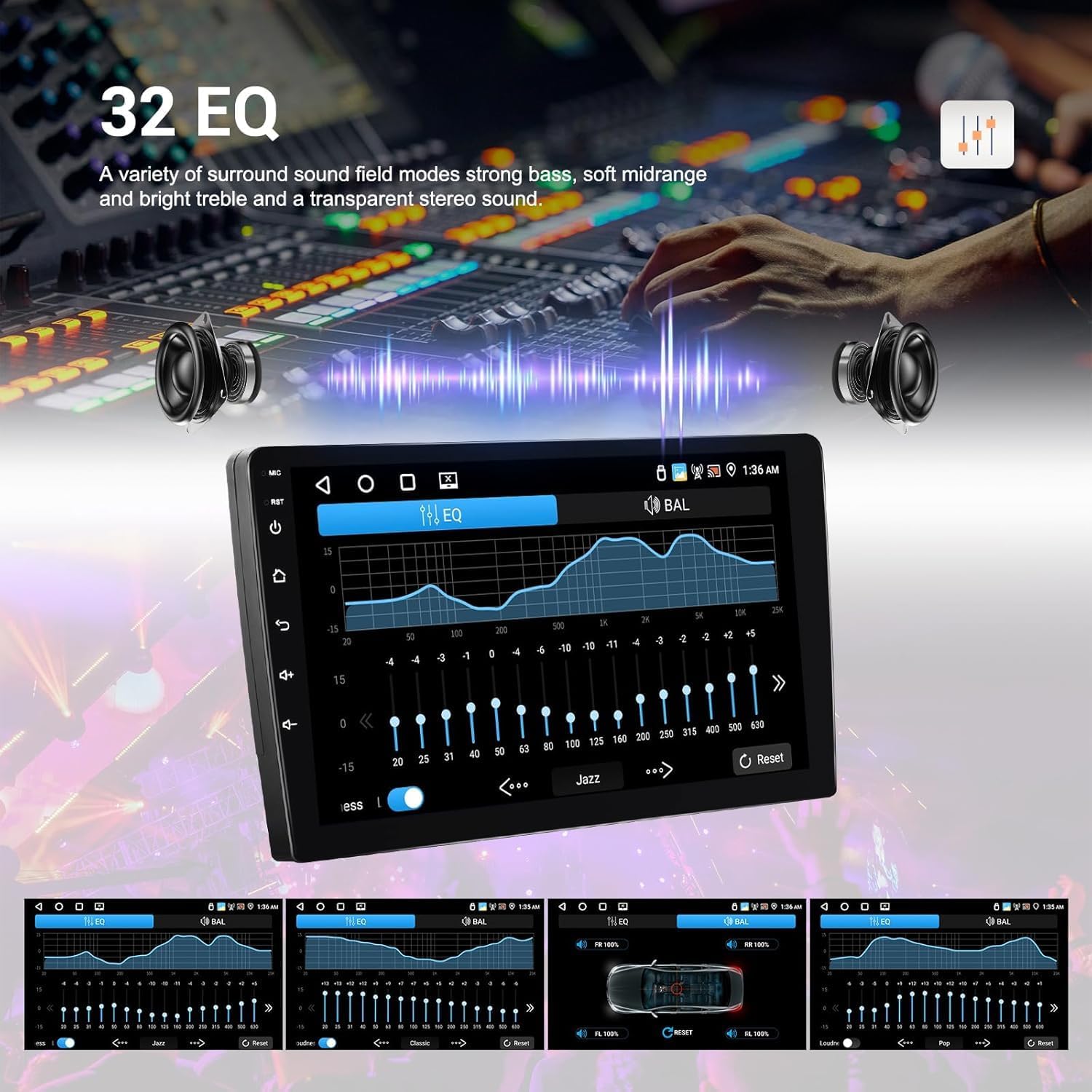
Image: The car radio screen displays a detailed 32-band equalizer interface, allowing users to adjust audio frequencies for optimal sound quality. Various preset sound modes are also visible.
5. Maintenance
To ensure the longevity and optimal performance of your SIXWIN Android 13 Car Radio, follow these maintenance guidelines:
- Screen Cleaning: Use a soft, lint-free cloth to gently wipe the touchscreen. Avoid abrasive cleaners or harsh chemicals that could damage the screen.
- Software Updates: Periodically check for software updates to ensure you have the latest features and security enhancements. Updates can typically be performed via Wi-Fi.
- Avoid Extreme Temperatures: Do not expose the unit to extreme heat or cold, as this can affect its performance and lifespan.
- Cable Connections: Ensure all cables are securely connected and free from damage. Loose connections can lead to intermittent issues.
6. Troubleshooting
This section addresses common issues you might encounter with your SIXWIN Android 13 Car Radio. If the problem persists, please contact customer support.
| Problem | Possible Cause | Solution |
|---|---|---|
| Unit does not power on. | Loose power connection, blown fuse, vehicle power issue. | Check power cable connections. Inspect vehicle fuses. Consult a professional for vehicle power diagnostics. |
| No sound or distorted audio. | Speaker wiring issues, incorrect audio settings, volume too low. | Verify speaker connections. Check audio settings (EQ, balance, fader). Adjust volume. |
| Poor radio reception. | Antenna not connected, weak signal, antenna amplifier issue. | Ensure radio antenna is securely connected. Check for antenna damage. Consider an antenna signal booster if in a weak signal area. |
| CarPlay/Android Auto not connecting or unstable. | Incorrect phone settings, Wi-Fi/Bluetooth interference, software glitch. | Ensure Wi-Fi and Bluetooth are enabled on your phone. Restart both phone and car radio. Check for software updates. Forget and re-pair the device. |
| Touchscreen unresponsive or inaccurate. | Screen protector interference, software issue, physical damage. | Remove any screen protectors to test. Restart the unit. If persistent, contact support. |
| Steering wheel controls not working. | CANBUS not connected or configured, learning function not performed. | Verify CANBUS connection. Perform the steering wheel control learning procedure in the unit's settings. |
7. Specifications
| Feature | Detail |
|---|---|
| Brand | SIXWIN |
| Model | P3 |
| Operating System | Android 13 |
| RAM | 4GB |
| Internal Storage | 64GB |
| Screen Size | 9 inches |
| Screen Resolution | 1280*720 |
| Connectivity Technology | HDMI, USB, Bluetooth, WiFi |
| Special Features | Android Auto, Apple CarPlay, Mirror Link, FM/RDS, GPS, Dual USB, Split Screen, Steering Wheel Control, 32-band EQ, AI DSP |
| Compatible Devices | Smartphone, Tablet, Personal Computer |
| Audio Output Mode | Stereo |
| Product Dimensions | 1 x 1 x 1 cm |
| Product Weight | 1.1 kg |
8. Warranty and Support
For technical assistance, troubleshooting, or any questions regarding your SIXWIN Android 13 Car Radio, please contact our customer support team. While specific warranty details are not provided in this manual, please refer to your purchase documentation for warranty information.
Customer Support:
Email: SIXWINVIP@126.com

Image: A graphic displaying the customer support email address: SIXWINVIP@126.com, for assistance and user manual inquiries.
Technical Support Process:
If you require assistance with installation or operation, please follow these steps to contact support:
- Navigate to the product page on Amazon.
- Locate the 'About the seller' section.
- Click on 'Ask a question' to submit your inquiry.

Image: This image illustrates a two-step process for contacting technical support through Amazon, showing how to find the 'Ask a question' link on the seller's profile.
Related documentsP3

Ask a question about this manual
Ask about setup, troubleshooting, compatibility, parts, safety, or missing instructions. Manuals+ will review the question and use this page’s manual context to help answer it.