
1. Product Overview
The Fuers 8MP 8CH PoE NVR Home Security Camera System provides comprehensive surveillance for your property. This system includes an 8-channel Network Video Recorder (NVR) with a pre-installed 1TB HDD and four 6MP PoE IP cameras designed for outdoor use. Key features include person detection, 4K recording capability, and 24/7 recording.
The cameras feature a dual-lens design, combining a fixed wide-angle lens with a Pan/Tilt (PT) lens for broader coverage and auto-tracking capabilities. The system supports remote access via mobile applications and PC software, offering real-time monitoring and playback.
2. Package Contents
Verify that all items listed below are included in your package:
- 1x 8-channel PoE NVR
- 4x IP PoE Camera with Dual-Lens
- 1x 1TB Hard Drive (Pre-installed on NVR)
- 4x 59ft Network cables
- 1x NVR Power Supply
- 1x USB Mouse
- 1x User Manual
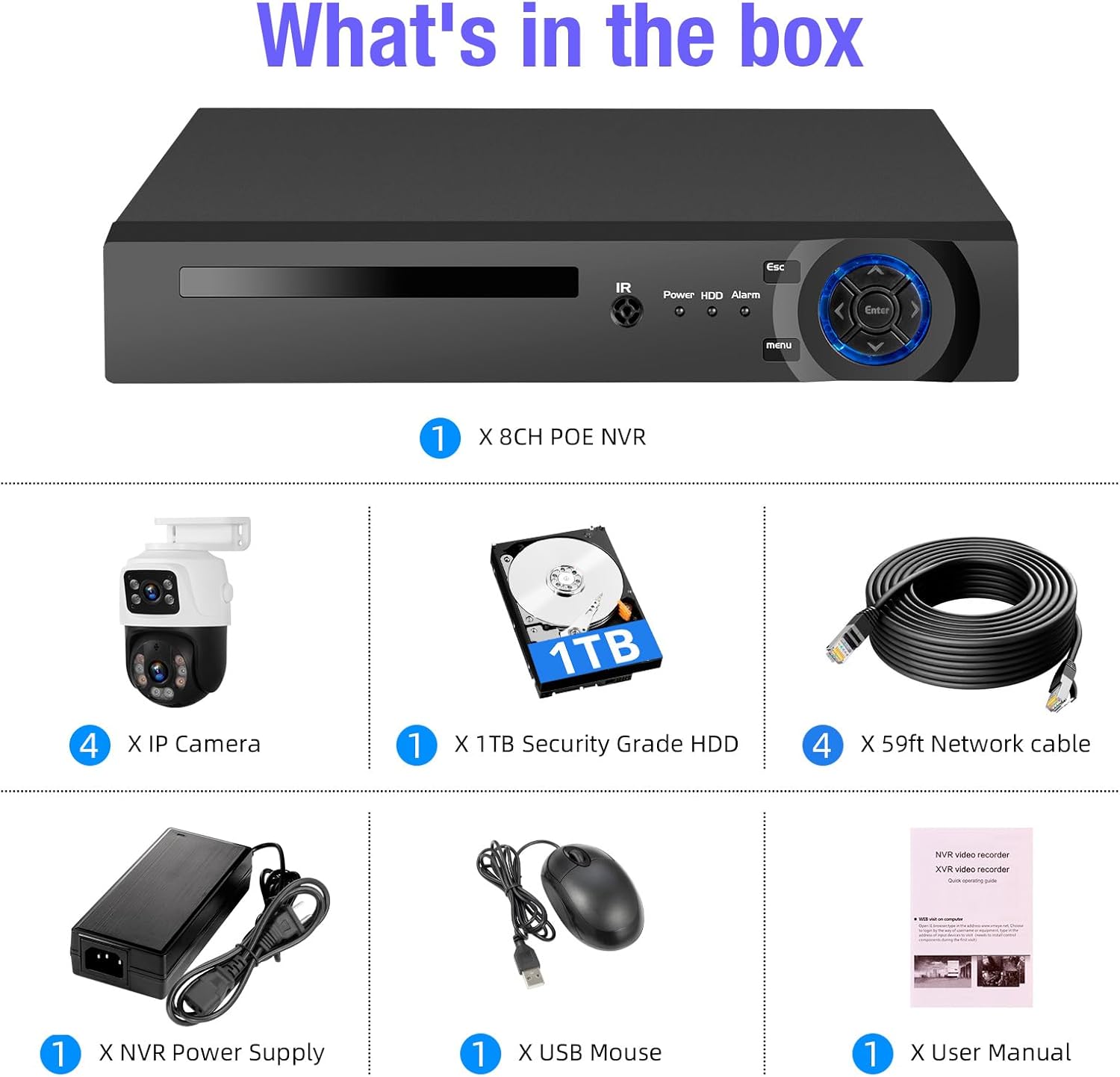
Image: All components included in the Fuers 8MP 8CH PoE NVR Home Security Camera System package, including the NVR, four cameras, hard drive, network cables, power supply, USB mouse, and user manual.
3. System Setup
3.1 NVR Connections
- Connect to a Monitor: Plug an HDMI or VGA cable from the NVR to your monitor.
- Connect USB Mouse: Insert the USB mouse into an available USB port on the NVR.
- Connect Power: Plug the NVR power supply into the NVR and then into a power outlet.
- Connect Cameras: Connect each IP PoE camera to the NVR's PoE ports using the provided network cables. The NVR will supply power and transmit video data to the cameras. No separate power adapters are needed for the cameras.
- Connect to Network (Optional for Remote Access): Connect the NVR's LAN port to your router using an Ethernet cable for remote viewing capabilities.
Video: This video demonstrates the initial setup process for the Fuers 8MP 8CH PoE NVR Home Security Camera System, including connecting the NVR to a monitor, mouse, power, and cameras. It highlights the plug-and-play nature of the PoE cameras.
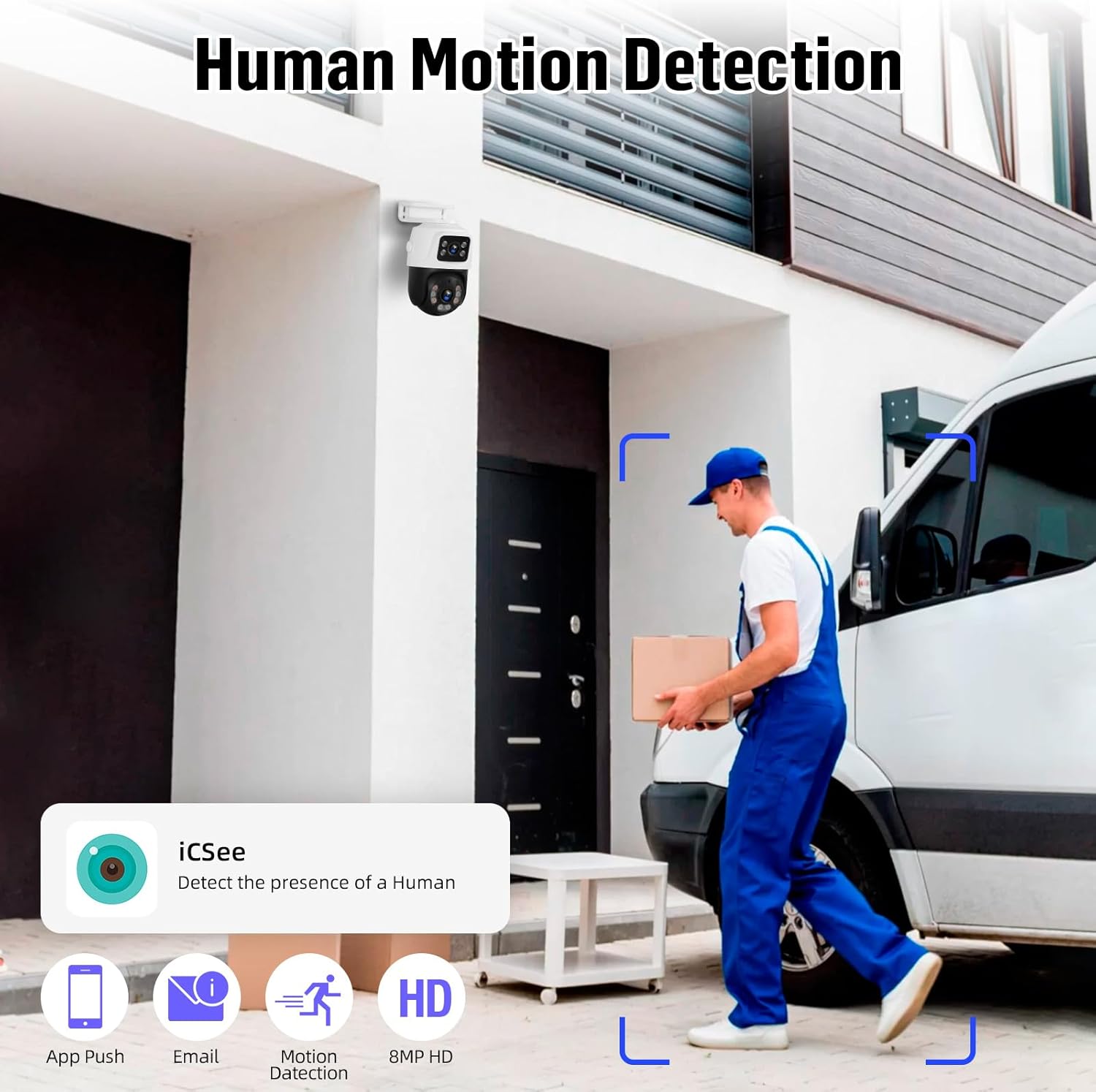
Image: Detailed view of the NVR's rear panel showing ports for power, network, VGA, HDMI, USB, and camera inputs. Also shows the camera's network port.
3.2 Mobile App Setup
- Download App: Download the "iCSee" or "XMEye" app from your mobile device's app store (iOS or Android).
- Scan QR Code: Open the app and scan the QR code displayed on the NVR's monitor to add your device.
- Live View: Once connected, you can view live footage, access recordings, and configure settings remotely.

Image: Diagram illustrating the simple connection for remote access, showing the camera system connected to a router, and a smartphone and PC accessing the live view via the iCSee app and VMS client.
4. Operating Instructions
4.1 24/7 Recording and Storage
The NVR comes with a pre-installed 1TB HDD, enabling continuous 24/7 recording. The system supports up to 8TB of storage, allowing for extended recording periods without monthly fees. Recorded videos can be played back through the mobile app or PC client.

Image: Illustration showing the NVR connected to a monitor displaying multiple camera feeds, highlighting support for 24/7 recording with a built-in 1TB HDD and expandability up to 8TB.
4.2 Smart Person Detection and Alerts
The PoE IP cameras feature smart person detection, which minimizes false alarms by distinguishing human figures from other moving objects like bugs or leaves. When a suspicious motion is detected, the system can trigger spotlights and sirens, and send push notifications or email alerts to your device.

Image: A security camera detecting a person, with a smartphone displaying an alert. This illustrates the smart person detection and instant alert features.

Image: A security camera illuminating an intruder at night, with text explaining smart light alerts and notifications for real-time communication.
4.3 Two-Way Audio
Each camera is equipped with a built-in microphone, enabling two-way audio communication. This allows you to listen to the surroundings and speak through the camera, which is useful for interacting with visitors or deterring intruders.

Image: A person speaking into a smartphone, and a delivery person at a door, illustrating the two-way audio communication feature of the camera system.
4.4 Dual-Lens and Auto Tracking
The cameras feature a dual-lens design: one fixed wide-angle lens for a general overview and one Pan/Tilt (PT) lens. The PT lens offers 270° pan and 90° tilt maneuverability. When motion is detected, the PT camera can automatically track the subject while the fixed lens maintains a broader view.

Image: Illustration of the dual-lens camera system, showing how one lens provides a fixed wide-angle view while the other offers Pan/Tilt capabilities for tracking.

Image: A security camera demonstrating its 270-degree pan and 90-degree tilt capabilities, tracking a moving figure across a wide outdoor area.
4.5 Night Vision
The cameras provide advanced night vision capabilities, including both infrared night vision for clear black-and-white footage in low light and full-color night vision when sufficient ambient light or the camera's spotlights are active.

Image: A split image showing the difference between infrared night vision (black and white) and full-color night vision, demonstrating the camera's low-light performance.
5. Maintenance
Regular maintenance ensures optimal performance and longevity of your security system.
- Clean Lenses: Periodically clean camera lenses with a soft, dry cloth to remove dust and smudges that may affect image clarity.
- Check Connections: Ensure all network cables and power connections are secure and free from damage.
- Software Updates: Check for and install any available firmware updates for the NVR and cameras to ensure the latest features and security patches.
- Hard Drive Health: Monitor the NVR's hard drive health through the system settings to prevent data loss.
- Environmental Protection: While cameras are IP66 waterproof, avoid direct high-pressure water jets and ensure proper installation to prevent water ingress.

Image: A security camera shown with rain falling, indicating its IP66 waterproof rating and suitability for various weather conditions.
6. Troubleshooting
If you encounter issues with your Fuers security camera system, refer to the following common troubleshooting steps:
- No Video Display:
- Ensure the NVR is powered on and connected to the monitor correctly (HDMI/VGA).
- Check if cameras are properly connected to the NVR's PoE ports.
- Verify network cables are securely plugged in.
- No Remote Access:
- Confirm the NVR is connected to your router and has internet access.
- Check your mobile device's internet connection.
- Ensure the iCSee/XMEye app is updated to the latest version.
- Re-scan the device QR code in the app if connection issues persist.
- Poor Image Quality:
- Clean camera lenses.
- Adjust camera position or angle if there are obstructions.
- Check network cable quality and length; long or damaged cables can affect video transmission.
- False Alarms:
- Adjust the sensitivity level for person detection in the NVR or app settings.
- Define specific detection areas to exclude irrelevant zones.
7. Specifications
| Feature | Specification |
|---|---|
| Product Dimensions (NVR) | 10 x 9.4 x 1.7 inches (256mm x 240mm x 44mm) |
| Item Weight (NVR) | 12.69 pounds |
| Model Number | Fuers-8CH-PoE-NVR |
| Connectivity Technology | Ethernet, HDMI, VGA |
| Compatible Devices | Camera, Smartphone, Tablet |
| Memory Storage Capacity | 1 TB (Pre-installed), expandable up to 8 TB |
| Camera Resolution | 6MP (8MP NVR support) |
| Camera Pan/Tilt | Pan 270°, Tilt 90° |
| Waterproof Rating | IP66 |

Image: Technical drawing showing the dimensions of both the NVR unit and the dual-lens PTZ camera.
8. Warranty and Support
For warranty information and technical support, please refer to the official Fuers website or contact their customer service. Keep your purchase receipt for warranty claims.
Online resources and FAQs may also be available on the manufacturer's support pages.

