1. Product Overview
The Krysenix KGH2 Gaming Headset is designed to provide an immersive audio experience for gaming. It features stereo surround sound, an adjustable noise-canceling microphone, and comfortable ergonomic design for extended use. This manual provides instructions for setup, operation, maintenance, and troubleshooting to ensure optimal performance of your headset.
2. Package Contents
Please check the package for the following items:
- Krysenix KGH2 Gaming Headset (1 unit)
3. Key Features
- Stereo Surround Sound Quality: Delivers clear and immersive audio for an enhanced gaming experience.
- Adjustable Noise-Canceling Microphone: Ensures clear voice communication by reducing background noise.
- Comfortable Ergonomic Headset Design: Designed for long gaming sessions with soft earcups and an adjustable headband.
- Multi-Platform Compatibility: Compatible with various devices, primarily designed for PC.
- Dynamic Soft LED Lighting: Adds aesthetic appeal with integrated LED lights.
4. Setup Guide
4.1 Connecting the Headset
The KGH2 Gaming Headset uses a wired connection. It features a 3.5mm audio jack for sound and microphone, and a USB connector for LED lighting.
- Connect the 3.5mm Audio Jack: Plug the 3.5mm audio jack into the corresponding audio port on your PC. This port is typically marked with a headphone icon or green color for audio output, and a microphone icon or pink color for microphone input. If your PC has a single combined audio jack, you may need a Y-splitter (not included).
- Connect the USB Connector: Plug the USB connector into an available USB port on your PC. This connection powers the headset's LED lighting. The headset will function for audio and microphone without the USB connection, but the LED lights will not illuminate.
4.2 Adjusting the Microphone
The microphone is adjustable for optimal positioning and clarity.
- Gently bend the flexible microphone boom to position it approximately 1-2 inches (2.5-5 cm) from your mouth.
- Ensure the microphone is not directly in front of your mouth to avoid breath noises, but close enough to capture your voice clearly.
4.3 Wearing the Headset
Adjust the headband to fit comfortably over your head. The earcups are designed to fully cover your ears for optimal sound isolation and comfort.
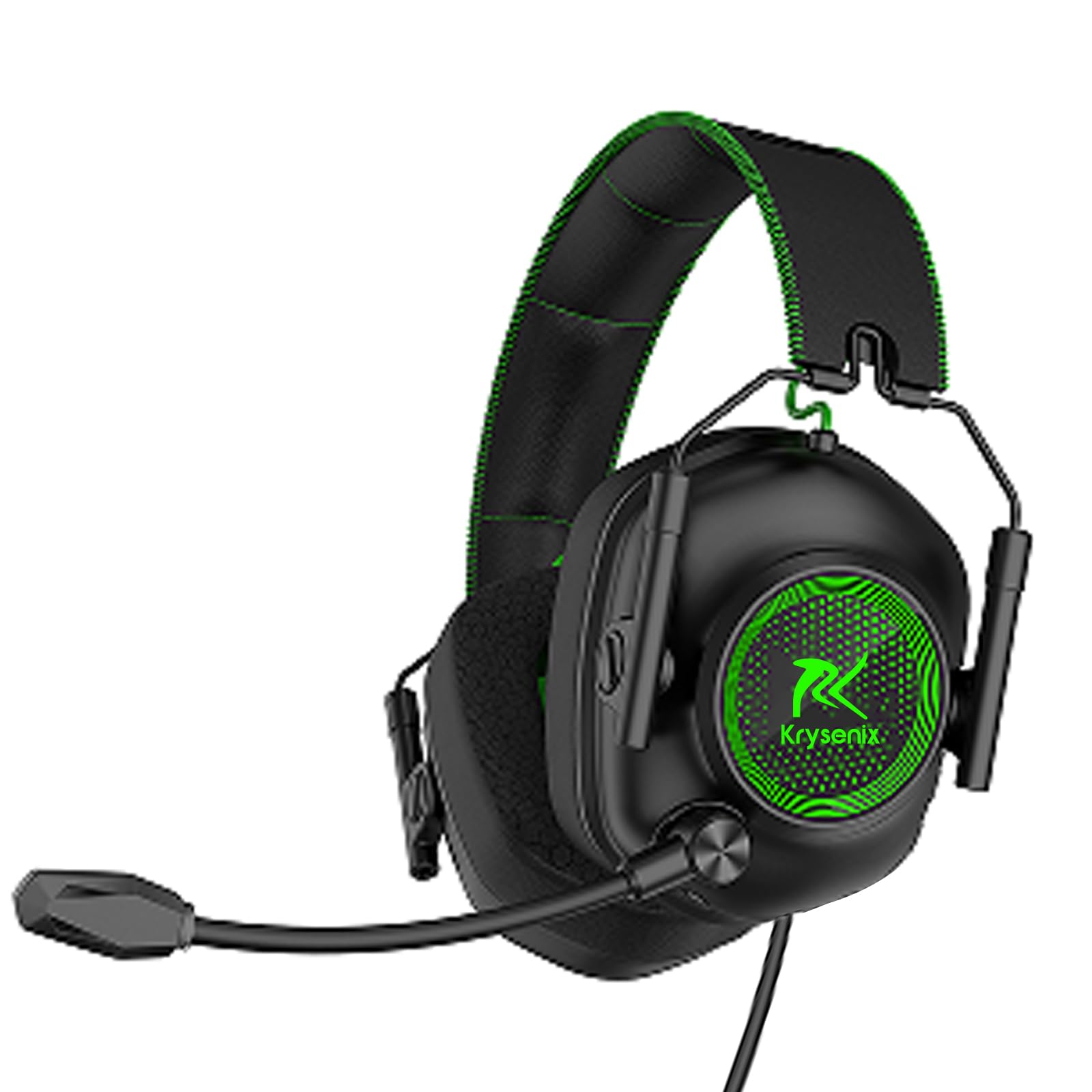
Image: Krysenix KGH2 Gaming Headset. This image displays the overall design of the headset, including the earcups, headband, and microphone boom. The headset is green with black accents.
5. Operating Instructions
5.1 Volume Control
The headset features an in-line volume control wheel on the cable. Rotate the wheel up to increase volume and down to decrease volume.
5.2 Microphone Mute
An in-line switch on the cable allows you to mute or unmute the microphone. Slide the switch to the 'OFF' position to mute the microphone and to the 'ON' position to unmute it.
5.3 LED Lighting
The dynamic soft LED lighting activates automatically when the USB connector is plugged into a powered USB port. There are no separate controls for the LED lighting; it is either on (when USB is connected) or off (when USB is disconnected).
6. Maintenance and Care
Proper care will extend the life of your Krysenix KGH2 Gaming Headset.
- Cleaning: Use a soft, dry cloth to wipe down the headset. For stubborn dirt, a slightly damp cloth can be used, but ensure no moisture enters the speaker grilles or microphone. Do not use harsh chemicals or abrasive cleaners.
- Storage: Store the headset in a cool, dry place away from direct sunlight and extreme temperatures. Avoid placing heavy objects on the headset.
- Cable Care: Avoid sharply bending or twisting the cable. Do not pull on the cable to disconnect the headset; always grasp the plug.
7. Troubleshooting
If you encounter issues with your headset, refer to the following common solutions:
7.1 No Sound from Headset
- Ensure the 3.5mm audio jack is fully inserted into the correct audio output port on your PC.
- Check the in-line volume control wheel on the headset cable and ensure it is turned up.
- Verify your PC's audio settings. Ensure the headset is selected as the default playback device and the system volume is not muted.
- Test the headset on another device to rule out a device-specific issue.
7.2 Microphone Not Working
- Ensure the 3.5mm audio jack is fully inserted into the correct microphone input port on your PC.
- Check the in-line microphone mute switch and ensure it is in the 'ON' (unmuted) position.
- Verify your PC's sound settings. Ensure the headset microphone is selected as the default recording device and its input volume is not muted or set too low.
- Ensure the microphone boom is properly positioned.
7.3 LED Lights Not Illuminating
- Ensure the USB connector is fully plugged into a functional USB port on your PC.
- Try plugging the USB connector into a different USB port.
- Verify that the USB port is providing power.
8. Specifications
| Feature | Detail |
|---|---|
| Model Name | KGH2 |
| Connectivity Technology | Wired |
| Wireless Communication Technology | NO |
| Included Components | Gaming Headset * 1 |
| Age Range (Description) | Kid Teen Adult |
| Material | Plastic |
| Specific Uses For Product | Gaming |
| Compatible Devices | for PC |
| Unit Count | 1.0 Count |
| Audio Driver Type | Dynamic Driver |
| Earpiece Shape | Over Ear |
| Hardware Interface | 3.5mm Audio |
| UPC | 791126894146 |
| Input Device Interface | USB |
| Noise Control Features | Noise Cancellation |
| Supports Bluetooth Technology | No |
| Special Feature | Noise Cancellation, Surround Sound, LED Lighting |
| Manufacturer | Shenzhen Xintaiyang Technology Co., Ltd |
| Product Dimensions | 8.66 x 8.27 x 3.86 inches |
| ASIN | B0DHGTXRJV |
| Item model number | KGH2 |
| Date First Available | September 19, 2024 |
| Brand | Krysenix |
| Color | Green |
| Ear Placement | Over Ear |
| Form Factor | Over Ear |
| Headphones Jack | 3.5 mm Jack |
9. Warranty and Support
Warranty information for the Krysenix KGH2 Gaming Headset is not provided in this manual. For details regarding warranty coverage, terms, and conditions, please refer to the product packaging or contact Krysenix customer support directly.
For technical support, troubleshooting assistance beyond what is covered in this manual, or to inquire about replacement parts, please visit the official Krysenix website or contact their customer service department.
