
1. Introduction
The Thermal Master P2 Pro is a compact, high-performance thermal imaging camera designed for use with Android smartphones and tablets. It provides advanced infrared capabilities for various applications, from home inspections to electronics repair. This manual provides essential information for setting up, operating, maintaining, and troubleshooting your P2 Pro thermal camera.
Key features include:
- Ultra-compact design, weighing only 9g.
- Advanced IR core with 256x192 resolution, enhanced to 512x384 with "Razor X" algorithm.
- High thermal sensitivity, detecting temperature changes as small as 0.04℃.
- Magnetic macro lens for observing objects as small as 0.25mm from 4cm.
- Wide temperature measurement range: -20℃ to 600℃ (-4℉ to 1112℉).
- High accuracy of ±2℃ for PCB measurements.
- Smooth 25 Hz frame rate for real-time thermal imaging.
- 15x digital zoom capability.
- Low power consumption of 0.33W, powered directly by your Android device.

Figure 1: The Thermal Master P2 Pro, highlighting its compact size and light weight of 9g.
2. Setup
2.1 Device Compatibility
The P2 Pro thermal camera is compatible with Android devices running Android 7 to Android 15. Please note that this version is not compatible with iPhone devices, including iPhone 15/Pro models.
2.2 App Installation
- Download the Thermal Master App: Search for "Thermal Master" in the Google Play Store on your Android device.
- Install the App: Follow the on-screen instructions to install the application.
- Troubleshooting App Installation: If you encounter issues with the Play Store version, it may be necessary to obtain a direct download link from Thermal Master support. Refer to the Support section for contact information.

Figure 2: Thermal Master App installation screen on an Android smartphone.
2.3 Connecting the Camera
- Ensure the Thermal Master app is installed and open on your Android device.
- Carefully plug the P2 Pro camera into the USB-C port of your Android smartphone or tablet.
- The camera will draw power directly from your device and should be recognized by the app automatically.
3. Operating Instructions
3.1 Basic Operation
Once connected and the app is running, the thermal image will be displayed on your device's screen. The app interface provides various tools for analysis and customization.

Figure 3: Thermal imaging interface on an Android smartphone.
3.2 Image Resolution and Clarity
The P2 Pro utilizes a 256x192 IR sensor, which is enhanced to 512x384 super resolution using the proprietary "Razor X" algorithm. This provides clear and detailed thermal images.

Figure 4: Comparison of standard vs. super IR resolution.
3.3 Macro Lens Usage
Attach the magnetic macro lens to the P2 Pro for detailed observation of small components. This allows for clear visualization of objects as small as 0.25mm, such as resistors on a circuit board, from a distance of 4cm.
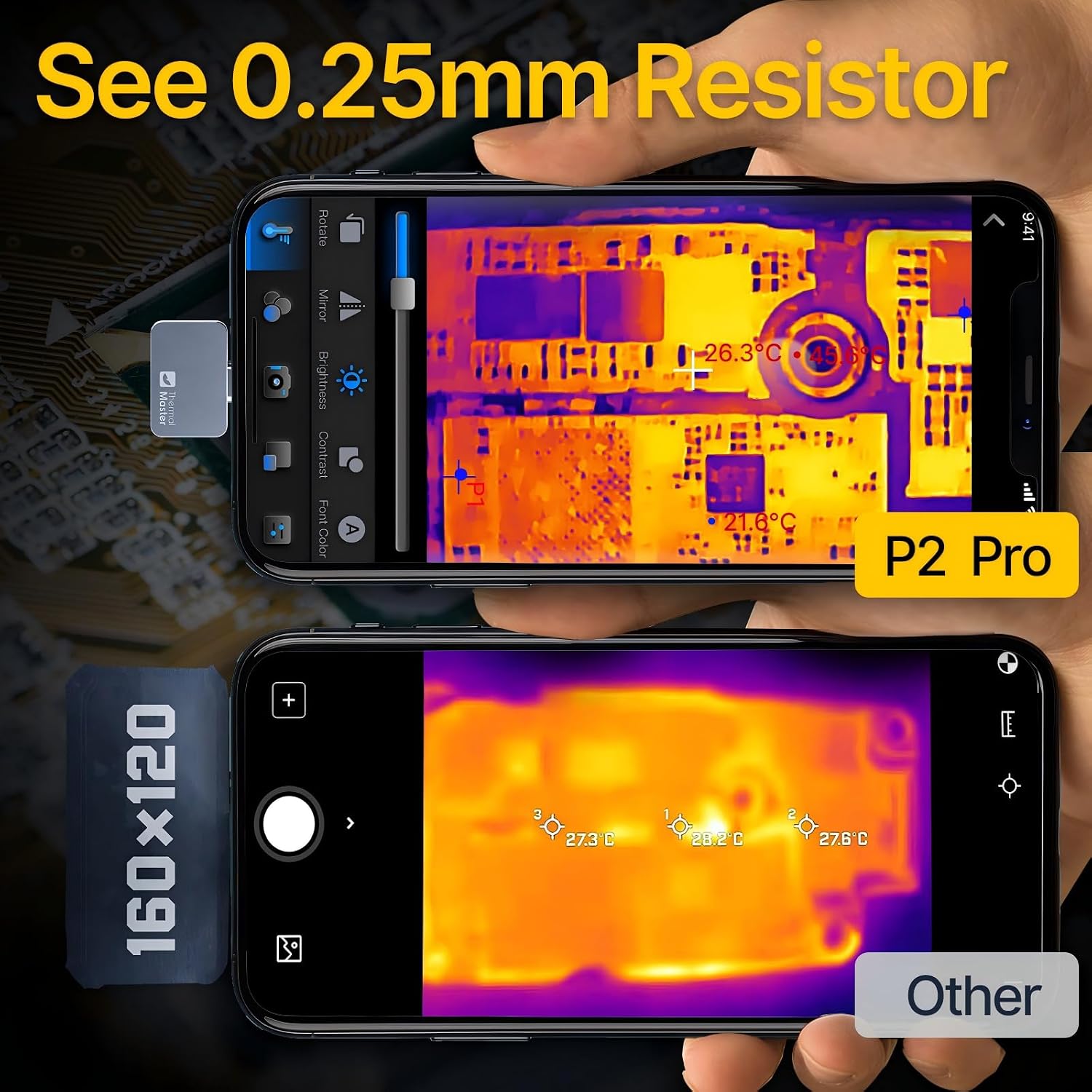
Figure 5: Detailed thermal imaging of a circuit board using the macro lens.
3.4 Temperature Measurement and Analysis
- Measurement Tools: The app allows you to define multiple measurement points, lines, areas, and circles to analyze temperature distribution.
- Temperature Range: The camera measures temperatures from -20℃ to 600℃ (-4℉ to 1112℉).
- Accuracy: Provides ±2℃ accuracy, particularly useful for PCB inspections.
- Alarms: Set high and low-temperature alarms to be notified of critical temperature thresholds.
- Environmental Parameters: Adjust over 50 environmental parameters within the app to ensure accurate measurements in various conditions.

Figure 6: P2 Pro temperature measurement range illustration.
3.5 Zoom Functionality
Utilize the 15x digital zoom by pinching the screen with two fingers. This allows for closer inspection of thermal anomalies from a distance.

Figure 7: Demonstrating the 15x zoom feature on the P2 Pro app.
3.6 Color Palettes and Customization
The app offers 12 different color palettes to visualize thermal data. You can also create custom "DIY" color bars to highlight specific temperature ranges relevant to your inspection.

Figure 8: Multiple color palettes available in the Thermal Master app.
3.7 Data Reporting
The app allows for data reporting, enabling you to save and analyze measurement results. This is useful for documentation and further analysis.

Figure 9: Example of data reporting within the Thermal Master app.
4. Maintenance
To ensure the longevity and optimal performance of your Thermal Master P2 Pro camera, follow these maintenance guidelines:
- Cleaning: Gently wipe the camera lens and body with a soft, dry, lint-free cloth. Avoid using abrasive materials or harsh chemicals, which can damage the lens coating or housing.
- Storage: Store the camera in a cool, dry place, away from direct sunlight and extreme temperatures. Use the provided protective casing when not in use.
- Handling: The P2 Pro is a sensitive electronic device. Avoid dropping it or subjecting it to strong impacts.
- Software Updates: Regularly check for updates to the Thermal Master app to ensure you have the latest features and performance improvements.
5. Troubleshooting
If you encounter issues with your Thermal Master P2 Pro, refer to the following common troubleshooting steps:
- Camera Not Detected:
- Ensure the camera is securely plugged into your Android device's USB-C port.
- Verify that your Android device is running Android 7 or higher.
- Restart the Thermal Master app and reconnect the camera.
- Check if your phone's USB-C port is functioning correctly with other devices.
- App Not Functioning Correctly:
- Ensure you have the latest version of the Thermal Master app installed.
- Clear the app's cache and data in your phone's settings, then restart the app.
- If the app from the Play Store is problematic, contact Thermal Master support for an alternative download link.
- Poor Image Quality or Inaccurate Readings:
- Ensure the camera lens is clean and free from dust or smudges.
- Adjust the focus, brightness, and contrast settings within the app.
- Verify that the correct environmental parameters are set in the app for your measurement conditions.
- Ensure the macro lens is properly attached if you are performing close-up inspections.
- Excessive Phone Battery Drain:
- While the P2 Pro has low power consumption (0.33W), continuous use will consume your phone's battery. Consider carrying a portable power bank for extended use.
6. Specifications
| Feature | Specification |
|---|---|
| Manufacturer | Thermal Master |
| Model Number | P2 Pro Android |
| Product Dimensions | 2.6 x 0.9 x 2.7 cm |
| Weight | 10 g |
| IR Resolution | 256 x 192 |
| Super IR Resolution | 512 x 384 (via Razor X algorithm) |
| Temperature Range | -20℃ to 600℃ (-4℉ to 1112℉) |
| Accuracy | ±2℃ (for PCB) |
| Frame Rate | 25 Hz |
| Digital Zoom | 15x |
| Power Consumption | 0.33 W |
| Compatibility | Android 7-15 (Not compatible with iPhone 15/Pro) |
| Macro Lens | Included, for 0.25mm resistor observation at 4cm |
7. Warranty and Support
For warranty information, technical support, or any product-related inquiries, please contact Thermal Master Official. You can typically find contact details within the Thermal Master app under the 'Customer Service' section or on the official Thermal Master website.
It is recommended to register your product, if applicable, to ensure you receive timely updates and support.


