
1. Introduction and Overview
The OBO HANDS Wireless Bluetooth TTLock APP Access Control System is a robust and versatile door entry solution designed for enhanced security and convenience. This metal stand-alone keypad offers multiple unlocking methods including fingerprint, password, IC card, and remote access via the TTLock mobile application. It operates on a DC12V system with a 13.56MHz IC frequency and features a backlight for visibility in low-light conditions.
2. Product Features
- Multiple Unlocking Methods: Supports 100 fingerprints, 1000 IC cards, and 250 passwords.
- TTLock APP Control: Remote unlocking, public password setting, modification and deletion of user credentials (fingerprints, passwords, IC cards). Share control with others and view access logs.
- Enhanced Security: Constructed with a strong zinc alloy shell, featuring anti-vandal, anti-strong magnet unlocking, anti-duplicate card technology, and a semiconductor biometric fingerprint sensor.
- System Integration: Compatible with door magnetic switches, exit buttons, all electric locks, alarms, and garage door/sliding door openers.
- Backlight: Keypad includes a backlight for easy operation in the dark.
- Wide Application: Suitable for garages, hotels, shops, warehouses, laboratories, school campuses, and other private spaces requiring controlled access.
3. Package Contents
Please verify that all items listed below are included in your package:
- 1 x OBO HANDS Access Control Keypad (Fingerprint Machine)
- 10 x IC Keyfobs (Blue)
- Mounting Hardware (screws, anchors)
- User Manual

Image: Access Control Keypad and included IC Keyfobs.
4. Setup and Installation
This section provides instructions for wiring and initial setup of your access control system. Please ensure the power supply, electric locks, and exit button are not included in the package and must be purchased separately.
4.1 Wiring Diagram

Image: Wiring Diagram for the Access Control System.
Follow the diagram carefully to connect the access controller to your power supply, electric locks, and exit button. Ensure all connections are secure and correct before applying power.
4.2 TTLock APP Setup
The TTLock app is essential for managing your access control system. Follow these steps to set up the app and pair your device:
- Download the TTLock APP from your phone's app store.
- Turn on Bluetooth on your mobile phone.
- Open the TTLock APP.
- Light up the keypad lights by pressing any key to start pairing.
- In the app, click "Add" to connect with available devices.
- Select "Door Lock" as the device type.
- Click "Next" and wait for the app to find your device.
- Once found, click "Add" and then "OK" to confirm.
- Assign a name for your device.

Image: TTLock APP Setting Instructions.
Video: Operation Video of Keypad. This video demonstrates the process of adding the keypad to the TTLock app, remote unlocking, setting various password types, adding RFID cards and fingerprints, and configuring advanced settings like two-factor authentication and passage mode.
5. Operating Instructions
Your OBO HANDS access control system offers multiple ways to unlock and manage access. This section details how to use each method and configure various settings.
5.1 Unlocking Methods Overview

Image: Multiple Ways to Access the System.
- Fingerprint: Place your registered finger on the sensor.
- Password: Enter your 6-digit password followed by '#'.
- IC Card: Swipe your registered IC card over the keypad.
- TTLock APP: Use the app for remote unlocking and management.
5.2 Fingerprint Recognition
The system features 360-degree comprehensive fingerprint recognition for fast identification.
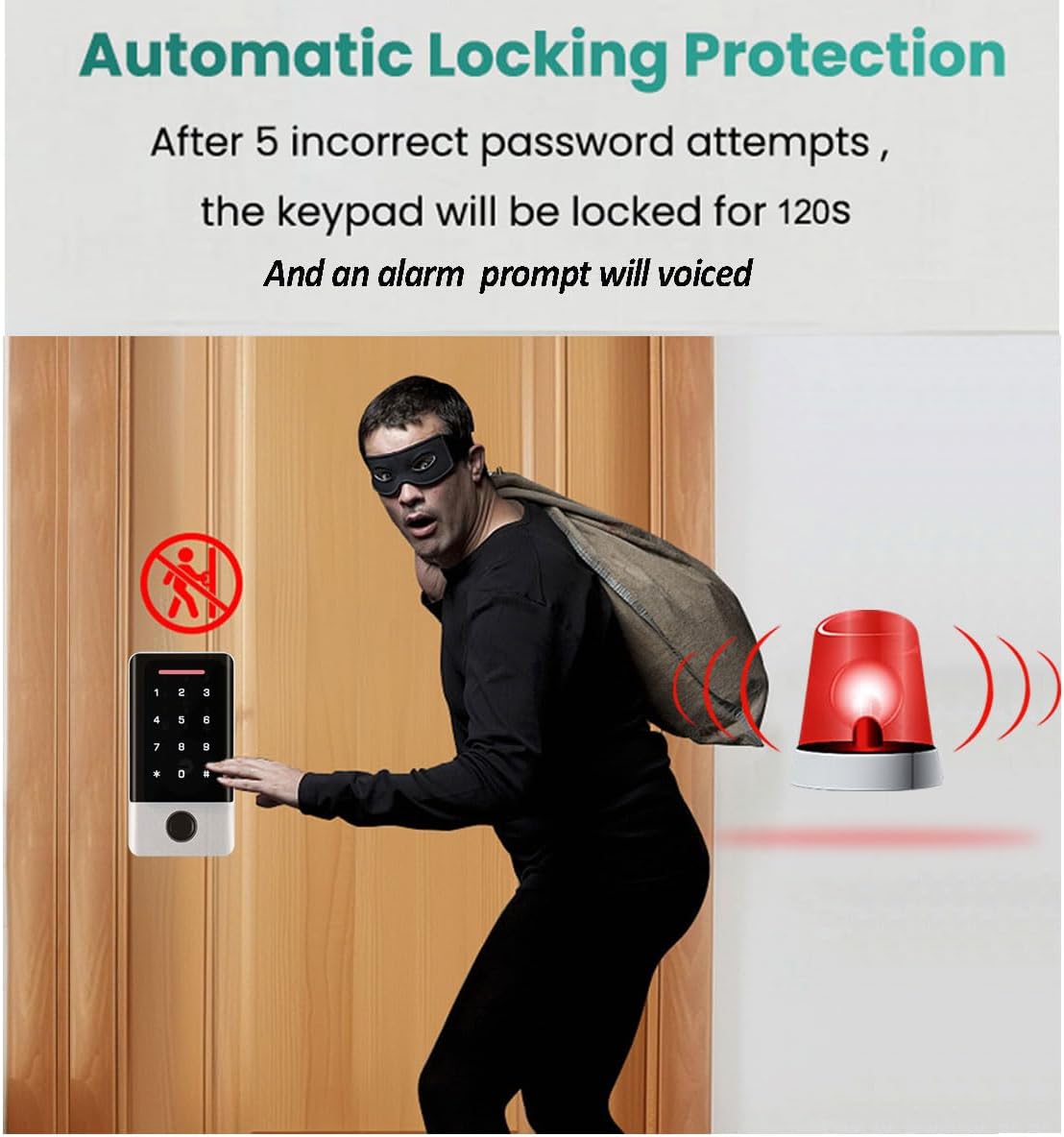
Image: Fingerprint Recognition.
5.3 TTLock APP Functions
The TTLock app provides comprehensive control and monitoring capabilities.

Image: Phone Control Keypad via TTLock App.

Image: Full App Control.

Image: Manage Access Log Anywhere.
5.3.1 Remote Unlocking/Locking
In the TTLock app, click and hold the lock icon to remotely unlock or lock the keypad.
5.3.2 Setting Passwords
You can set different types of passwords via the app:
- Permanent Password: This password must be used at least once within 24 hours from the current time, or it will be suspended for security reasons.
- Timed Password: This password can be used for unlimited times within a specified validity period. It must also be used at least once within 24 hours from the current time to remain active.
- One-time Password: This password can only be used once and must be used within 6 hours from the current time, or it will be suspended.
5.3.3 Adding RFID Cards
To add a permanent RFID card:
- In the TTLock app, navigate to the "Cards" section.
- Click "Card Add" and select "Permanent".
- Enter a name for the card and click "OK".
- Swipe the IC card on the access control keypad when prompted.
- Click "Done" in the app.
5.3.4 Adding Fingerprints
To add a permanent fingerprint:
- In the TTLock app, navigate to the "Fingerprints" section.
- Click "Add Fingerprint" and select "Permanent".
- Enter a name for the fingerprint and click "Next".
- Place your finger on the keypad's sensor multiple times as prompted by the app until successful.
5.3.5 Scenario Reminder Function
The app includes a "Scenario Reminder" function to notify you about events such as family members arriving home, no door opening for a set number of days, forced door opening, or low battery.
5.3.6 Add Authorized Admin
You can authorize other users as administrators with specific permissions via the app.
5.3.7 Viewing Access Records
Click on the "Records" section in the app to view a query of all door opening and locking events.
5.3.8 Two-Factor Authentication
Enable or disable two-factor authentication in the app's settings for an additional layer of security.
5.3.9 Passage Mode
Passage Mode allows the door to remain unlocked during specific time periods (e.g., business hours). Configure this in the app's settings. When Passage Mode is active, the lock will remain in an open state after being unlocked.
5.3.10 Tamper Alert Function
Turn the Tamper Alert function on or off in the app settings. When enabled, the system will trigger an alarm if tampering is detected.
5.3.11 Privacy Lock Function
Enable or disable the Privacy Lock function in the app settings. When enabled, the lock can be secured from the inside by pressing a specific button for 3 seconds, preventing external access even with valid credentials.
5.3.12 Lock Sound Function
Adjust the lock sound volume (Low, Medium Low, Medium, Medium High, High) in the app settings.
5.3.13 Deleting a Mobile Administrator
To delete a mobile administrator:
- Select the lock you want to manage in the TTLock app.
- Go to "Settings".
- Scroll down and click "Delete".
- Enter your account password to confirm.
Note: After an administrator is deleted from the app, the lock is restored to factory settings, and all fingerprints, passwords, and cards added before are invalidated.
6. Maintenance
To ensure the longevity and optimal performance of your OBO HANDS access control system, follow these maintenance guidelines:
- Cleaning: Regularly wipe the keypad and fingerprint sensor with a soft, dry cloth. Avoid using abrasive cleaners, solvents, or harsh chemicals that could damage the surface or electronic components.
- Environmental Protection: While the keypad is designed for durability, avoid exposing it to extreme temperatures, direct sunlight for prolonged periods, or excessive moisture.
- Wiring Inspection: Periodically check the wiring connections to ensure they are secure and free from corrosion or damage.
- Software Updates: Keep the TTLock app updated to the latest version to benefit from new features, security enhancements, and bug fixes.
7. Troubleshooting
If you encounter issues with your access control system, refer to the following common problems and solutions:
- Keypad Not Responding: Check the power supply connections. Ensure the DC12V system is providing adequate power.
- Incorrect Password Attempts Alarm: After 5 incorrect password attempts, the keypad will lock for 120 seconds and an alarm will sound. Wait for the lockout period to end before trying again.
- Fingerprint/IC Card Not Recognized: Ensure your finger is clean and dry, and placed correctly on the sensor. For IC cards, ensure they are properly swiped over the designated area. Verify that the fingerprint or card is correctly registered in the TTLock app.
- App Connectivity Issues: Ensure Bluetooth is enabled on your phone and the keypad is within range. Restart the TTLock app or your phone if necessary. Check for app updates.
- Remote Unlocking Not Working: Verify that the remote unlock feature is enabled in the TTLock app settings. Ensure your phone has an active internet connection if using remote unlock via a gateway (gateway sold separately).
- Lock Not Engaging/Disengaging: Check the physical connection to the electric lock. Ensure there are no obstructions preventing the lock mechanism from operating freely.

Image: Automatic Locking Protection.
If the problem persists after attempting these solutions, please contact customer support.
8. Specifications
| Specification | Detail |
|---|---|
| Brand | OBO HANDS |
| Model | B0DHGRCQ6P |
| Color | Black |
| Material | Metal |
| Voltage | 12 Volts (DC12V) |
| IC Frequency | 13.56MHz |
| Fingerprint Capacity | 100 |
| IC Card Capacity | 1000 |
| Password Capacity | 250 |
| Item Weight | 0.3 Kilograms |
9. Warranty and Support
OBO HANDS products undergo rigorous quality testing to ensure reliability, durability, and compliance with industry standards.
9.1 Customer Support
For any questions or issues, please contact our support team:
- WhatsApp: +86 177 2255 8183 (Mon-Sun 24/7)
Our team is available to assist you with product inquiries, technical support, and troubleshooting.