
1. Introduction
This manual provides essential information for the proper setup, operation, and maintenance of your MAIWO Portable SSD 1TB External Solid State Drive. Please read this guide thoroughly before using the device to ensure optimal performance and longevity.
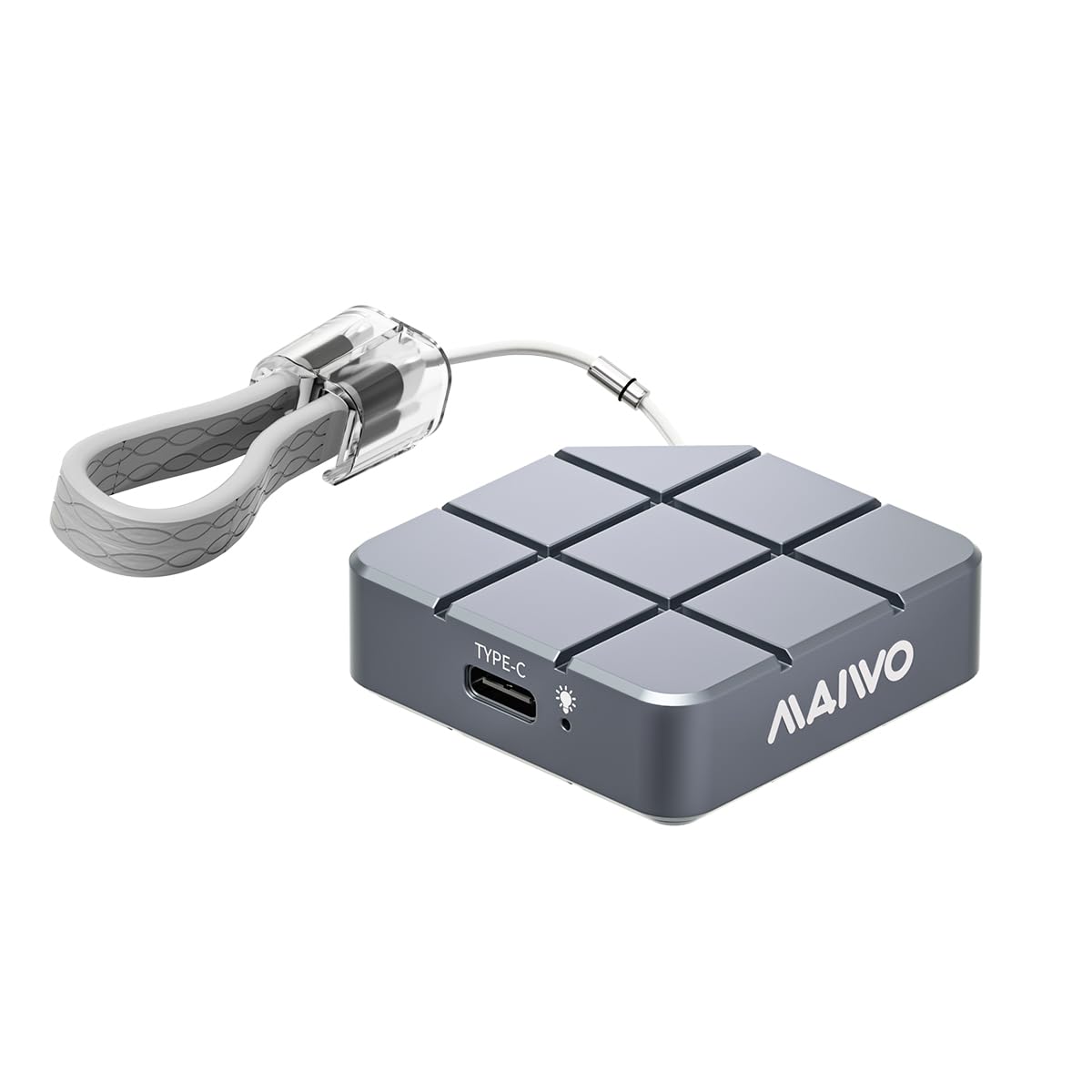
Figure 1: MAIWO Portable SSD 1TB External Solid State Drive.
2. Product Overview
2.1 Key Features
- Ultra-High-Speed Transmission: Equipped with USB 3.2/USB-C interface, offering read/write speeds up to 1050MB/s.
- Lightweight and Portable: Compact size, weighing less than 55g, designed for easy transport.
- Sturdy and Durable: Metal casing with shockproof, anti-drop, and dust-proof design.
- Large Capacity Options: Available in 256GB, 512GB, 1TB, and 2TB to suit various storage needs.
- Plug and Play: No additional drivers required for Windows, macOS, Android, and Linux systems.
- Wide Compatibility: Compatible with Android Phones, laptops, PS5/Xbox, and other devices.
- Efficient Heat Dissipation: CNC-processed aluminum alloy shell for rapid heat dissipation.
2.2 What's in the Box
- MAIWO Portable SSD (1TB)
- USB-C to USB-C Cable
- Quick Start Guide

Figure 2: The MAIWO Portable SSD connected via its USB-C cable, highlighting its 10Gbps transfer rate.
Video 1: An overview of the MAIWO USB-C External Portable SSD, demonstrating its compact size and connectivity.
3. Setup
The MAIWO Portable SSD is designed for immediate use with its plug-and-play functionality. No complex installation or driver downloads are typically required.
3.1 Connecting the SSD
- Locate the USB-C port on your device (computer, smartphone, tablet, gaming console).
- Connect one end of the provided USB-C cable to the MAIWO Portable SSD.
- Connect the other end of the USB-C cable to your device's USB-C port.
- The SSD should be automatically recognized by your operating system. A blue indicator light on the SSD will illuminate when connected and active.

Figure 3: The MAIWO Portable SSD featuring its integrated USB-C cable and a convenient lanyard loop for portability.
Video 2: An unboxing and initial setup demonstration of the MAIWO Portable SSD, showing its contents and how to connect it.
4. Operating Instructions
4.1 Data Transfer
Once connected, the MAIWO Portable SSD will appear as an external drive on your device. You can drag and drop files, copy and paste, or use your device's file management system to transfer data.
- For Computers (Windows/macOS/Linux): The SSD will appear in 'My Computer' or 'Finder'. Open the drive and transfer files as you would with any other external storage device.
- For Mobile Devices (Android/iOS): Use your device's file manager application (e.g., 'Files' app on iOS, 'My Files' on Android) to browse and transfer files to and from the SSD.
- For Gaming Consoles (PS5/Xbox): Connect the SSD to an available USB port. Follow your console's instructions for external storage setup to store games or media.
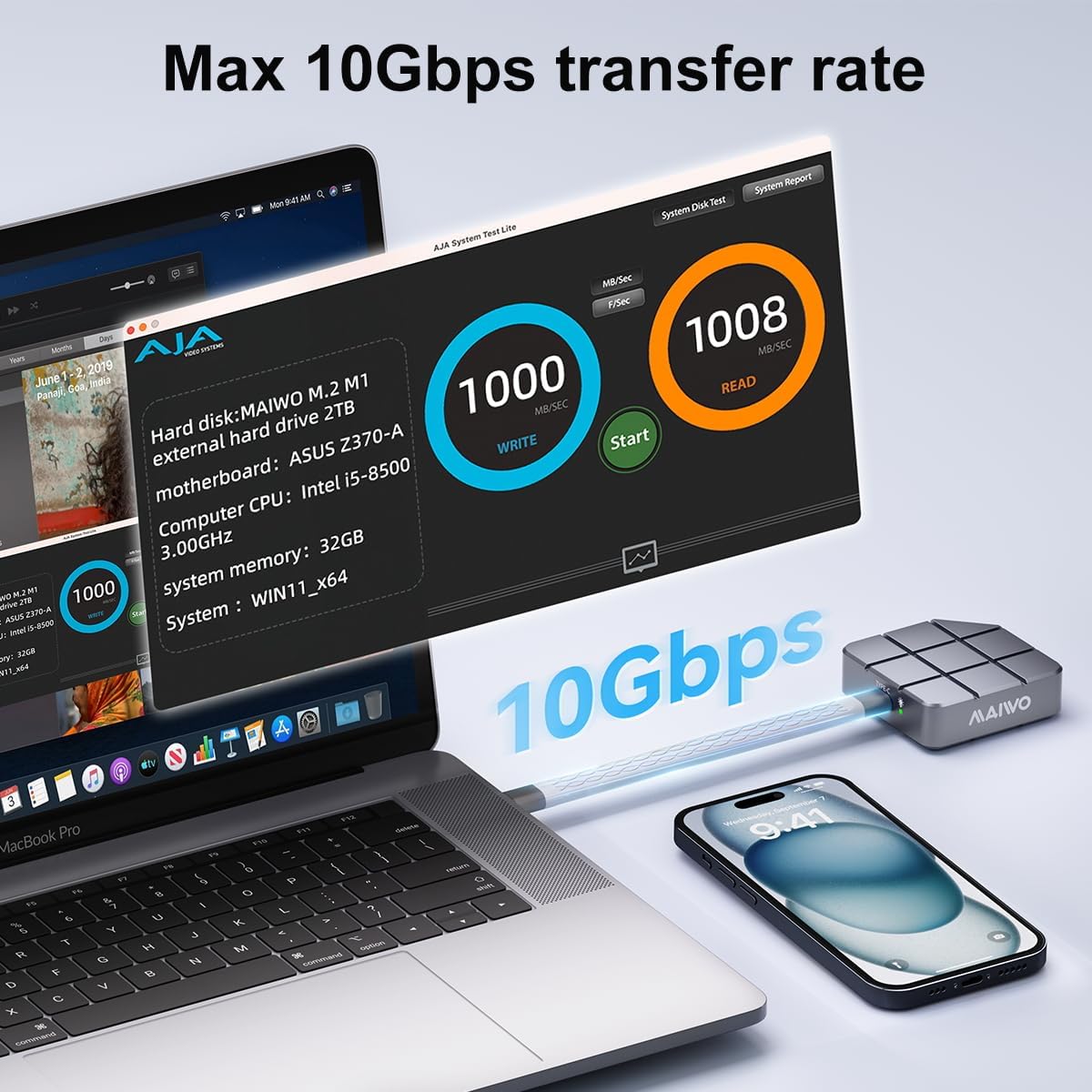
Figure 4: Speed test results on a MacBook Pro, demonstrating the MAIWO Portable SSD's high-speed data transfer capabilities.

Figure 5: The MAIWO Portable SSD connected to an iPhone, illustrating its use for expanding storage for photos and videos.
4.2 4K ProRes Video Recording
The MAIWO Portable SSD supports direct recording of high-definition videos, photos, and audio from compatible devices, such as iPhone 15 Pro and above. Connect the SSD to your iPhone's USB-C port and select the SSD as the storage destination within your camera application.

Figure 6: Demonstrating 4K ProRes video recording directly to the MAIWO Portable SSD using an iPhone.
5. Maintenance
To ensure the longevity and optimal performance of your MAIWO Portable SSD, follow these maintenance guidelines:
- Physical Care: The aluminum alloy casing provides durability and aids in heat dissipation. Avoid dropping the device or exposing it to extreme physical shock.
- Temperature: While designed for efficient heat dissipation, prolonged heavy use may cause the device to warm up. This is normal. Ensure adequate airflow around the device during operation.
- Cleaning: Use a soft, dry cloth to clean the exterior of the SSD. Avoid liquid cleaners or abrasive materials.
- Data Backup: Regularly back up important data stored on the SSD to another location to prevent data loss.
- Internal SSD: The internal SSD is not designed to be replaced, and the casing cannot be disassembled. Attempting to do so may void your warranty.

Figure 7: The MAIWO Portable SSD's aluminum alloy construction is designed for fast heat dissipation.
6. Troubleshooting
If you encounter issues with your MAIWO Portable SSD, refer to the following common solutions:
- SSD Not Recognized:
- Ensure the USB-C cable is securely connected to both the SSD and your device.
- Try connecting the SSD to a different USB-C port on your device.
- Test the SSD with a different compatible device to rule out device-specific issues.
- Restart your computer or device.
- Slow Transfer Speeds:
- Ensure your device's USB-C port supports USB 3.2 Gen 2 (10Gbps) for maximum speed. Older USB versions will result in slower speeds.
- Verify that the cable used is the original MAIWO cable or another high-quality USB 3.2 Gen 2 compatible cable.
- Close any unnecessary applications running in the background that might be consuming system resources.
- Device Gets Warm During Use:
- It is normal for the SSD to become warm during high-speed data transfers or prolonged use due to its aluminum casing acting as a heatsink. This indicates efficient heat dissipation.
- If the device becomes excessively hot and performance degrades, ensure it is not covered and has adequate ventilation.
- Data Corruption or Errors:
- Always safely eject the SSD from your device before disconnecting it to prevent data corruption.
- If issues persist, consider reformatting the drive (note: this will erase all data). Refer to your operating system's instructions for formatting external drives.
7. Specifications
| Feature | Detail |
|---|---|
| Digital Storage Capacity | 1 TB |
| Hard Disk Interface | USB 3.2 |
| Connectivity Technology | USB |
| Brand | MAIWO |
| Special Feature | Portable, Shock Resistant, USB 3.2/USB-C interface |
| Hard Disk Description | External Solid State Drive |
| Compatible Devices | Desktop, Gaming Console, Laptop, Android Phones, iPad, MacBook, PS5 |
| Installation Type | External Hard Drive |
| Color | Grey |
| Hard Disk Size | 1 TB |
| Read Speed | 1050 Megabytes Per Second |
| Data Transfer Rate | 10 Gigabits Per Second |
| Form Factor | Portable |
| Hardware Connectivity | USB 3.2 Gen 2 |
| Item Weight | 0.12 Pounds |
| Model Number | Portable ssd-1TB |
| Enclosure Material | Aluminum |
8. Warranty and Support
8.1 Warranty Information
The MAIWO Portable SSD comes with a 12-month warranty from the date of purchase. This warranty covers manufacturing defects and malfunctions under normal use. Please retain your proof of purchase for warranty claims.
8.2 Customer Support
For technical assistance, troubleshooting, or warranty inquiries, please contact MAIWO customer support through the official MAIWO website or your retailer's support channels. You may also refer to the Quick Start Guide included in your product packaging for additional contact information.
For more information about MAIWO products, visit the MAIWO Store on Amazon.