
1. Introduction
Thank you for choosing the INNOVAR L Shaped Glass Standing Desk. This manual provides essential information for the safe assembly, operation, and maintenance of your new adjustable height electric desk. Please read these instructions carefully before use and retain them for future reference.
2. Safety Information
- Always assemble the desk according to the provided instructions.
- Keep the desk away from heat sources.
- Do not place heavy objects on the edges to prevent tipping.
- Always use the desk within its maximum weight capacity of 220 pounds.
- Keep the work surface clear when adjusting the height to prevent obstructions.
- Ensure all cables are properly managed to avoid entanglement during height adjustments.
3. Package Contents
Your INNOVAR L Shaped Glass Standing Desk is delivered in two separate boxes to ensure safe transit. Please verify all components are present before beginning assembly.
Box 1: Desktop Components
- L-shaped glass desktop (63" x 55")
- Integrated dual-zone drawer (22.9" x 9")
- Multi-function keypad with LED display and wireless charging pad
Box 2: Frame and Hardware
- Dual electric motor frame (alloy steel)
- Legs and base components
- Adjustable feet (x6)
- Lockable swivel casters (x6, optional installation)
- Headphone hooks (x2)
- Cable management accessories
- Assembly hardware (screws, bolts, etc.)
- Assembly tools (screwdriver recommended, not included)
4. Setup and Assembly
Assembly requires approximately 2 people. A screwdriver is recommended for assembly (not included). Follow the detailed graphical instructions provided in the separate assembly guide.
4.1 Orientation
The L-shaped desktop can be assembled with the longer side on either the left or right, depending on your space and preference. Determine your desired orientation before attaching the desktop sections to the frame.

Image: Diagram illustrating the two possible L-shaped desk orientations: long side on the right or long side on the left.
4.2 Attaching the Frame and Desktop
- Carefully place the desktop upside down on a soft, clean surface to prevent scratches.
- Attach the dual motor frame to the desktop using the provided hardware. Ensure all screws are tightened securely, but avoid overtightening, especially when connecting to pre-installed inserts.
- Once the frame is attached, carefully flip the desk upright with the assistance of another person.
4.3 Installing Accessories
- Adjustable Feet/Casters: Choose to install either the adjustable feet for stationary use or the lockable swivel casters for mobility.
- Headphone Hooks: Attach the two hooks to the underside of the desk as desired for convenient storage.
- Cable Management: Utilize the included cable management accessories to organize power cords and data cables, ensuring they do not interfere with desk movement.
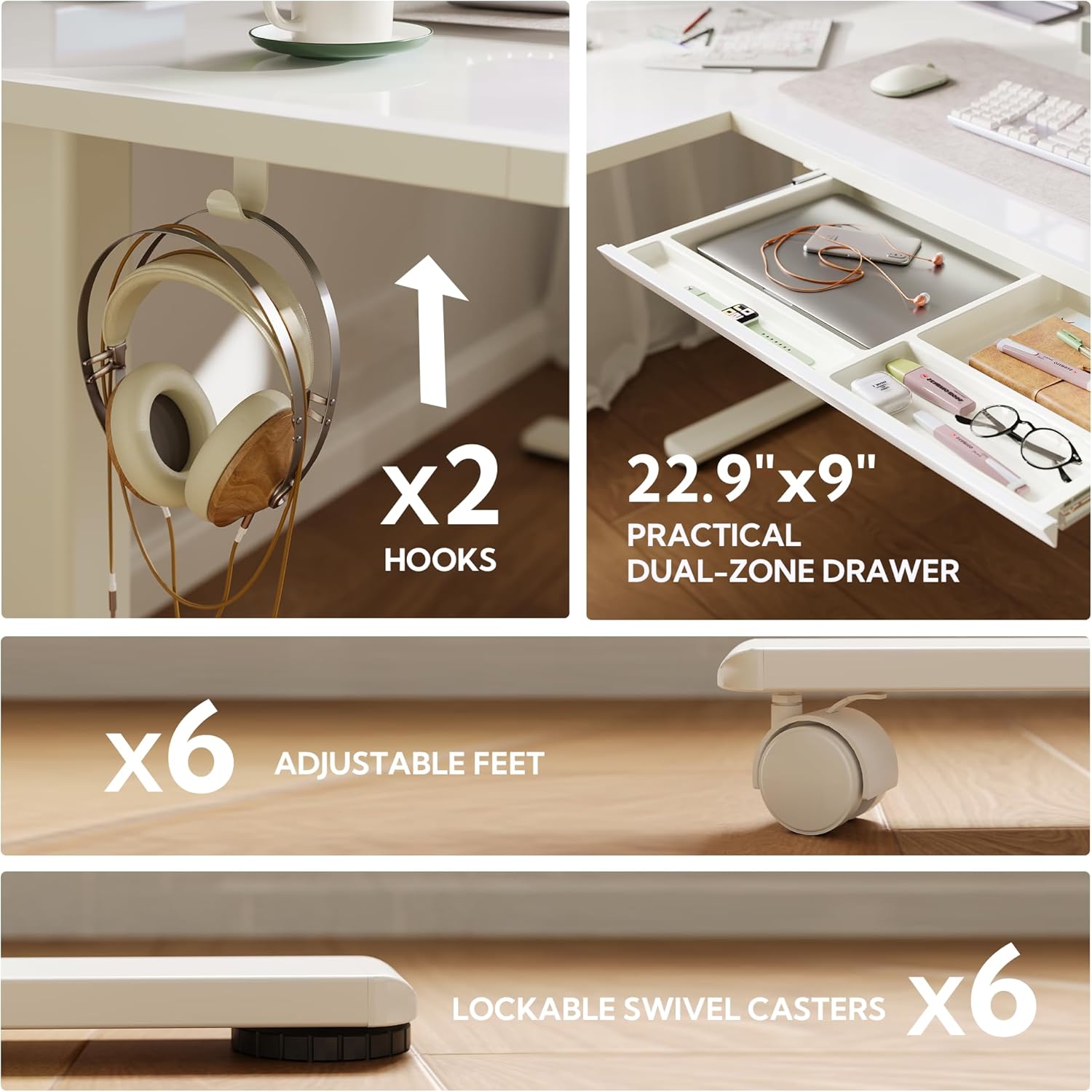
Image: Close-up view of the desk's practical features: two headphone hooks, a dual-zone drawer, six adjustable feet, and six lockable swivel casters.
5. Operating Instructions
Your INNOVAR standing desk features a multi-function keypad for easy height adjustment and memory presets.
5.1 Height Adjustment
- The desk's height can be adjusted from 28.3 inches (minimum) to 46.5 inches (maximum).
- Use the Up and Down arrows on the keypad to smoothly raise or lower the desk to your desired position. The current height is displayed on the LED screen.
- The dual motor system operates quietly, typically below 45 dB.

Image: Detail of the smart control panel featuring an LED display, up/down buttons, four memory presets, and a wireless charging pad.

Image: Two INNOVAR L-shaped desks set at their minimum (28.3") and maximum (46.5") heights, illustrating the wide adjustable range.
5.2 Memory Presets
- The keypad includes four memory preset buttons (1, 2, 3, 4).
- To save a height: Adjust the desk to your desired height, then press and hold one of the memory buttons (e.g., '1') until the LED display flashes or beeps, indicating the height is saved.
- To recall a saved height: Press the corresponding memory button (e.g., '1'). The desk will automatically move to the saved position.
5.3 Wireless Charging
A wireless charging pad is integrated into the desktop. Place your compatible device on the designated area to charge.
5.4 Drawer Usage
The practical dual-zone drawer provides convenient storage for office supplies, keeping your workspace organized.
6. Maintenance
6.1 Glass Desktop Care
- Clean the glass surface with a soft, damp cloth and a mild glass cleaner. Avoid abrasive cleaners or materials that could scratch the glass.
- The glass desktop is compatible with dry-erase markers. Use only dry-erase markers and clean with a dry-erase eraser or a soft cloth.

Image: Close-up of the white glass desktop with green dry-erase writing, demonstrating its writable surface.
6.2 Frame and Motors
- Periodically check all screws and bolts to ensure they remain tight. Retighten if necessary.
- Keep the motor mechanisms free from dust and debris. Do not attempt to lubricate or disassemble the motors.
7. Troubleshooting
| Problem | Possible Cause | Solution |
|---|---|---|
| Desk does not move or respond to controls. | Power cable disconnected; motor overload; control panel malfunction. | Check power connections. Unplug and replug the desk. Reduce weight on the desk. If the issue persists, contact customer support. |
| Desk moves unevenly or makes unusual noises. | Uneven weight distribution; loose connections; obstruction. | Ensure weight is evenly distributed. Check all assembly screws for tightness. Remove any obstructions. |
| Desk feels unstable or wobbly. | Loose assembly hardware; uneven floor; damaged mounting points. | Verify all screws and bolts are securely tightened. Adjust the leveling feet to compensate for uneven floors. If mounting points appear damaged, contact customer support. |
| Wireless charging not working. | Device not compatible; device not placed correctly; power issue. | Ensure your device supports wireless charging. Reposition the device on the charging pad. Check desk power connection. |
| Difficulty during assembly. | Instructions unclear; misaligned holes; missing parts. | Review the assembly guide carefully. Ensure parts are correctly oriented. Do not force components. If parts are missing or damaged, contact customer support. |
8. Specifications
| Feature | Detail |
|---|---|
| Brand | INNOVAR |
| Model Number | e1c4742e-9bd3-47a4-8c51-c045c6b2a909 |
| Desk Design | L-Shape Standing Desk |
| Color | White |
| Product Dimensions (D x W x H) | 24"D x 63"W x 36.8"H (overall, approximate) |
| Minimum Height | 28.3 inches |
| Maximum Height | 46.5 inches |
| Top Material Type | Glass |
| Base Material | Alloy Steel |
| Lifting Mechanism | Electric Dual Motor |
| Noise Level | Less than 45 dB |
| Memory Presets | 4 |
| Maximum Weight Recommendation | 220 Pounds |
| Number of Drawers | 1 (dual-zone) |
| Special Features | Adjustable Height, Wireless Charging, Cable Management, Headphone Hooks, Optional Casters |
| Required Assembly | Yes |
| Recommended Number of People for Assembly | 2 |
| Tools Recommended For Assembly | Screwdriver (not included) |
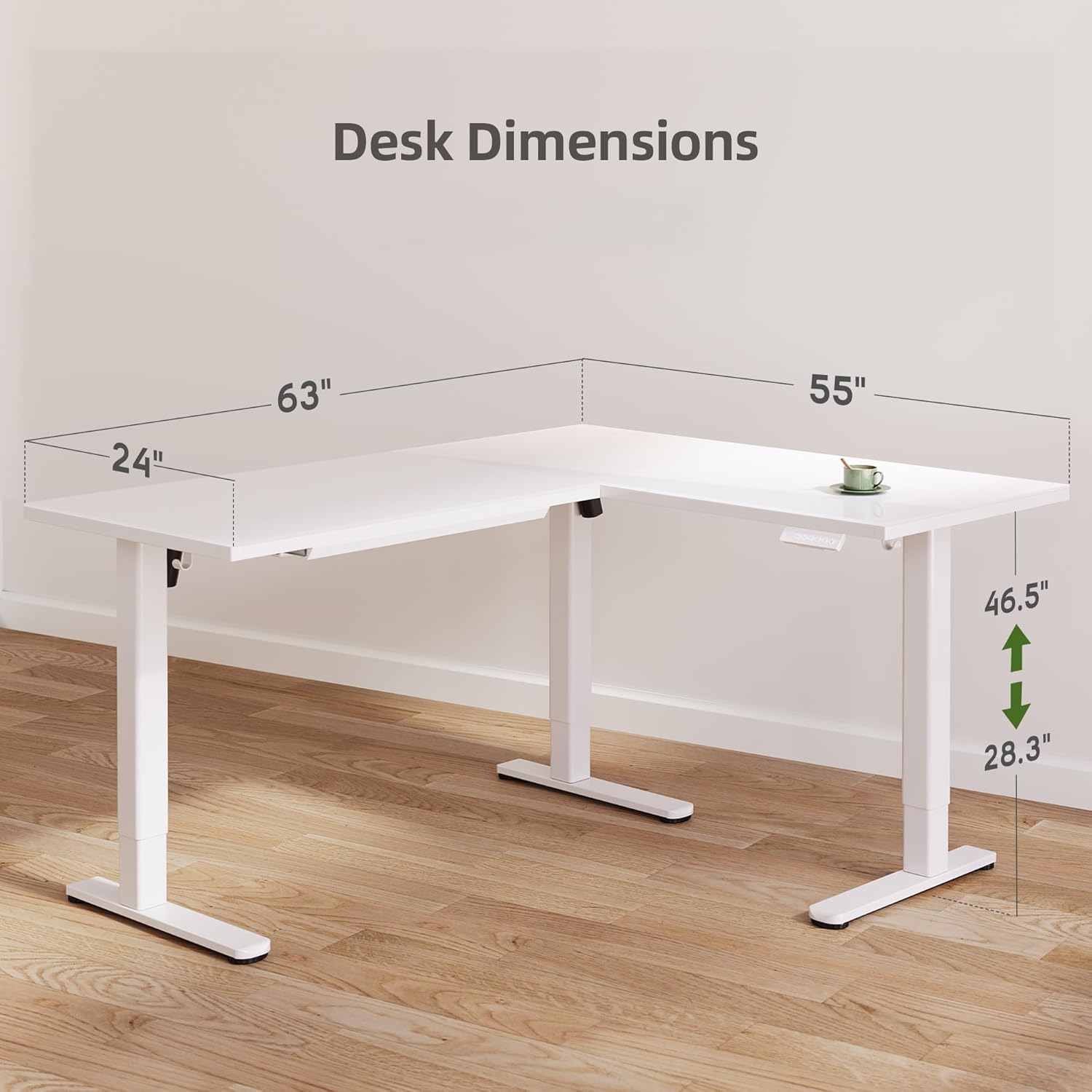
Image: Detailed diagram displaying the desk dimensions: 63 inches long, 55 inches wide, 24 inches deep, and an adjustable height range from 28.3 to 46.5 inches.
9. Warranty and Support
9.1 Warranty Information
The INNOVAR L Shaped Glass Standing Desk comes with a limited manufacturer's warranty. Please refer to the warranty card included in your package for specific terms and conditions regarding parts and labor coverage.
9.2 Customer Support
For any questions, assistance with assembly, troubleshooting, or warranty claims, please contact INNOVAR customer support. You can typically find contact information on the product packaging or through the retailer where you purchased the desk.
For additional support, visit the INNOVAR Store on Amazon.