
Gaimoo GM300
Gaimoo GM300 Mini Projector User Manual
Model: GM300
1. Introduction
Thank you for choosing the Gaimoo GM300 Mini Projector. This portable video projector is designed to provide a high-quality entertainment experience with its native 1080p resolution, 4K support, and smart features. This manual will guide you through the setup, operation, and maintenance of your new projector to ensure optimal performance and enjoyment.

Figure 1.1: Gaimoo GM300 Mini Projector and Included Accessories

Figure 1.2: Versatile Usage Scenarios
2. Safety Instructions
Please read all safety instructions carefully before using the projector. Keep this manual for future reference.
- Do not look directly into the projector lens when the lamp is on. The intense light can cause eye damage.
- Ensure proper ventilation. Do not block ventilation openings.
- Use only the power adapter provided with the projector.
- Do not expose the projector to rain, moisture, or extreme temperatures.
- Avoid placing the projector on unstable surfaces.
- Do not attempt to disassemble or repair the projector yourself. Refer all servicing to qualified personnel.
- Keep the projector away from water and other liquids.
- Clean the projector only with a dry, soft cloth.
3. Package Contents
Please check the package contents upon unboxing. If any items are missing or damaged, contact customer support.
- 1 x Gaimoo GM300 Projector
- 1 x Wireless Mouse with Receiver
- 1 x Remote Control
- 1 x HDMI Cable
- 1 x Power Adapter with Cable
- 1 x User Manual
4. Product Overview
4.1. Components
Familiarize yourself with the main components of your Gaimoo GM300 projector.
- Projection Lens: Emits the image.
- Focus Wheel: Adjusts image clarity.
- Ventilation Grilles: For heat dissipation.
- Integrated Stand: Allows 180-degree rotation for flexible projection angles.
- Control Panel: Basic navigation buttons (if applicable, though mouse/remote are primary).

Figure 4.1: Projector Portability and Rotatable Stand
4.2. Ports
The projector features multiple ports for versatile connectivity.
- HDMI Port: Connects to laptops, gaming consoles (PS5, Switch), TV sticks, etc.
- USB Port: For connecting USB drives, external storage, or compatible devices.
- 3.5mm Headphone Jack: For connecting external speakers or headphones.
- Power Input: Connects the power adapter.

Figure 4.2: Available Ports and Connectivity Options
5. Setup
- Placement: Choose a flat, stable surface for the projector. The 180-degree rotatable design allows projection onto walls, ceilings, or screens. Ensure the projection distance is between 3 and 18 feet for an optimal screen size of 35 to 240 inches.
- Power Connection: Connect the provided power adapter to the projector's power input and then plug it into a power outlet.
- Power On: Press the power button on the projector or the remote control to turn it on.
- Focus Adjustment: Rotate the focus wheel on the projector until the image appears clear and sharp on the screen.
- Keystone Correction: The GM300 features automatic keystone correction to adjust the image shape. If further adjustment is needed, navigate to the settings menu using the remote or mouse.
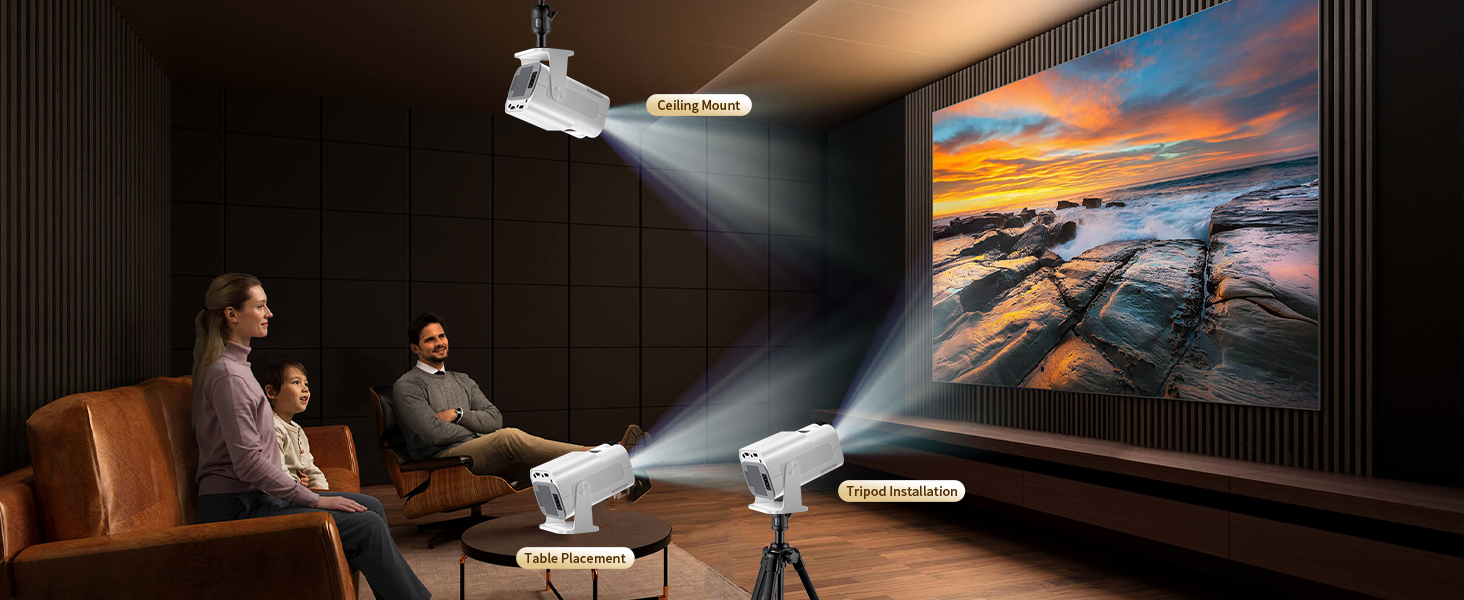
Figure 5.1: Flexible Mounting and Placement Options
6. Operating Instructions
6.1. Initial Setup
Upon first power-on, the projector will guide you through an initial setup process, including language selection and Wi-Fi network connection. Follow the on-screen prompts.
6.2. Connecting Devices
The GM300 offers various ways to connect your devices:
- HDMI: Connect your laptop, TV stick, gaming console, or other HDMI-enabled devices using the HDMI cable. Select the HDMI input source from the projector's menu.
- USB: Insert a USB drive into the USB port to play media files directly.
- Bluetooth 5.2: Connect external Bluetooth speakers or headphones for enhanced audio. The projector supports two-way Bluetooth audio transmission.
- Wi-Fi 6: Connect to your home network for access to online streaming services and screen mirroring.
- Wireless Screen Mirroring: Compatible with iOS, Android, and Windows devices for casting content wirelessly.
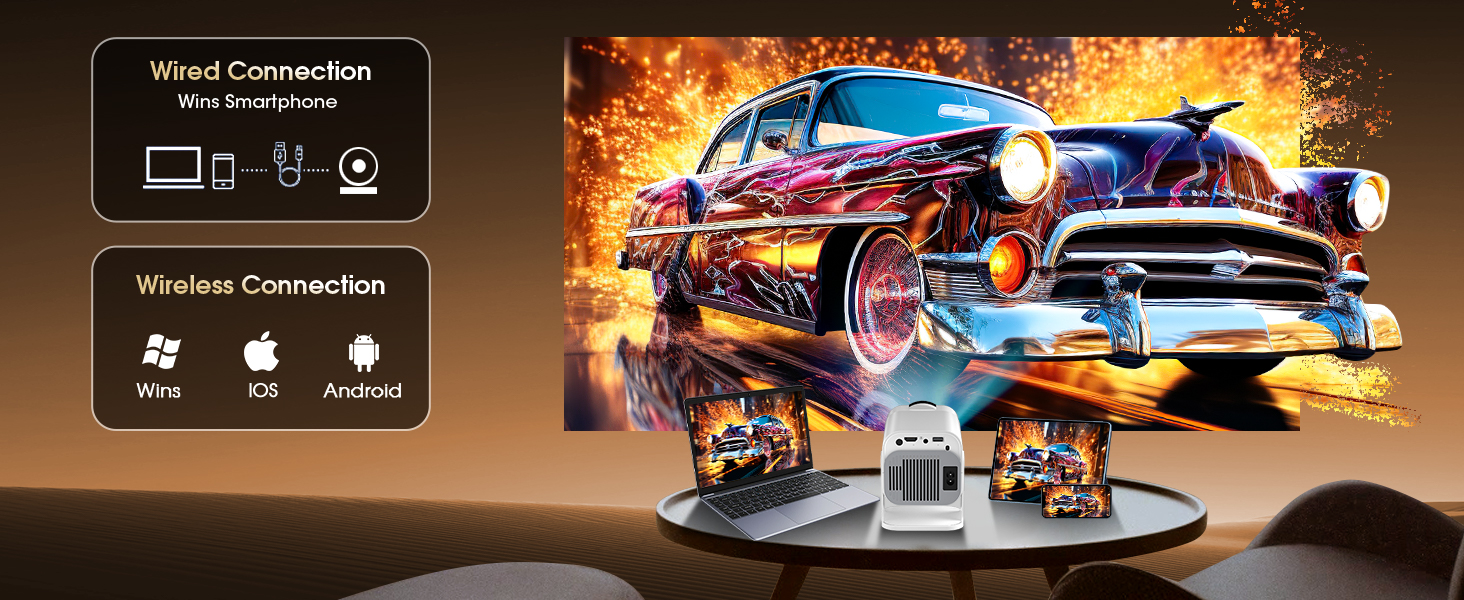
Figure 6.1: Wired and Wireless Connectivity
6.3. Adjusting Settings
Use the remote control or the included wireless mouse to navigate the projector's settings menu. Key adjustments include:
- Digital Zoom: Adjust the screen size from 35% to 100% without moving the projector.
- Picture Mode: Select from various preset picture modes (e.g., Standard, Movie, User) or customize brightness, contrast, color, etc.
- Sound Settings: Adjust volume, equalizer, or select audio output (internal speaker, Bluetooth).

Figure 6.2: Key Features and Adjustment Options
6.4. Smart TV Features
The Gaimoo GM300 comes with a built-in Android TV OS, providing access to a wide range of applications.
- App Access: Directly access popular streaming services like YouTube, Netflix, Prime Video, Hulu, and more without needing an external TV stick.
- Navigation: Use the remote control or the included wireless mouse for easy navigation within the Android TV interface and applications.

Figure 6.3: Built-in Smart TV Functionality
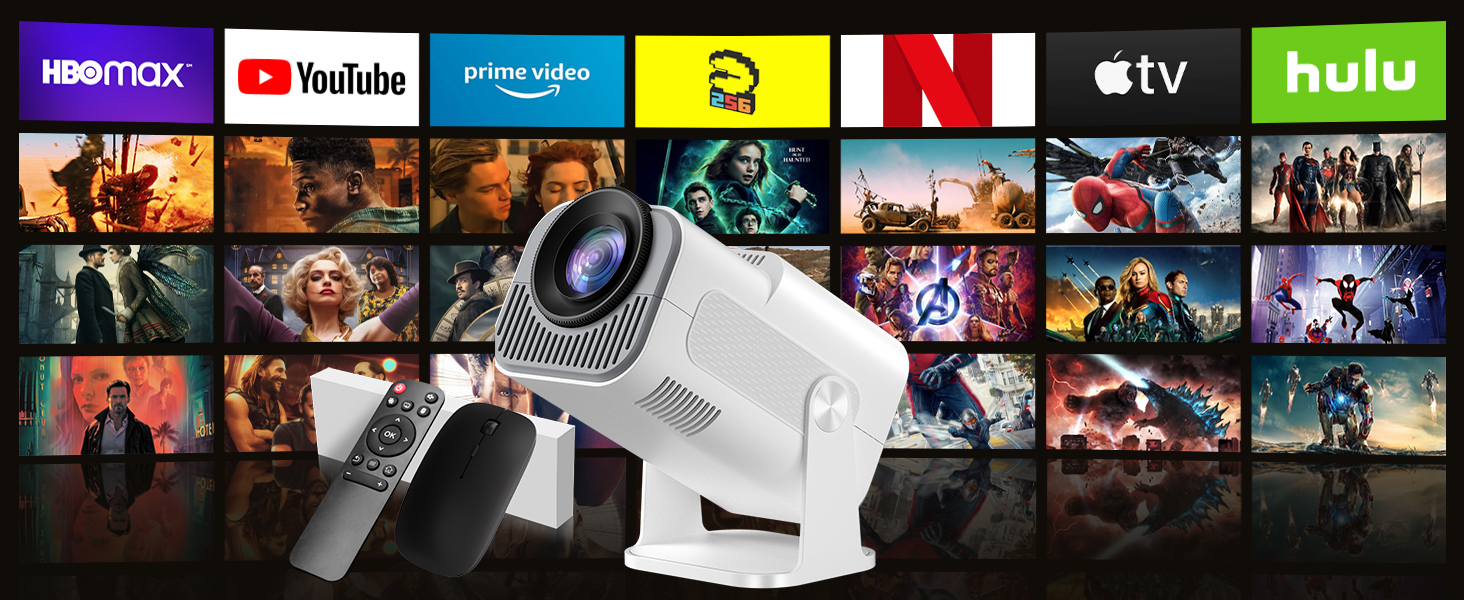
Figure 6.4: Access to Numerous Streaming Applications
7. Maintenance
Regular maintenance helps prolong the life of your projector and ensures optimal performance.
- Lens Cleaning: Use a soft, lint-free cloth specifically designed for optical lenses to gently wipe the projector lens. Do not use abrasive cleaners or excessive force.
- Dust Removal: Periodically clean the projector's exterior and ventilation openings with a soft, dry cloth or a small brush to prevent dust buildup.
- Storage: When not in use for extended periods, store the projector in a cool, dry place, away from direct sunlight and extreme temperatures. Use the original packaging or a protective case.
8. Troubleshooting
If you encounter issues with your Gaimoo GM300 projector, refer to the following common problems and solutions:
| Problem | Possible Cause | Solution |
|---|---|---|
| No image or distorted image | Loose cable connection, incorrect input source, out of focus, keystone issue. | Check all cable connections. Select the correct input source. Adjust the focus wheel. Use auto keystone correction or manual adjustment in settings. |
| No sound | Volume too low, muted, incorrect audio output, external device audio issue. | Increase volume. Check if muted. Ensure correct audio output is selected (internal speaker or Bluetooth). Check audio settings on connected device. |
| Remote control not working | Low batteries, obstruction, remote not paired. | Replace batteries. Remove any obstructions between remote and projector. Ensure remote is properly paired (refer to initial setup if needed). |
| Wi-Fi connection issues | Incorrect password, weak signal, router issue. | Double-check Wi-Fi password. Move projector closer to router. Restart router and projector. |
| Projector overheating | Blocked ventilation, prolonged use in hot environment. | Ensure ventilation openings are clear. Operate in a well-ventilated area. Allow projector to cool down if used for extended periods. |
If the problem persists after trying these solutions, please contact Gaimoo customer support.
9. Specifications
| Feature | Description |
|---|---|
| Model | GM300 |
| Display Technology | LCD LED |
| Native Resolution | 1920 x 1080p (Full HD) |
| 4K Support | Yes |
| Brightness | 1400 Lumens (as per image) |
| Contrast Ratio | 10000:1 |
| Projection Size | 35-240 inches |
| Projection Distance | 3-18 feet |
| Keystone Correction | Auto Keystone, Digital Keystone Correction |
| Digital Zoom | 35%-100% |
| Operating System | Built-in Android TV OS |
| Wi-Fi | Dual-band WiFi 6 |
| Bluetooth | Two-way Bluetooth 5.2 |
| Audio | Built-in HIFI 15W Stereo Speaker |
| Ports | 1 x HDMI, 1 x USB, 1 x 3.5mm Headphone Jack |
| Control Modes | Remote Control, Wireless Mouse |
| Dimensions | 21.5 x 15.9 x 13.4 cm |
| Weight | 860 g |

Figure 9.1: High-Quality Image Details
10. Warranty and Support
Gaimoo is committed to providing excellent customer service and support for your GM300 Mini Projector.
- Professional Services: Gaimoo offers professional customer service within 24 hours for any inquiries or issues you may have.
- Lifetime Technical Support: Enjoy lifetime technical support for your Gaimoo projector, ensuring long-term peace of mind.
For support, please refer to the contact information provided with your product packaging or visit the official Gaimoo website.

Figure 10.1: Gaimoo Customer Support
Related documentsGM300


Ask a question about this manual
Ask about setup, troubleshooting, compatibility, parts, safety, or missing instructions. Manuals+ will review the question and use this page’s manual context to help answer it.