
Introduction
The Fantech Aurora HG29 RGB 7.1 Gaming Headset is designed to provide an immersive audio experience for gaming. Featuring 7.1 virtual surround sound, a 50mm driver, and customizable RGB lighting, this headset connects via USB for broad compatibility and high-quality sound reproduction. This manual provides instructions for setup, operation, maintenance, and troubleshooting to ensure optimal performance.
Setup
1. Connecting the Headset
Connect the USB 2.0 connector of the Fantech Aurora HG29 headset to an available USB port on your computer or compatible gaming console. The headset is designed for plug-and-play functionality, and drivers should install automatically.
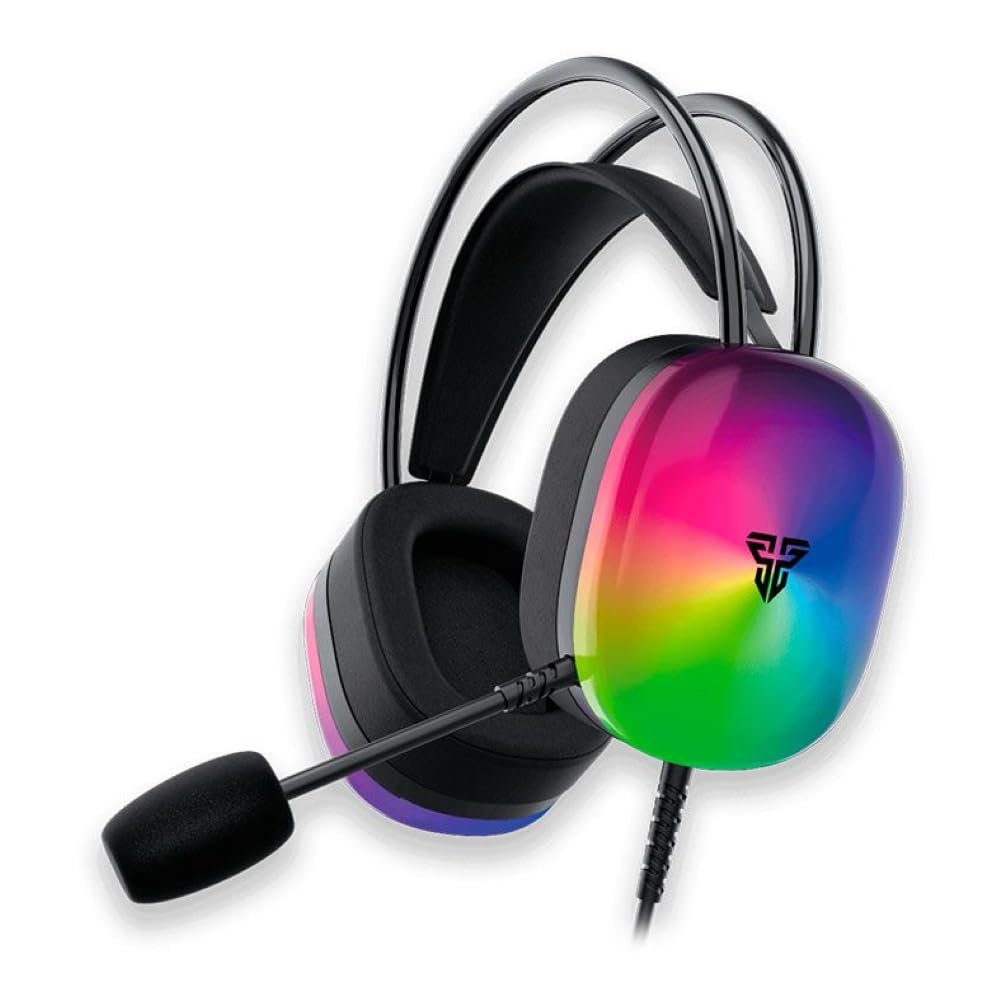
Image: Fantech Aurora HG29 RGB Gaming Headset, showing the USB cable connection point.
2. Audio Settings Configuration
- Windows: Navigate to 'Sound Settings' (right-click the speaker icon in the taskbar). Select 'Fantech Aurora HG29' as the default playback and recording device.
- macOS: Go to 'System Preferences' > 'Sound'. Select 'Fantech Aurora HG29' for both 'Output' and 'Input'.
- Gaming Consoles: Ensure the headset is recognized and selected as the audio output and input device in the console's system settings.
3. Microphone Setup
Adjust the flexible microphone boom to a comfortable position near your mouth. Ensure the microphone is not muted in your system settings or via any inline controls on the headset cable.
Operating Instructions
1. Volume Control
The headset features an inline volume control wheel on the cable. Rotate the wheel up to increase volume and down to decrease volume. Adjust to a comfortable listening level.
2. Microphone Mute
An inline switch on the cable allows you to quickly mute or unmute the microphone. Slide the switch to the 'Mute' position to disable the microphone, and to the 'Unmute' position to enable it.

Image: Fantech Aurora HG29 RGB Gaming Headset, displaying the earcups and adjustable headband.
3. RGB Lighting
The headset features automatic RGB lighting. Once connected via USB, the RGB lights on the earcups will illuminate. There are no specific controls for the RGB lighting on the headset itself; it operates automatically.
4. Headset Adjustment
Adjust the headband to fit comfortably on your head. The earcups are designed to sit over your ears for optimal sound isolation and comfort during extended use.
Maintenance
1. Cleaning
- Use a soft, dry cloth to wipe down the earcups and headband.
- For ear cushions made of leather or memory foam, a slightly damp cloth can be used, but ensure they are completely dry before use.
- Avoid using harsh chemicals or abrasive cleaners, as these can damage the headset's finish and materials.
2. Storage
Store the headset in a cool, dry place away from direct sunlight and extreme temperatures. Avoid placing heavy objects on the headset to prevent damage to the headband or earcups. Coil the cable loosely to prevent kinks and damage.
3. Cable Care
Avoid pulling the cable forcefully or bending it sharply, especially near the connectors. This can lead to internal wire damage and intermittent connectivity issues.
Troubleshooting
| Problem | Possible Cause | Solution |
|---|---|---|
| No sound from headset | Headset not selected as default audio device; volume too low; cable not fully connected. | Check system sound settings; increase volume via inline control or system; ensure USB cable is securely plugged in. |
| Microphone not working | Microphone muted; not selected as default input device; microphone boom not positioned correctly. | Check inline mute switch; verify system input settings; adjust microphone position. |
| RGB lighting not on | Headset not powered (USB not connected or faulty). | Ensure USB cable is properly connected to a powered port. Try a different USB port. |
| Sound distortion or static | Loose connection; interference; faulty audio source. | Reconnect USB cable; try a different USB port; test with another audio source. |
| Headset uncomfortable | Improper adjustment. | Adjust the headband and earcup position for a better fit. Take breaks during long gaming sessions. |
Specifications
| Brand | Fantech |
| Model Name | Aurora HG29 |
| Item Model Number | HG29-BK |
| Connectivity Technology | Wired (USB 2.0) |
| Headphone Jack | USB |
| Headphone Form Factor | Over Ear |
| Ear Placement | Over Ear |
| Driver Size | 50mm |
| Frequency Range | 20-20KHz |
| Impedance | 32 Ohm ± 15% |
| Speaker Sensitivity | 110+/-3 dB |
| Microphone Sensitivity | -38+/-2 dB |
| Microphone Impedance | 2.2 K Ohm |
| Microphone Directionality | Omnidirectional |
| LED | RGB |
| Cable Length | 2 meters |
| Materials | Leather Or Memory Foam |
| Compatible Devices | Desktop computers, laptops, and digital video game consoles |
| Water Resistance Level | Waterproof |
| Noise Control | None |
| Included Components | Ear Cushions |
| Color | Black |
| Package Dimensions | 23.7 x 20 x 8.4 cm |
| Item Weight | 390 grams |
Warranty Information
Specific warranty details for the Fantech Aurora HG29 RGB 7.1 Gaming Headset are not provided in this manual. Please refer to the official Fantech website or your retailer's purchase documentation for comprehensive warranty terms and conditions.
Support
For further assistance, technical support, or inquiries regarding your Fantech Aurora HG29 RGB 7.1 Gaming Headset, please visit the official Fantech support website or contact their customer service department. Contact information can typically be found on the manufacturer's website or product packaging.


